
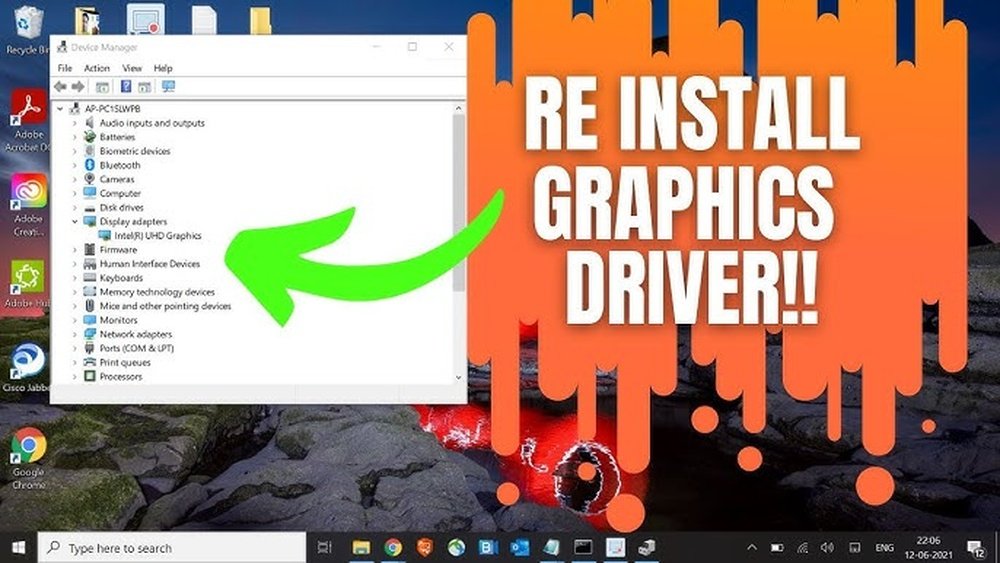
Is your computer acting up or showing strange graphics glitches? It might be time to reinstall your GPU driver.
You don’t need to be a tech expert to fix this—just a clear guide that walks you through each step. You’ll discover simple, effective ways to reinstall your GPU driver and get your system running smoothly again. Stick with me, and by the end, you’ll have the confidence to tackle this task on your own.
Ready to boost your computer’s performance? Let’s dive in.
Credit: www.drivereasy.com
Signs You Need To Reinstall Gpu Drivers
GPU drivers help your computer use the graphics card correctly. Problems with these drivers can cause various issues. Knowing the signs that show you need to reinstall GPU drivers saves time and stress. Watch for clear signals your graphics card may not work well.
Common Graphics Issues
Screen flickering or strange colors often point to driver problems. Display glitches like lines or blocks on the screen also occur. Sometimes, the screen may go black or freeze during use. These issues show the driver may be corrupted or outdated.
Performance Drops
Games or videos running slower than usual can signal driver trouble. Frame rates may drop or stutter unexpectedly. Applications using the GPU might lag or crash often. These symptoms suggest the driver is not working properly.
Error Messages
Errors like “Display driver stopped responding” are common signs. You might also see warnings about driver failures. These messages indicate the system cannot communicate well with the graphics card. Reinstalling the driver can fix these errors.
Preparing For Driver Reinstallation
Preparing for a GPU driver reinstallation is important. It helps prevent problems during the process. Taking some simple steps makes the reinstallation smoother and safer. These steps protect your data and system.
Backup Important Data
Backing up your important files is the first step. Save documents, pictures, and work files to an external drive or cloud. This prevents data loss if something goes wrong during the driver update.
Download Latest Drivers
Download the newest GPU drivers before uninstalling the old ones. Visit the official website of your GPU brand. Choose the correct model and operating system for the best results. Having drivers ready saves time and avoids interruptions.
Create A System Restore Point
A system restore point saves your current computer state. It allows you to go back if the new driver causes issues. Create this point through your system settings before starting the reinstallation. It acts as a safety net for your system.
Uninstalling Current Gpu Drivers
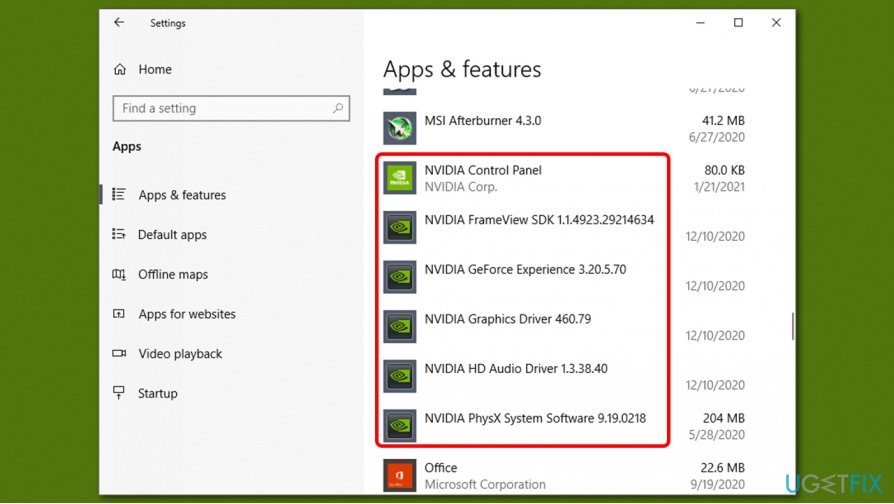
Uninstalling current GPU drivers is the first step in reinstalling your graphics card software. Removing old drivers helps avoid conflicts and errors during installation. It clears out any corrupted files or settings. This process ensures a clean slate for the new driver.
There are two common methods to uninstall GPU drivers. You can use Device Manager, a built-in Windows tool. Or choose Display Driver Uninstaller (DDU), a specialized program. Both methods work well but serve different needs.
Using Device Manager
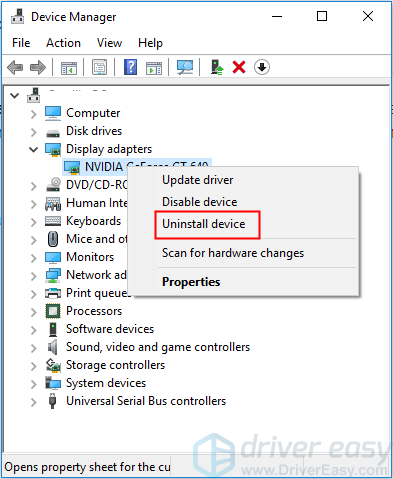
Device Manager allows you to remove GPU drivers quickly. Open it by right-clicking the Start menu and selecting Device Manager. Find “Display adapters” and expand the list. Right-click your GPU and select “Uninstall device.”
Check the box to delete driver software if available. Click “Uninstall” to remove the driver. Restart your computer to complete the process. This method uses only built-in Windows tools.
Using Display Driver Uninstaller (ddu)
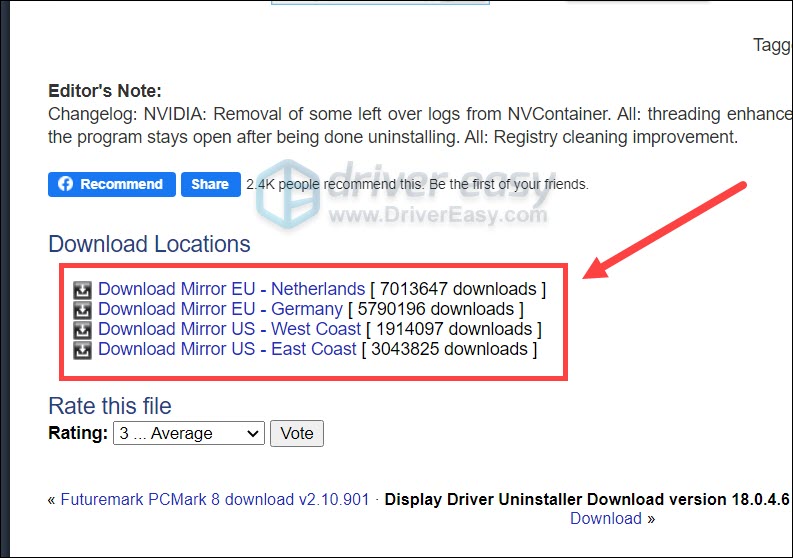
Display Driver Uninstaller is a free tool for thorough driver removal. Download and run DDU in safe mode for best results. It cleans leftover files, folders, and registry entries.
Open DDU and select your GPU type. Click “Clean and restart” to remove the current driver. Your PC will reboot automatically. This method prevents driver conflicts and is very thorough.
Credit: vixencomposites.com
Installing New Gpu Drivers
Installing new GPU drivers is essential for better graphics performance. Updated drivers fix bugs and improve compatibility with games and software. This process can be done manually or with special software from the GPU maker.
Manual Installation Steps
First, identify your GPU model. You can find this in your system settings or device manager. Visit the official website of your GPU brand, such as NVIDIA, AMD, or Intel. Search for the driver that matches your GPU model and operating system.
Download the driver file and save it on your computer. Before installing, uninstall the old driver to avoid conflicts. Open the downloaded file and follow the installation prompts. Restart your computer after installation for the changes to take effect.
Using Manufacturer Software
Most GPU makers offer software that updates drivers automatically. Examples include NVIDIA GeForce Experience and AMD Radeon Software. Download and install this software from the official site.
Open the software and let it scan your system for the current GPU driver version. The software will notify you if an update is available. Click the update button to download and install the latest driver. Restart your computer after the update completes.
Verifying Driver Installation
After reinstalling your GPU driver, checking if the installation worked is important. This step ensures your graphics card runs smoothly. It also helps catch problems early before they cause bigger issues.
Verifying the driver installation is simple. You can check your device status and run basic graphics tests. Both methods confirm your GPU is ready for use.
Checking Device Manager
Open Device Manager on your PC. Look for “Display adapters” and expand it. Your graphics card should appear without any warning signs. A yellow triangle means a driver problem.
Right-click your GPU and select “Properties.” Check the “Driver” tab. Confirm the driver version matches your recent installation. This step proves the driver is installed correctly.
Running Graphics Tests
Run a basic graphics test to see if the GPU works well. Use built-in tools like DirectX Diagnostic Tool (dxdiag). Open it by typing “dxdiag” in the Start menu search.
Check the “Display” tab for driver details and errors. Run simple 3D tests or games to test performance. Smooth graphics and no crashes mean the driver is stable.
Troubleshooting Common Installation Issues
Troubleshooting common installation issues helps ensure your GPU driver works well. Problems can stop the installation or cause poor performance. This section covers simple fixes for frequent problems.
Fixing Installation Failures
Installation failures often happen due to incomplete downloads or system errors. First, delete old driver files completely. Use a driver cleaner tool to remove leftovers. Restart your computer before trying again. Download the latest driver from the official website. Run the installer as an administrator. This gives the program full access to your system. Close all other programs during installation to avoid conflicts. Check your internet connection to prevent download corruption.
Resolving Driver Conflicts
Driver conflicts occur when multiple drivers clash on your system. They can cause crashes or slow performance. Open Device Manager and look for warning signs on GPU devices. Uninstall any old or duplicate drivers. Use the “Display adapters” section to find your GPU. After uninstalling, restart your PC to clear conflicts. Install the new driver fresh. Avoid using third-party driver update tools as they may cause problems. Keep your operating system updated to support new drivers.
Tips To Keep Gpu Drivers Updated
Keeping your GPU drivers updated is important for smooth computer performance. Updates fix bugs and improve compatibility with new software. They can also boost your system’s speed and stability. Following simple tips helps you maintain the latest driver versions without hassle.
Automatic Updates
Many GPU manufacturers offer software that updates drivers automatically. This tool runs in the background and downloads updates when available. It saves time and ensures you never miss critical updates. Turn on automatic updates in your GPU’s control panel for best results.
Windows also provides automatic driver updates through its update service. Check that your system allows these updates to keep drivers current. Automatic updates reduce the risk of outdated or faulty drivers causing issues.
Regular Maintenance
Regularly check your GPU drivers manually to confirm they are current. Visit the official website of your GPU maker for the latest versions. Compare the installed version with the newest one online. If your driver is old, download and install the update.
Remove old or corrupted drivers before installing new ones. This prevents conflicts and improves performance. Use driver cleaning tools if needed for a clean installation. Set a schedule to check drivers every few months for consistent care.
Credit: cruceroclick.com
Frequently Asked Questions
How Do I Uninstall My Current Gpu Driver?
To uninstall your GPU driver, open Device Manager, find Display Adapters, right-click your GPU, and select Uninstall. Restart your PC afterward for a clean slate before reinstalling the driver.
Where Can I Download The Latest Gpu Driver?
Visit your GPU manufacturer’s official website, like NVIDIA, AMD, or Intel. Search for your GPU model and download the latest compatible driver for your operating system.
What Is The Best Way To Reinstall A Gpu Driver?
Use the clean installation option during setup or uninstall the old driver first. Then, install the downloaded latest driver to ensure optimal performance and prevent conflicts.
Why Should I Reinstall My Gpu Driver?
Reinstalling fixes driver corruption, resolves display issues, and improves GPU performance. It also ensures compatibility with new software or games for a smoother experience.
Conclusion
Reinstalling your GPU driver can fix many computer problems. Follow each step carefully and take your time. Keep your drivers up to date for the best performance. This helps your computer run smoothly and without errors. If you face issues, try reinstalling the driver again.
A clean installation often solves common GPU troubles. Now you know how to handle driver problems confidently. Stay patient, and your system will work better soon.
