
Is your computer running slow or overheating? High CPU usage could be the reason.
When your CPU works too hard, everything feels sluggish, and your system struggles to keep up. But don’t worry—you can take control and reduce your CPU utilization. You’ll discover simple, effective steps to lighten the load on your processor. By the end, your computer will run smoother, faster, and more efficiently.
Ready to fix your CPU problems? Let’s dive in.
Causes Of High Cpu Usage
High CPU usage can slow down your computer. It can make apps lag or freeze. Knowing what causes this helps you fix the problem faster.
Background Processes
Many programs run in the background without your knowledge. These processes use CPU power even when you do not see them. Some are necessary, but too many can slow your system. Checking and closing unused background tasks can help lower CPU usage.
Malware And Viruses
Malware and viruses often use your CPU to run harmful tasks. They can slow down your computer and cause errors. Running a good antivirus scan regularly helps find and remove these threats. Keeping your system safe protects CPU performance.
Software Bugs
Errors in software code can cause high CPU use. Bugs may make programs run endlessly or use more resources than needed. Updating software to the latest version often fixes these problems. Reporting bugs helps developers improve the software.
Resource-heavy Applications
Some applications need a lot of CPU power to work well. Video editing and gaming apps are examples. Running many heavy programs at once can overload the CPU. Closing apps you do not need frees up resources and speeds up your computer.
Credit: www.avast.com
Monitoring Cpu Performance
Monitoring CPU performance is a key step to reduce CPU utilization. It helps you see how your computer uses its power. Watching the CPU allows you to find problems early. You can spot which programs or processes use too much CPU. This way, you keep your system running smoothly and fast.
Using Task Manager
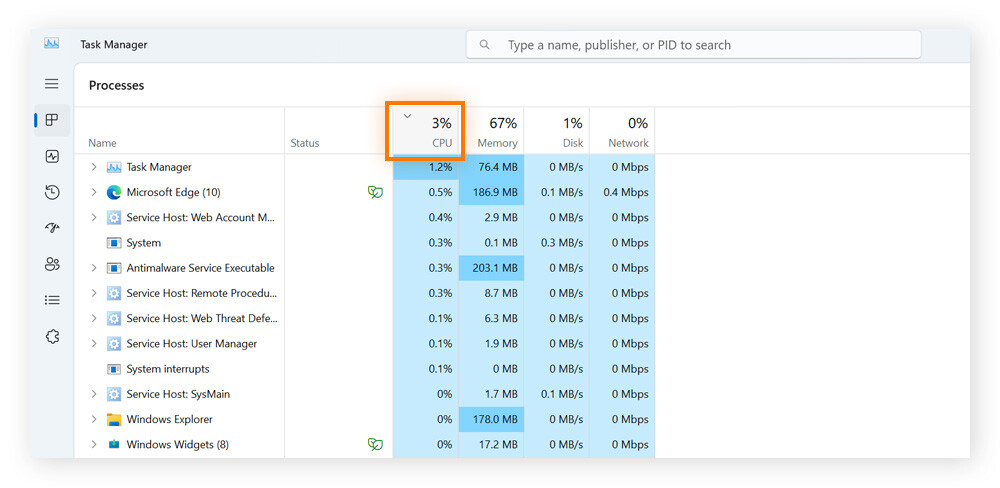
Task Manager is a built-in tool in Windows. It shows which programs use the most CPU power. Open Task Manager by pressing Ctrl + Shift + Esc. The “Processes” tab lists running apps and their CPU use. You can sort by CPU usage to find heavy users quickly. Task Manager also shows CPU performance over time in the “Performance” tab. This helps track how busy your CPU is at any moment.
Third-party Tools
Third-party tools offer more details than Task Manager. Apps like HWMonitor or Process Explorer provide deep insights. They show CPU temperature, speed, and core usage. These tools can help track CPU spikes or unusual activity. Many are free and easy to use. They give a clear picture of CPU health and workload.
Identifying Resource Hogs
Resource hogs are programs that use too much CPU power. These can slow down your computer. Look for apps with high CPU percentages in Task Manager or tools. Sometimes, background processes cause high CPU load. Ending or updating these programs often reduces CPU use. Identifying and managing resource hogs keeps your system fast and stable.
Optimizing Software Settings
Optimizing software settings is a simple way to lower CPU usage. It helps your computer run smoothly and faster. Small changes can make a big difference. You do not need to be an expert to improve performance.
Adjusting Startup Programs
Many programs start automatically with your computer. Some are not needed right away. They use CPU power and slow down your system. Open the task manager or system settings to see startup programs. Disable ones that you do not need immediately. This reduces CPU load after booting.
Updating Drivers And Software
Old drivers and software can cause high CPU use. Updates fix bugs and improve efficiency. Check for updates regularly for your hardware drivers. Also, update your operating system and apps. This keeps your system stable and fast.
Configuring Power Settings
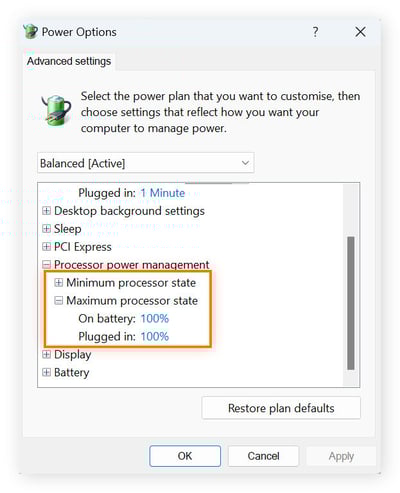
Your computer’s power settings affect CPU performance. Balanced or power saver modes reduce CPU use. High-performance mode uses more CPU power but drains battery. Choose settings that match your needs. Lower power modes help reduce CPU workload and heat.
Credit: www.avast.com
Managing Background Tasks
Managing background tasks plays a key role in reducing CPU usage. Many apps and services run quietly in the background. They consume CPU power without you noticing. Controlling these tasks helps free up resources for important work. It can also make your computer faster and more responsive.
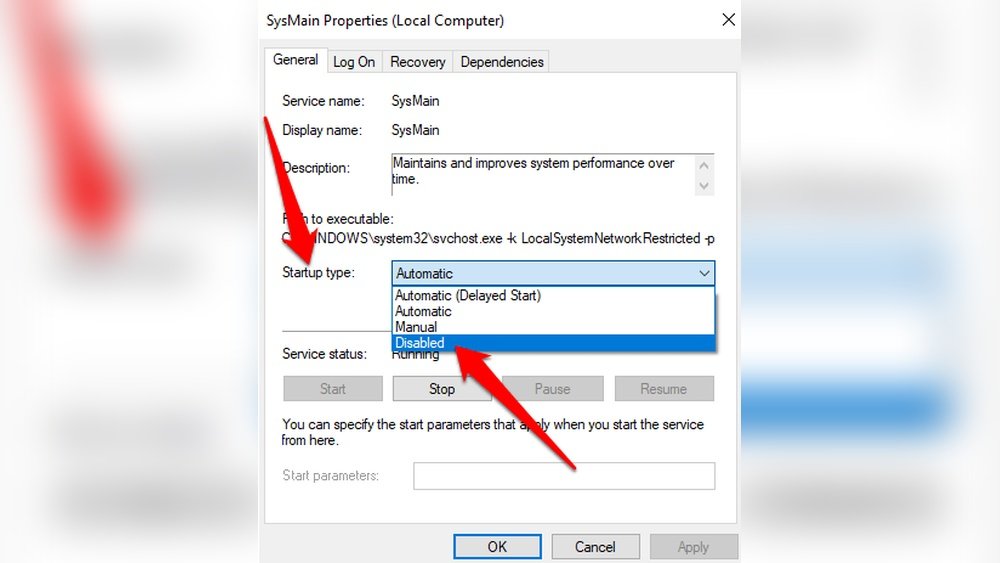
Disabling Unnecessary Services
Some services start automatically and run all the time. They may not be needed for your daily tasks. Turning off these services can lower CPU use. Use the task manager or system settings to find them. Only disable services you know are safe to stop. This keeps your system stable and efficient.
Scheduling Intensive Tasks
Heavy tasks like updates or backups use a lot of CPU. Running them during work hours slows your computer. Set these tasks to run at night or during breaks. This spreads CPU load and keeps the system smooth. Most operating systems offer tools to schedule these jobs easily.
Using Lightweight Alternatives
Some programs use more CPU than others. Choose apps designed to be light on resources. Lightweight software performs basic functions without high CPU demand. Switching to such alternatives can reduce background CPU load. It helps keep your system fast and stable.
Hardware Upgrades And Maintenance
Hardware upgrades and maintenance play a big role in reducing high CPU usage. Proper care of your computer’s parts can help it run smoothly. Sometimes, simple fixes can lower CPU load without buying new components. Other times, upgrading hardware is the best choice.
Cleaning Dust And Improving Cooling
Dust buildup blocks airflow inside your computer. This causes the CPU to get too hot. Overheating makes the CPU work harder and slows down the system. Clean dust from fans, vents, and heat sinks regularly. Use compressed air to blow dust out safely. Better airflow keeps the CPU cool and reduces its workload.
Upgrading Cpu Or Ram
Older CPUs can struggle with modern software demands. Upgrading to a faster CPU can lower usage and improve speed. RAM also affects CPU load. If your system has little RAM, the CPU works hard to manage memory. Adding more RAM helps the CPU handle tasks better. Both upgrades make your computer more efficient.
Checking For Hardware Failures
Faulty hardware can cause high CPU usage. Broken fans may lead to overheating. Damaged RAM can slow down processing. Hard drives with errors force the CPU to retry tasks. Run hardware diagnostic tools to find problems. Replace or repair failing parts to ease CPU stress. Regular checks keep your system healthy and fast.
Preventive Measures
Preventive measures help keep your CPU running smoothly. They stop problems before they start. Taking simple steps can reduce CPU use and keep your system fast and stable.
Regular System Scans
Run system scans often to find hidden threats. Viruses and malware can use up CPU power. Scans detect these problems early. Use trusted antivirus software for best results. Set scans to run automatically for ease. This keeps your CPU free from unnecessary tasks.
Keeping Software Updated
Update software regularly to fix bugs and improve performance. Old software can cause high CPU usage. Updates often include security patches and efficiency fixes. Turn on automatic updates if possible. This ensures your system runs on the latest version. Updated software uses CPU power more wisely.
Avoiding Untrusted Downloads
Download files only from trusted sources. Untrusted files may contain malware that overloads the CPU. Check the website’s reputation before downloading. Avoid clicking on suspicious links or pop-ups. This reduces the risk of infecting your system. A clean system means lower CPU use and better speed.

Credit: superuser.com
Frequently Asked Questions
What Causes High Cpu Utilization On Computers?
High CPU utilization is often caused by resource-heavy applications, background processes, malware, or outdated software. It can also result from insufficient hardware or system overheating. Identifying and managing these factors helps reduce CPU load and improve overall system performance effectively.
How Can I Monitor Cpu Usage On Windows?
You can monitor CPU usage on Windows using the Task Manager. Press Ctrl+Shift+Esc, go to the Performance tab, and select CPU. This tool shows real-time CPU usage, helping you identify processes consuming excessive resources for better management and optimization.
What Steps Reduce Cpu Utilization Effectively?
To reduce CPU utilization, close unnecessary programs, update software, scan for malware, and adjust system settings. Additionally, optimize startup items and consider hardware upgrades. These steps help maintain balanced CPU usage and enhance system speed and responsiveness.
Does Updating Software Help Lower Cpu Usage?
Yes, updating software often fixes bugs and improves performance. Updated programs use resources more efficiently, reducing CPU strain. Regular updates ensure compatibility and security, contributing to optimal CPU utilization and system stability.
Conclusion
Reducing CPU usage helps your computer run smoother and faster. Close unused programs and keep software updated. Check for background tasks that use too much power. Adjust settings to balance performance and energy use. Regular maintenance keeps your system healthy.
Small changes bring big improvements. Keep an eye on CPU activity to catch issues early. These simple steps save time and frustration. Your computer will thank you.
