
Is your computer running hotter than it should? High CPU temperatures can slow down your system, cause crashes, and even damage your hardware over time.
But don’t worry—you have the power to fix this. You’ll discover simple and effective ways to reduce your CPU temperature. By following these tips, you’ll keep your computer running smoothly and extend its lifespan. Keep reading to find out how you can protect your device and boost its performance right now.

Credit: youtu.be
Causes Of High Cpu Temperature
High CPU temperature is a common problem for many computer users. It can cause slow performance and even damage the CPU. Understanding what causes this heat is important. Below are some main reasons why CPUs get too hot.
Poor Airflow In The Case
Airflow moves heat away from the CPU and other parts. If the case has poor airflow, hot air stays inside. This makes the CPU temperature rise quickly. Cases with few fans or blocked vents often have poor airflow. Proper airflow keeps the system cool and stable.
Dust Accumulation
Dust gathers inside the computer over time. It covers fans, vents, and heat sinks. This dust blocks airflow and stops cooling parts from working well. Dust makes the CPU hotter by trapping heat. Cleaning dust regularly helps keep the CPU temperature low.
Overclocking Risks
Overclocking means running the CPU faster than normal. This increases heat output a lot. Without proper cooling, overclocking causes very high CPU temperatures. It can shorten the CPU’s life or cause crashes. Overclocking needs careful temperature control to avoid damage.
Inadequate Cooling Solutions
Some cooling systems are not strong enough for the CPU. Stock coolers may fail with heavy use or powerful CPUs. Poor-quality fans or thermal paste can also reduce cooling efficiency. Using better cooling parts helps keep the CPU temperature safe and stable.
Choosing The Right Cooling System
Choosing the right cooling system is key to reducing CPU temperature. The right cooler keeps your processor safe from heat damage. It helps your computer run smoothly and last longer. Understanding different cooling options makes a big difference.
Air Coolers Vs Liquid Coolers
Air coolers use fans and heat sinks to push heat away from the CPU. They are easy to install and usually cost less. Air coolers work well for most users and daily tasks.
Liquid coolers use water or coolant to move heat faster. They can cool CPUs better in tight spaces or high-performance setups. Liquid coolers need more care and can be pricier.
Thermal Paste Importance
Thermal paste fills small gaps between the CPU and cooler. It helps heat move quickly from the CPU to the cooler. Using good thermal paste lowers CPU temperature by improving heat transfer. Replacing old paste regularly keeps cooling efficient.
Upgrading Fans And Heat Sinks
Better fans move air faster and reduce heat more effectively. Look for fans with high airflow and low noise levels. Larger or thicker heat sinks absorb more heat. Upgrading these parts improves overall cooling without changing the entire system.
Optimizing Airflow Inside The Pc
Optimizing airflow inside the PC is a key step to reduce CPU temperature. Good airflow moves hot air out and brings cool air in. This helps keep your components safe and running well. Poor airflow traps heat, causing your CPU to run hot and slow down. Simple changes inside your PC case can make a big difference.
Proper Fan Placement
Place fans to create a clear airflow path. Intake fans should be at the front or bottom. They pull cool air into the case. Exhaust fans belong at the back or top. They push hot air out. Balance the number of intake and exhaust fans. This setup helps air move smoothly through the case. Avoid blocking fans with cables or components.
Cable Management Tips
Tidy cables improve airflow inside the case. Use zip ties or Velcro straps to bundle cables. Route cables behind the motherboard tray if possible. Keep cables away from fans and airflow paths. Less clutter means air moves more freely. This reduces heat buildup and lowers CPU temperature. Spending time on cable management pays off in cooler temps.
Case Selection For Better Ventilation
Choose a case with good airflow design. Look for multiple fan mounts and mesh panels. Mesh front panels allow more air to enter. Cases with dust filters help keep components clean. Bigger cases often provide better airflow space. Avoid cases with limited vents or solid panels. Better ventilation means your CPU stays cooler during work or play.

Credit: softwareg.com.au
Cleaning And Maintenance Tips
Keeping your CPU cool helps your computer run better and last longer. Regular cleaning and maintenance stop dust and dirt from blocking airflow. This can reduce the CPU temperature significantly. Simple steps can make a big difference in your computer’s health.
Removing Dust Safely
Dust builds up inside your computer over time. It blocks fans and vents. Use a can of compressed air to blow dust away. Hold the can upright and spray in short bursts. Avoid touching the parts inside to prevent damage. Clean your computer every few months for best results.
Regular Hardware Checkups
Check your computer’s fans and vents often. Make sure fans spin freely and quietly. Replace any fan that makes noise or stops working. Keep vents clear from objects or dust. Regular checks keep airflow smooth and CPU temperature low.
Reapplying Thermal Paste
Thermal paste helps transfer heat from the CPU to the cooler. Over time, it can dry out and become less effective. Remove the old paste carefully with alcohol wipes. Apply a small, pea-sized amount of new thermal paste on the CPU. This helps keep the CPU cooler and improves performance.
Software Solutions To Control Temperature
Controlling CPU temperature through software is a smart way to keep your computer cool. Software tools help monitor and adjust settings that affect temperature. These solutions can prevent overheating and improve performance.
Monitoring Cpu Temperature
Monitoring software shows real-time CPU temperature. It helps you see if the CPU is running too hot. Popular tools like HWMonitor or Core Temp give clear readings. You can check temperature before problems start. This simple step keeps your system safe.
Adjusting Fan Speeds
Many programs let you control your computer’s fan speed. Faster fans cool the CPU better but make more noise. Slower fans are quiet but may cause heat build-up. Software like SpeedFan lets you find the right balance. Adjusting fans helps reduce CPU temperature effectively.
Power Management Settings
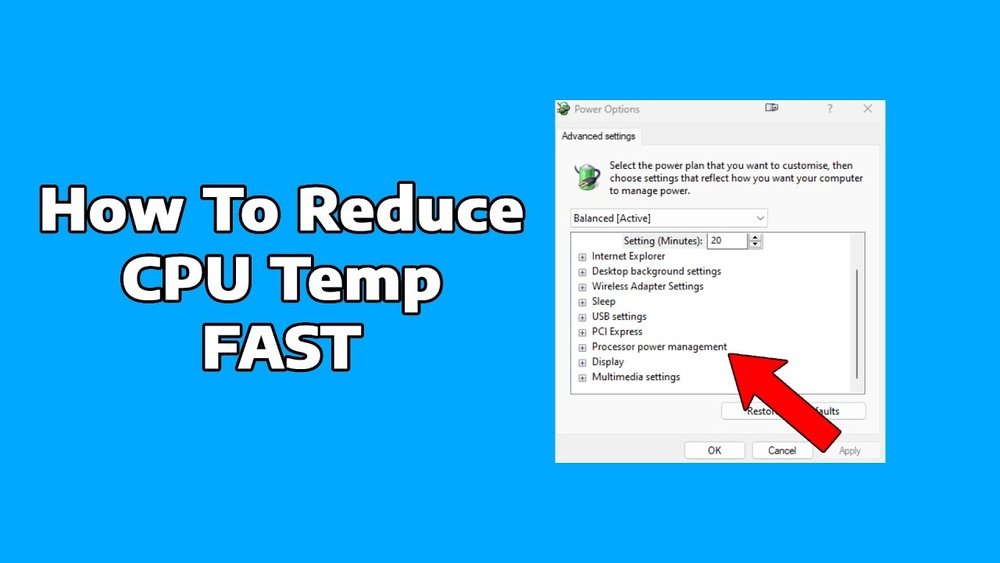
Power settings affect how hard your CPU works. Lowering CPU speed or changing power plans reduces heat output. Windows and Mac have built-in power management options. Choose balanced or power saver modes to keep temperature down. This method saves energy and cools your CPU.
Credit: us.norton.com
Avoiding Common Mistakes
Reducing CPU temperature is key for a smooth and long-lasting computer. Many people make simple mistakes that cause the CPU to overheat. Avoiding these errors helps keep your system cool and running well.
Ignoring Warning Signs
High CPU temperature warnings are important. They tell you the system is too hot. Ignoring these alerts can cause damage. Listen to the signs and take action quickly.
Overclocking Without Proper Cooling
Overclocking makes your CPU faster but hotter. Without good cooling, the heat builds up fast. Use strong fans or liquid coolers to keep temperatures down. Skipping cooling upgrades risks serious damage.
Blocking Air Vents
Air vents let hot air escape and cool air enter. Blocking these vents traps heat inside. Keep vents clear of dust and objects. Good airflow is essential to lower CPU temperature.
Frequently Asked Questions
How Can I Lower My Cpu Temperature Quickly?
To lower CPU temperature fast, improve airflow by cleaning dust. Use quality thermal paste and ensure fans work properly. Avoid heavy tasks and close unnecessary apps to reduce load.
What Is The Ideal Cpu Temperature Range?
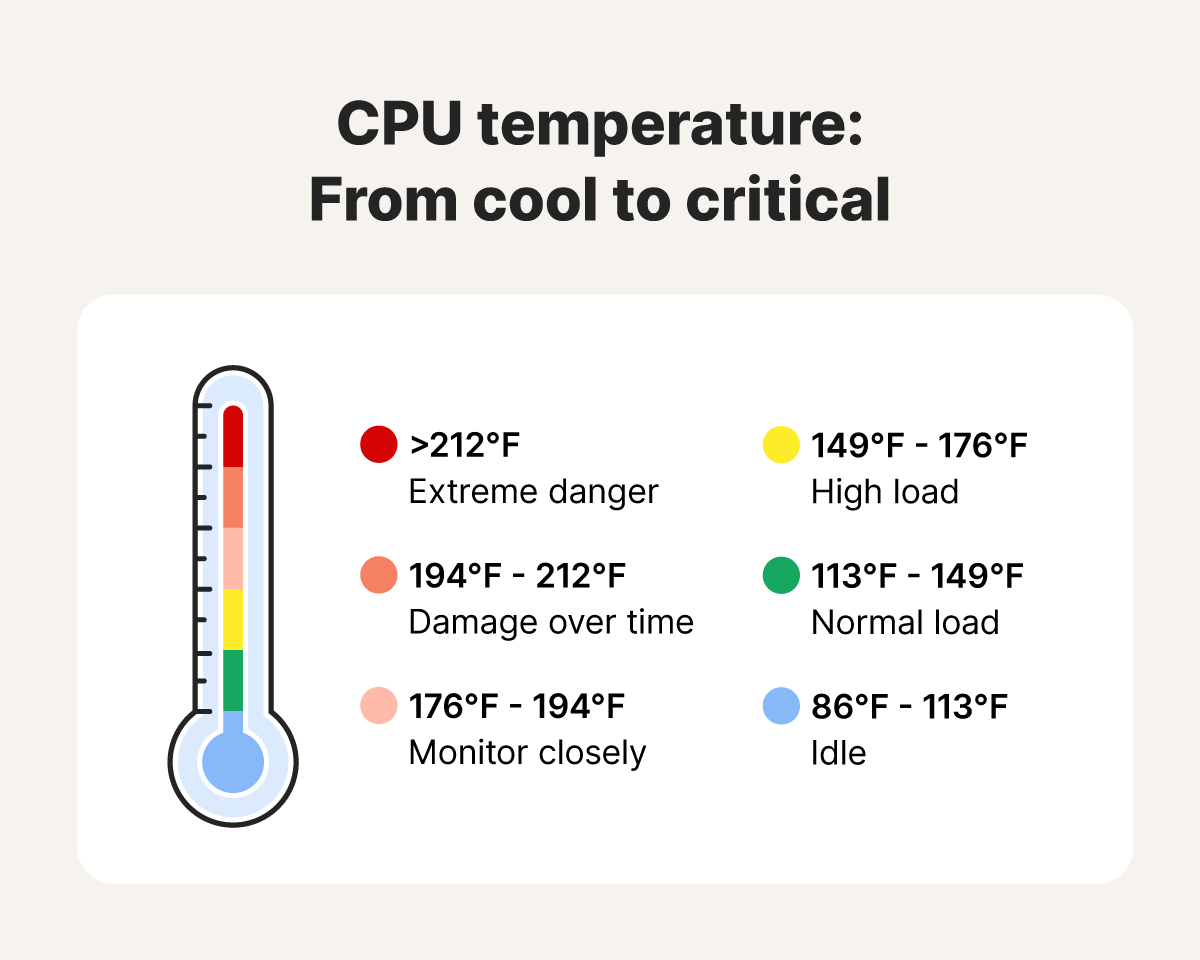
The ideal CPU temperature is between 30°C and 50°C at idle. Under load, temperatures up to 70°C are safe. Consistently above 80°C can cause damage and reduce performance.
Does Applying New Thermal Paste Help Reduce Cpu Heat?
Yes, applying fresh thermal paste improves heat transfer between CPU and cooler. Old or dried paste loses efficiency, causing higher temperatures. Reapplying paste can lower CPU heat significantly.
Can Upgrading My Cpu Cooler Reduce Temperature Effectively?
Upgrading to a better CPU cooler improves heat dissipation and lowers temperature. High-quality air coolers or liquid cooling systems offer better performance than stock coolers.
Conclusion
Keeping your CPU cool helps your computer run better and last longer. Simple steps like cleaning dust and improving airflow can lower temperatures. Using good thermal paste and quality fans also helps a lot. Watch your CPU temperature regularly to avoid problems.
Small efforts make a big difference in performance and safety. Stay mindful of your computer’s heat to enjoy smooth, reliable use every day.
