
Is your computer running slow or overheating? High CPU load might be the reason.
When your CPU is overloaded, everything from browsing to gaming can feel sluggish and frustrating. But don’t worry—you have the power to fix this. You’ll discover simple and effective ways to reduce your CPU load. By following these tips, you’ll boost your computer’s speed, improve performance, and avoid those annoying freezes.
Keep reading to learn how to make your system run smoother right now.
Credit: www.avast.com
Identify High Cpu Usage
High CPU usage can slow down your computer and cause programs to freeze. Identifying what causes this helps you fix the problem quickly. Start by checking which programs use the most CPU power. This shows what needs your attention first.
Use Task Manager Or Activity Monitor
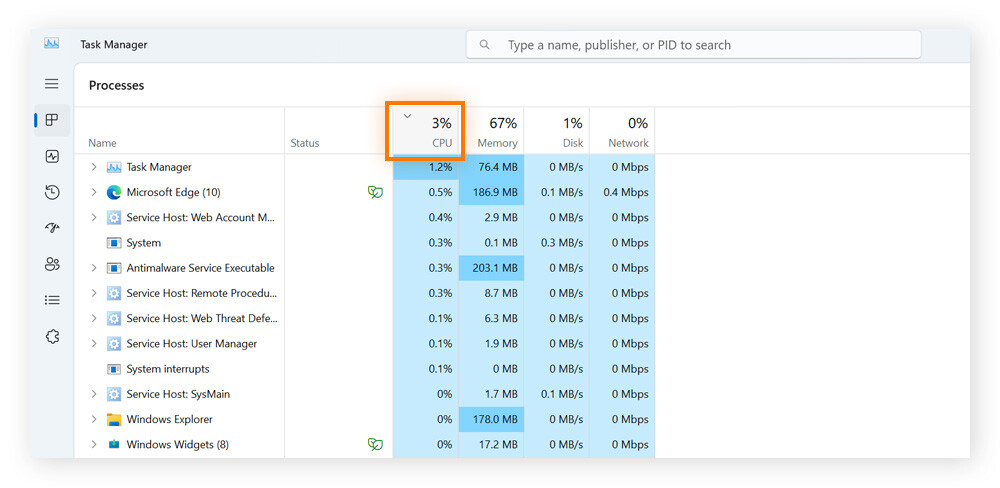
On Windows, open Task Manager by pressing Ctrl + Shift + Esc. It lists all running apps and processes. Sort them by CPU usage to see the highest users on top.
Mac users can open Activity Monitor from the Utilities folder. It works like Task Manager and shows CPU usage for each process. Spot the apps that use too much CPU power.
Monitor Background Processes
Some programs run quietly in the background and use CPU without notice. Check for these hidden processes in Task Manager or Activity Monitor. Look for unfamiliar or heavy users.
Stopping unnecessary background tasks can lower CPU load. Make sure to only stop tasks you recognize and know are safe to end.
Check For Malware And Viruses
Malware or viruses often cause high CPU usage. They run harmful tasks without your knowledge. Use a trusted antivirus program to scan your computer.
Remove any threats found immediately. Keeping your system clean protects CPU performance and overall speed.
Optimize Startup Programs
Optimizing startup programs helps lower CPU load right from the moment your computer boots. Many apps and services start automatically and run in the background. They use valuable CPU resources without your knowledge. Stopping unnecessary programs from launching at startup speeds up your system and reduces CPU strain.
Disable Unnecessary Startup Apps
Open the Task Manager to view startup apps. Click the Startup tab to see all programs set to run at boot. Identify apps you do not need immediately. Right-click and select Disable for those apps. This stops them from running in the background. It frees up CPU power and helps your computer start faster. Keep only essential apps enabled to maintain smooth operation.
Manage Services And Scheduled Tasks
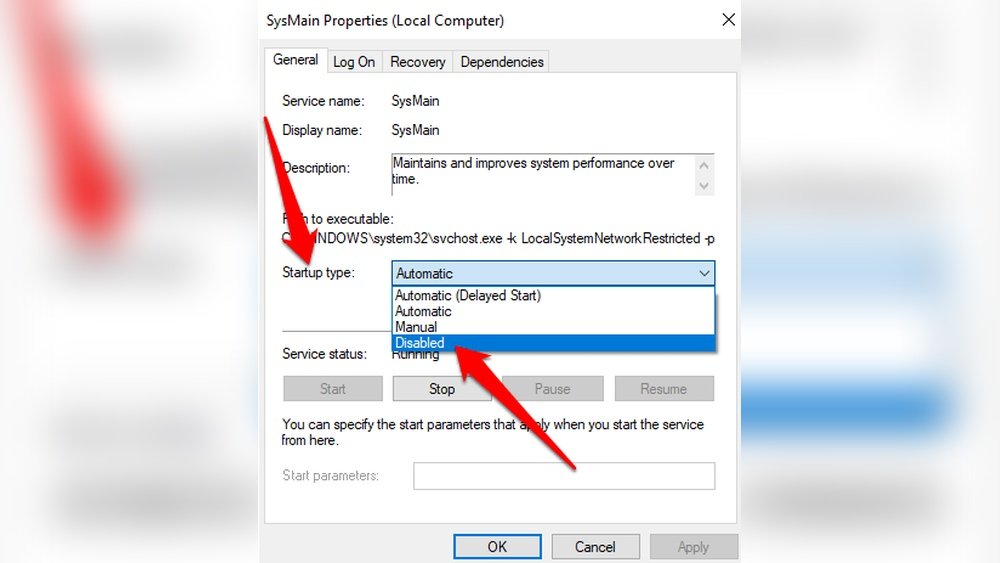
Some services and tasks run automatically with Windows. Open the Services app to check running services. Stop or disable services that are not important. Use the Task Scheduler to review scheduled tasks. Delete or disable tasks that run too often or are unnecessary. Managing these helps prevent constant CPU use. It ensures your system focuses on important processes only.
Update Software And Drivers
Updating software and drivers is key to reducing CPU load. Old software can slow down your computer and cause high CPU use. Updates fix bugs and improve how programs work. This helps your CPU run tasks faster and cooler.
Keeping your system and drivers current ensures smooth operation. It prevents crashes and stops apps from using too much CPU power. Regular updates keep your computer healthy and responsive.
Keep Operating System Updated
Operating system updates improve security and performance. They fix errors that cause high CPU usage. Updates include patches that optimize system processes. This reduces unnecessary CPU work and speeds up your device. Turn on automatic updates to stay current without extra effort.
Update Device Drivers Regularly
Device drivers control hardware components like the graphics card and network adapter. Outdated drivers can cause your CPU to work harder. New driver versions fix bugs and boost efficiency. Check driver updates from the manufacturer’s website or use trusted software. Regular updates help your hardware and CPU work better together.
Adjust Power Settings
Adjusting power settings is a simple way to reduce CPU load. It helps the processor work efficiently and saves energy. Proper settings keep your computer cool and fast. Changes in power options can balance speed and power use well.
Select Balanced Or High-performance Mode
Choose the Balanced mode for normal use. It adjusts CPU speed based on tasks. This mode saves power and lowers CPU stress. For demanding tasks, select High-Performance mode. It runs the CPU at full speed. This mode uses more power but boosts performance.
Configure Cpu Throttling Options
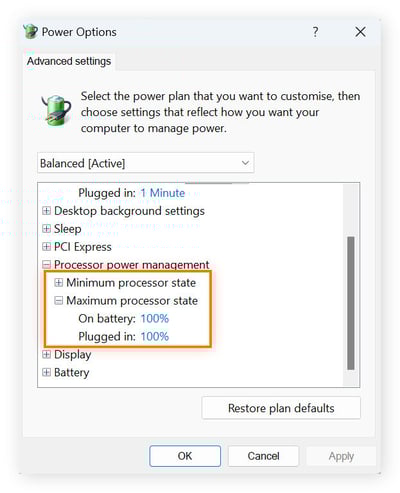
CPU throttling controls how fast your processor runs. Lower throttling reduces heat and power use. Open your power plan settings to find these options. Set the minimum processor state to a low value. This allows the CPU to slow down when idle. The maximum processor state can be set lower to limit peak CPU speed. These changes help reduce CPU load and improve stability.
Limit Resource-hungry Applications
Limiting resource-hungry applications helps reduce CPU load effectively. Many programs use a lot of processing power. This slows down your computer and causes delays. Managing these applications frees up CPU resources. Your system runs smoother and faster.
Focus on identifying and controlling apps that consume high CPU. This simple step improves overall performance. It also helps your computer last longer without overheating.
Close Or Restart Intensive Programs
Programs like video editors, games, and browsers with many tabs can use much CPU. Close apps you do not need right now. Restart programs that act slow or freeze. This clears temporary issues and frees CPU power. Check the Task Manager to find apps using the most CPU. Ending these tasks quickly lowers CPU load.
Use Lightweight Alternatives
Heavy apps are not always necessary. Use simpler versions or lighter programs instead. For example, choose a basic text editor instead of a full office suite. Lightweight apps use less CPU and memory. They keep your computer running faster and cooler. This choice helps especially on older or slower machines.
Credit: www.avast.com
Manage System Cooling
Managing system cooling is key to reducing CPU load. Heat makes the CPU work harder and slows down your computer. Keeping your system cool helps the CPU run smoothly and last longer.
Good cooling lowers the risk of overheating. This improves performance and prevents crashes. Two simple ways to manage cooling are cleaning dust and improving airflow.
Clean Dust From Hardware
Dust blocks air vents and fans inside your computer. This traps heat and raises CPU temperature. Open your case carefully and use compressed air to blow dust off fans and vents. Clean regularly to keep air flowing well. Avoid using a vacuum as it can damage parts.
Improve Airflow And Ventilation
Place your computer in a cool, open space. Avoid cramped spots where heat builds up. Use extra fans if needed to move air inside the case. Arrange cables neatly to avoid blocking airflow. Good ventilation helps heat escape and cool air enter.
Upgrade Hardware Components
Upgrading hardware components is a direct way to lower CPU load. It helps your computer handle tasks faster and more efficiently. Improving hardware parts reduces the stress on your CPU and speeds up your system.
Small changes in hardware can make a big difference. You do not need to replace the whole system. Focus on key components that affect CPU performance the most.
Add More Ram
RAM plays a big role in how fast your computer works. When you have more RAM, your system stores more data for quick access. This reduces the need for the CPU to work hard on loading and unloading information.
Adding RAM is often the easiest upgrade. It helps your computer run multiple programs smoothly. This keeps the CPU from slowing down under heavy use.
Consider Cpu Upgrade Or Replacement
Sometimes, the CPU itself needs an upgrade. Older CPUs may struggle with new software demands. A faster CPU can process tasks more quickly and use less power.
Replacing your CPU improves overall system speed. It lowers the chances of bottlenecks during heavy work. Check compatibility with your motherboard before buying a new CPU.

Credit: superuser.com
Utilize Performance-boosting Tools
Utilizing performance-boosting tools helps lower CPU load effectively. These tools manage system resources and optimize processes. They allow your computer to run smoother and faster. Choosing the right tools can make a noticeable difference.
Use Cpu Optimization Software
CPU optimization software helps control how your processor handles tasks. It stops unnecessary programs from using too much CPU power. These tools can prioritize important tasks and reduce background activity. Running such software regularly keeps your CPU from overheating and slowing down. Many programs have simple interfaces that anyone can use.
Run System Maintenance Utilities
System maintenance utilities clean up unwanted files and fix errors. They delete temporary files that slow down your CPU. Disk cleanup and defragmentation tools help your system access data faster. These utilities can also update drivers for better hardware performance. Running maintenance tasks frequently keeps your CPU load low and stable.
Frequently Asked Questions
How Can I Check My Cpu Load On Windows?
Open Task Manager by pressing Ctrl + Shift + Esc. Click the Performance tab. The CPU section shows current load percentage and usage details.
What Causes High Cpu Load On A Computer?
High CPU load often results from running many programs simultaneously. Background processes, malware, and software bugs can also increase CPU usage.
How Do I Reduce Cpu Load Effectively?
Close unnecessary programs and background processes. Update software and drivers regularly. Scan for malware and optimize startup applications.
Can Overheating Increase Cpu Load?
Yes, overheating causes CPU to throttle performance. This results in higher load and slower processing speeds. Ensure proper cooling and ventilation.
Conclusion
Reducing CPU load keeps your computer fast and smooth. Close apps you do not need. Check for programs using too much power. Restart your device to clear memory. Update software to fix bugs and improve speed. Clean your system from unnecessary files.
These small steps help your CPU work better. A lighter CPU load means less heat and longer device life. Keep your system simple and tidy. It pays off with better performance every day.
