
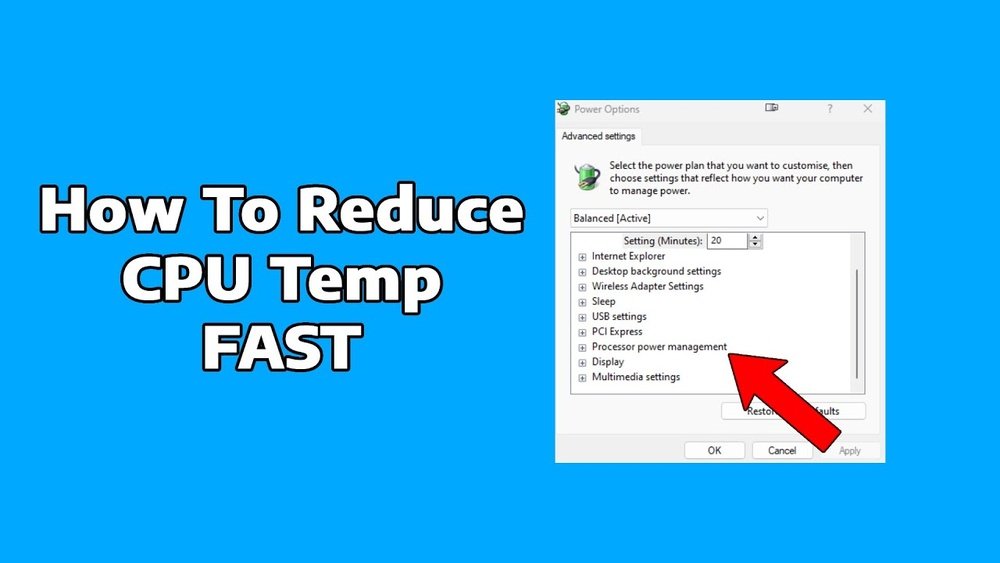
Is your computer overheating and slowing down just when you need it most? High CPU heat can cause your device to lag, crash, or even suffer permanent damage.
But don’t worry—there are simple, effective ways you can reduce your CPU heat right now. You’ll discover practical tips that will keep your system cool and running smoothly, so you can get back to work or play without interruption. Keep reading to learn how to protect your computer and boost its performance effortlessly.
Credit: www.szyunze.com
Causes Of Cpu Overheating
CPU overheating happens when the processor gets too hot. This can cause your computer to slow down or even shut off to protect itself. Knowing what causes CPU overheating helps you keep your system cool and running well.
High Workload And Overclocking
Running many programs at once makes the CPU work hard. This high workload raises the temperature quickly. Overclocking pushes the CPU beyond its limits. It increases heat because the processor uses more power.
Poor Airflow In The Case
Good airflow helps carry heat away from the CPU. A computer case with blocked vents or no fans traps heat inside. This causes the temperature to rise fast. Proper airflow keeps the inside cool and protects the CPU.
Dust And Dirt Accumulation
Dust builds up inside the case and on fans. It blocks airflow and slows down cooling parts. Dirt on heat sinks stops heat from moving away. Cleaning dust regularly keeps the CPU cooler and safer.
Thermal Paste Degradation
Thermal paste sits between the CPU and its cooler. It helps transfer heat away from the processor. Over time, the paste dries out or wears off. This reduces its ability to cool, causing higher CPU temperatures.

Credit: youtu.be
Improving Cooling Solutions
Improving cooling solutions is key to keeping your CPU temperature low. Better cooling helps your computer run smoothly. It also prevents damage caused by heat. Simple upgrades can make a big difference in performance and lifespan.
Upgrading Cpu Coolers
Stock coolers often lack power for heavy use. Upgrading to a better air cooler improves heat dissipation. Larger fans and more heat pipes increase airflow. This helps pull heat away from the CPU faster. Choose a cooler that fits your CPU socket and case size.
Using Liquid Cooling Systems
Liquid cooling offers efficient heat removal compared to air. It uses liquid to transfer heat away from the CPU. Radiators and pumps circulate the coolant to cool down parts. These systems work quietly and keep temperatures lower. Ideal for overclocking or high-performance tasks.
Adding Case Fans
Case fans improve airflow inside your computer case. They bring in cool air and push out hot air. Proper fan placement creates a steady air path. Front fans pull cool air in, rear fans push hot air out. More fans can reduce overall system temperature effectively.
Optimizing Airflow
Optimizing airflow is key to reducing CPU heat effectively. Good airflow moves hot air out and brings cool air in. This helps keep your CPU and other parts at safe temperatures. Simple steps can improve airflow and lower heat inside your computer case. Focus on organizing cables, choosing the right case, and positioning fans correctly.
Organizing Cables
Cables can block airflow and trap heat inside the case. Use cable ties or Velcro straps to bundle cables neatly. Keep cables away from fans and vents. This creates clear paths for air to flow freely. A clean interior helps cool air reach the CPU faster.
Choosing The Right Case
Cases with good ventilation improve cooling. Look for cases with mesh panels or vents on the front, top, and sides. Bigger cases offer more space for airflow and larger fans. Choose a case that fits your setup and has enough room for air to move around.
Positioning Fans For Optimal Flow
Place intake fans at the front or bottom of the case. They pull cool air inside. Exhaust fans go at the back or top to push hot air out. Arrange fans to create a smooth airflow path through the case. Balanced airflow prevents heat buildup around the CPU.
Maintaining Your Pc
Maintaining your PC is key to keeping CPU heat under control. A clean and well-kept computer runs cooler and lasts longer. Small care steps can prevent overheating and improve performance.
Cleaning Dust Regularly
Dust blocks airflow inside your PC. It settles on fans, vents, and heat sinks. This stops heat from escaping properly. Use a soft brush or compressed air to remove dust. Clean your PC every few months. Avoid using a vacuum, as it can cause static damage.
Reapplying Thermal Paste
Thermal paste helps move heat from the CPU to the cooler. Over time, it dries out and loses effectiveness. Removing old paste and adding fresh thermal paste improves heat transfer. Use a small amount and spread it evenly. This step lowers CPU temperature significantly.
Monitoring Temperature Levels
Keep track of your CPU temperature often. Use free software like HWMonitor or Core Temp. High temperatures show a cooling problem. Set alerts for dangerous heat levels. Early detection helps avoid hardware damage and slowdowns.
Adjusting Software Settings
Adjusting software settings can help lower CPU heat effectively. Software controls how much work your CPU does and how it cools down. By managing these settings, you can reduce heat without buying new hardware.
Managing Cpu Load
CPU load means how hard your processor is working. Running many programs at once raises CPU heat. Close unused apps to reduce load. Use Task Manager to see which programs use the most CPU. Limit background tasks to keep the CPU cool. Lowering CPU load helps keep temperatures down.
Tweaking Fan Curves
Fan curves tell your computer when to speed up fans. Faster fans cool the CPU better but can be noisy. Adjust fan curves in your BIOS or software. Set fans to start spinning faster at lower temperatures. This keeps your CPU cooler before it gets too hot. Proper fan settings balance noise and cooling.
Updating Bios And Drivers
BIOS and drivers control hardware functions, including cooling. Old software can cause poor CPU cooling. Check your motherboard’s website for updates. Install the latest BIOS and driver versions regularly. Updates often improve CPU temperature management. Keeping software updated helps your CPU run cooler and smoother.

Credit: www.reddit.com
Frequently Asked Questions
How Can I Prevent My Cpu From Overheating?
To prevent CPU overheating, ensure proper airflow in your PC case. Clean dust regularly and apply quality thermal paste. Use efficient cooling systems like fans or liquid coolers. Avoid overclocking beyond recommended limits to maintain safe CPU temperatures.
What Are The Best Cooling Methods For Cpus?
The best CPU cooling methods include air cooling with high-quality fans and heatsinks, and liquid cooling systems. Air cooling is cost-effective and easy to maintain. Liquid cooling offers superior heat dissipation, ideal for high-performance CPUs or overclocked systems.
How Often Should I Clean My Cpu Cooler?
Clean your CPU cooler every 3 to 6 months to maintain optimal performance. Dust buildup reduces cooling efficiency and increases CPU temperatures. Use compressed air and a soft brush carefully to avoid damage to fan blades and heatsinks.
Does Thermal Paste Improve Cpu Heat Reduction?
Yes, thermal paste improves heat transfer between the CPU and cooler. It fills microscopic gaps, enhancing thermal conductivity. Applying a thin, even layer of high-quality thermal paste reduces CPU temperatures and prevents overheating effectively.
Conclusion
Reducing CPU heat keeps your computer safe and fast. Clean fans and vents regularly to stop dust build-up. Use good cooling systems like extra fans or cooling pads. Avoid blocking air vents and keep your PC in a cool place.
Monitor CPU temperature with simple tools often. These small steps help your computer last longer and work better. Stay mindful of heat to avoid crashes and slowdowns. Simple care makes a big difference in performance and safety.
