
Is your computer’s CPU fan constantly making a loud, distracting noise? You’re not alone.
That constant whirring can be annoying and even make it hard to focus. But what if you could quiet your CPU fan and enjoy a calmer, smoother computing experience? You’ll discover simple, effective ways to reduce your CPU fan noise without spending a fortune.
Keep reading, and you’ll learn how to make your computer run quieter and more efficiently—starting right now.
Credit: www.youtube.com
Causes Of Cpu Fan Noise
CPU fan noise can be annoying and distracting. Understanding the causes helps reduce the sound. Several factors make the fan work harder or louder. Identifying these can improve your computer’s quietness and performance.
Dust Accumulation
Dust builds up inside the computer over time. It clogs the fan blades and vents. This makes the fan spin faster to cool the CPU. The extra speed causes more noise. Cleaning the dust regularly helps keep the fan quiet.
High Cpu Temperature
The CPU gets hot during heavy use. The fan speeds up to cool it down. Higher temperatures make the fan work harder. This leads to louder noise. Lowering the CPU temperature reduces the fan noise.
Worn-out Bearings
Fan bearings wear out after long use. This causes the fan to wobble or grind. The noise becomes constant and annoying. Replacing the fan can fix this issue. Healthy bearings keep the fan running smoothly and quietly.
Improper Fan Speed Settings
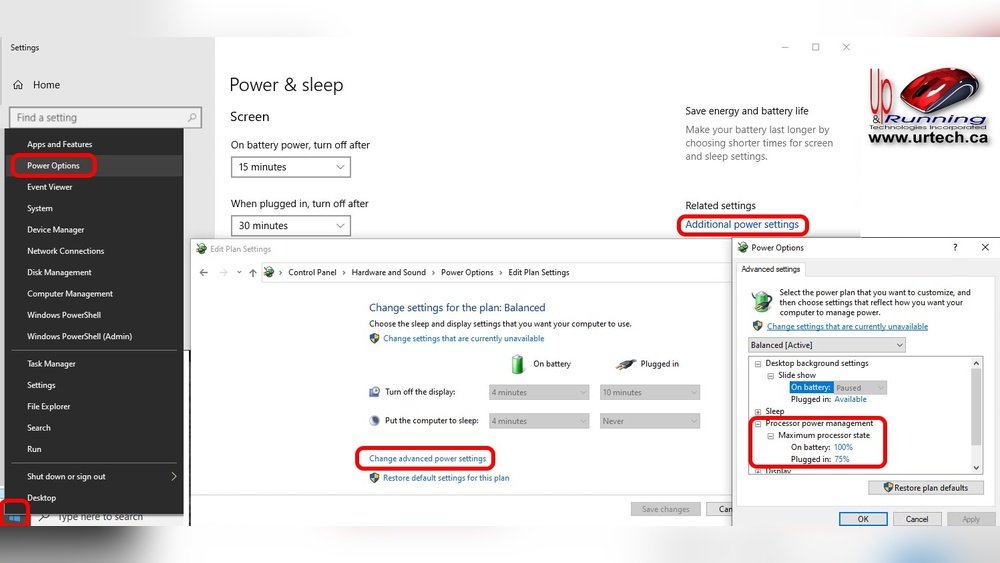
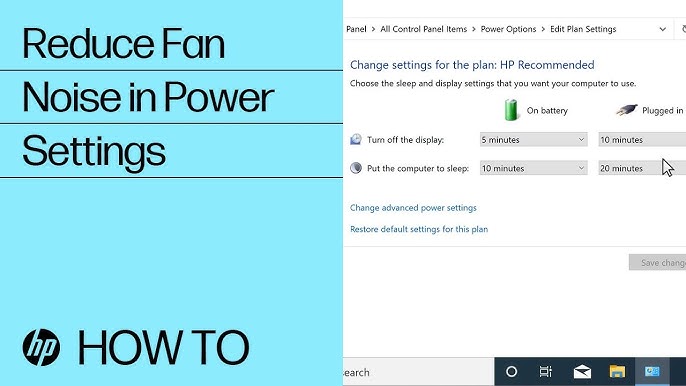
Fan speed settings control how fast the fan spins. Wrong settings can make the fan run too fast. This creates unnecessary noise. Adjusting the speed to match the CPU’s needs lowers the sound. Proper settings balance cooling and quietness.
Cleaning And Maintenance Tips
Cleaning and maintaining your CPU fan is key to reducing noise. Dust and dirt make the fan work harder. This causes loud sounds and overheating. Regular care helps the fan run smoothly and quietly.
Removing Dust Safely
Turn off your computer and unplug it first. Use a soft brush or compressed air to clean dust. Blow air in short bursts to avoid damage. Focus on fan blades and vents. Do not touch the fan directly with your hands.
Lubricating Fan Bearings
Old fans may need oil to run quietly. Find the fan’s small sticker or cover on the hub. Remove it gently to expose the bearing. Use a drop of light machine oil. Avoid over-oiling; a little is enough. Spin the fan by hand to spread the oil evenly.
Checking Fan Alignment
Misaligned fans can cause noise and wear out quickly. Check if the fan blades spin freely without wobbling. Tighten screws or clips holding the fan in place. Adjust the fan so it does not touch any cables or parts. Proper alignment keeps the fan balanced and quiet.
Optimizing Fan Settings
Optimizing your CPU fan settings helps reduce noise without sacrificing cooling. Adjusting the fan speed and behavior makes your computer quieter. It also keeps your CPU safe from overheating. This process involves changing settings either in BIOS or using software tools. Creating custom fan curves gives you better control over noise and temperature.
Using Bios To Adjust Fan Speed
BIOS is the basic software that runs your PC. You can access it during startup by pressing a key like F2 or Delete. Inside BIOS, find the fan control or hardware monitoring section. Here, you can set fan speed profiles such as silent, standard, or performance. Lowering the fan speed reduces noise but may increase temperature. Make small changes and test your PC’s stability and temperature.
Software Tools For Fan Control
Many computers support fan control through software. Programs like SpeedFan or manufacturer utilities allow easy fan speed adjustment. These tools work inside your operating system without rebooting. You can increase or decrease fan speed with sliders or presets. Software tools often provide real-time temperature monitoring. This helps you balance noise and cooling efficiently.
Creating Custom Fan Curves
Custom fan curves let you set fan speed based on temperature points. For example, the fan stays slow when the CPU is cool. It speeds up only when the CPU gets hotter. This approach limits noise during light tasks. Custom curves give precise control to manage heat and sound. Use software or BIOS options to draw your fan curve. Test and adjust the curve for the best quiet performance.

Credit: www.reddit.com
Improving Cooling Efficiency
Improving cooling efficiency is key to reducing CPU fan noise. A cooler CPU means the fan runs slower and quieter. Better cooling also helps your computer last longer and perform well.
Small changes can make a big difference. Focus on how heat moves inside your computer. Make sure heat escapes quickly to keep the CPU cool.
Upgrading Thermal Paste
Thermal paste helps move heat from the CPU to the cooler. Old or dried-out paste does not work well. Replace it with a high-quality thermal paste. This improves heat transfer and lowers CPU temperature. Lower temperature means the fan spins slower and quieter.
Enhancing Airflow Inside The Case
Good airflow moves hot air out and brings cool air in. Organize cables to avoid blocking air paths. Keep dust away from vents and fans. Clean your computer regularly to maintain airflow. Proper airflow reduces heat buildup and fan noise.
Adding Or Replacing Case Fans
Extra case fans help push hot air out faster. Use quiet fans with good airflow. Place fans at the front and back for balanced airflow. Replace old fans that make loud noise. More or better fans keep your CPU cool and fan noise low.
Upgrading Or Replacing Fans
Upgrading or replacing your CPU fan can greatly reduce noise. Old or low-quality fans often cause loud sounds. New fans run quieter and cool better. Choosing the right fan makes a big difference. It is important to pick fans that match your computer’s needs. Besides fans, other cooling options can also help.
Choosing Quiet Fans
Look for fans labeled as quiet or low noise. These fans have special blades that reduce sound. PWM fans adjust speed based on temperature. Slower fan speed means less noise. Check the fan size; larger fans spin slower but move more air. This helps keep noise low. Also, read reviews to find fans with good noise ratings.
Considering Liquid Cooling Solutions
Liquid cooling uses water to move heat away from the CPU. It often makes less noise than fans. A liquid cooler has a pump and radiator with fans. The pump runs quietly, and the radiator fans spin slowly. This setup reduces loud fan noise. Liquid cooling works well for powerful computers. It also keeps temperatures stable during heavy tasks.
Balancing Performance And Noise
Choose fans that cool efficiently without making much noise. High-speed fans cool better but are louder. Low-speed fans are quieter but may not cool enough. Find a balance based on your computer use. Use fan control software to adjust speeds. Keep the CPU cool while avoiding unnecessary noise. Proper fan placement also helps with airflow and sound control.

Credit: www.youtube.com
Frequently Asked Questions
What Causes Excessive Cpu Fan Noise?
Excessive CPU fan noise is caused by high temperatures, dust buildup, or faulty fans. Fans speed up to cool the CPU, increasing noise. Poor airflow or outdated thermal paste can also cause the fan to work harder, leading to louder noise.
How Can I Clean My Cpu Fan To Reduce Noise?
Turn off and unplug your PC first. Use compressed air to blow away dust from the fan blades and vents. Avoid using a vacuum as it can damage components. Cleaning improves airflow, reducing fan workload and noise.
Does Replacing Thermal Paste Reduce Cpu Fan Noise?
Yes, replacing old thermal paste improves heat transfer from CPU to cooler. Better heat dissipation lowers CPU temperature, so the fan runs slower and quieter. Apply high-quality thermal paste carefully for optimal cooling performance.
Can I Control Cpu Fan Speed To Reduce Noise?
Yes, you can control CPU fan speed using BIOS settings or software like SpeedFan. Lowering fan speed reduces noise but may increase temperatures. Find a balance between quiet operation and safe CPU temperatures for best results.
Conclusion
Reducing CPU fan noise helps create a quieter workspace. Clean the fan regularly to avoid dust build-up. Use software to control fan speed and temperature. Ensure your computer has good airflow and ventilation. Replace old fans with quieter, high-quality models.
These steps keep your PC running smoothly and quietly. Enjoy a calm environment while working or gaming. Small changes make a big difference in noise levels. Start today for a quieter computer experience.
