
Is your computer running slower than usual? Does your fan keep spinning loudly, or does your device feel hot to the touch?
These are signs your CPU might be working too hard. If you want to speed up your system, protect your hardware, and enjoy smoother performance, learning how to reduce CPU usage is key. You’ll discover simple, effective steps you can take right now to lighten the load on your CPU and make your computer run like new again.
Keep reading—your device will thank you!

Credit: www.youtube.com
Identify High Cpu Usage
High CPU usage can slow down your computer and cause frustration. Finding the cause helps you fix it fast. Identifying the programs or processes that use the most CPU is the first step. This lets you decide what to close or adjust. Use built-in tools to see which apps drain your CPU the most.
Check Task Manager
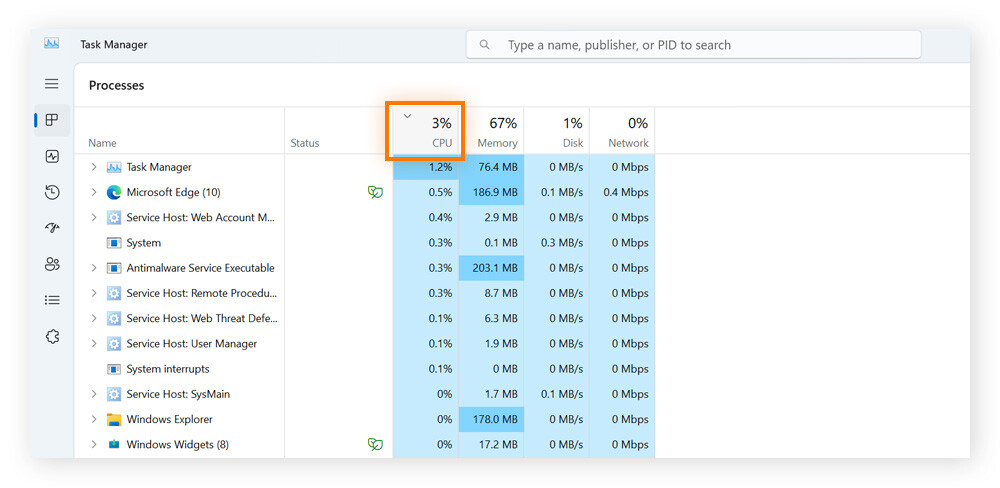
Open the Task Manager by pressing Ctrl + Shift + Esc. It shows all running apps and processes. Look under the “Processes” tab for CPU usage. The list updates in real time. Find which programs use the highest percentage of CPU. This gives a clear picture of what slows your system.
Spot Resource-heavy Apps
Some apps use more CPU than others. Video editors, games, and browsers with many tabs often top the list. Identify these apps in Task Manager by checking their CPU column. Notice if any app stays high for a long time. These apps could be causing your CPU to work too hard.
Close Unnecessary Programs
Closing unnecessary programs helps lower CPU usage. This frees up your computer’s power. It makes your system run smoother and faster.
Many programs start automatically and use CPU without you knowing. Some run in the background and slow down your PC. Stopping these programs can improve performance instantly.
Manage Startup Items
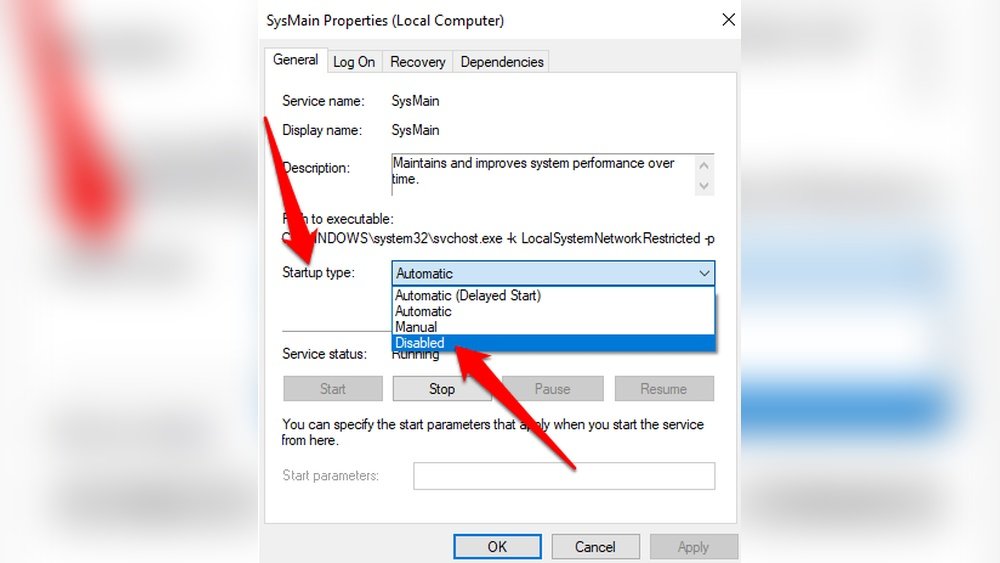
Some apps start as soon as your computer turns on. These use CPU resources right away. You can choose which programs to allow at startup. Go to your system settings and find the startup list. Disable apps you don’t need immediately. This reduces CPU load from the moment you start your PC.
Shut Down Background Processes
Background processes run without showing on your screen. They use CPU even if you are not using them. Open your task manager to see active processes. Identify and close those that are not important. This frees up CPU power for tasks you care about.
Optimize Software Settings
Optimizing software settings helps reduce CPU usage effectively. Adjusting these settings can make your computer run smoother. It also prevents overheating and slows down hardware wear. Simple changes in software can bring big improvements in performance.
Update Applications
Keep your applications updated to lower CPU load. Developers fix bugs that cause high CPU use in updates. New versions often use less power and run faster. Outdated software may run inefficiently and slow your system. Check for updates regularly and install them promptly.
Adjust Performance Options
Change performance settings to reduce CPU strain. Lower graphic details in apps that use many resources. Disable unnecessary background processes that consume CPU cycles. Set programs to run with lower priority in task manager. These steps help free up CPU for important tasks.
Credit: www.avast.com
Clean Malware And Viruses
Malware and viruses can cause your CPU to work harder than necessary. These harmful programs run in the background, using up valuable resources. Removing them can help your computer run faster and cooler. Cleaning your system from malware is a key step in reducing CPU usage.
Run Antivirus Scans
Start by running a full antivirus scan on your computer. This scan will detect harmful files and programs. Use trusted antivirus software for the best results. Regular scans keep your system safe and prevent CPU overload. Delete or quarantine any threats found during the scan. This stops malware from using your CPU power.
Use Malware Removal Tools
Specialized malware removal tools can find hidden threats. These tools often catch what antivirus software misses. Download a reputable malware removal program and run a deep scan. Follow the instructions to remove detected malware. Clean software helps your CPU work more efficiently and lowers its load.
Improve Cooling System
Improving your computer’s cooling system helps lower CPU temperature. A cooler CPU runs better and lasts longer. Heat slows down your processor and can cause errors. Proper cooling avoids these problems. Simple steps keep your system cool and efficient.
Clean Dust From Fans
Dust blocks airflow and traps heat inside your computer. Fans full of dust spin slower and cool less. Use a soft brush or compressed air to clean fan blades. Make sure to clean all fans, including case and CPU fans. Regular cleaning keeps air moving freely and reduces CPU heat.
Ensure Proper Ventilation
Good airflow around your computer helps heat escape quickly. Keep your PC away from walls or tight spaces. Leave space at the back and sides for air to flow. Avoid covering vents with papers or cloth. Use cooling pads or extra fans if needed. Proper ventilation lowers CPU temperature and improves performance.

Credit: superuser.com
Upgrade Hardware Components
Upgrading hardware components can help reduce high CPU usage. It improves your computer’s speed and overall performance. This method is effective for older systems or those struggling with heavy tasks.
Choosing the right components makes a big difference. It lets your CPU work less hard. Here are two key hardware upgrades to consider.
Add More Ram
Adding more RAM lets your system handle more tasks at once. It reduces the need for the CPU to manage memory constantly. This lowers CPU load and speeds up your computer. More RAM means smoother multitasking and less lag during heavy use.
Replace Old Cpu
Replacing an old CPU with a newer model boosts processing power. New CPUs run faster and manage tasks more efficiently. This reduces the chance of high CPU usage. Upgrading can extend your computer’s life and improve its ability to run modern software.
Manage Power Settings
Managing power settings plays a key role in reducing CPU usage. Proper power modes help your computer balance performance and energy use. This reduces heat and lowers CPU workload. Adjusting these settings is simple and effective.
Select Balanced Mode
Balanced mode adjusts CPU power based on tasks. It uses more power for heavy work and less for simple tasks. This keeps your CPU from running at full speed all the time. Balanced mode saves energy without slowing your computer down.
Avoid Power Saver Mode
Power saver mode limits CPU speed to save battery or energy. It may cause slow performance and lag. This makes your computer work harder to keep up. Avoid power saver mode if you want smooth and stable CPU use.
Regular Maintenance Tips
Regular maintenance is key to keeping your CPU running smoothly. Small tasks done often can prevent big problems later. These simple steps help your computer stay fast and responsive.
Perform Disk Cleanup
Disk Cleanup removes unnecessary files from your computer. These files slow down your CPU by taking up space. You can delete temporary files, system cache, and recycle bin contents. This frees up disk space and reduces CPU load. Run Disk Cleanup regularly to keep your system clean and fast.
Defragment Hard Drive
Defragmenting organizes scattered files on your hard drive. Fragmented files make the CPU work harder to access data. Defragmentation groups files together for faster access. This process improves the speed and efficiency of your CPU. Schedule defragmentation at least once a month for best results.
Frequently Asked Questions
How Can I Lower Cpu Usage On My Computer?
Close unnecessary programs and background apps to reduce CPU load. Update software and drivers regularly. Use a reliable antivirus to remove malware causing high CPU usage.
What Causes High Cpu Usage And How To Fix It?
High CPU usage is caused by heavy programs, malware, or system errors. Fix it by closing resource-heavy applications, scanning for viruses, and updating drivers.
Does Cleaning Dust Help Reduce Cpu Temperature?
Yes, cleaning dust improves airflow and cools the CPU. This prevents overheating and maintains optimal CPU performance and longevity.
How Does Updating Software Reduce Cpu Load?
Software updates optimize performance and fix bugs. This reduces unnecessary CPU cycles, lowering CPU usage and improving system efficiency.
Conclusion
Reducing CPU usage helps your computer run faster and cooler. Close programs you don’t need. Keep software updated to fix bugs. Check for viruses or malware often. Adjust settings to lower background activity. Regular cleaning inside your PC can stop overheating.
Simple steps can make a big difference. Try these tips to improve your system’s speed today. Your computer will thank you.
