
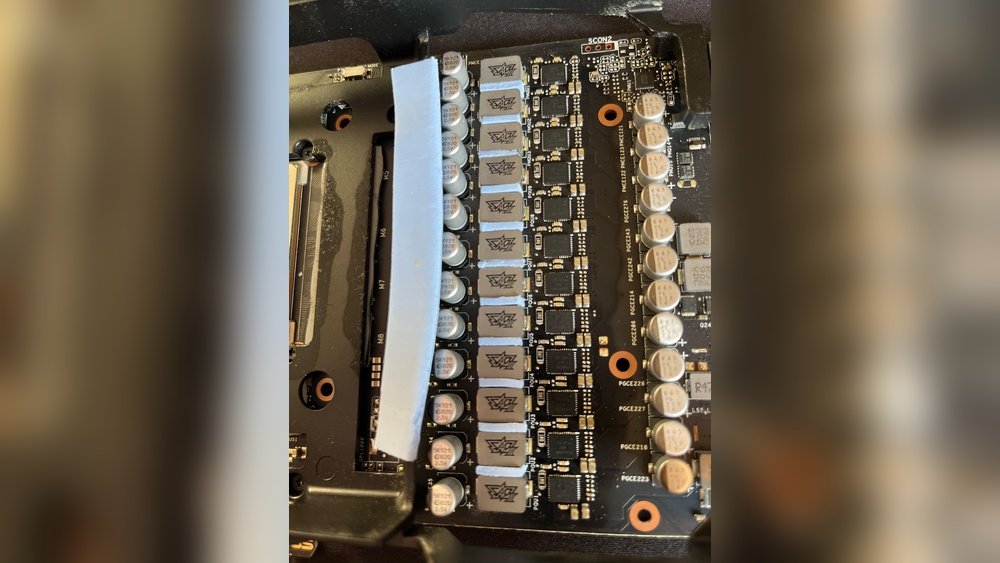
Is your GPU making an annoying high-pitched noise every time you play games or run heavy software? That irritating sound is called coil whine, and it can be distracting and frustrating.
But don’t worry—you don’t have to live with it. You’ll discover simple, effective ways to reduce coil whine on your GPU. By following these tips, you’ll enjoy a quieter, more immersive experience without spending a fortune. Keep reading to learn how you can take control of that buzzing noise and get your PC back to peaceful performance.
Causes Of Gpu Coil Whine
GPU coil whine is a common issue for many PC users. It causes a high-pitched noise that can be annoying. Understanding what causes this sound helps in reducing it effectively.
This section explains the main causes of coil whine in GPUs. It breaks down what coil whine is, what triggers it, and its effect on your GPU’s performance.
What Is Coil Whine?
Coil whine is a noise from the GPU’s electrical components. It happens when the GPU’s coils vibrate at high frequencies. This vibration creates a high-pitched sound you can hear. It is not a sign of damage but can be distracting.
Common Triggers
Coil whine often starts under heavy GPU load. Running games or demanding software can cause it. High frame rates and power fluctuations also trigger coil vibrations. Sometimes, the power supply or motherboard can increase the noise. Each GPU reacts differently to these triggers.
Impact On Performance
Coil whine does not affect GPU performance. It is only a noise issue, not a hardware fault. Your GPU will work fine despite the sound. The noise can affect your focus and gaming experience. Reducing coil whine improves comfort but does not boost speed or power.
Diagnosing Coil Whine Issues
Coil whine can be a frustrating noise coming from your GPU. Diagnosing coil whine is the first step to reducing or fixing it. This section helps you find the cause of the noise. It guides you through simple steps to check your GPU and system. Understanding the noise helps you decide the best way to reduce it.
Identifying The Noise Source
Listen closely to your computer while it runs. Coil whine usually sounds like a high-pitched buzzing or whining noise. Try to find where the sound comes from. Place your ear near the GPU area. Other parts may also cause noise, like fans or power supply. Make sure the noise is from the GPU coil area.
Testing Under Different Loads
Run different programs to change the GPU load. Coil whine often happens under heavy loads like gaming or video editing. Test while watching videos or doing simple tasks too. Note if the noise changes with load levels. This helps confirm if the GPU coil whine varies with power use.
Using Software Tools
Use software to monitor GPU performance and load. Programs like GPU-Z or MSI Afterburner show power and clock speeds. Watch the data while listening for coil whine. This can link noise spikes to power changes. Software helps track when coil whine is worse or better.
Hardware Solutions To Reduce Noise
Coil whine from a GPU can be annoying and distracting. Hardware solutions can help lower this noise. These methods target the source of the sound and reduce vibrations.
Using hardware fixes often works better than software tricks. They improve the GPU’s physical environment and parts to cut down noise. Here are some practical steps to try.
Improving Gpu Cooling
Better cooling reduces heat and stress on the GPU. Cooler parts vibrate less and make less noise. Adding extra fans or replacing old ones helps airflow. Clean dust from fans and heat sinks regularly. This keeps the GPU running smoothly and quietly.
Replacing Or Upgrading Components
Old or low-quality parts can cause coil whine. Swapping out the GPU for a quieter model can solve the issue. Sometimes, changing the power supply unit (PSU) helps. A PSU with better filtering reduces electrical noise. Check for loose screws or damaged components too. Tightening or fixing them lowers vibrations.
Using Anti-vibration Pads
Anti-vibration pads absorb sound and stop parts from shaking. Place them between the GPU and case or under fans. These pads soften the contact points and cut noise. They are cheap and easy to install. This simple step often makes a big difference.

Credit: www.youtube.com
Software Tweaks To Minimize Coil Whine
Coil whine from a GPU can be quite distracting. Software tweaks offer simple ways to reduce this noise. These changes do not require hardware swaps or complex fixes.
By adjusting settings inside your system, you can lower the frequency and volume of coil whine. The key is to control how your GPU works during tasks. This helps reduce the electrical noise causing the whine.
Adjusting Frame Rates
Frame rate limits reduce the workload on your GPU. Lower frame rates mean less power use and fewer high-frequency signals. This often cuts down coil whine significantly. Many games and apps allow you to set a max frame rate. Try capping it to a number close to your monitor’s refresh rate.
Enabling V-sync Or G-sync
V-Sync and G-Sync sync your frame output with your monitor’s refresh rate. This prevents your GPU from rendering too many frames too fast. The result is smoother visuals and less coil whine. Turn these features on in your game or GPU control panel. They help keep your GPU workload steady and noise low.
Modifying Power Settings
Power settings control how much energy your GPU uses. Lowering power limits can reduce coil whine. Use software like MSI Afterburner or your GPU’s control panel to tweak power limits. Setting a balanced or power-saving mode helps keep voltage stable. Stable power means less coil noise and a quieter PC.
Advanced Techniques For Coil Whine
Coil whine can be annoying, especially during gaming or heavy work. Basic fixes might not fully stop the noise. Advanced techniques target the root cause more effectively. These methods need careful attention but can reduce or even remove coil whine.
Undervolting The Gpu
Undervolting lowers the voltage your GPU uses. This reduces power draw and heat. Less power means less chance of coil whine. You can use tools like MSI Afterburner for this. Start with small voltage drops and test stability. Watch for crashes or graphical glitches. Proper undervolting keeps performance while cutting noise.
Custom Fan Curves
Adjusting fan speed can help manage coil whine. Fans running at constant speeds might cause vibrations. Create a custom fan curve that changes speed smoothly. Increase fan speed slightly when coil whine appears. This can reduce noise by stabilizing GPU temperature. Use software provided by your GPU maker to set curves.
Bios Updates And Modifications
GPU manufacturers release BIOS updates to fix hardware issues. Updating your GPU BIOS can reduce coil whine. Check the official website for the latest version. Be careful, as wrong BIOS flashing can harm your card. Some enthusiasts modify BIOS settings to lower voltage limits. This advanced step can cut coil whine but needs expert knowledge.

Credit: www.reddit.com
When To Seek Professional Help
Coil whine in GPUs can be annoying and distracting. Many times, simple fixes can reduce the noise. But some situations need expert help. Knowing when to seek professional help is important. This prevents damage and saves money in the long run.
If the noise gets worse or other problems appear, it is best to consult a professional. They have the tools and knowledge to diagnose and fix the issue safely. Here are key points to consider about professional help.
Warranty And Replacement Options
Check your GPU warranty first. Many manufacturers cover coil whine under warranty. They may offer repair or replacement. Contact the seller or manufacturer support. Provide clear details about the noise and any other issues. Acting early can avoid extra costs. Do not try to open or repair the GPU yourself. This may void the warranty.
Consulting With Technicians
Professional technicians can test your GPU thoroughly. They identify if coil whine is normal or a defect. Experts use special equipment to measure noise and electrical signals. They can apply safe fixes or recommend parts replacement. Trust their advice to protect your hardware. Avoid random DIY fixes that might cause damage.
Avoiding Damage Risks
Attempting repairs without skills can harm your GPU. Incorrect handling can cause permanent damage. Excess force or wrong tools may break delicate components. Professionals follow strict safety procedures. They know how to avoid static discharge and other risks. Protect your investment by letting experts handle complex issues.
Preventing Coil Whine In Future Builds
Preventing coil whine in future GPU builds starts with smart choices. Small steps during the build can save from annoying noise later. Focus on quality parts, good airflow, and regular care.
Choosing Quality Components
Pick GPUs and power supplies from trusted brands. Quality parts have better coils and circuits. These parts reduce the chance of coil whine. Avoid cheap or unknown brands that cut corners. Read reviews about noise levels before buying. A good GPU often costs more but works quietly.
Proper Case And Cooling Design
Use cases with good airflow to cool your GPU well. Hot parts can cause more coil whine. Fans should move air smoothly without turbulence. Keep cables tidy to not block airflow. A cooler GPU runs quieter and lasts longer. Consider cases with sound-dampening materials to lower noise.
Regular Maintenance Tips
Clean dust from your PC regularly. Dust blocks airflow and raises temperatures. Check fan speeds and replace broken fans. Tighten loose screws on GPU and case parts. Loose components can vibrate and add noise. Regular care keeps your system quiet and stable.

Credit: www.youtube.com
Frequently Asked Questions
What Causes Coil Whine In Gpus?
Coil whine is caused by vibrations in the GPU’s inductors when electrical current passes through. High GPU loads or power fluctuations often trigger it. It’s a normal electrical noise but can be annoying.
How Can I Reduce Coil Whine On My Gpu?
Lower your GPU’s frame rate or enable V-Sync to reduce coil whine. Adjusting power settings or using a different power supply may help. Sometimes, updating GPU drivers can also minimize noise.
Is Coil Whine Harmful To My Gpu?
No, coil whine doesn’t damage your GPU. It’s only an annoying noise caused by electrical vibrations. Your GPU’s performance and lifespan remain unaffected.
Can Changing Gpu Settings Reduce Coil Whine?
Yes, tweaking GPU settings like power limits or frame rate caps can reduce coil whine. Limiting maximum FPS or enabling V-Sync stabilizes power delivery and reduces noise.
Conclusion
Reducing coil whine on your GPU improves your computer’s sound quality. Simple steps like adjusting power settings help a lot. Keeping your system cool also lowers noise. Sometimes, replacing parts can be the best fix. Small changes make a big difference in noise levels.
Try these tips to enjoy quieter gaming and work. Your ears will thank you. Don’t let coil whine spoil your experience. Stay patient and test solutions one by one. Quiet GPU means better focus and less distraction.
