

Have you ever wondered if your computer is running too hot? Knowing how to read your CPU temperature is key to keeping your device safe and performing at its best.
If your CPU gets too warm, it can slow down or even cause serious damage. But don’t worry—understanding these temperature numbers is easier than you think. You’ll learn simple steps to check your CPU temperature and discover why it matters for your computer’s health.
Keep reading to protect your machine and boost its performance!

Credit: www.alcpu.com
Why Cpu Temperature Matters
CPU temperature is important for your computer’s health and performance. It shows how hot the processor is while working. Knowing this helps keep your computer safe from damage. It also helps the CPU work smoothly without slowing down. High temperatures can cause serious problems. That is why monitoring CPU temperature is a smart practice.
Keeping the CPU cool extends the life of your computer parts. It stops crashes and errors caused by heat. This small check can save you time and money on repairs. Let’s explore why CPU temperature matters and what happens if it gets too high.
Effects Of Overheating
Overheating can damage your CPU permanently. It may cause your computer to shut down suddenly. This protects the hardware but can disrupt your work.
Heat makes the CPU slow down to avoid damage. This reduces your computer’s speed and performance. Over time, constant overheating can shorten the CPU’s lifespan. It may also harm other parts inside your computer.
Signs Of High Cpu Temperature
Your computer may show signs of high CPU temperature. The fan might run loudly and constantly. The device can become very hot to touch.
Programs may freeze or crash without warning. You might notice slow response or delays. These are clear signs that your CPU needs cooling. Watching for these signs helps you act before damage occurs.
Credit: www.avast.com
Tools To Check Cpu Temperature
Knowing your CPU temperature is important for keeping your computer safe and fast. There are different tools to check the CPU temperature. Some are built into your computer’s system. Others are easy-to-use software programs you can download. These tools help you see if your CPU is too hot. They also help you avoid damage to your computer.
Built-in Bios Monitoring
The BIOS is a basic program inside your computer. It controls hardware settings. You can open the BIOS during startup by pressing a key, like F2 or Delete. Inside the BIOS, you will find a section for hardware monitoring. This section shows the current CPU temperature. It updates in real-time. No extra software is needed. BIOS monitoring is simple but lacks detailed history or alerts.
Third-party Software Options
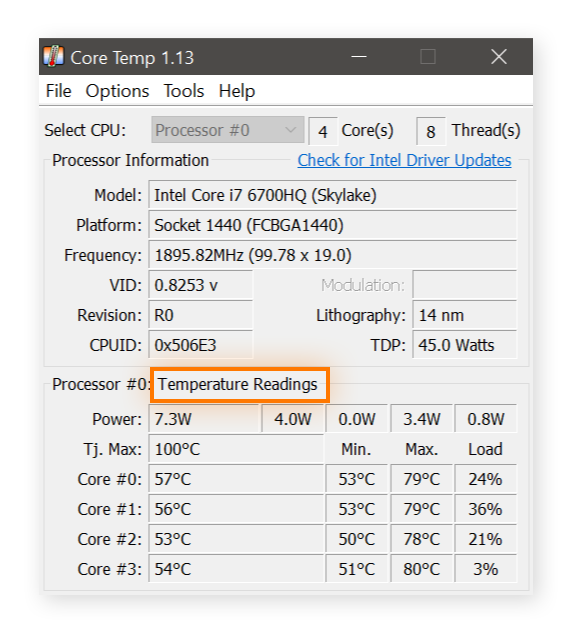
Many programs can check CPU temperature in Windows or Mac. These tools show real-time temperature and past readings. Some popular options include HWMonitor, Core Temp, and SpeedFan. These programs are free or low cost. They often offer extra features, like fan speed control and alerts. Third-party software gives more detail than BIOS. It is easy to install and use daily.
Steps To Read Cpu Temperature
Knowing your CPU temperature helps protect your computer. Too much heat can cause slowdowns or damage. Reading the temperature is simple with the right steps. Two common ways exist: using BIOS or software. Each method shows current heat levels clearly. Follow these steps to check your CPU’s temperature safely.
Accessing Bios For Temperature Data
Turn off your computer completely. Press the BIOS key while turning it on. Common keys include Delete, F2, or Esc. Look for “Hardware Monitor” or “PC Health” in BIOS menus. Find the CPU temperature reading on that screen. This number shows your CPU’s current heat. Note it before you exit BIOS. Restart your computer to leave BIOS settings.
Using Software To Monitor Cpu Heat
Download a trusted CPU temperature monitor program. Install and open the program on your PC. The software will show live CPU temperature readings. Some popular tools include HWMonitor and Core Temp. Check the temperature while running normal tasks. Watch for numbers above 80°C, which can be risky. Close the software when finished monitoring.

Credit: www.liftingitalia.com
Ideal Cpu Temperature Ranges
Knowing the ideal CPU temperature ranges helps keep your computer safe. It ensures your CPU runs smoothly without damage. Temperatures vary depending on what your CPU is doing. Understanding these ranges helps you spot problems early.
Idle Temperature Norms
When your computer is not busy, the CPU should stay cool. Typical idle temperatures range from 30°C to 45°C. This range keeps the CPU safe and ready for work. If temperatures are higher at idle, it might mean poor cooling or dust buildup.
Safe Operating Limits Under Load
Under heavy tasks, the CPU heats up more. Safe temperatures under load usually range from 60°C to 85°C. Some CPUs can handle up to 90°C but should not stay there long. Staying within these limits prevents damage and keeps performance steady.
Common Cpu Temperature Myths
Many people have wrong ideas about CPU temperature. These myths cause worry about normal CPU heat levels. Understanding the truth helps keep your computer safe and working well.
Myth: Cpu Temperature Should Always Be Below 40°c
It is normal for CPUs to run hotter than 40°C. Most CPUs work fine up to 70°C or more. Low temperatures are good but not always needed.
Myth: High Cpu Temperature Means Your Cpu Is Damaged
A high CPU temperature does not always mean damage. CPUs heat up during heavy tasks like gaming or video editing. This heat is normal and expected.
Myth: Idle Cpu Temperature Should Be Close To Room Temperature
Idle CPU temperature is usually higher than room temperature. Even when not working hard, the CPU uses some power. This causes a small rise in temperature.
Myth: More Fans Always Lower Cpu Temperature
Adding more fans does not always reduce CPU temperature. Proper airflow and fan placement matter more than the number of fans. Too many fans can cause turbulence.
Myth: Overclocking Always Causes Unsafe Cpu Temperatures
Overclocking can raise CPU temperature but does not always make it unsafe. Good cooling and monitoring keep temperatures in safe limits. Many users overclock without problems.
Tips To Lower Cpu Temperature
Keeping your CPU temperature low helps your computer run smoothly. High temperatures can slow down your PC or cause damage. Simple steps can reduce heat and protect your processor. Follow these tips to keep your CPU cool and healthy.
Improving Pc Cooling Systems
Good cooling systems push hot air away from your CPU. Use quality fans that fit your PC case well. Place fans to create airflow from front to back. Consider adding extra fans if your case supports them. Liquid cooling systems offer strong cooling for high-performance PCs. They use liquid to move heat faster than air. Choose the cooling system that matches your PC’s needs and budget.
Regular Cleaning And Maintenance
Dust blocks airflow and traps heat inside your PC. Clean your computer case and fans often with compressed air. Remove dust from heatsinks and vents carefully. Replace old thermal paste between CPU and cooler every year. Thermal paste helps transfer heat from the CPU to the cooler. Regular cleaning keeps your cooling system working well and your CPU cool.
When To Seek Professional Help
Knowing your CPU temperature is important for your computer’s health. Sometimes, the temperature may rise and cause problems. At times like these, you might need help from a professional. They can check your computer closely and fix the problem safely.
Not all temperature issues are easy to fix on your own. Professionals have tools and skills to handle tricky situations. They can prevent damage and keep your computer working well.
Constant Overheating Despite Cooling Efforts
When your CPU stays hot even after cleaning fans and applying new thermal paste, it signals a deeper problem. A professional can find hidden issues like damaged hardware or poor airflow inside the case.
Frequent System Shutdowns Or Crashes
If your computer shuts down or crashes often, heat might be the cause. Experts can test your CPU and other parts to spot damage caused by high temperatures. They can replace or repair faulty components safely.
Unusual Noises Or Smells From The Computer
Strange sounds or burning smells are serious warning signs. These can mean overheating parts or electrical faults. A technician can diagnose the problem and stop further damage or fire risk.
Temperature Monitoring Software Shows Extreme Fluctuations
Erratic temperature readings may confuse users. It could be a sensor or software issue, or real hardware trouble. Professionals can verify readings and fix sensors or hardware as needed.
Frequently Asked Questions
How Do I Check My Cpu Temperature On Windows?
You can check CPU temperature using software like HWMonitor or Core Temp. These tools display real-time temperature readings clearly.
What Is A Safe Cpu Temperature Range?
A safe CPU temperature is typically between 30°C and 70°C. Temperatures above 80°C may risk overheating and damage.
Why Is My Cpu Temperature Suddenly High?
High CPU temperature can result from poor ventilation, dust buildup, or heavy workloads. Cleaning fans and reducing load helps.
Can High Cpu Temperature Damage My Computer?
Yes, sustained high temperatures can damage CPU components. It may cause system crashes, slowdowns, or permanent hardware failure.
Conclusion
Reading your CPU temperature helps keep your computer safe and fast. It shows when your CPU gets too hot and needs a break. Checking often can stop damage before it starts. Use easy tools to see the temperature on your screen.
Stay aware to avoid crashes and slowdowns. Keeping your CPU cool helps your computer work better longer. Simple steps make a big difference. Now you know how to read your CPU temperature well.
