

Are you looking to boost your computer’s speed without spending a fortune? Putting your RAM in dual channel mode can make a noticeable difference in performance.
But how exactly do you do it? If you’ve ever felt confused about where to place your memory sticks or why it matters, you’re in the right place. This guide will walk you through the simple steps to set up your RAM correctly, so you get the most out of your system.
Keep reading to unlock the secret to faster, smoother computing!
Dual Channel Benefits
Using RAM in dual channel mode gives your computer a clear edge. It lets the system access memory faster and handle tasks more smoothly. Dual channel means two memory sticks work together instead of one. This setup shares the workload, making your PC feel quicker and more responsive.
Boosting Performance
Dual channel mode increases memory bandwidth. This means data moves faster between RAM and CPU. Programs open quicker and run without stalling. Your computer can process more information at once. The result is a smoother and speedier experience overall.
Enhanced Multitasking
More memory bandwidth helps when you run many programs. Dual channel lets your system manage several apps at the same time. Switching between tasks feels smooth and easy. It reduces lag and keeps your workflow steady. Multitasking becomes more efficient and less frustrating.
Gaming Advantages
Games need fast memory to load and run well. Dual channel RAM improves frame rates and game stability. It helps reduce slowdowns during intense scenes. Your gaming experience becomes more fluid and enjoyable. This setup supports better graphics and faster response times.

Credit: www.imtsolution.vn
Checking Compatibility
Checking compatibility is the first step before installing RAM in dual channel mode. This step helps ensure the RAM and motherboard work well together. Proper compatibility avoids problems and improves performance.
Motherboard Support
Not all motherboards support dual channel memory. Check your motherboard’s manual or website for details. Look for supported RAM types and channel configurations. Correct support is essential for dual channel to work.
Matching Ram Specifications
RAM sticks should have the same size, speed, and timings. Mixing different RAM can cause errors or slow performance. Use identical RAM modules to ensure smooth dual channel operation.
Bios Updates
BIOS updates can improve memory compatibility and stability. Visit the motherboard maker’s site for the latest BIOS version. Updating BIOS helps the system recognize and use RAM better.
Preparing Your System
Preparing your system before installing RAM in dual channel is important. It keeps your parts safe and helps the process go smoothly. Take time to get ready. This makes installing RAM easier and reduces mistakes.
Follow simple steps to prepare your workspace and yourself. These small actions protect your computer and improve your experience.
Powering Down
Turn off your computer completely. Do not use sleep or hibernate mode. Unplug the power cord from the wall socket. This stops electricity from flowing to your system. It protects you and your parts from damage.
Grounding Yourself
Static electricity can harm computer parts. Touch a metal surface to discharge static. Use an anti-static wrist strap if possible. Connect it to a grounded object. This keeps your body safe from static shocks. Prevents damage to your RAM and motherboard.
Clearing Workspace
Find a clean, flat surface to work on. Remove clutter and anything that might fall inside the computer. Use a soft cloth to avoid scratches. Good lighting helps you see small parts clearly. Keep tools and components organized for easy access.
Identifying Ram Slots
Identifying the RAM slots on your motherboard is the first step to installing RAM in dual channel mode. Knowing where each slot is and how they work helps improve your computer’s speed. This section guides you through recognizing the RAM slots correctly.
Slot Colors And Labels
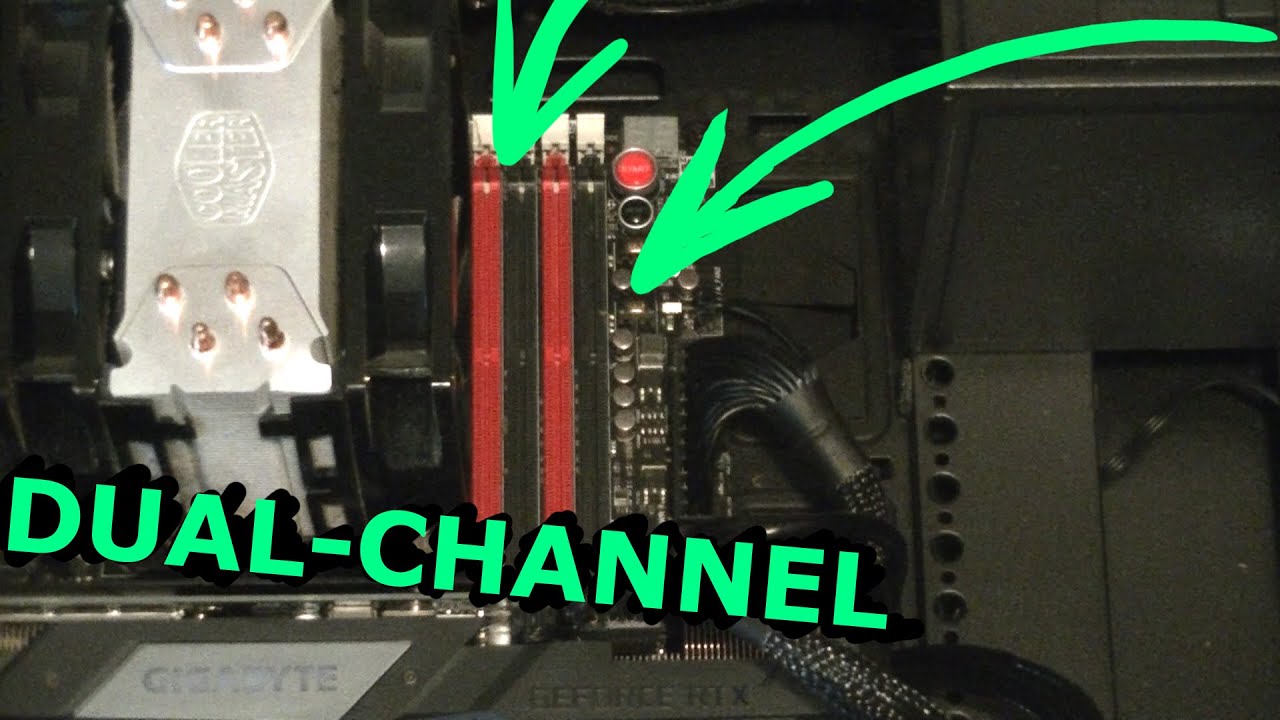
Many motherboards use different colors for RAM slots. These colors show which slots belong to the same channel. For example, two black slots might be channel one, and two blue slots channel two. Labels near the slots can also indicate channel pairs. These visual clues make it easier to place RAM correctly for dual channel use.
Consulting The Manual
The motherboard manual is the best source for detailed slot information. It explains which slots form channel pairs and where to install RAM sticks. Manuals often include diagrams that show the exact order for dual channel installation. Checking the manual prevents mistakes and ensures better performance.
Recognizing Channel Pairs
RAM slots are grouped into pairs called channels. Each channel handles data independently, so using two sticks in separate channels boosts speed. Channel pairs are usually slots 1 and 3, and 2 and 4, but this varies. Identifying these pairs is crucial for proper dual channel setup. Correct placement balances the load and enhances memory efficiency.
Installing Ram Modules
Installing RAM modules correctly is important for your computer’s performance. It helps the system run faster and smoother. Follow simple steps to install RAM safely and properly. This guide focuses on placing RAM modules for dual channel mode.
Aligning The Notch
Look at the RAM module and the slot on the motherboard. Find the small notch on the RAM’s edge. This notch matches a key in the slot. Align the notch carefully before inserting. This ensures the RAM fits the slot in only one way. Avoid forcing the module in place.
Inserting With Even Pressure
Hold the RAM module by its edges. Place it gently into the slot. Push down evenly on both ends of the RAM. Apply steady pressure until the module clicks into place. Even pressure prevents damage to the RAM or motherboard. Take your time and do not rush.
Securing The Clips
Check the clips on both sides of the slot. They should snap into position around the RAM module. Press the clips gently if needed to lock the RAM. Secure clips keep the RAM firmly in place. Double-check that the module does not move or wiggle.

Credit: www.compuram.de
Verifying Dual Channel Mode
Verifying dual channel mode ensures your RAM works at its best speed. It confirms that the memory sticks operate together for better performance. This step helps you avoid installation errors and system slowdowns. Checking dual channel mode is simple and can be done in several ways.
Using Bios Settings
Access your computer’s BIOS during startup. Look for the memory or RAM section in BIOS menus. You should see if dual channel mode is active. Some BIOS versions show detailed memory channel information. Save and exit BIOS after checking to keep settings unchanged.
System Information Tools
Use software tools like CPU-Z or Speccy for an easy check. These apps show detailed RAM information, including channel mode. Download the tool, run it, and check the memory tab. Look for “Dual Channel” or “Single Channel” status here. This method works on Windows without rebooting the PC.
Benchmark Testing
Run a memory benchmark test to verify dual channel performance. Tools like AIDA64 or PassMark measure RAM speed and bandwidth. Compare results with single channel benchmarks for your RAM type. Higher bandwidth usually means dual channel is active. Benchmarking confirms your system fully uses the dual channel setup.
Troubleshooting Tips
Troubleshooting RAM issues can be simple if you know what steps to follow. Problems like dual channel not working often come from small mistakes. Checking these common areas can save time and improve your PC’s performance.
Reseating Ram
Turn off your computer and unplug it. Open the case carefully. Remove the RAM sticks from their slots. Check for dust or dirt. Gently clean the contacts with a soft cloth. Put the RAM back firmly until it clicks. Make sure each stick is in the correct slot for dual channel. Close the case and turn on your PC. This often fixes connection problems.
Testing Individual Modules
Test each RAM stick one by one. Place one stick in the first slot. Turn on your computer and check if it works. Repeat with other sticks in the same slot. This helps find faulty modules. If a stick causes problems, it may need replacement. Testing like this can pinpoint the issue quickly.
Updating Drivers
Outdated drivers can cause RAM to not work correctly. Update your motherboard’s chipset drivers. Visit the manufacturer’s website for the latest versions. Install all recommended updates for your system. Restart your computer after updating. New drivers improve hardware compatibility and performance. This step can solve many RAM-related problems.
Credit: www.youtube.com
Frequently Asked Questions
What Is Dual Channel Ram And Why Use It?
Dual channel RAM uses two memory sticks for faster data transfer. It improves overall system performance and multitasking efficiency by doubling the memory bandwidth.
How Do I Install Ram For Dual Channel Mode?
Install RAM sticks in matching slots, usually color-coded. Refer to your motherboard manual to place identical RAM sticks in the correct paired slots.
Can Different Ram Brands Work In Dual Channel?
Different brands can work, but matching speed and capacity is crucial. For best performance, use identical RAM sticks for dual channel mode.
How To Check If Ram Is Running In Dual Channel?
Use software tools like CPU-Z or your motherboard BIOS. These tools show if RAM is operating in single or dual channel mode.
Conclusion
Installing RAM in dual channel boosts your computer’s speed and performance. Match the RAM sticks by size and type for best results. Place them in the correct motherboard slots, usually color-coded. Double-check the manual if unsure. This setup helps your system handle tasks faster and smoother.
Taking these simple steps improves your PC experience noticeably. Enjoy better multitasking and gaming with dual channel RAM. Easy and effective upgrade with lasting benefits.
