
Is your computer suddenly running slow or shutting down without warning? Your CPU might be overheating, and if you don’t act fast, it could cause serious damage.
But don’t worry—you can stop this from happening. You’ll discover simple and effective ways to keep your CPU cool and your computer running smoothly. Keep reading, because protecting your device is easier than you think, and your CPU’s health depends on it.
Credit: www.avast.com
Causes Of Cpu Overheating
CPU overheating happens when the processor gets too hot during use. Several reasons cause this heat buildup. Knowing these causes helps keep the CPU cool and safe. Below are the main causes of CPU overheating.
Poor Airflow
Poor airflow inside the computer case stops hot air from leaving. Without fresh air, heat stays trapped around the CPU. This raises the temperature quickly. Blocked vents or bad fan placement often cause poor airflow.
Dust Accumulation
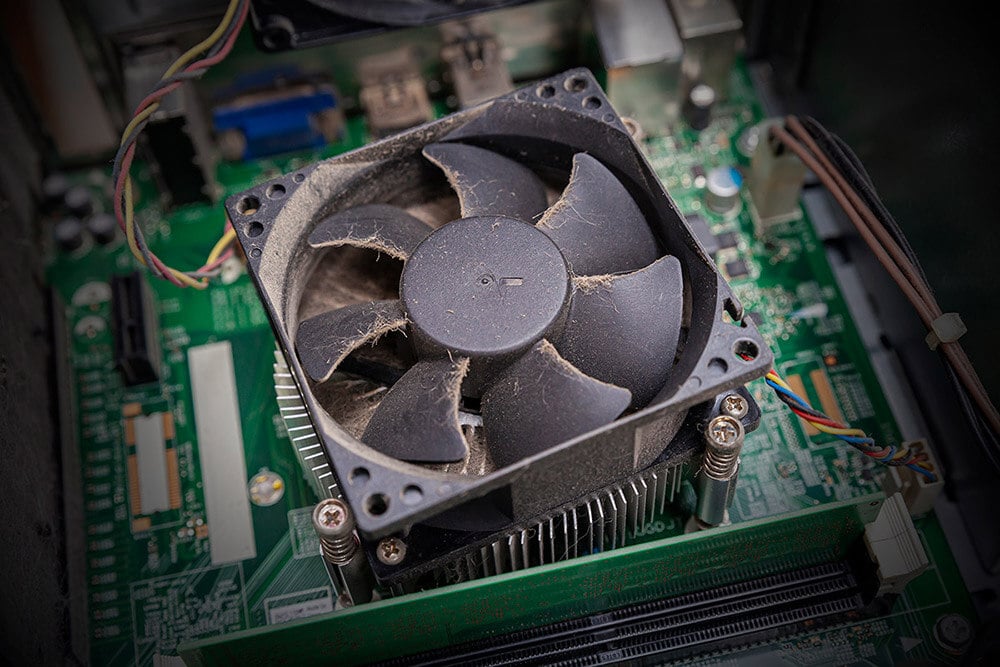
Dust builds up on fans, vents, and heat sinks. This layer stops air from moving freely. Dust also acts like insulation, holding heat near the CPU. Cleaning dust regularly is important to keep the CPU cool.
High Ambient Temperature
High room temperature makes it harder for the CPU to cool down. The cooler air outside the computer helps remove heat. Warm air around the PC limits this cooling effect. Keeping the room cool reduces CPU temperature.
Overclocking Risks
Overclocking pushes the CPU to run faster than normal. This creates extra heat inside the processor. Without better cooling, overclocking can cause serious overheating. Proper cooling systems are needed to manage this risk.
Effective Cooling Solutions
Keeping your CPU cool is key to its performance and lifespan. Effective cooling solutions stop your CPU from overheating and crashing. These methods help your computer run smoothly, even during heavy tasks.
Choosing the right cooling tools and installing them properly makes a big difference. Small changes can lower temperatures and protect your CPU.
Choosing The Right Cpu Cooler
Select a cooler that fits your CPU socket and case size. Air coolers are simple and good for most users. Liquid coolers offer better cooling but cost more. Check the cooler’s fan size and speed for better airflow. A quiet cooler helps reduce noise in your workspace.
Using Thermal Paste Correctly
Thermal paste fills gaps between your CPU and cooler. It improves heat transfer and lowers CPU temperature. Apply a small pea-sized amount in the center of the CPU. Spread it evenly when you place the cooler on top. Too much paste can block airflow, so use just enough.
Installing Additional Case Fans
Extra case fans improve airflow inside your PC case. Place intake fans at the front to bring cool air in. Put exhaust fans at the back or top to push hot air out. Balance the number of intake and exhaust fans for steady airflow. Good airflow helps keep all components cool.
Optimizing Pc Setup
Optimizing your PC setup plays a key role in keeping the CPU cool. A well-arranged computer case allows air to flow freely. This lowers the risk of overheating and improves performance. Small changes in setup make a big difference in temperature control.
Proper Case Placement
Place your PC in a spot with good air circulation. Avoid tight spaces like closed cabinets or corners. Keep the case away from heat sources such as radiators or direct sunlight. Elevate the case slightly to allow air to flow underneath. This helps the fans work better and cool the CPU.
Cable Management For Airflow
Organize cables inside the case to prevent blocking air paths. Use zip ties or Velcro straps to bundle cables neatly. Tidy cables reduce clutter and improve airflow around the CPU and other components. Better airflow means cooler temperatures and longer hardware life.
Regular Cleaning Routine
Dust buildup clogs fans and vents, trapping heat inside. Clean your PC every few months to remove dust and dirt. Use compressed air to blow dust from fans, heatsinks, and vents. Keep filters and fans free from debris to maintain airflow. A clean PC runs cooler and more efficiently.
Software Tools For Monitoring
Keeping your CPU cool is important to avoid damage and slowdowns. Software tools help you watch your CPU’s temperature and control its cooling. These tools give clear info and let you act fast if the CPU gets too hot.
Temperature Monitoring Apps
Temperature monitoring apps show real-time CPU heat levels. They use simple graphs or numbers to make data easy to read. Some popular apps include HWMonitor and Core Temp. These apps run quietly in the background and alert you if the CPU heats up too much.
Fan Speed Control Software
Fan speed control software helps adjust your computer’s fans. Faster fans cool the CPU better but can be noisy. Slower fans are quieter but cool less. This software lets you find the right balance. SpeedFan and Argus Monitor are common tools for this job.
Setting Up Alerts
Setting alerts warns you before the CPU overheats. You can set temperature limits in monitoring apps. When the CPU reaches these limits, the app sends a warning. This helps you save your computer from damage. Alerts can be sounds, pop-ups, or emails.
Avoiding Overclocking Pitfalls
Overclocking boosts CPU speed beyond factory settings. It can improve performance but raises heat output. Avoiding common overclocking mistakes helps keep your CPU cool and safe. Careful steps reduce overheating risks and prolong CPU life.
Safe Overclocking Practices
Start with small speed increases. Test your system after each change. Use reliable software to monitor CPU temperature. Keep cooling solutions strong, like fans or liquid coolers. Avoid pushing the CPU too hard at once. Regularly check for system stability to prevent crashes.
Recognizing Overclocking Limits
Each CPU has a maximum safe clock speed. Watch for signs like frequent crashes or high temperatures. If your CPU gets very hot, reduce the speed. Know your hardware limits and respect them. Overclocking beyond safe limits causes damage and shortens CPU life. Stop if you see warning signs to protect your computer.
Credit: rambox.app
Upgrading Hardware Components
Upgrading your computer’s hardware can greatly reduce CPU overheating. New parts improve heat management and keep your system stable. Focus on three key areas to make a big difference.
High-quality Thermal Paste
Thermal paste helps move heat from the CPU to the cooler. Old or cheap paste does not work well. Use high-quality thermal paste for better heat transfer. Apply it evenly and in the right amount. This simple upgrade lowers CPU temperature significantly.
Efficient Cooling Systems
Cooling systems remove heat from your CPU. Stock coolers may not be enough for heavy use. Consider upgrading to a larger air cooler or a liquid cooling system. These coolers keep the CPU cooler for longer. Choose one that fits your case and CPU type.
Better Case Designs
Case design affects airflow inside your computer. Cases with good ventilation help cool down all parts. Look for cases with mesh panels and multiple fan mounts. Organize cables to avoid blocking airflow. A well-ventilated case lowers the overall temperature inside the system.
Credit: rambox.app
Frequently Asked Questions
What Causes A Cpu To Overheat Quickly?
CPU overheating is usually caused by poor ventilation, dust buildup, or inadequate cooling systems. Overclocking and heavy workloads also increase heat generation. Proper airflow and regular cleaning help prevent rapid temperature rises.
How Can I Improve My Cpu Cooling System?
Upgrading to a high-quality thermal paste, using efficient CPU coolers, and installing extra case fans improve cooling. Liquid cooling systems provide better heat dissipation. Proper placement of cooling components ensures optimal airflow.
Does Dust Affect Cpu Temperature?
Yes, dust clogs fans and heatsinks, reducing airflow and heat dissipation. This causes the CPU temperature to rise rapidly. Regularly cleaning dust from your PC components prevents overheating and maintains performance.
How Often Should I Clean My Cpu Fan?
Cleaning your CPU fan every 3 to 6 months prevents dust buildup and overheating. More frequent cleaning is needed in dusty environments. Use compressed air or a soft brush for effective cleaning without damage.
Conclusion
Keeping your CPU cool helps your computer run smoothly. Clean fans and good airflow prevent heat build-up. Use quality thermal paste to improve heat transfer. Monitor temperatures regularly to catch problems early. Simple steps protect your hardware and save money.
Cool CPUs mean better performance and longer life. Stay mindful of these tips for a safe device. Your computer will thank you with steady speed. Small actions make a big difference in cooling.
