
Are you ready to unlock the hidden power inside your computer? Overclocking your CPU can make your system run faster and handle more demanding tasks without spending extra money on new hardware.
But it’s not just about speed—it’s about getting the most out of your machine. In this guide, you’ll discover simple, step-by-step methods to safely boost your CPU’s performance. Whether you’re gaming, editing videos, or just want a smoother experience, you’ll learn how to push your processor beyond its limits with confidence.
Keep reading, and take control of your computer’s true potential today.
Basics Of Cpu Overclocking
Understanding the basics of CPU overclocking is key before starting the process. Overclocking changes how fast your CPU runs. This can improve your computer’s speed and performance. It is important to know what overclocking means, its benefits, and the tools needed.
What Is Cpu Overclocking
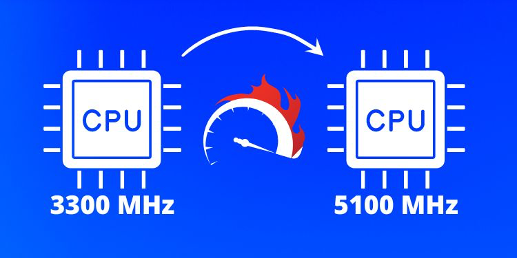
CPU overclocking means making the processor run faster than its default speed. This is done by increasing the clock rate. A higher clock rate means the CPU does more work in less time. Overclocking can make your computer run programs quicker and handle more tasks at once.
Benefits And Risks
Overclocking can boost your computer’s performance. It helps in gaming, video editing, and other heavy tasks. The CPU works faster, reducing wait times. But it also brings risks. Your CPU may get hotter and use more power. This can shorten the CPU’s life or cause crashes. Cooling and careful tuning are very important to avoid damage.
Necessary Tools And Software
You need the right tools for safe overclocking. A good cooling system helps keep the CPU temperature low. Software like CPU-Z and HWMonitor lets you check CPU speed and temperature. BIOS or UEFI settings allow you to change clock speeds. Stress test programs check if the system runs stable after changes.

Credit: www.geeksforgeeks.org
Preparing Your System
Preparing your system is the first step in overclocking your CPU safely. It means making sure your hardware and software are ready for the extra workload. This helps avoid crashes, overheating, and damage. Follow these steps carefully to get your system ready.
Checking Cpu And Motherboard Compatibility
Not all CPUs and motherboards support overclocking. Check your CPU model to see if it allows overclocking. Some budget or older CPUs do not support it. Also, your motherboard must have the right chipset and BIOS features. Look for terms like “overclocking support” in your motherboard manual or product page. Without compatibility, overclocking is impossible or risky.
Upgrading Cooling Solutions
Overclocking raises CPU temperature. Stock coolers often cannot handle this extra heat. Invest in a better cooling system, such as a high-quality air cooler or liquid cooler. Good cooling keeps your CPU safe and stable during overclocking. Monitor temperatures regularly to avoid overheating and damage.
Updating Bios And Drivers
Old BIOS versions may lack important fixes or features for overclocking. Update your BIOS to the latest version from your motherboard’s website. Also, update your chipset and CPU drivers. These updates improve system stability and performance. Always follow the update instructions carefully to prevent errors.
Step-by-step Overclocking Process
Overclocking a CPU can boost your computer’s speed beyond factory settings. The process needs care and patience. Follow each step to ensure safe and effective overclocking. This guide breaks down the key stages clearly.
Accessing Bios Settings
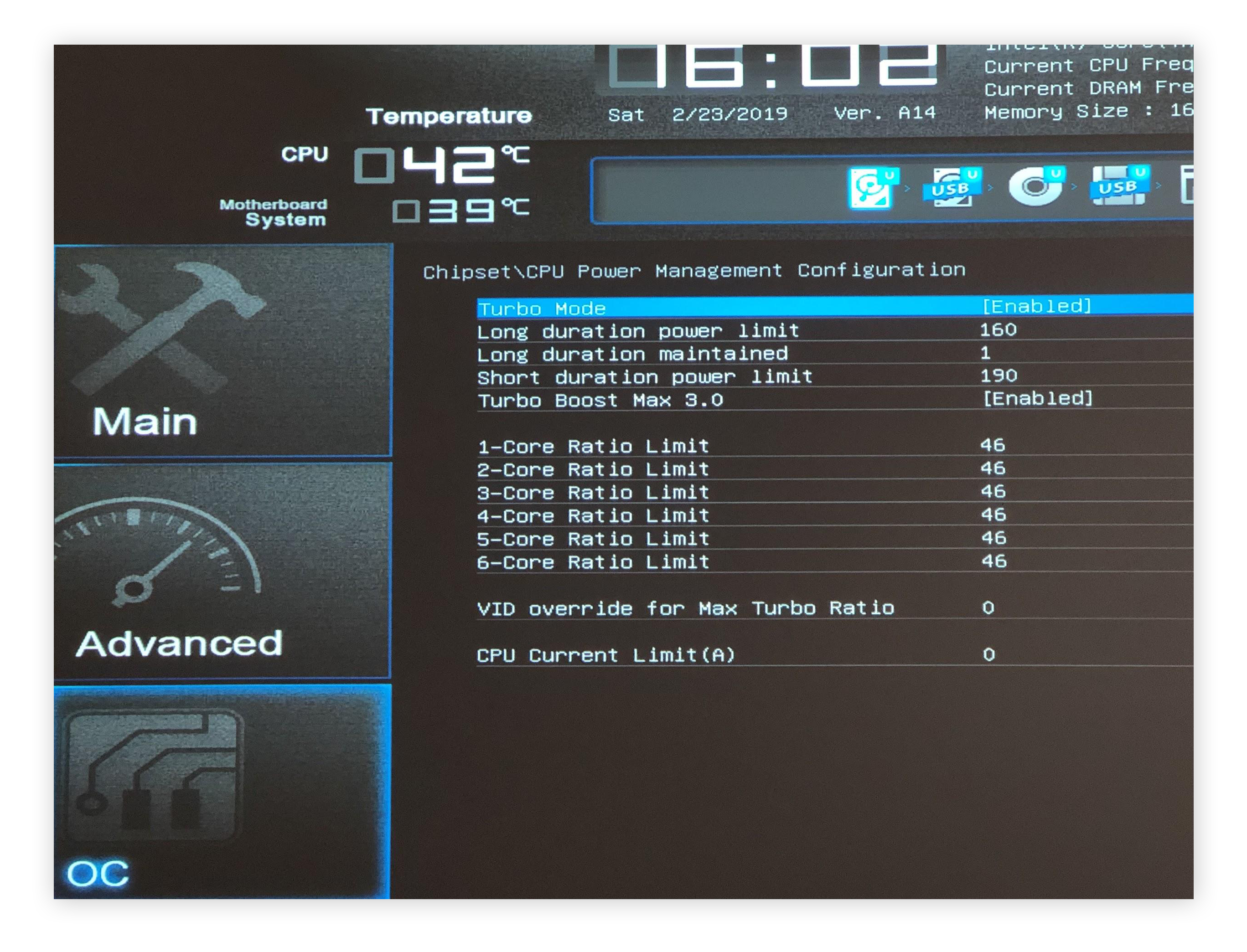
Start by restarting your computer. Press the key to enter BIOS setup. This key varies by brand but often is Delete, F2, or F10. Inside BIOS, navigate to the advanced or overclocking menu. Here, you will find options to adjust CPU settings.
Adjusting Cpu Multiplier And Voltage
Increase the CPU multiplier to raise the clock speed. Do this in small steps to avoid system crashes. Raise the CPU voltage slightly to support higher speeds. Be cautious with voltage changes; too high can cause damage. Save your changes before exiting BIOS.
Testing Stability And Performance
After overclocking, boot into your operating system. Run stress tests using software like Prime95 or AIDA64. Watch for crashes or errors during these tests. Check CPU temperatures to avoid overheating. If unstable, return to BIOS and lower settings. Repeat until stable and temperatures stay safe.
Credit: cleanerone.trendmicro.com
Monitoring And Maintaining Stability
After overclocking your CPU, monitoring and maintaining stability is very important. Overclocking pushes the CPU beyond its normal limits. This can cause crashes or damage if not managed well. Careful checking helps keep your system safe and fast.
Stable performance means your CPU runs without errors or overheating. Monitoring tools and tests show if the CPU handles the new speed. If problems appear, you can fix them early. Let’s explore how to check stability step-by-step.
Using Stress Testing Tools
Stress testing tools push the CPU to its limits. This shows if it can handle overclocking without crashing. Popular tools include Prime95, AIDA64, and IntelBurnTest. Run these tests for at least 30 minutes. Watch for errors or system freezes.
Stress tests simulate heavy workloads. They reveal problems that normal use might not show. If your PC passes these tests, the overclock is likely stable. Stop testing if the system crashes or restarts. Adjust settings and try again.
Tracking Temperatures And Voltages
Temperature and voltage are key to safe overclocking. High heat or wrong voltage can damage the CPU. Use monitoring software like HWMonitor or Core Temp. Check temperatures while idle and under stress.
Keep CPU temperatures below 85°C for long-term safety. Voltages should stay within your CPU’s recommended range. Sudden voltage spikes can cause crashes or hardware issues. Regular checks prevent overheating and instability.
Troubleshooting Common Issues
Common issues include system crashes, blue screens, and freezes. These often signal unstable overclock settings. Lower the clock speed or increase voltage slightly. Test again after each change.
Watch for overheating. Improve cooling with better fans or thermal paste. Sometimes, BIOS updates improve stability. Reset to default settings if problems persist. Patience and small steps help find the right balance.
Advanced Overclocking Techniques
Advanced overclocking techniques push your CPU beyond basic settings. These methods require more care and knowledge. They help you get better performance from your computer. Small changes can lead to big improvements.
Below are some key techniques. Each one focuses on different parts of your system. Learning these can enhance your overclocking results safely.
Overclocking With Software Utilities
Software utilities offer an easier way to overclock your CPU. Many motherboard makers include these tools. They let you adjust clock speeds and voltages inside Windows. This avoids restarting your PC repeatedly.
Some apps have automatic tuning features. These test your system stability and find good settings. Manual controls are also available for more precise tweaks. Always monitor temperatures while using these tools. Avoid pushing your CPU too hard.
Tweaking Ram And Cache Speeds
RAM and cache speeds affect overall CPU performance. Increasing RAM frequency can improve data flow. Adjust timings to reduce delays in memory access. Cache speed tuning enhances how fast the CPU handles tasks internally.
Start with small increments. Test stability after each change. Use benchmarking software to measure improvements. Faster RAM and cache speeds help your CPU work better under load. This is key for gaming and heavy applications.
Exploring Manual Voltage Control
Manual voltage control lets you fine-tune power supplied to the CPU. More voltage can help maintain stability at higher clock speeds. But extra voltage raises heat and power consumption.
Increase voltage slowly and watch temperatures closely. Use quality cooling solutions to prevent overheating. Proper voltage settings balance speed and safety. This method requires patience and careful testing. It can yield steady and reliable overclocking results.
Maximizing Performance Safely
Maximizing your CPU’s performance safely means finding the right balance. Overclocking can boost speed but may cause heat and wear. Safe practices help protect your CPU while improving power.
Taking care of your hardware ensures it lasts longer and stays stable. Small adjustments make a big difference in performance and durability.
Balancing Speed And Longevity
Push your CPU speed carefully. Avoid setting very high clock speeds at once. Increase speed step-by-step to test stability.
Watch your CPU temperature closely. High heat can shorten your CPU’s life. Use good cooling solutions like fans or liquid coolers.
Stop overclocking if your PC crashes or gets too hot. Stability is more important than a small speed gain.
Optimizing Power Settings
Adjust power settings in your BIOS or operating system. Higher power supports better overclocking but raises heat output.
Enable features like load-line calibration to keep voltage stable during high loads. This reduces crashes and damage.
Set a safe voltage range. Too high voltage can harm your CPU permanently. Use recommended limits from your CPU maker.
Regular Maintenance Tips
Clean your PC often to keep dust away from cooling parts. Dust blocks airflow and raises temperature.
Replace thermal paste between your CPU and cooler yearly. Old paste loses effectiveness and causes overheating.
Check system performance regularly. Use monitoring tools to track temperature and speed. Fix issues quickly to avoid damage.
Credit: www.avast.com
Frequently Asked Questions
What Is Cpu Overclocking And Why Do It?
CPU overclocking means increasing the processor’s clock speed beyond factory settings. It boosts performance for gaming and heavy tasks. However, it may increase heat and power use. Proper cooling and stable settings are essential to avoid damage and system crashes.
How To Safely Overclock A Cpu Step-by-step?
Start by researching your CPU’s limits and cooling system. Enter BIOS and gradually increase the clock speed. Test stability using stress tests after each change. Monitor temperatures closely. Stop if temperatures are too high or system crashes. Always back up data before overclocking.
What Risks Are Involved In Cpu Overclocking?
Overclocking risks include overheating, system instability, and reduced CPU lifespan. Poor cooling can cause hardware damage. It may void your warranty. To minimize risks, use reliable cooling, avoid extreme settings, and monitor your system’s performance regularly.
Which Tools Help Monitor Cpu Overclocking Performance?
Popular tools include CPU-Z for clock speeds, HWMonitor for temperatures, and Prime95 for stress testing. These help track your CPU’s stability and heat levels. Using these tools ensures your overclock remains safe and efficient.
Conclusion
Overclocking a CPU can boost your computer’s speed. Start slow and check temperatures often. Keep your system cool to avoid damage. Know your hardware limits and stay within them. Small changes make a big difference. Always save your work before testing new settings.
With care and patience, you can improve performance safely. This guide helps you get started confidently. Give your PC a little extra power today.
