
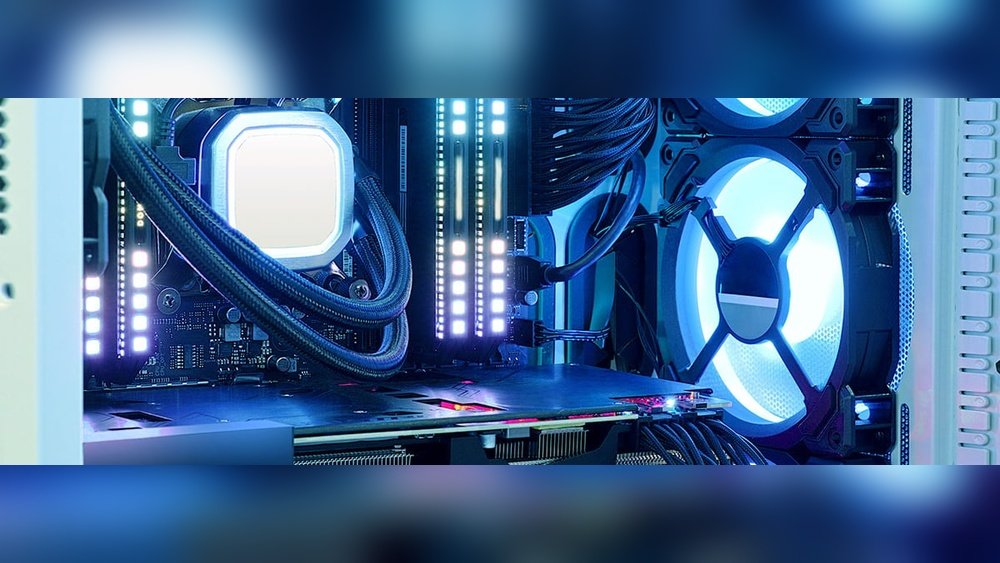
Are you ready to get more power out of your CPU without buying a new one? Overclocking your CPU can boost your computer’s speed and performance, making games smoother and tasks faster.
But it can also be risky if you don’t know what you’re doing. In this guide, you’ll learn how to overclock your CPU safely, step by step. By the end, you’ll have the confidence to push your processor to its limits while keeping your system stable and cool.
Keep reading—you’re about to unlock your CPU’s true potential.
Credit: www.liftingitalia.com
Benefits Of Overclocking
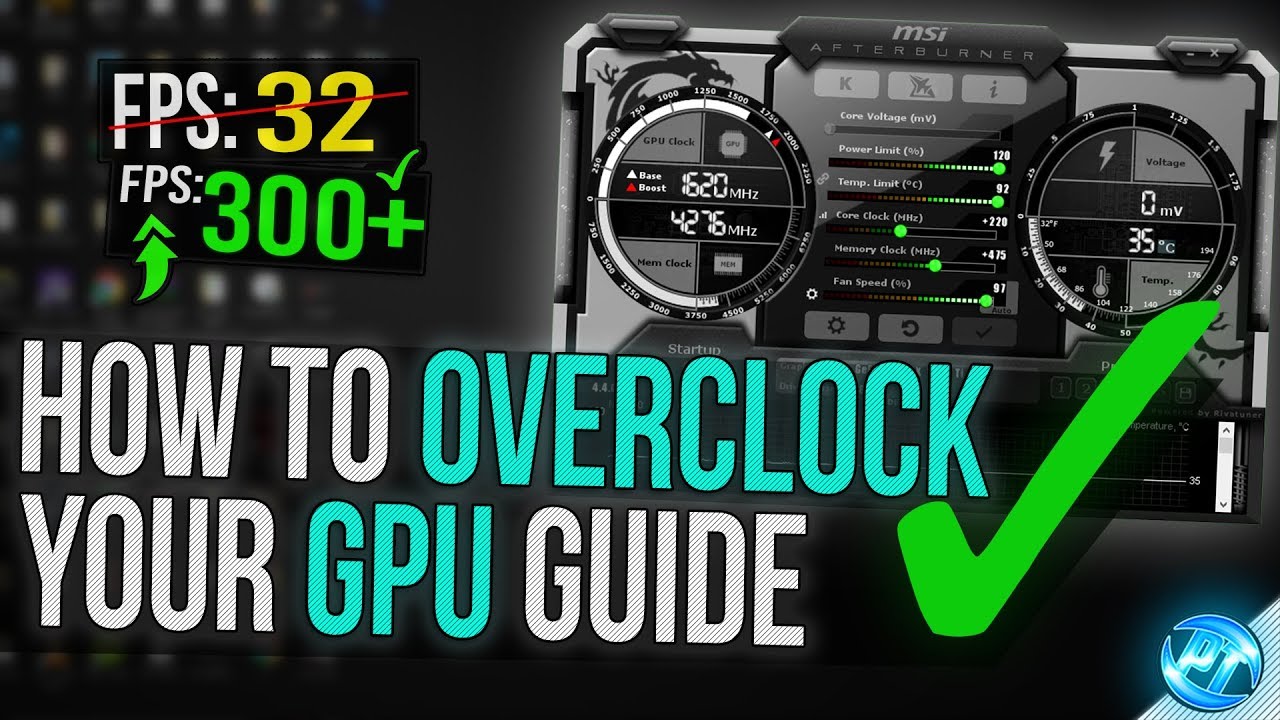
Overclocking your CPU can bring several benefits. It allows your computer to run faster than its original speed. This means better handling of tasks and programs. Overclocking can improve your computer’s ability without buying new hardware.
Understanding these benefits helps you decide if overclocking fits your needs. Here are some key advantages.
Improved Performance
Overclocking increases the CPU’s clock speed. This makes your computer respond quicker. Programs load faster, and multitasking becomes smoother. You get better performance in daily activities and demanding tasks.
Cost Efficiency
Overclocking saves money by extending your CPU’s life. You avoid buying a new processor right away. It gives more value from your current hardware. This is a smart choice for budget-conscious users.
Gaming Advantages
Games run better with a faster CPU speed. Overclocking reduces lag and improves frame rates. You get a smoother and more enjoyable gaming experience. This is important for competitive and casual gamers alike.
Essential Tools And Software
Overclocking a CPU can boost your computer’s speed and performance. But it requires the right tools and software to do it safely. These tools help you adjust settings, watch your CPU’s health, and test stability. Using them reduces risks and prevents damage.
Bios/uefi Access
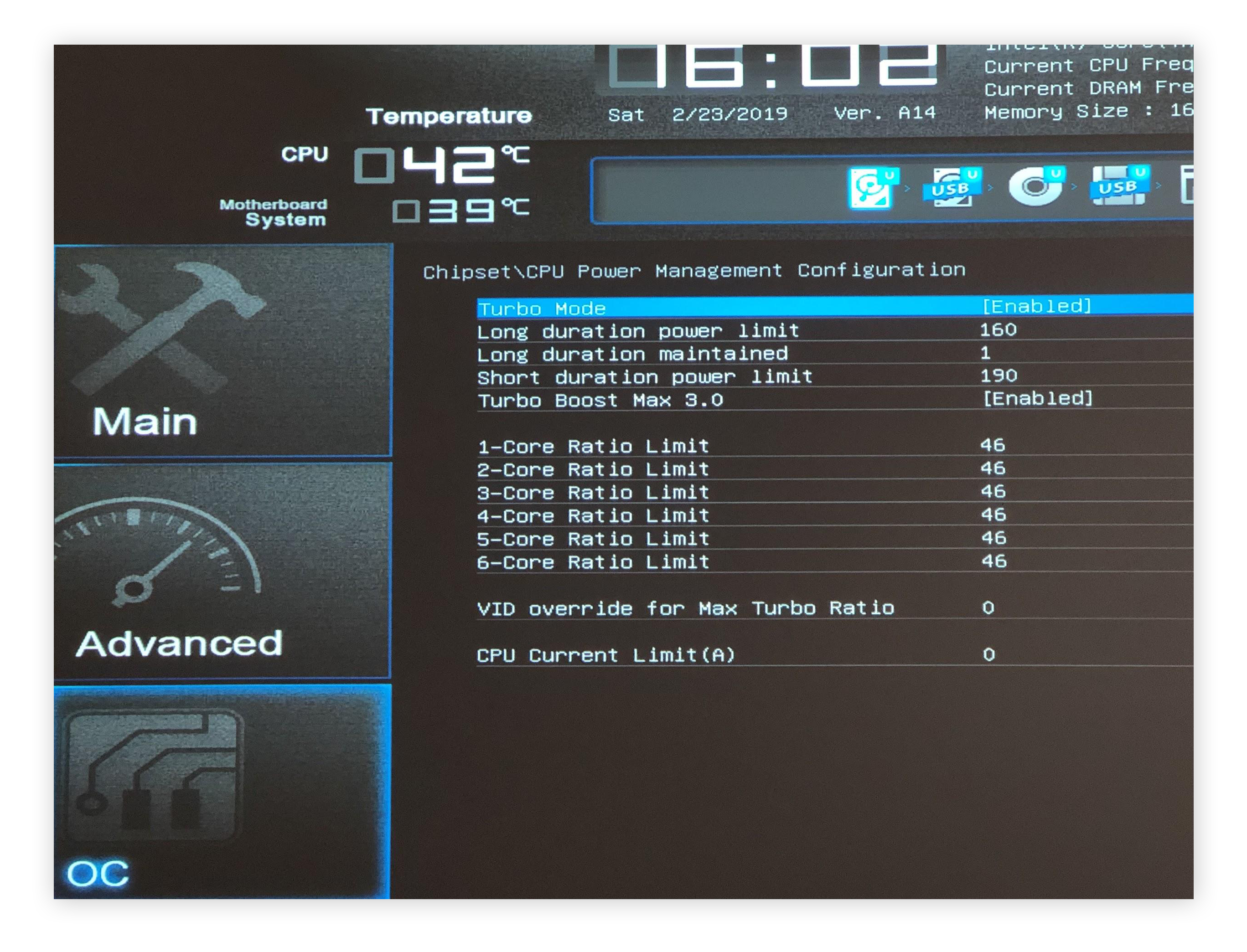
The BIOS or UEFI is where you change CPU speed settings. You enter it by pressing a key during startup, like F2 or Delete. Inside, you find options to adjust CPU frequency and voltage. Always save changes carefully. Incorrect settings can cause system problems.
Monitoring Programs
Monitoring programs track your CPU’s temperature, speed, and voltage in real-time. They warn you if the CPU gets too hot or unstable. Popular tools include HWMonitor, Core Temp, and CPU-Z. These programs run in Windows and give clear information about your CPU’s state.
Stress Testing Utilities
Stress testing utilities check if your CPU is stable after overclocking. They push your CPU to its limits for several minutes or hours. Prime95, AIDA64, and IntelBurnTest are common choices. Running these tests helps find any errors or crashes early.
Preparing Your System
Preparing your system is the first step before overclocking your CPU. This stage helps to keep your computer safe and stable. Taking time here reduces risks during the overclocking process.
Check Cooling Solutions
Overclocking makes your CPU work harder and hotter. Good cooling is crucial to avoid damage. Check your fans and heatsinks. Make sure they are clean and working well. Consider upgrading to a better cooler if needed. Proper airflow inside your case helps lower temperatures.
Update Drivers And Bios
Old drivers and BIOS can cause problems during overclocking. Visit your motherboard maker’s website. Download the latest BIOS update and drivers. Updated software improves system stability and performance. It also supports new features needed for overclocking.
Backup Important Data
Overclocking carries some risks. Your system might crash or fail to boot. Save copies of your important files before you start. Use an external drive or cloud storage. Backing up data prevents loss if something goes wrong.

Credit: www.hp.com
Step-by-step Overclocking Process
Overclocking your CPU can boost your computer’s speed. Doing it safely requires careful steps. Follow this guide to overclock your CPU without damage. Each step helps keep your system stable and cool.
Adjusting Cpu Multiplier
The CPU multiplier controls the processor’s speed. Start by entering your BIOS or UEFI settings. Find the CPU multiplier option. Increase the multiplier slowly, one step at a time. Save changes and restart your computer. This change raises the CPU clock speed.
Modifying Voltage Settings
Higher speeds need more power. Increase the CPU voltage slightly to keep the system stable. Do not raise the voltage too much. Too much voltage causes heat and damage. Make small changes and monitor temperatures carefully.
Testing Stability
Check if your system works well with the new settings. Use stress test software to run your CPU at full load. Watch for crashes or errors during the test. Test for at least 30 minutes to be sure. If the system fails, lower the multiplier or increase voltage cautiously.
Fine-tuning Settings
Adjust your settings based on test results. Lower voltage if temperatures are high but stable. Try increasing the multiplier a bit more if stable. Repeat testing after every change. This process helps find the best balance of speed and safety.
Managing Heat And Power
Managing heat and power is vital for safe CPU overclocking. Overclocking pushes your processor to work harder. This creates more heat and uses more electricity. Without proper control, your CPU can overheat or become unstable. Careful heat and power management keeps your system stable and extends CPU life.
Optimizing Cooling
Good cooling stops your CPU from overheating. Use high-quality air coolers or liquid cooling systems. Make sure your case has enough fans for airflow. Clean dust from fans and heat sinks regularly. Cooler temperatures allow higher and safer overclocking.
Monitoring Temperatures
Check your CPU temperature often during use. Use tools like HWMonitor or Core Temp for real-time data. Keep temperatures below the maximum safe limit set by your CPU maker. Sudden temperature spikes warn about possible cooling issues. Stop overclocking if temperatures stay too high.
Power Supply Considerations
Overclocking increases power consumption. Use a power supply unit (PSU) with enough wattage and quality. A weak PSU can cause crashes or damage parts. Look for PSUs with good efficiency ratings like 80 Plus Bronze or higher. Stable power helps maintain CPU performance and safety.
Troubleshooting Common Issues
Troubleshooting is a key part of overclocking your CPU safely. You might face some common problems during the process. Knowing how to fix these issues helps keep your system stable and fast. This section covers simple solutions to typical troubles.
System Crashes And Freezes
Crashes and freezes happen if the CPU is pushed too hard. The system may shut down or stop responding. Lower the clock speed or increase voltage slightly. Test the system after each change to find a stable setting. Use stress tests to check for stability.
Thermal Throttling
Thermal throttling occurs when the CPU gets too hot. It slows down to avoid damage. Check your cooling system is working well. Clean dust from fans and heatsinks. Apply new thermal paste if needed. Lower the clock speed if temperatures remain high.
Reverting To Default Settings
Sometimes you need to undo overclocking. Return settings to default if problems persist. Use the BIOS option to reset to factory defaults. This stops crashes and overheating immediately. After resetting, try overclocking again with smaller changes.
Safety Tips For Beginners
Overclocking a CPU can boost your computer’s speed. It also brings risks if done carelessly. Beginners should follow safety tips to protect their hardware. Small steps and careful checks keep your system stable.
Understanding how to overclock safely helps avoid damage and improves your experience. Start slow and watch your CPU closely during the process.
Avoiding Excessive Voltages
Voltage increases help reach higher speeds. Too much voltage causes heat and damages the CPU. Use the lowest voltage needed for stability. Check your motherboard’s voltage limits. Never push beyond safe levels.
Incremental Changes
Raise clock speeds in small steps. Avoid big jumps to prevent crashes. Test stability after each change. This approach lets you find the best balance between speed and safety.
Regular System Checks
Monitor temperatures and performance often. Use stress tests to check CPU health. Watch for overheating or errors. Keep cooling systems clean and working well. Regular checks catch problems early.
Credit: www.avast.com
When To Stop Overclocking
Knowing when to stop overclocking your CPU is very important. Pushing your CPU too far can cause damage or make your system unstable. It is key to watch for warning signs and keep your hardware safe. Follow these tips to decide the right time to stop.
Signs Of Instability
Instability shows that the CPU is pushed too hard. You may see crashes, freezes, or blue screens. Programs may close without warning. Strange errors or slowdowns can also appear. These signs mean the overclock is too high. Stop increasing your CPU speed if these happen.
Temperature Limits
High temperatures harm your CPU and reduce its lifespan. Most CPUs should stay below 85°C under load. Check your CPU temperature with monitoring software while testing. If temperatures rise beyond safe limits, stop overclocking. Cooling improvements can help, but avoid overheating at all costs.
Hardware Longevity
Overclocking stresses your CPU and other parts. Long-term damage may occur from excessive voltage or heat. Even if the system seems stable, too much stress shortens hardware life. It is better to keep a moderate overclock. Protect your investment by balancing speed with safety.
Frequently Asked Questions
What Is Cpu Overclocking And Why Do It?
CPU overclocking means running your processor faster than its default speed. It boosts performance for gaming and heavy tasks. However, it generates more heat and can shorten CPU lifespan if done improperly. Safe overclocking balances speed gains with stable temperatures.
How To Safely Overclock Your Cpu?
Start by increasing clock speed gradually in BIOS settings. Monitor CPU temperatures using software like HWMonitor. Ensure proper cooling with quality fans or liquid coolers. Test stability with stress tests like Prime95. Stop if temperatures exceed safe limits or crashes occur.
Does Overclocking Void Cpu Warranty?
Most CPU manufacturers do not cover damage caused by overclocking. Overclocking can void your warranty because it pushes hardware beyond tested limits. Always check your CPU’s warranty terms before overclocking to avoid losing support or replacements.
What Cooling Methods Help Cpu Overclocking?
Efficient cooling is essential for safe overclocking. Use high-quality air coolers or liquid cooling systems to dissipate heat. Keep your PC case well-ventilated. Proper cooling prevents overheating and maintains system stability during overclocking.
Conclusion
Overclocking your CPU can boost performance but requires care. Keep your system cool and monitor temperatures closely. Test stability after each change to avoid crashes. Use trusted software and follow safe steps every time. Remember, patience helps prevent damage and loss of data.
Enjoy better speed without risking your hardware. Safe overclocking means smarter, not faster, adjustments. Take your time and watch your PC run smoother.
