
Want to make your computer run faster without spending a dime on new hardware? Overclocking your CPU is the secret trick that can boost your system’s speed and performance.
But if you’ve never tried it before, the idea might seem risky or complicated. Don’t worry—you’re about to learn simple, step-by-step ways to safely unlock extra power from your CPU. Keep reading, because by the end of this guide, you’ll know exactly how to overclock your CPU and get the most out of your machine.
Why Overclock Your Cpu
Overclocking your CPU means running it faster than its original speed. This can make your computer perform better and complete tasks quicker. Many users overclock to improve their experience, especially for gaming or heavy software.
Before starting, understand why overclocking might help you. It can provide more power from your current hardware without buying new parts. Yet, it also brings risks you must consider carefully.
Benefits Of Overclocking
Overclocking boosts your CPU speed beyond factory settings. This leads to smoother gaming and faster software performance. Tasks like video editing and 3D rendering become quicker.
You get better value from your existing hardware. No need to upgrade your CPU to get extra power. It can also extend the life of your computer by delaying upgrades.
Risks To Consider
Overclocking increases heat output from the CPU. Too much heat can damage your computer parts. It may cause your system to crash or become unstable.
Your CPU may use more electricity, raising power bills. Overclocking can void your warranty. If done incorrectly, it can shorten your CPU’s life.
Proper cooling and careful setup are important. Know the limits of your hardware to avoid problems.
Preparing For Overclocking
Preparing your CPU for overclocking is an important step. It helps ensure a safe and smooth process. Taking time to prepare reduces risks of damage and instability. Follow these key steps before you start overclocking.
Check Cpu Compatibility
Not all CPUs support overclocking. Some models have locked multipliers. Check your CPU model online to see if it allows overclocking. Also, verify your motherboard supports this feature. This saves time and prevents problems later.
Update Bios And Drivers
Outdated BIOS can cause issues during overclocking. Visit your motherboard’s website for the latest BIOS updates. Install the newest drivers for your CPU and chipset. Updated software improves stability and performance.
Gather Necessary Tools
Prepare software tools like CPU stress testers and temperature monitors. These help check stability and heat levels after overclocking. Also, ensure you have a good cooling system ready. Proper cooling protects your CPU from overheating.
Setting Up Cooling Solutions
Setting up cooling solutions is a key step in CPU overclocking. Overclocking makes your CPU run hotter than usual. Good cooling helps keep temperatures low. This protects your CPU from damage and improves performance.
Choosing the right cooling method is important. You need a system that fits your budget and case size. Proper cooling also lets you push the CPU higher safely. Next, learn about air and liquid cooling options.
Air Vs Liquid Cooling
Air cooling uses fans and heat sinks to move heat away. It is simple, affordable, and easy to install. Many stock coolers use air cooling. It works well for mild overclocking.
Liquid cooling uses a pump to move coolant through tubes. It removes heat faster than air cooling. Liquid cooling is quieter and better for high overclocks. It costs more and needs more space inside your case.
Both types need good airflow inside your case. Choose a cooler that fits your CPU socket and size limits. Check your case compatibility before buying.
Thermal Paste Application
Thermal paste helps transfer heat from the CPU to the cooler. Using the right amount is very important. Too little or too much paste reduces cooling efficiency.
Clean the CPU surface and cooler base with alcohol first. Apply a small pea-sized drop of thermal paste on the CPU center. When you install the cooler, it spreads the paste evenly.
Do not add extra paste. Too much paste can block heat transfer. Replace thermal paste every time you remove the cooler. Fresh paste improves heat conduction and lowers CPU temperature.
Adjusting Bios Settings
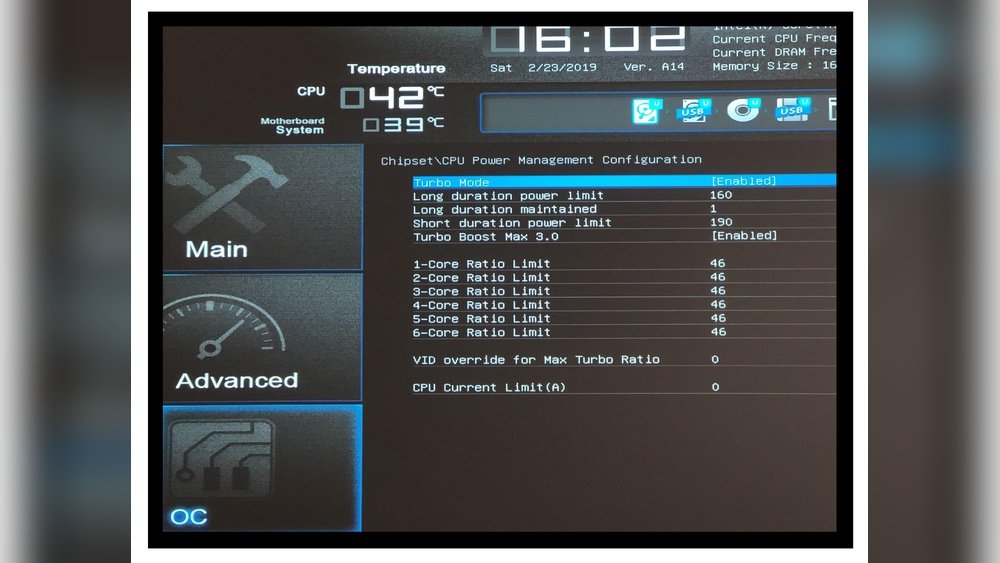
Adjusting BIOS settings is a key step in overclocking your CPU. This process changes how your processor works by tweaking its core settings. It can improve your computer’s speed and performance. Careful changes in BIOS can make a big difference.
BIOS controls the hardware at a low level. Overclocking here means pushing your CPU beyond its default speed. You must be cautious to avoid damage. Small changes and testing are the safest way.
Accessing Bios
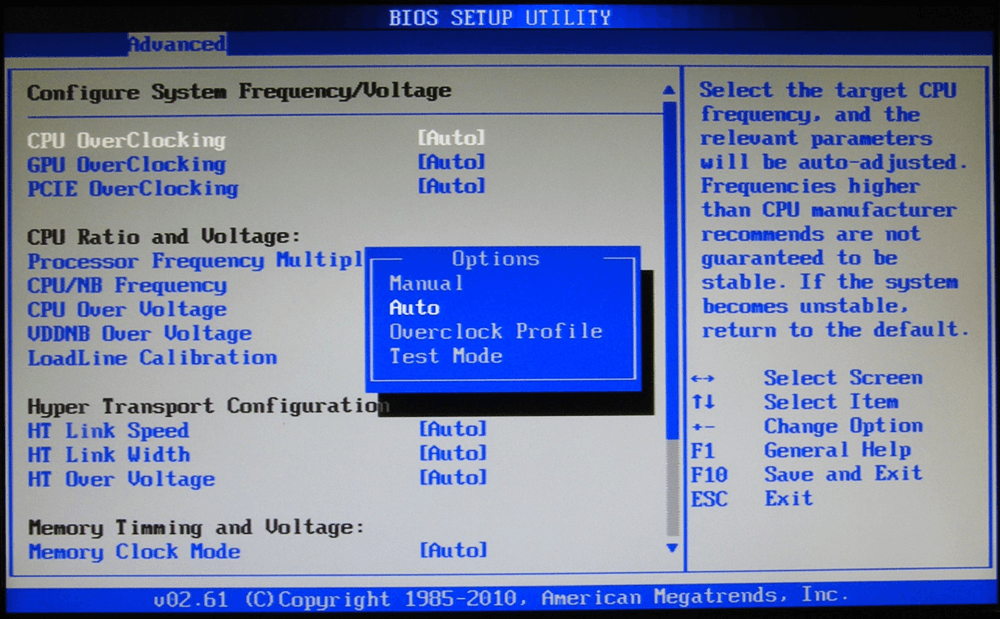
To start, you need to enter the BIOS menu. Restart your computer and press a special key during boot. Common keys include Delete, F2, or Esc. The screen usually shows which key to press.
Once inside, navigate using arrow keys. Look for sections like “Advanced,” “Overclock,” or “CPU Settings.” Each motherboard has a slightly different layout. Take your time to find the right menu.
Tweaking Cpu Multiplier
The CPU multiplier controls the processor speed. It works by multiplying the base clock speed. Increasing the multiplier raises the CPU frequency. For example, a base clock of 100 MHz with a multiplier of 40 gives 4.0 GHz.
Change the multiplier in small steps. Save your settings and reboot. Check if your system runs stable. If it crashes, lower the multiplier or increase cooling.
Modifying Voltage Settings
Voltage settings supply power to the CPU. Raising voltage helps stabilize higher speeds. But too much voltage can cause overheating or damage. Increase voltage slowly and monitor temperatures.
Look for “CPU Core Voltage” or “Vcore” in BIOS. Raise it by small amounts, such as 0.01V. After each change, test system stability and temperature. Do not exceed safe voltage limits for your CPU.
Stress Testing And Monitoring
Stress testing and monitoring are critical steps after overclocking your CPU. They help confirm the system runs well without errors. Monitoring also prevents overheating, which can damage your hardware.
Testing your CPU under heavy load reveals its stability and performance limits. Monitoring tools show real-time temperature changes and system behavior. Combining both ensures a safe and effective overclocking process.
Choosing Stress Test Software
Selecting the right stress test software is essential. Popular tools include Prime95, AIDA64, and OCCT. These programs push your CPU to its limits, simulating heavy workloads.
Choose software that matches your skill level. Some tools offer detailed reports, while others focus on simplicity. Run tests for several hours to check stability thoroughly.
Tracking Temperatures And Stability
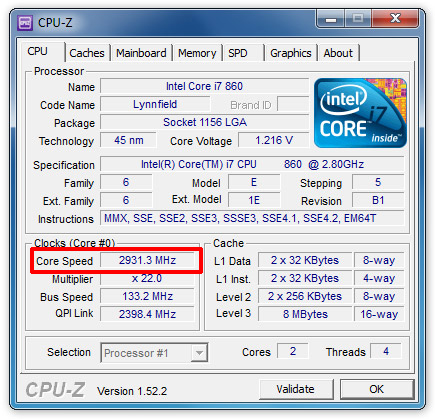
Tracking CPU temperature is crucial during stress testing. Use monitoring tools like HWMonitor, Core Temp, or MSI Afterburner. These show real-time temperature and voltage data.
Keep temperatures below your CPU’s maximum safe limit. Watch for sudden spikes or drops in performance. If the system crashes or shows errors, reduce your overclock settings.
Credit: cleanerone.trendmicro.com
Troubleshooting Overclock Issues
Troubleshooting overclock issues is a key step in keeping your CPU stable. Overclocking can cause errors or crashes. Fixing these problems helps your system run smoothly and safely.
Start by understanding common issues. System crashes or freezes are signs of overclock stress. Voltage settings may be too high or low. Cooling might be insufficient. Careful adjustments solve most problems.
Handling System Crashes
System crashes happen when the CPU cannot handle the settings. Lower the overclock speed to reduce stress. Check your cooling system for proper airflow. Update your motherboard BIOS for better support. Test stability with stress tools after each change.
Reducing Voltage Safely
Voltage controls power to the CPU. Too much voltage can cause heat and damage. Reduce voltage in small steps to avoid instability. Use monitoring software to watch temperatures closely. Stop lowering voltage if your system starts to crash or freeze.
Maintaining Overclocked Performance
Maintaining overclocked performance is key to keeping your CPU running smoothly. Overclocking pushes your CPU beyond its standard limits. This can cause instability or heat issues over time. Proper care helps prevent crashes and hardware damage. Monitoring and updates are essential parts of this process.
Regular Monitoring
Check your CPU temperature often. High temperatures can harm your hardware. Use software tools to watch CPU speed and voltage. Look for any sudden drops or spikes. These signs may show instability. Adjust settings if you notice problems. Keep your system clean to improve airflow.
Updating Bios And Software
Keep your BIOS up to date. Manufacturers release updates to improve stability. Updated BIOS can fix bugs and support new features. Also, update your motherboard drivers regularly. Use the latest software for monitoring and control. This helps maintain smooth overclocked performance. Always follow instructions carefully during updates.

Credit: www.avast.com
Credit: software.informer.com
Frequently Asked Questions
What Is Cpu Overclocking And Why Do It?
CPU overclocking means increasing your processor’s speed beyond factory settings. It boosts performance for gaming and heavy tasks. However, it may increase heat and power consumption. Proper cooling and stability testing are essential to avoid hardware damage.
How Safe Is Overclocking My Cpu?
Overclocking is generally safe if done carefully. Use quality cooling and increase speeds gradually. Monitor temperatures closely to prevent overheating. Avoid pushing your CPU beyond stable limits. Always back up data before starting to minimize risks.
What Tools Do I Need For Cpu Overclocking?
You need a motherboard with BIOS overclocking options or software utilities like Intel XTU or AMD Ryzen Master. Also, reliable temperature monitoring tools like HWMonitor or Core Temp are crucial. A good cooling system is essential for stable overclocking.
How To Monitor Cpu Temperature During Overclocking?
Use software like HWMonitor, Core Temp, or SpeedFan to track CPU temperatures. Keep your CPU temperature below 85°C to ensure stability and longevity. Regular monitoring helps avoid overheating and hardware damage during overclocking sessions.
Conclusion
Overclocking your CPU can boost your computer’s speed. It takes careful steps to do it safely. Always watch your temperatures and test stability. Small changes matter more than big jumps. Keep your system cool with good fans or cooling. Remember, patience helps avoid damage and errors.
Enjoy a faster PC, but stay cautious. Practice makes the process easier over time.
