
Are you ready to unlock the hidden power inside your computer? Overclocking your CPU can boost your system’s speed and performance without spending extra money on new hardware.
But if you’ve never tried it before, the process might seem tricky or even risky. Don’t worry—you’re about to learn simple, step-by-step methods that anyone can follow. By the end of this article, you’ll know exactly how to safely push your CPU beyond its limits and enjoy faster gaming, smoother multitasking, and better overall performance.
Keep reading, because your computer’s true potential is waiting to be unleashed.
Benefits Of Cpu Overclocking
CPU overclocking offers several benefits that can improve your computer’s overall experience. It helps boost the speed and power of your processor beyond its standard limits. This can lead to smoother performance in various tasks and applications.
Overclocking is popular among gamers and tech enthusiasts who want more from their hardware. It also provides a way to get extra value without buying new components. Below, we explore some key benefits of CPU overclocking.
Improved Performance
Overclocking increases the CPU’s clock speed. This makes your processor run faster and handle more data per second. Programs open quicker, and tasks finish faster. You can run demanding software without lag or delays. This is especially helpful for video editing, 3D rendering, and multitasking.
Enhanced Gaming Experience
Games benefit greatly from higher CPU speeds. Overclocking can reduce frame drops and improve game smoothness. It allows your system to process game data faster. This results in better graphics and quicker response times. Competitive gamers often use overclocking to gain an edge.
Cost Efficiency
Overclocking saves money by improving current hardware. It delays the need to buy a new CPU or computer. You get more power without extra cost. This makes it a budget-friendly option for better performance. It also extends the life of your system before upgrades.
Essential Tools And Software
Overclocking the CPU requires careful adjustments and constant checks. Using the right tools and software helps ensure a safe and effective process. These tools let you change settings, watch performance, and test stability.
Each tool has a clear role. The BIOS or UEFI lets you change core settings directly. Monitoring software shows real-time temperatures and speeds. Stress testing apps verify if the CPU runs well under pressure.
Bios And Uefi Firmware
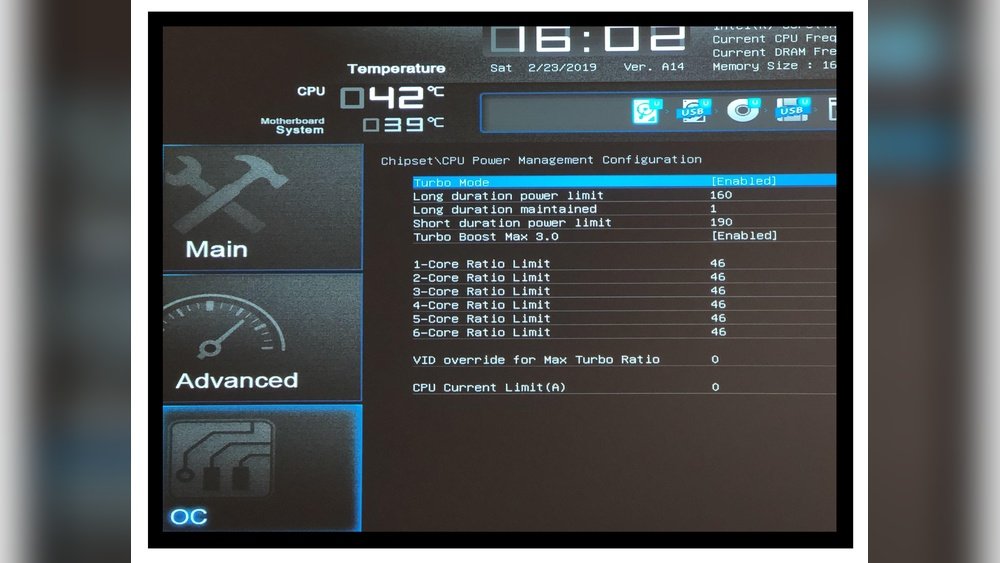
The BIOS or UEFI is the first tool for overclocking. It controls the CPU’s core settings like clock speed and voltage. You can enter these menus by pressing a key during startup. Changes made here affect the CPU at a low level.
Adjustments must be small and careful. The interface may look complex but is straightforward once familiar. Saving and testing changes one by one is the safest method.
Monitoring Software
Monitoring software tracks CPU temperature, voltage, and clock speed. It gives instant feedback during overclocking. This helps avoid overheating or instability.
Popular tools include HWMonitor, Core Temp, and CPU-Z. These programs run in the background and show real-time data. Watching these numbers helps keep the CPU safe.
Stress Testing Applications
Stress testing apps check if the CPU can handle overclock settings. They push the processor to its limits. This reveals any weaknesses or crashes.
Programs like Prime95, AIDA64, and IntelBurnTest are common choices. Running these tests for several hours shows if the overclock is stable. Stability is key to a successful overclock.
Preparing Your System
Preparing your system is the first step before overclocking your CPU. This step ensures your hardware is ready and safe for the changes you plan to make. Taking time here can save you from problems later.
Check Hardware Compatibility
Not all CPUs support overclocking. Check your processor’s model online to see if it allows overclocking. Your motherboard must also support this feature. Look for compatible chipsets and BIOS options. Make sure your cooling system can handle extra heat. Good cooling is key for stable overclocking.
Update Bios
Updating your BIOS can improve system stability and add new features. Visit your motherboard manufacturer’s website for the latest BIOS version. Follow their instructions carefully. An updated BIOS can help your CPU run better at higher speeds. Avoid turning off your PC during this process.
Backup Important Data
Overclocking carries some risk of system crashes or data loss. Save your important files before you start. Use an external drive or cloud storage for backups. This step protects your data if the system becomes unstable. Always keep backups updated for safety.

Credit: www.wikihow.com
Step-by-step Overclocking Process
Overclocking your CPU can improve performance for tasks and games. The process needs care and patience. Follow these clear steps to safely overclock your CPU. Each step builds on the last for better control and results.
Adjusting Cpu Multiplier
Start by entering your computer’s BIOS or UEFI menu. Find the CPU multiplier setting. This controls how fast your CPU runs. Increase the multiplier slowly. Raise it by one step at a time. Save and restart your system after each change.
Modifying Voltage Settings
Next, adjust the CPU voltage to keep it stable. Increase voltage only a little. Too much voltage can damage your CPU. Watch the temperature closely. Use small increments and test after each change.
Testing Stability
Use stress test software to check stability. Run the test for at least 15 minutes. Look for crashes or errors. If your system fails, lower the multiplier or increase voltage slightly. Keep testing until stable.
Fine-tuning Settings
Once stable, fine-tune your settings. Try small adjustments to multiplier and voltage. Aim for the best balance between speed and temperature. Keep testing after each change. Stop if your CPU gets too hot.
Managing Heat And Cooling
Overclocking your CPU pushes it to run faster than normal. This creates more heat inside your computer. Managing this heat is very important. Without proper cooling, your CPU can get damaged or slow down. Let’s explore how to keep your CPU cool during overclocking.
Choosing The Right Cooler
Select a cooler that matches your CPU’s heat output. Air coolers with large heatsinks work well for mild overclocking. For stronger overclocking, consider liquid coolers. They move heat away faster. Check the cooler’s size and compatibility with your case.
Improving Airflow
Good airflow inside your case helps keep temperatures low. Position fans to bring cool air in and push hot air out. Avoid blocking airflow with cables or parts. Clean dust filters and fans regularly. This keeps air moving smoothly and cools your CPU better.
Monitoring Temperature
Watch your CPU temperature closely during overclocking. Use software tools to check temps in real time. Keep temps below your CPU’s maximum safe limit. Stop overclocking if temperatures get too high. Staying aware helps protect your computer from damage.

Credit: www.hp.com
Avoiding Common Pitfalls
Overclocking your CPU can boost performance but comes with risks. Avoiding common mistakes helps keep your system safe and stable. Taking care during this process saves time and prevents damage. Pay attention to key warning signs and know your limits.
Recognizing Instability Signs
Watch for crashes or sudden freezes during tasks. Unexpected restarts or blue screens show instability. Programs may close without warning or fail to start. Slower performance after changes can also signal problems. These signs mean your CPU settings need adjustment.
Preventing Hardware Damage
Keep an eye on CPU temperatures. High heat can harm your hardware over time. Use good cooling solutions like fans or liquid coolers. Avoid pushing voltages too high as this wears parts faster. Regularly clean dust from your system to maintain airflow.
Knowing When To Stop
Set a safe limit for overclocking based on tests. If your system remains unstable after several tries, stop. Avoid chasing small speed gains that cause big risks. Stability and hardware health are more important than tiny boosts. Listen to your computer’s feedback and act wisely.
Maximizing Long-term Performance
Maximizing long-term performance after overclocking your CPU requires care and attention. Overclocking pushes your processor beyond standard speeds. This can cause extra heat and wear over time. Protect your investment by practicing good habits. Maintaining your system helps keep it stable and fast for years. Follow simple steps to ensure your CPU runs smoothly. Small efforts now prevent big problems later.
Regular Maintenance
Clean your computer often. Dust blocks airflow and traps heat. Use compressed air to clear fans and vents. Check thermal paste between the CPU and cooler. Replace it if it looks dry or cracked. Good cooling keeps temperatures low. Low heat means less strain on your CPU. Run stress tests occasionally to check stability. Stop overclocking if the system crashes or shows errors.
Updating Drivers And Firmware
Keep your motherboard BIOS up to date. New versions improve compatibility and fix bugs. Update your CPU and GPU drivers regularly. Updated software helps your system run better. It can also improve power management and cooling. Visit official websites for the latest downloads. Avoid third-party sources to reduce risks. Proper updates support higher overclocking speeds safely.
Overclocking For Different Workloads
Not all tasks need the same speed. Adjust overclocking settings based on what you do. For gaming, prioritize high clock speeds. For video editing, balance speed with stability. Use software profiles to switch settings easily. This keeps your system efficient and cool. Overclock smartly to extend your CPU’s life span. Tailored settings prevent overheating and crashes.

Credit: www.wikihow.com
Frequently Asked Questions
What Is Cpu Overclocking And How Does It Work?
CPU overclocking increases the processor’s clock speed beyond factory settings. It boosts performance by making the CPU run faster. Overclocking requires adjusting BIOS settings or using software tools. Proper cooling and stability testing are essential to prevent damage and crashes.
Is Cpu Overclocking Safe For My Computer?
Overclocking is generally safe if done correctly. Using adequate cooling and gradual adjustments minimizes risks. However, pushing the CPU too far can cause overheating or hardware failure. Always monitor temperatures and stability during the process to ensure safe operation.
How Much Performance Gain Can I Expect From Overclocking?
Performance gains vary based on CPU model and cooling. Typically, overclocking can boost speeds by 10-30%. Real-world improvements depend on the tasks you run. Some applications benefit more from overclocking than others, like gaming or video editing.
What Tools Do I Need To Overclock My Cpu?
You need BIOS access or specialized overclocking software like Intel XTU or AMD Ryzen Master. Monitoring tools like HWMonitor help track temperatures and voltages. A reliable stress test program ensures your system remains stable after changes.
Conclusion
Overclocking the CPU can boost your computer’s speed. It takes careful steps and patience. Always check your system’s temperature and stability. Small changes work better than big jumps. Keep your cooling system strong to avoid damage. Watch your CPU’s limits and don’t push too hard.
Learning the process helps you use your PC better. Stay safe, and enjoy the faster performance you create.
