
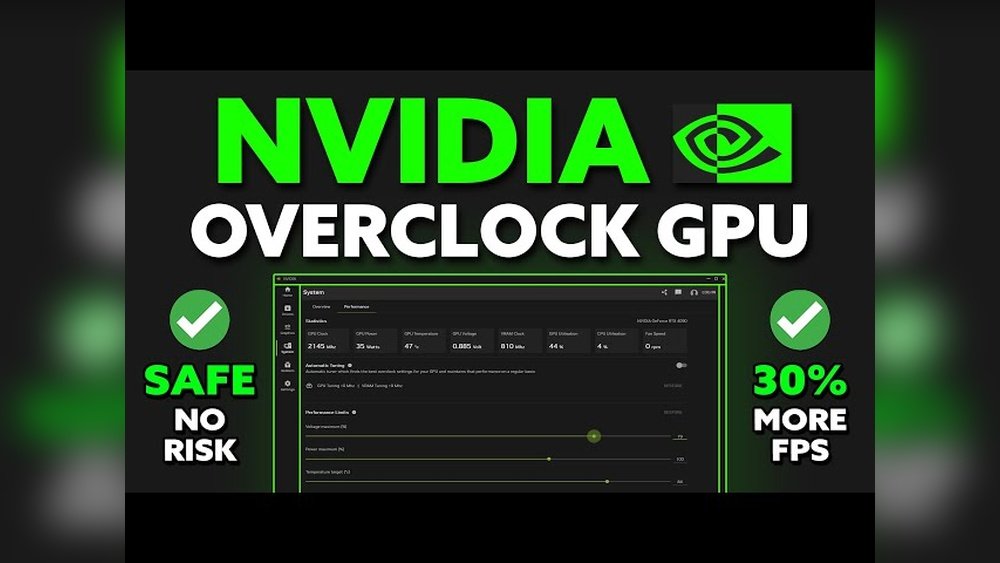
Are you ready to unlock the full power of your Nvidia GPU? Overclocking your graphics card can boost your gaming performance and speed up demanding tasks without spending extra money.
But it’s not just about pushing your hardware harder—it’s about doing it safely and effectively. In this guide, you’ll learn simple, step-by-step methods to overclock your Nvidia GPU, improve your frame rates, and get the most out of your setup.
Stick with me, and by the end, you’ll have the confidence to take your graphics card to the next level. Let’s dive in!

Credit: vixencomposites.com
Benefits Of Overclocking Nvidia Gpus
Overclocking Nvidia GPUs can bring several advantages to your computer experience. It pushes the graphics card to run faster than its default speed. This boost can improve how your system handles demanding tasks. Users notice better visuals and smoother performance in many applications. The benefits go beyond just gaming, affecting other areas too.
Improved Gaming Performance
Overclocking increases the GPU’s clock speed. This means games run smoother with higher frame rates. Graphics look sharper and more detailed. It helps reduce lag and stuttering during gameplay. Players enjoy a more responsive and enjoyable experience. Even newer games can run better on older cards.
Enhanced Rendering Speeds
Rendering times shrink with a faster GPU. Tasks like video editing and 3D modeling finish quicker. This saves time and lets you complete projects faster. Overclocking helps professional software work more efficiently. It can handle larger files and complex scenes without slowing down.
Better Overall System Responsiveness
A faster GPU eases the load on the CPU. The whole system feels more responsive and fluid. Programs open and run faster. Multitasking becomes smoother with less lag. Everyday activities like browsing and streaming benefit too. Overclocking can make your computer feel newer and faster.

Credit: garinfobahn.com
Prerequisites For Safe Overclocking
Safe overclocking of your Nvidia GPU starts with the right setup. Without the correct tools and conditions, you risk damaging your hardware or causing system crashes. Preparing well helps you increase performance without trouble. Here are the key prerequisites to check before you begin.
Compatible Hardware And Software
Your GPU must support overclocking. Not all Nvidia models allow safe speed increases. Use software designed for Nvidia cards, such as MSI Afterburner or Nvidia Inspector. These programs provide control over clock speeds and voltage. Ensure your motherboard and CPU can handle higher GPU loads. Updated drivers are essential for stability and performance.
Adequate Cooling Solutions
Overclocking raises your GPU’s temperature. Good cooling prevents overheating and damage. Use a quality GPU cooler, either air or liquid-based. Make sure your PC case has proper airflow. Keep dust away from fans and heatsinks. Monitor temperatures often during overclocking to stay safe.
Reliable Power Supply
Overclocking increases power demand. A stable and strong power supply unit (PSU) is vital. Check your PSU’s wattage rating matches your system needs. Avoid power fluctuations that can cause crashes or hardware failure. Use a PSU from a trusted brand with good reviews.
Essential Tools For Overclocking Nvidia Gpus
Overclocking an Nvidia GPU can boost your system’s performance. To do this safely, you need the right tools. These tools help you change settings, monitor your GPU, and check performance. Using trusted software reduces risks and improves results. Here are the essential tools for Nvidia GPU overclocking.
Nvidia Control Panel
The Nvidia Control Panel comes with your Nvidia drivers. It lets you adjust basic GPU settings. You can manage display options and set power limits. Though it doesn’t offer full overclocking features, it helps in basic tuning. Use it for initial setup and simple tweaks.
Msi Afterburner
MSI Afterburner is popular for overclocking Nvidia GPUs. It provides control over core clock, memory clock, and fan speed. The interface is user-friendly and works with most Nvidia cards. It also shows real-time temperature and usage stats. This tool is key to fine-tuning your GPU safely.
Gpu-z And Benchmarking Software
GPU-Z gives detailed info about your graphics card. It shows clock speeds, temperatures, and voltage levels. Benchmarking software tests your GPU’s performance under load. Use programs like 3DMark or Unigine Heaven. They help check stability and measure gains after overclocking.
Step-by-step Overclocking Process
Overclocking an Nvidia GPU can boost your graphics card’s speed and performance. This process involves increasing the clock speeds and adjusting settings safely. Follow these steps carefully to avoid damage and keep your system stable.
Monitoring Baseline Performance
Start by checking your GPU’s current performance. Use software like MSI Afterburner to see clock speeds, temperature, and frame rates. Record these numbers. They serve as a benchmark for your overclocking progress.
Adjusting Core Clock Speeds
Increase the core clock speed in small steps, around 10-15 MHz at a time. After each change, test your GPU with a game or benchmark. Watch for crashes or glitches. Stop increasing if you see errors or overheating.
Tweaking Memory Clock Speeds
Next, raise the memory clock speed slowly. Increase by 20-30 MHz steps. Test after each adjustment. Monitor temperature and performance carefully. Memory overclocking can improve texture loading and overall smoothness.
Fine-tuning Voltage Settings
Adjusting voltage helps stabilize higher clock speeds. Increase voltage slightly if your GPU crashes during tests. Be cautious; too much voltage can damage your card. Keep temperature below safe limits.
Stress Testing For Stability
Run stress tests like FurMark or 3DMark to check stability. Let the test run for at least 15 minutes. Watch for crashes, artifacts, or overheating. If problems appear, lower your clock speeds or voltage.
Troubleshooting Common Issues
Troubleshooting is a key part of overclocking your Nvidia GPU. Issues can arise during the process. Knowing how to fix common problems helps keep your system stable. This section covers simple ways to handle typical overclocking troubles.
Handling System Crashes
System crashes often happen due to unstable overclock settings. Lower the clock speed in small steps. Test stability after each change using stress tests. Avoid pushing the GPU too far at once. Keep your drivers updated for better compatibility. Save your work frequently to prevent data loss.
Dealing With Overheating
Overheating can damage your GPU and reduce performance. Make sure your PC case has good airflow. Clean dust from fans and vents regularly. Use software to monitor GPU temperature. If the GPU gets too hot, reduce the overclock or increase fan speed. Consider adding extra cooling if needed.
Reverting To Default Settings
Reverting to default settings fixes most overclocking issues. Use Nvidia’s software or third-party tools to reset values. This step is quick and safe. It helps return your GPU to normal operation. Keep default profiles saved for easy access. Restart your computer after resetting to ensure changes apply.
Tips For Maintaining Long-term Gpu Health
Keeping your Nvidia GPU healthy is key to long-term performance. Overclocking can boost speed but may cause wear. Proper care helps avoid damage and keeps your GPU running smoothly. Follow these tips for better GPU health.
Regular Cleaning And Maintenance
Dust and dirt block airflow and cause heat build-up. Clean your GPU and computer case often. Use compressed air to blow dust from fans and heatsinks. Avoid touching components with bare hands. A clean GPU cools better and lasts longer.
Monitoring Temperatures During Use
High temperatures reduce GPU lifespan. Use software tools to check GPU temperature regularly. Keep temperatures below 85°C for safe operation. Stop overclocking if temperatures rise too high. Proper cooling prevents damage and keeps performance stable.
Updating Drivers And Firmware
Old drivers can cause errors and reduce efficiency. Download the latest Nvidia drivers from the official site. Update your GPU firmware if updates are available. Updated software improves stability and fixes bugs. This helps your GPU work well with new games and apps.
Credit: www.kaz-metiz.com
Frequently Asked Questions
What Is Nvidia Gpu Overclocking?
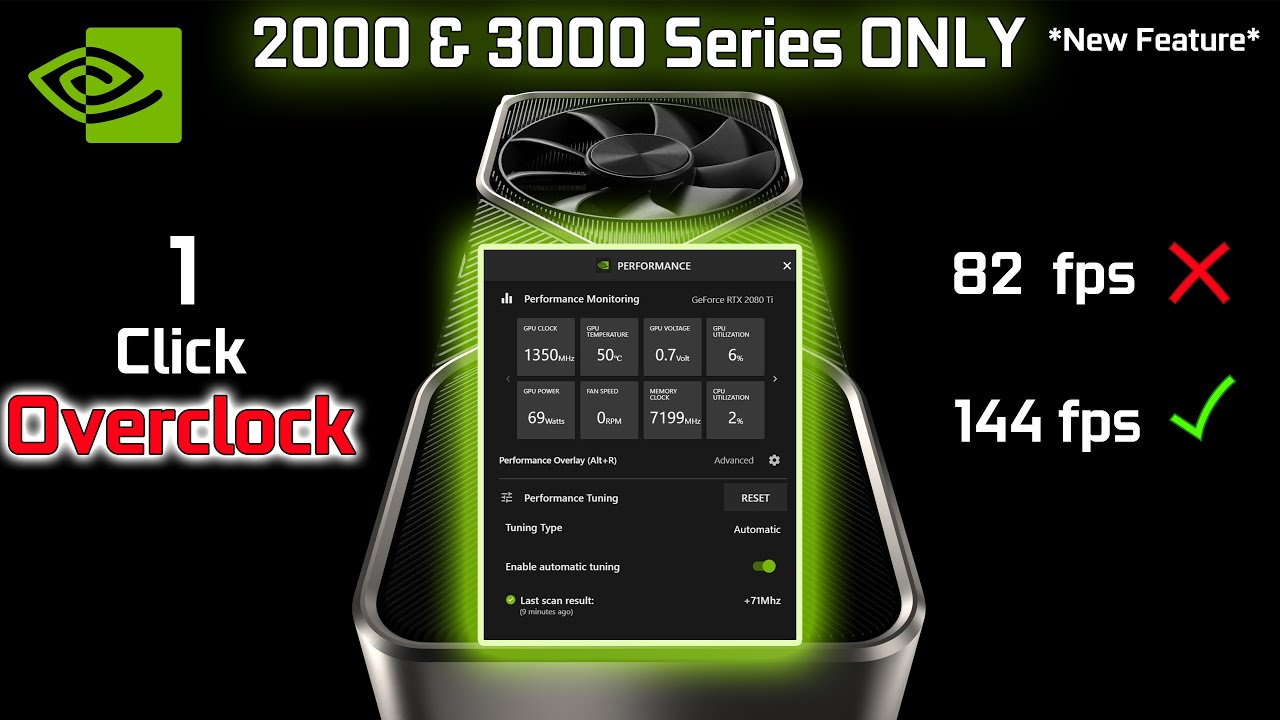
Overclocking an Nvidia GPU means increasing its clock speeds beyond factory settings. This boosts performance but may raise heat and power use. Proper cooling and stability testing are essential to avoid damage and crashes while overclocking.
How To Safely Overclock Nvidia Gpu?
Start by increasing clock speeds gradually in small steps. Use software like MSI Afterburner for precise control. Monitor temperatures and test stability after each adjustment. Stop if temperatures exceed 85°C or if crashes occur to ensure safety.
Does Overclocking Nvidia Gpu Improve Gaming?
Yes, overclocking can improve gaming performance by increasing frame rates. It allows the GPU to process graphics faster. However, gains vary by game and hardware, and excessive overclocking might cause instability or damage.
Can Overclocking Damage My Nvidia Gpu?
Overclocking can damage your GPU if done improperly. Excess heat and voltage stress may shorten its lifespan. Always monitor temperatures and avoid pushing settings too high to protect your hardware.
Conclusion
Overclocking your Nvidia GPU can boost its performance. Start slow and test stability after each change. Watch your temperatures to avoid overheating risks. Use trusted software tools for safer adjustments. Remember, small tweaks often bring good results. Always back up important data before starting.
Enjoy smoother gameplay and faster graphics with care. Stay patient and learn as you go. Your GPU can perform better with the right steps. Keep safety and cooling in mind throughout the process.
