
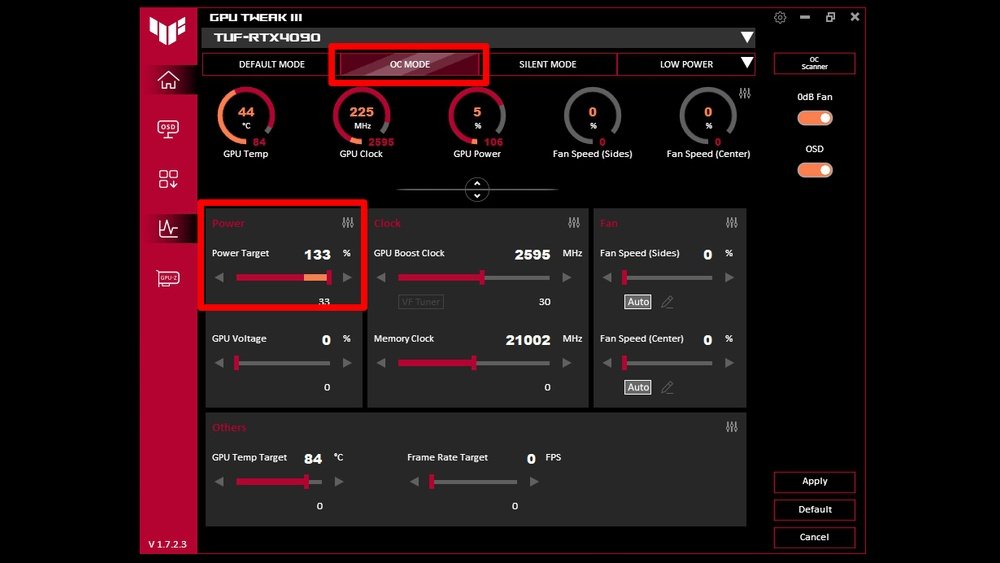
Do you want to squeeze more power from your laptop’s GPU without spending extra money? Overclocking your laptop GPU can boost gaming performance, speed up creative tasks, and make your laptop feel faster overall.
But it can also be tricky if you don’t know where to start. In this guide, you’ll discover simple, step-by-step tips to safely overclock your laptop GPU and get the most out of your machine. Keep reading, and you’ll learn how to unlock hidden power while avoiding common mistakes that can harm your laptop.
Ready to take control of your GPU’s performance? Let’s dive in!
Benefits Of Overclocking Laptop Gpu
Overclocking a laptop GPU can offer several benefits that improve your overall computing experience. It increases the speed of your graphics card beyond its factory settings. This process helps get better performance without buying new hardware.
Not just for gamers, overclocking boosts many graphics tasks. It can make your laptop handle demanding programs more smoothly. Understanding these benefits helps decide if overclocking is right for you.
Improved Gaming Experience
Overclocking your laptop GPU can make games run faster and smoother. Higher frame rates reduce lag and screen stuttering. This leads to more enjoyable and responsive gameplay. Games look better and feel more fluid, even on medium settings.
Enhanced Graphics Performance
Graphics-heavy tasks benefit from a faster GPU. Video editing and 3D rendering times decrease. Visuals appear sharper and more detailed. Overclocking lets your laptop handle complex images with ease, improving work and entertainment quality.
Maximizing Hardware Potential
Every GPU has extra power waiting to be used. Overclocking taps into this hidden potential. It helps you get the most from your laptop without extra cost. This extends the life of your device by keeping it competitive longer.

Credit: breezeresidency.com
Risks And Precautions
Overclocking your laptop GPU can boost performance but carries risks. Knowing these risks helps you protect your device. Taking precautions reduces chances of damage and keeps your laptop safe.
Potential Hardware Damage
Increasing GPU speed raises power use and heat. This can harm the GPU or other parts. Overheating may cause permanent damage. Your laptop’s components might wear out faster. Overclocking can also cause system crashes and data loss.
Warranty Considerations
Many laptop warranties do not cover damage from overclocking. Manufacturers often see overclocking as misuse. Repair costs might fall on you if damage occurs. Check your warranty terms before overclocking. Avoid voiding your warranty by being cautious.
Thermal Management Importance
Heat is the main enemy when overclocking. Proper cooling keeps the GPU safe and stable. Use a cooling pad or extra fans to lower temperatures. Monitor your laptop’s temperature often. Stop overclocking if temperatures get too high.
Preparing Your Laptop For Overclocking
Preparing your laptop for overclocking is the first step to improve GPU performance safely. It helps avoid crashes and overheating. Taking time to prepare can protect your hardware and keep your system stable.
Updating Drivers And Software
Start by updating your GPU drivers to the latest version. New drivers often fix bugs and improve performance. Use official websites or trusted software to download updates. Also, update your overclocking tools to ensure compatibility. Running outdated software can cause errors or poor results.
Monitoring System Temperatures
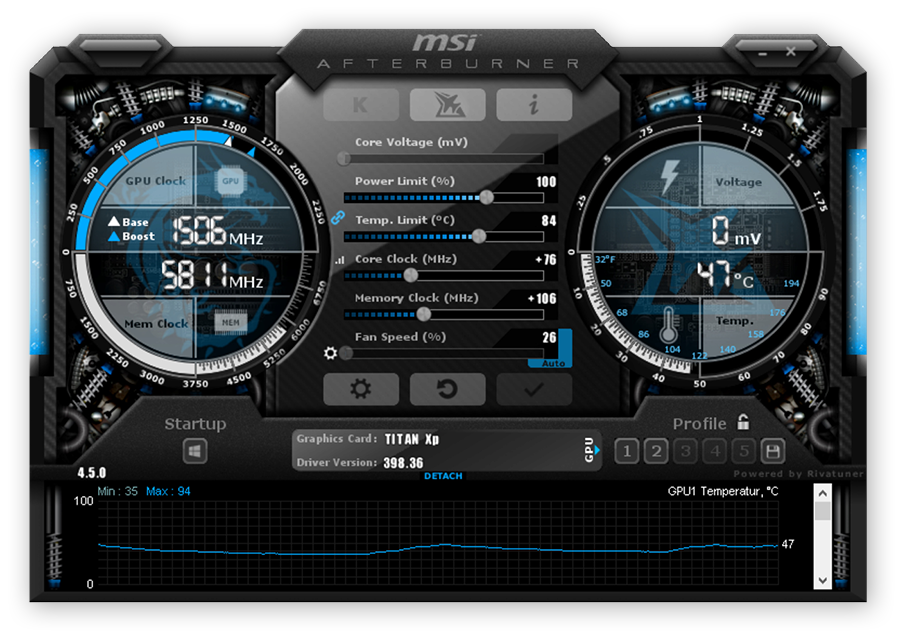
Check your laptop’s temperature before overclocking. Use software like HWMonitor or MSI Afterburner to track GPU and CPU heat. Know your normal temperature range. Monitoring prevents damage from overheating. Watch temperature changes during stress tests to find safe limits.
Ensuring Adequate Cooling
Good cooling is key to stable overclocking. Clean dust from vents and fans for better airflow. Place your laptop on a hard, flat surface. Avoid soft surfaces like beds or couches. Consider using a cooling pad to lower temperatures. Cooler hardware runs faster and lasts longer.
Choosing The Right Overclocking Tools
Choosing the right overclocking tools is important for a safe and effective laptop GPU overclock. The right software helps you control the GPU settings easily. It also protects your hardware from damage by monitoring temperatures and voltages. Not all tools work well with every laptop GPU. Some are better suited for beginners, while others offer advanced options for experienced users. Picking the right tool makes the whole process smoother and more successful.
Popular Overclocking Software
Many overclocking programs are available for laptop GPUs. MSI Afterburner is one of the most popular. It supports many GPU brands and offers detailed control. EVGA Precision X1 is another favorite for NVIDIA cards. For AMD GPUs, Radeon Software has built-in overclocking features. These programs provide real-time monitoring and adjustment options. Most are free and easy to download.
Compatibility With Laptop Gpus
Not all overclocking tools work with every laptop GPU model. Check if the software supports your GPU brand and model. Some tools only work with desktop GPUs, not laptops. Laptop GPUs often have locked settings to avoid overheating. Ensure the tool can access and modify these settings safely. Using incompatible software can cause crashes or hardware damage. Always verify compatibility before starting.
User-friendly Interfaces
Simple interfaces help beginners understand overclocking better. Clear layouts show key information like clock speeds and temperatures. Sliders and buttons make adjusting settings easy. Some tools provide presets for quick setup. Good software explains terms and warns about risks. A user-friendly design reduces mistakes and helps you learn faster. Choose software that matches your skill level and comfort.
Step-by-step Overclocking Process
Overclocking a laptop GPU can boost your graphics performance. The process needs care and patience. Follow clear steps to ensure safe and effective results. Small changes can make a big difference in speed and stability.
Setting Baseline Performance
Start by checking your GPU’s current speed and temperature. Use tools like GPU-Z or MSI Afterburner to see this data. Run a benchmark or game to record your GPU’s normal performance. This baseline helps compare the effects of overclocking later.
Incremental Clock Speed Adjustments
Increase the GPU clock speed slowly. Raise it by 10 to 20 MHz at a time. After each change, run a short test to check for issues. Avoid jumping too high at once. Small steps reduce risks and improve control.
Testing Stability And Performance
Test your GPU after every clock speed change. Use stress tests like FurMark or 3DMark. Watch for crashes, screen glitches, or freezes. Check if temperatures stay safe under load. Stable performance means you can try a higher clock next.
Adjusting Voltage Safely
Increasing voltage can help keep higher speeds stable. Only raise voltage in very small steps. Monitor temperature closely to avoid overheating. Too much voltage can damage your laptop. Stay within safe limits recommended by your GPU maker.
Credit: www.liftingitalia.com
Monitoring And Maintaining Performance
Monitoring and maintaining your laptop GPU’s performance is key to safe and effective overclocking. It helps prevent damage and keeps your laptop running smoothly. Regular checks ensure your GPU stays within safe limits. This protects your hardware and improves gaming or work performance.
Using Benchmarking Tools
Benchmarking tools measure your GPU’s speed and power. They show how much your overclock improves performance. Use popular tools like 3DMark or Unigine Heaven. Run tests before and after overclocking for comparison. These tools help spot any drops in performance quickly.
Tracking Temperatures And Fan Speeds
Heat is the biggest enemy of overclocked GPUs. Use software like MSI Afterburner to watch temperatures. Keep your GPU below 85°C to avoid damage. Monitor fan speeds to make sure cooling works well. Adjust fan settings if temperatures rise too high.
Recognizing Signs Of Instability
Watch for screen glitches, crashes, or freezes during use. These signs show your GPU may be unstable. Lower the clock speed or voltage if problems appear. Unstable overclocking can harm your laptop over time. Staying alert keeps your system safe and reliable.
Troubleshooting Common Issues
Troubleshooting common issues is a key part of overclocking your laptop GPU. Problems like crashes, freezes, and overheating can happen. Knowing how to fix these issues helps keep your laptop safe and running well. This section guides you through simple steps to solve common problems during GPU overclocking.
Fixing Crashes And Freezes
Crashes and freezes happen when the GPU is pushed too hard. Lower the clock speed slightly and test again. Check your drivers and update them if needed. Close background apps to free up system resources. Use stress test tools to find stable settings. Small adjustments prevent sudden crashes.
Reverting To Default Settings
Resetting the GPU to default stops most problems fast. Open your overclocking software and find the reset option. This returns all changes to factory settings. Restart your laptop after resetting. This step helps if your system is unstable or not booting properly.
Dealing With Overheating
Overheating is a common risk with overclocking. Clean your laptop vents and fans to improve airflow. Use a cooling pad to lower temperatures. Lower the GPU clock speed if it stays hot. Monitor temperatures with software. Keeping the GPU cool prevents damage and keeps performance steady.

Credit: www.thorfamilylaw.com
Alternative Ways To Boost Gpu Performance
Overclocking a laptop GPU is not the only way to improve its performance. Some easy steps can help your GPU run better without changing hardware settings. These methods are safer and often help games run smoother.
Simple changes can make a big difference in how your laptop handles graphics. Try these alternative ways to boost GPU performance and get a better experience.
Updating Graphics Drivers
Graphics drivers control how your GPU works with software. Old drivers can slow down your laptop. Updating them improves speed and fixes bugs. Visit the GPU maker’s website to download the latest drivers. This keeps your laptop ready for new games and apps.
Optimizing Game Settings
Games often run slower with high settings. Lowering some options can improve frame rates. Reduce resolution, shadows, or effects to help your GPU work less. This change makes games smoother without changing hardware. Test settings to find the best balance of quality and speed.
Cleaning And Maintaining Hardware
Dust and dirt block airflow inside your laptop. This causes overheating and slows down the GPU. Clean vents and fans regularly using a soft brush or compressed air. Keep your laptop on hard surfaces for better airflow. Proper maintenance helps your GPU stay cool and fast.
Frequently Asked Questions
What Is Laptop Gpu Overclocking And Why Do It?
Laptop GPU overclocking means increasing the GPU’s clock speed. It boosts graphics performance for gaming or rendering tasks. Overclocking can improve frame rates but may increase heat and power consumption.
How To Safely Overclock A Laptop Gpu?
Start by increasing clock speed in small steps. Monitor temperature and performance with software tools. Avoid exceeding safe temperature limits to prevent damage. Always update drivers before overclocking.
What Are The Risks Of Overclocking Laptop Gpus?
Risks include overheating, reduced hardware lifespan, and system instability. Overclocking may void warranty and cause crashes. Proper cooling and cautious adjustments reduce these risks.
Which Software Is Best For Laptop Gpu Overclocking?
Popular tools include MSI Afterburner, EVGA Precision X1, and ASUS GPU Tweak. These programs offer control over clock speeds, voltage, and fan profiles. Choose one compatible with your GPU brand.
Conclusion
Overclocking your laptop GPU can boost performance in many tasks. Start slowly and test each change to avoid damage. Keep your laptop cool to stop overheating problems. Watch temperatures and system stability during the process. Small steps lead to safer and better results.
Remember, every laptop is different, so be patient. Enjoy smoother graphics and faster speeds when done right. Take care, and your laptop will thank you.
