
Are you looking to boost your laptop’s speed without buying new hardware? Overclocking your laptop CPU might be the solution.
It can unlock extra power and make your device run faster, whether you’re gaming, editing videos, or just want smoother performance. But if you’ve never tried it before, the idea can seem risky or confusing. Don’t worry—this guide will walk you through simple steps to safely overclock your laptop CPU.
By the end, you’ll know exactly how to get more from your machine without damaging it. Ready to see what your laptop can really do? Keep reading.
:max_bytes(150000):strip_icc()/A3-OverclockaLaptop-annotated-81e3f7de3a794dd19bf7e98f60d8c457.jpg)
Credit: www.lifewire.com
Preparing Your Laptop
Preparing your laptop is the first step before overclocking the CPU. This step helps you avoid damage and ensures smooth performance. It is important to check your hardware, update software, and secure your data. Taking these precautions will make the process safer and easier.
Check Hardware Compatibility
Not all laptops support CPU overclocking. Check your CPU model and motherboard specs. Look for overclocking features in the BIOS settings. Also, ensure your cooling system is strong enough to handle extra heat. Weak hardware can cause overheating and crashes.
Update Bios And Drivers
Old BIOS versions may lack overclocking options. Visit your laptop manufacturer’s website for the latest BIOS update. Update all important drivers, especially for the chipset and CPU. These updates improve stability and add new features. Running outdated software can cause errors during overclocking.
Backup Important Data
Overclocking carries some risk of system failure. Save your important files before starting. Use an external drive or cloud storage. This step protects your data from loss during unexpected issues. Always keep backups to avoid losing work or memories.
Tools For Overclocking
Overclocking a laptop CPU requires the right tools to ensure safety and success. These tools help adjust the CPU speed, monitor temperatures, and test system stability. Using proper software and utilities makes overclocking easier and less risky. Below are key tools for overclocking your laptop CPU.
Overclocking Software Options
Many software programs allow you to change CPU settings easily. Popular options include Intel Extreme Tuning Utility and AMD Ryzen Master. These tools let you increase the CPU clock speed and voltage. They offer user-friendly interfaces for beginners. Some laptops also have built-in BIOS options for overclocking.
Monitoring Tools
Monitoring temperature and CPU usage is vital during overclocking. Tools like HWMonitor and Core Temp provide real-time data. They show important details such as CPU temperature, voltage, and fan speed. Keeping an eye on these numbers helps avoid overheating and damage.
Stress Testing Applications
Stress tests check if your CPU runs stable at higher speeds. Programs such as Prime95 and AIDA64 push the CPU to its limits. Running these tests reveals errors or crashes caused by overclocking. Passing stress tests means your CPU is stable and safe.
Adjusting Cpu Settings
Adjusting CPU settings is a key step in overclocking a laptop CPU. It lets you control how fast the processor runs. Changing these settings can boost your laptop’s speed. Do it carefully to avoid damage.
Accessing Bios Or Uefi
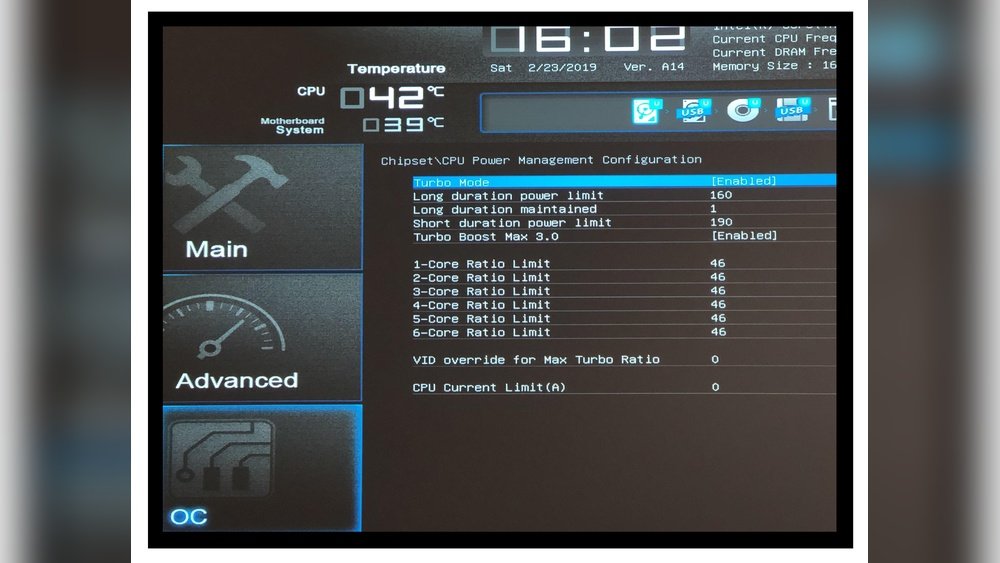
Start by restarting your laptop. Press the key that opens BIOS or UEFI. Common keys are F2, Delete, or Esc. You may see a message on the screen telling you which key to press. Inside BIOS, you can change many hardware settings.
Changing Cpu Multiplier
The CPU multiplier controls the processor’s speed. Increase this number to make the CPU run faster. Find the “CPU Multiplier” or “Ratio” setting in BIOS. Raise the value step by step. Small changes avoid system crashes. Save your settings before exiting.
Modifying Voltage Settings
Voltage powers the CPU. Raising voltage can help keep the CPU stable at higher speeds. Find “CPU Core Voltage” in BIOS. Increase voltage slightly, no more than 0.1 volts at a time. Higher voltage means more heat. Use this option carefully to prevent damage.

Credit: www.avast.com
Optimizing Cooling Solutions
Optimizing cooling solutions is key to safe and effective CPU overclocking on laptops. Heat can reduce performance and damage components. Managing heat well keeps your laptop stable and extends its life.
Effective cooling helps the CPU run faster without overheating. Several simple steps improve cooling. These methods ensure air moves freely and heat escapes easily.
Improving Airflow
Clear space around your laptop for better air movement. Avoid using it on soft surfaces like beds or couches. These block air vents and cause heat build-up. Use a hard, flat surface instead.
Keep the laptop’s vents clean and unobstructed. Position the laptop so air can flow in and out freely. This reduces internal temperatures during heavy use.
Using External Cooling Pads
Cooling pads are devices with fans that sit under your laptop. They help move air and lower the laptop’s temperature. Choose one with multiple fans for better cooling.
Place the cooling pad on a flat surface. Turn it on before heavy tasks. Cooling pads reduce heat and allow safer CPU overclocking.
Cleaning Internal Components
Dust inside your laptop can block airflow and trap heat. Open the laptop case carefully and remove dust using compressed air. Focus on fans and vents.
Regular cleaning prevents overheating and keeps cooling efficient. Clean your laptop every few months for best results.
Testing Stability And Performance
Testing stability and performance is a key step after overclocking your laptop CPU. It shows if your system runs well under heavy use. This step helps avoid crashes and data loss. It also ensures your laptop stays safe and cool.
Running Stress Tests
Stress tests push your CPU to work hard for a long time. Use programs like Prime95 or AIDA64 for this. Run these tests for at least 30 minutes. Watch for any crashes or errors. If your laptop stays stable, your overclock is likely safe.
Monitoring Temperature And Voltage
Keep an eye on CPU temperature and voltage during tests. Use tools like HWMonitor or Core Temp. High temperatures above 85°C can harm your laptop. Voltage should stay within safe limits set by the manufacturer. Adjust cooling or settings if temperatures or voltage rise too much.
Identifying And Fixing Issues
Look for signs like system freezes, blue screens, or restarts. These mean your overclock is unstable. Lower the CPU clock speed or increase voltage slightly to fix problems. Repeat stress tests after each change. Stop adjusting when your laptop runs stable and cool.
Safety Tips And Best Practices
Overclocking a laptop CPU can boost performance but carries risks. Following safety tips protects your hardware and data. Best practices help keep your laptop stable and cool during overclocking. Always prioritize safety to avoid damage and data loss.
Avoiding Overheating
Heat is the biggest enemy when overclocking. Use a cooling pad or external fan to improve airflow. Clean dust from vents and fans regularly. Monitor CPU temperature with software tools. Stop overclocking if temperatures rise above safe limits. Good cooling prevents crashes and hardware failure.
Gradual Overclocking Steps
Increase CPU speed in small steps, not large jumps. Test stability after each increase using stress tests. Watch system behavior and temperature closely. If the system crashes or freezes, reduce the speed. Gradual steps help find the best balance between speed and stability. Patience keeps your laptop safe.
Recognizing Warning Signs
Listen to unusual noises like loud fan sounds or clicks. Watch for system crashes, freezes, or blue screens. Check for sudden shutdowns or restarts. Notice if your laptop feels hotter than usual. These signs show overclocking stress. Stop and lower settings immediately to protect your laptop.
Troubleshooting Common Problems
Troubleshooting is a key step in overclocking your laptop CPU. Problems can happen even with small changes. Knowing how to fix common issues saves time and protects your laptop.
Start by observing what happens after overclocking. Note any crashes or slowdowns. This helps find the root cause quickly. Staying calm and patient makes the process easier.
System Crashes And Freezes
System crashes often occur from pushing the CPU too hard. Your laptop may freeze or restart without warning. Lowering the clock speed can stop these crashes.
Check your cooling system. Overheating causes instability. Clean fans and vents to improve airflow. Use monitoring tools to watch CPU temperature closely.
Performance Drops
Performance drops can happen after overclocking. This means your CPU runs slower than before. It often results from overheating or power limits.
Adjust the voltage settings carefully. Too much voltage causes heat and damage. Too little voltage makes the CPU unstable. Find a balance for steady performance.
Reverting To Default Settings
Sometimes, the best fix is to revert to default settings. This resets your CPU to factory speeds. Most laptops allow easy reset through BIOS or software tools.
Reverting helps if problems persist or you want to stop overclocking. Always save your work before making changes. This avoids data loss during resets.
When To Avoid Overclocking
Overclocking a laptop CPU can boost performance but it is not always a good idea. Some situations call for avoiding overclocking to prevent problems. Knowing when not to overclock helps protect your laptop and data.
Warranty Considerations
Many laptop warranties do not cover damage from overclocking. Changing CPU settings can void the warranty. Repairs or replacements might become costly without warranty support. Check your warranty terms before making any changes.
Laptop Age And Condition
Older laptops may not handle overclocking well. Components wear out over time and can fail under extra stress. Newer laptops with good cooling systems cope better. Avoid overclocking if your laptop is old or has hardware issues.
Power Consumption Concerns
Overclocking increases power use and heat. Laptops have limited cooling and battery capacity. This can reduce battery life and cause overheating. Avoid overclocking if you need longer battery time or your laptop runs hot.

Credit: www.wikihow.com
Frequently Asked Questions
What Is Laptop Cpu Overclocking?
Laptop CPU overclocking means increasing the processor’s clock speed beyond factory settings. It boosts performance but can increase heat and power use. Proper cooling is essential to avoid damage. Overclocking may void your warranty and reduce CPU lifespan.
Is Overclocking Safe For Laptops?
Overclocking laptops carries risks like overheating and hardware damage. Ensure good cooling and monitor temperatures. Use manufacturer tools or trusted software for safer overclocking. Proceed cautiously and avoid pushing settings too far to maintain laptop stability and longevity.
How To Check If My Laptop Cpu Supports Overclocking?
Check your CPU model and motherboard specifications online. Intel CPUs with a “K” suffix and certain AMD Ryzen CPUs support overclocking. Refer to your laptop manual or manufacturer website for compatibility details before attempting overclocking.
What Tools Are Best For Laptop Cpu Overclocking?
Popular tools include Intel XTU, AMD Ryzen Master, and ThrottleStop. These programs allow safe adjustments and monitoring of CPU speed and temperature. Always download from official sources and follow guides to avoid system instability.
Conclusion
Overclocking your laptop CPU can boost its speed and performance. Stay careful with heat and power settings to avoid damage. Test your system after every change to ensure stability. Remember, small steps work best for safe overclocking. Enjoy faster processing without risking your laptop’s health.
Keep learning and adjust as needed for the best results. Your patience will pay off with smoother, quicker laptop use.
