

Are you ready to unlock the full power of your graphics card? Overclocking your GPU with MSI Afterburner can boost your gaming performance and make your system run smoother.
But it can feel confusing if you’ve never tried it before. Don’t worry—this guide will walk you through the process step by step, helping you get more speed without risking damage. By the end, you’ll know exactly how to safely push your GPU beyond its limits and enjoy a faster, more responsive gaming experience.
Keep reading to discover how easy it can be to take control of your graphics card’s performance.

Credit: www.msi.com
Preparing For Overclocking
Preparing for overclocking your GPU is an important first step. It helps ensure safety and better results. Taking time to set up your system properly prevents hardware damage. It also makes the overclocking process smoother and more efficient.
Before starting, you need to check your system’s readiness. Update drivers to avoid bugs. Install the right software to control your GPU. These steps create a solid base for overclocking with MSI Afterburner.
Check System Compatibility
Not all systems support GPU overclocking. Check if your GPU model allows it. Some older or integrated GPUs cannot be overclocked safely. Verify your power supply can handle extra load. Also, ensure your cooling system is efficient. Overclocking increases heat output. Good cooling prevents overheating and damage.
Update Gpu Drivers
Outdated drivers cause instability during overclocking. Download the latest drivers from your GPU manufacturer’s website. Updated drivers improve performance and fix bugs. Restart your computer after installing new drivers. This step ensures smooth operation with MSI Afterburner.
Install Msi Afterburner
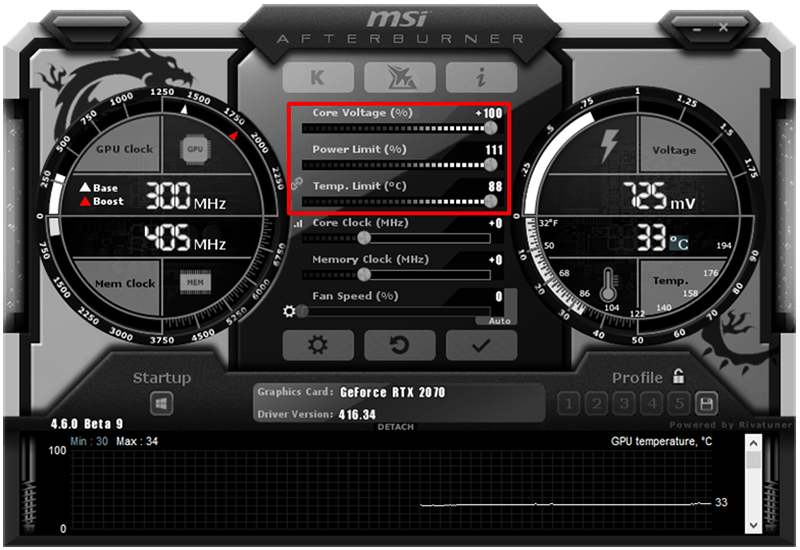
MSI Afterburner is essential for GPU overclocking. Download it from the official MSI website. Follow the installation instructions carefully. Once installed, open the program and familiarize yourself with the interface. This software lets you control clock speeds, voltage, and fan settings easily.
Credit: www.sietesetenta.com.ar
Getting To Know Msi Afterburner
MSI Afterburner is a popular tool for GPU overclocking. It gives users control over their graphics card settings. This helps improve gaming and performance. Before changing settings, it is important to know the program well. Understanding the interface and tools makes overclocking safer and easier.
Below, you will find a simple guide to the main parts of MSI Afterburner. This will help you get started with confidence.
Main Interface Overview
The main screen shows sliders and numbers. These control the core clock, memory clock, and fan speed. You can see your GPU temperature and usage here too. The interface is user-friendly. Each element has a clear label. It is easy to find the controls you need.
Key Settings To Adjust
Core clock changes the speed of the GPU chip. Increasing it can boost performance. Memory clock adjusts the speed of the video memory. Higher values improve texture loading and frame rates. Fan speed controls how fast the cooling fans run. Setting it higher helps keep the GPU cool. Adjust these slowly and test your system after each change.
Monitoring Tools
MSI Afterburner shows real-time data on GPU temperature, usage, and clock speeds. This helps you track how the GPU performs under load. You can see if the GPU is overheating or if the clock speeds are stable. The on-screen display option lets you watch these stats while gaming. This helps avoid crashes and damage.
Step-by-step Overclocking Process
Overclocking your GPU with MSI Afterburner can boost your graphics card’s performance. The process needs care and patience to avoid damage. Follow these clear steps to safely increase your GPU speed. Start slow and check your system often.
Increase Core Clock
Open MSI Afterburner and find the Core Clock slider. Move the slider up by small steps, about 10 to 20 MHz. Apply the changes and watch how your system reacts. Check for any graphic glitches or crashes. Stop increasing when you see problems or no performance gain.
Adjust Memory Clock
Next, find the Memory Clock slider. Raise it slowly, also in small steps. Each step should be about 20 to 30 MHz. Apply and test after each change. Monitor your graphics card for stability and artifacts. Keep the changes steady and cautious.
Set Power And Temperature Limits
Locate the Power Limit and Temperature Limit sliders. Increase the power limit to allow more energy to the GPU. Raise the temperature limit to a safe level, usually around 85°C. These settings help maintain stability during overclocking. Avoid pushing these limits too high.
Apply Changes And Test Stability
Click the Apply button to save your settings. Run a game or a benchmark tool to test performance. Watch for crashes, freezes, or strange visuals. If problems appear, reduce the clock speeds slightly. Repeat testing until the system runs smoothly.

Credit: www.esseg.eu
Testing And Monitoring Performance
Testing and monitoring your GPU after overclocking is very important. It ensures your system runs smoothly and safely. Careful checks help find the right balance between speed and stability. Watch your GPU’s behavior closely to avoid damage and crashes.
Use Benchmarking Software
Benchmarking tools test your GPU’s performance under stress. Programs like 3DMark and Unigine Heaven are popular choices. Run these tests before and after overclocking. Compare the results to see if performance improves. Stop if scores drop or errors appear.
Monitor Temperatures And Stability
Keep an eye on your GPU temperature while testing. MSI Afterburner shows real-time temperature and usage data. Ideal GPU temperature stays below 85°C during heavy load. Watch for system crashes or screen glitches. These signs mean your overclock is too high.
Troubleshoot Common Issues
If your system crashes or freezes, lower your clock speeds. Check your GPU fan speed and increase it if needed. Update your graphics drivers to fix bugs. Restart tests after each change. Patience is key to find a stable overclock.
Optimizing Overclock Settings
Optimizing overclock settings with MSI Afterburner helps get the best from your GPU. It requires a careful approach. You want higher speeds without risking damage. Small changes make a big difference.
This section breaks down key steps to optimize your GPU overclock.
Fine-tuning Clock Speeds
Start by increasing the core clock in small steps. Usually, add 10 to 20 MHz at a time. Test each step with a stress test. Watch for crashes or glitches. Stop increasing once instability appears. Then reduce speed slightly for safety. Remember, every GPU is different. Your card might handle higher or lower speeds.
Balancing Performance And Temperature
Higher speeds raise GPU temperature. Keep an eye on heat during tests. Stay below 85°C for safe operation. Adjust the fan speed using MSI Afterburner’s control. Higher fan speeds cool better but can be noisy. Find a balance between cooling and noise. Good airflow inside your PC case helps too. Lower temperature means longer GPU life and stable performance.
Saving Profiles For Different Scenarios
Save your settings as profiles in MSI Afterburner. Create one profile for gaming, another for everyday use. This saves time and effort. Switch profiles quickly depending on what you need. Profiles protect your GPU by using lower speeds when full power is unnecessary. Keep backup profiles for safety. This way, you can always return to stable settings.
Safety Tips And Best Practices
Overclocking your GPU with MSI Afterburner can boost performance but needs care. Following safety tips and best practices helps protect your hardware. It also keeps your system stable during intense use. Always prioritize safe settings and monitor changes carefully.
Avoiding Overheating
Heat can damage your GPU quickly. Keep your computer in a cool place. Use good airflow inside the case. Check the GPU temperature regularly with MSI Afterburner. Stop overclocking if temperatures rise above 85°C. Lower the clock speed or increase fan speed to cool down.
Recognizing Signs Of Instability
Your system may crash or freeze if overclocking is too high. Look for screen glitches or artifacts during games. Unexpected restarts also show instability. Test your settings with stress tests and benchmarks. Reduce your overclock if you see these signs. Small steps prevent damage and improve stability.
When To Reset To Default
Resetting to default settings is important if problems persist. Use MSI Afterburner’s reset button to undo changes quickly. Reset before updating drivers or changing hardware. Default settings keep your GPU safe and stable. Return to overclocking only after solving any issues.
Frequently Asked Questions
What Is Msi Afterburner Used For In Gpu Overclocking?
MSI Afterburner is a popular tool for GPU overclocking. It allows you to adjust core clock, memory clock, and fan speed. This helps boost your GPU’s performance safely and efficiently.
How Do I Safely Overclock My Gpu With Msi Afterburner?
Start by increasing the core clock in small steps, around 10-15 MHz. Test stability after each change. Monitor temperature and fan speeds to avoid overheating or damage.
Can Msi Afterburner Improve Gaming Performance?
Yes, overclocking your GPU with MSI Afterburner can increase frame rates. This results in smoother gameplay and better graphics performance, especially in demanding games.
What Are The Risks Of Overclocking Gpu Using Msi Afterburner?
Risks include overheating, system instability, and potential hardware damage. Always monitor temperatures and stress test after each adjustment to minimize these risks.
Conclusion
Overclocking your GPU with MSI Afterburner can boost performance safely. Start slow and test often to avoid problems. Watch your GPU temperature closely to keep it cool. Small changes make a big difference in stability. Remember, every GPU reacts differently to overclocking.
Take your time and enjoy the process. This method helps you get extra power without new hardware. Keep learning and adjusting for the best results. Your games and apps will run smoother with the right settings.
