
Are you looking to get more power out of your laptop’s GPU without spending extra money? Overclocking your GPU can boost your gaming and creative performance, making your laptop run faster and smoother.
But it can also seem tricky or risky if you don’t know where to start. In this guide, you’ll discover simple, clear steps to safely overclock your laptop’s GPU. By the end, you’ll have the confidence to unlock hidden speed and get the most out of your device.
Keep reading, because your laptop’s potential is waiting to be unleashed!

Credit: www.avast.com
Benefits Of Gpu Overclocking
Overclocking your laptop’s GPU can bring noticeable benefits. It pushes the graphics card to work faster than its base speed. This extra power can improve many tasks that use the GPU. From gaming to creative work, overclocking can boost your laptop’s performance.
It is important to do it carefully to avoid damage. When done right, it can make your laptop more capable and responsive.
Improved Gaming Experience
Overclocking the GPU helps games run smoother. Frame rates increase, reducing lag and stutter. Games look better and feel more responsive. This can make playing more fun and immersive. Higher GPU speeds allow better handling of demanding games.
Enhanced Rendering Speeds
Rendering videos or 3D models takes less time with a faster GPU. Overclocking speeds up the process by handling more data quickly. This means you spend less time waiting for projects to finish. It helps creators work faster and meet deadlines with ease.
Better Performance In Creative Applications
Many creative apps use the GPU for tasks like photo editing and animation. Overclocking improves the speed and smoothness of these apps. You get faster previews, quicker effects, and smoother workflows. This helps boost productivity and creativity on your laptop.
Risks And Precautions
Overclocking your laptop GPU can boost performance but also carries risks. Understanding these risks helps you protect your device. Taking precautions keeps your laptop safe and running well.
Potential Hardware Damage
Overclocking pushes your GPU beyond its normal limits. This extra stress can cause permanent damage. Components may wear out faster or fail suddenly. Damage might include broken circuits or fried chips. Be aware that damage is often irreversible.
Voiding Warranty
Changing GPU settings often voids your laptop’s warranty. Manufacturers do not cover damage from overclocking. Repair costs become your responsibility. Check your warranty terms before making changes. Avoiding overclocking may keep your warranty valid.
Increased Heat And Power Consumption
Overclocking raises GPU temperature significantly. Higher heat can cause system instability or crashes. Your laptop’s cooling system may not handle the extra heat. Power use also increases, draining battery faster. Monitor temperature and power to avoid overheating.
Preparing Your Laptop
Preparing your laptop for GPU overclocking is a crucial step. It ensures your system handles extra stress safely. Proper preparation helps avoid damage and keeps performance stable. Follow these steps to get your laptop ready.
Checking Cooling Solutions
Cooling is vital for overclocking success. Most laptops have limited cooling power. Use a cooling pad to improve airflow. Clean vents and fans from dust. This reduces heat buildup during heavy use. Cooler hardware runs faster and lasts longer.
Updating Gpu Drivers
Updated drivers improve GPU performance and stability. Visit the official GPU manufacturer’s website. Download the latest driver version for your model. Install the update before overclocking. New drivers can fix bugs and optimize power use.
Monitoring System Stability
System stability prevents crashes and data loss. Use software like MSI Afterburner or HWMonitor. These tools track temperatures, clock speeds, and voltages. Run stress tests to check stability before overclocking. Stop if your laptop shows errors or overheating.

Credit: www.avg.com
Choosing Overclocking Software
Choosing the right overclocking software is important for safe and effective GPU tuning on your laptop. The software controls how you increase clock speeds and monitor temperatures. Picking a tool that fits your needs helps avoid hardware damage. It also makes the process simpler and more precise.
Some programs offer advanced features for detailed control. Others focus on ease of use with simple interfaces. Knowing what each software can do helps you select the best one for your laptop and skill level.
Popular Tools For Laptops
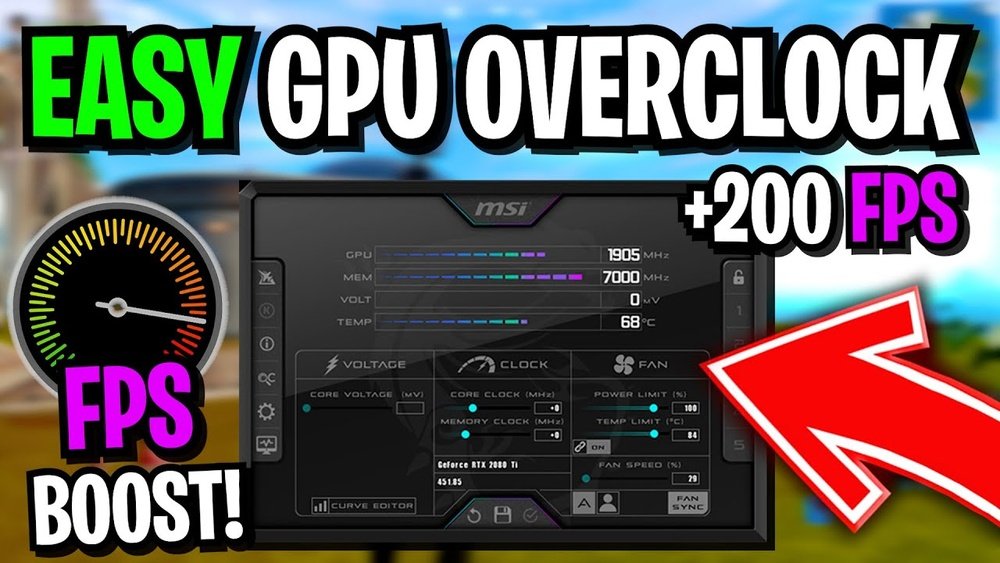
MSI Afterburner is a common choice for laptop GPU overclocking. It supports many graphics cards and has a clear interface. EVGA Precision X1 works well with NVIDIA GPUs and offers good monitoring tools. ASUS GPU Tweak II fits well with ASUS laptops and provides easy controls. These tools are widely used and trusted by many users.
Features To Look For
Look for software that shows real-time temperature and clock speeds. Adjustable fan controls help keep your laptop cool. A simple user interface makes overclocking easier for beginners. Safety features like automatic shutdown protect your hardware. Profiles to save your settings help switch between normal and overclocked modes quickly.
Compatibility Considerations
Not all software works with every laptop or GPU model. Check if the program supports your laptop’s GPU brand and model. Some tools only work with certain manufacturers. Also, verify that the software is compatible with your laptop’s operating system. Using incompatible software can cause errors or crashes.
Step-by-step Overclocking Process
Overclocking your laptop GPU can boost graphics performance. It requires careful steps to avoid damage. Follow this step-by-step guide to overclock safely. Each step helps you improve speed without risking hardware.
Setting Base Clock Speeds
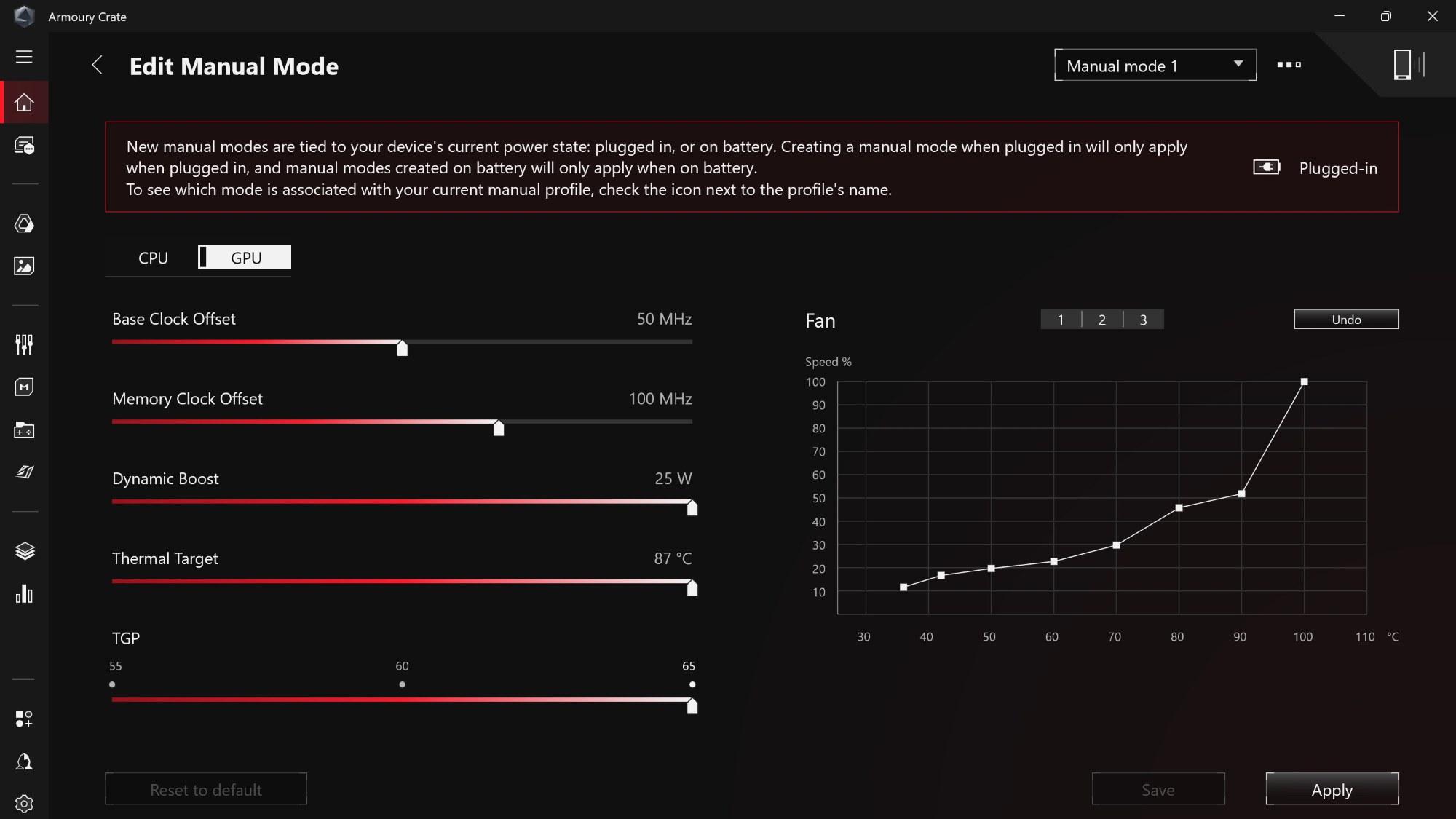
Start by opening your GPU overclocking software. Find the base clock speed setting. Increase the clock speed in small steps, about 10 to 15 MHz. Avoid large jumps that may cause crashes. After each increase, note the new speed. This helps track changes and find the limit.
Adjusting Memory Clocks
Memory clocks control the GPU’s video RAM speed. Raise the memory clock in small increments, similar to the base clock. Watch for visual glitches or system instability. Stop increasing once errors or crashes appear. This step improves data transfer rates for better graphics.
Testing For Stability
Run a stress test or benchmark tool after each change. Watch the GPU temperature and performance carefully. Look for crashes, freezes, or artifacts on screen. If problems happen, reduce the clock speed. Stability testing ensures your laptop runs smoothly under load.
Incremental Performance Tuning
Make small tweaks to both base and memory clocks. Test each change with benchmarks and games. Adjust until you find the highest stable settings. Patience is key to balance speed and reliability. Stop tuning once performance gains level off or instability occurs.
Credit: rog.asus.com
Monitoring Temperatures And Performance
Monitoring your laptop GPU’s temperature and performance is crucial during overclocking. It helps keep your system safe and stable. Without proper checks, the GPU can overheat and slow down or get damaged. Simple tools and careful observation make the process easier and safer.
Using Temperature Monitoring Apps
Temperature monitoring apps show real-time heat levels of your GPU. Popular options include HWMonitor, MSI Afterburner, and GPU-Z. These apps provide clear readings of temperature, clock speed, and fan speed. Keep them running while gaming or stressing your GPU. Watching these numbers helps catch problems early.
Recognizing Thermal Throttling
Thermal throttling happens when the GPU lowers its speed to cool down. This reduces performance to prevent damage. Signs include sudden drops in frame rates or slower graphics. Your laptop may feel hotter and fans louder. Spotting throttling means you need to reduce overclock or improve cooling.
Maintaining Safe Operating Limits
Stay within temperature limits to protect your laptop. Most GPUs should stay below 85°C under load. Check your GPU’s max safe temperature in the manual or online. Use cooling pads or clean air vents to help lower heat. Avoid pushing the GPU too far to keep your laptop healthy.
Troubleshooting Common Issues
Troubleshooting common issues is a key part of overclocking your laptop GPU safely. Overclocking can cause problems like crashes and visual errors. Knowing how to fix these issues helps keep your laptop stable. This section covers simple solutions to frequent problems during GPU overclocking.
Handling System Crashes
System crashes often happen due to unstable overclock settings. Lower the clock speed by small steps to find a stable point. Close background apps to reduce load on your GPU. Update your graphics drivers to the latest version. Use stress test tools to check stability after changes. If crashes continue, stop overclocking immediately.
Reverting To Default Settings
Reverting to default settings is the safest way to fix overclocking issues. Most GPU control software offers a reset button. This clears all changes and returns your GPU to factory speeds. Restart your laptop after resetting to ensure stability. Keep default settings if problems persist to avoid damage.
Dealing With Artifacting
Artifacting shows as strange colors or shapes on screen. It means your GPU is pushed too far. Reduce the clock speed and test again. Check GPU temperature to avoid overheating. Clean your laptop’s vents for better airflow. Artifacting should stop after lowering overclock or improving cooling.
Optimizing Power Settings
Optimizing power settings is key to safely overclocking your laptop GPU. It helps balance performance and heat. It also protects your battery from damage. Good power settings let your GPU run faster without crashes. This section shows simple ways to adjust power for better GPU speed.
Adjusting Power Profiles
Start by opening your laptop’s power settings. Choose a high-performance profile instead of balanced or power saver. High-performance mode gives your GPU more power. This helps it run faster and stay stable. Some laptops have custom power plans for gaming or heavy use. Select these for better overclocking results. Save changes and restart your laptop to apply them.
Balancing Performance And Battery Life
Overclocking can drain your battery quickly. Lower battery life means shorter use time without charging. Balance power by reducing screen brightness or closing unused apps. Use power saver mode when not gaming. This saves battery but limits GPU speed. Switch back to high-performance mode during gaming or heavy tasks. Manage your power settings to avoid sudden shutdowns.
Using External Power Sources
Plug in your laptop before overclocking the GPU. External power keeps the GPU stable at higher speeds. It stops battery drain and overheating problems. Using the charger also helps maintain constant voltage. This prevents crashes or slowdowns during gaming. Avoid overclocking on battery power alone. It protects your battery and improves performance.
Frequently Asked Questions
What Is Gpu Overclocking On A Laptop?
GPU overclocking means increasing your laptop’s graphics card speed beyond factory settings. It boosts gaming and rendering performance but may increase heat and power use.
Is Overclocking A Laptop Gpu Safe?
Overclocking can be safe if done carefully. Monitor temperatures and avoid extreme settings to prevent hardware damage or system instability.
How Do I Start Overclocking My Laptop Gpu?
Begin by installing software like MSI Afterburner. Increase clock speeds gradually and test stability with benchmark tools after each change.
Will Overclocking Reduce My Laptop’s Lifespan?
Overclocking might slightly reduce lifespan due to higher heat and stress. Proper cooling and moderate overclocking help minimize risks.
Conclusion
Overclocking your laptop GPU can improve performance. Take small steps and watch your temperatures closely. Use trusted software to avoid damage. Keep your laptop cool to prevent overheating. Remember, every laptop reacts differently to overclocking. Test your changes and adjust settings carefully.
This helps you find the best balance between speed and safety. Enjoy better graphics and smoother gameplay. Stay patient and cautious for the best results.
