
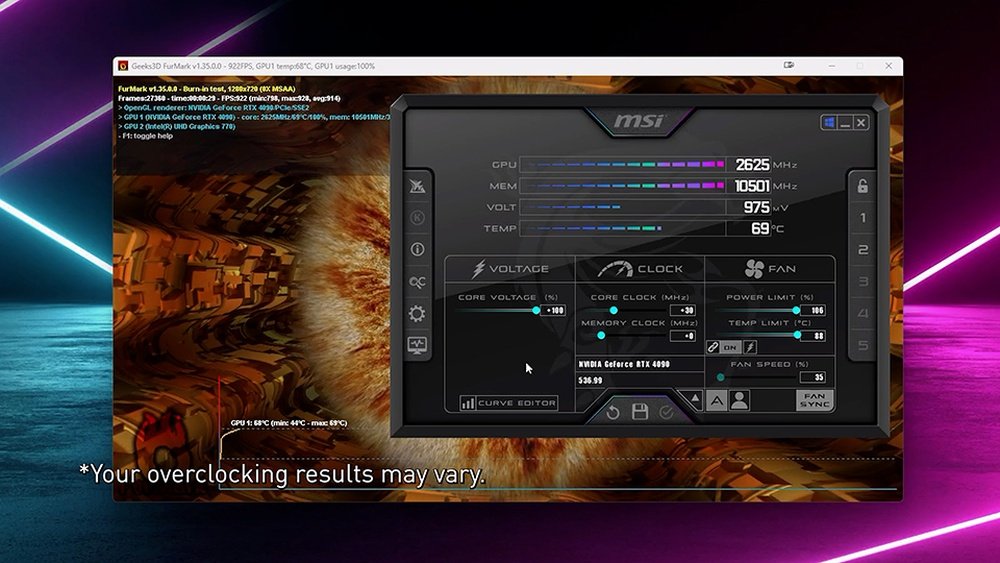
If you want to get more power out of your graphics card without spending extra money, overclocking your GPU with MSI Afterburner is the way to go. You might think it’s complicated or risky, but with the right steps, you can boost your gaming or creative performance safely.
This guide will walk you through everything you need to know, making the process simple and clear. Ready to unlock your GPU’s full potential? Keep reading, and you’ll learn how to do it like a pro.
Credit: www.sietesetenta.com.ar
Preparing For Overclocking
Preparing to overclock your GPU with MSI Afterburner requires careful steps. Proper preparation helps avoid problems and protects your hardware. This section guides you through essential tasks before starting the overclock.
Checking System Compatibility
Check if your GPU supports overclocking. Some models have locked BIOS or limited overclock features. Verify your motherboard and power supply can handle increased power use. Update your GPU drivers to the latest version. Use reliable monitoring software to track temperatures and performance.
Installing Msi Afterburner
Download MSI Afterburner from the official website only. Follow the simple installation instructions. Launch the program and get familiar with its interface. Note the fan controls, core clock, memory clock, and voltage sliders. Avoid installing extra software bundled with the installer.
Backing Up Current Settings
Save your current GPU settings before changing anything. MSI Afterburner allows you to create profiles for easy restoration. This step prevents loss of stable settings if overclocking causes issues. Write down your default clock speeds and voltages as a reference. Backing up ensures you can return to a safe setup quickly.
Basic Overclocking Steps
Overclocking your GPU can improve its performance in games and other graphics tasks. MSI Afterburner is a popular tool that helps you do this safely. Basic overclocking involves changing a few key settings step by step. Start slow and test often to avoid problems.
Adjusting Core Clock
The core clock controls how fast the GPU’s main processor runs. Increase it in small steps, around 10 to 20 MHz at a time. After each change, run a test or game to check stability. Stop if you see crashes or glitches. This prevents damage and keeps your system stable.
Increasing Memory Clock
The memory clock affects the speed of your video RAM. Raise this clock gradually, just like the core clock. Watch for graphic errors or system crashes during tests. A stable memory clock helps load textures and data faster in games.
Setting Power And Temperature Limits
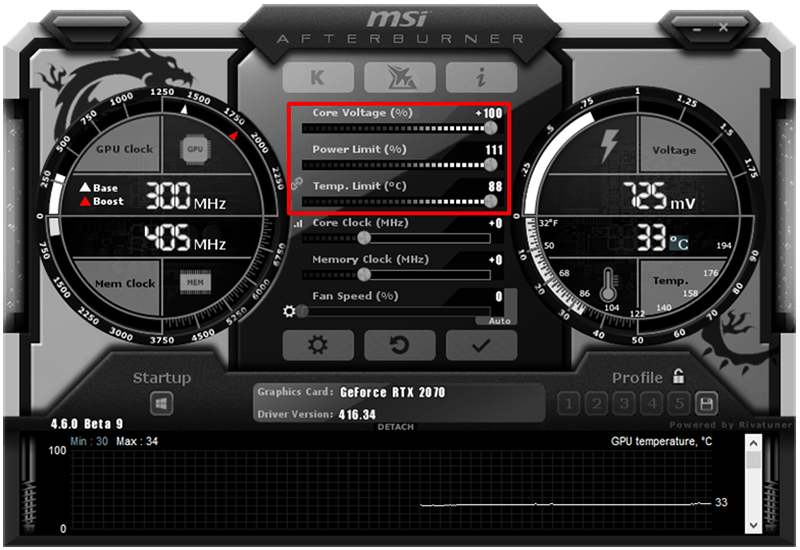
Power and temperature limits control how much energy your GPU uses and how hot it gets. Increase the power limit to allow higher clock speeds. Set a temperature limit to protect your GPU from overheating. Keep an eye on temperatures during overclocking to avoid damage.
Testing Stability
Testing stability is a key step after overclocking your GPU with MSI Afterburner. It ensures your graphics card runs smoothly without errors or crashes. This step protects your hardware and helps maintain good performance. Proper testing also shows if your settings are safe for long gaming or work sessions.
Using Benchmark Tools
Benchmark tools test your GPU under heavy load. They push your card to its limits to check stability. Popular tools include 3DMark and Unigine Heaven. Run these tests for at least 10 to 15 minutes. Watch for sudden drops in frame rates or errors. These signs mean your overclock may be too high.
Monitoring Temperature And Performance
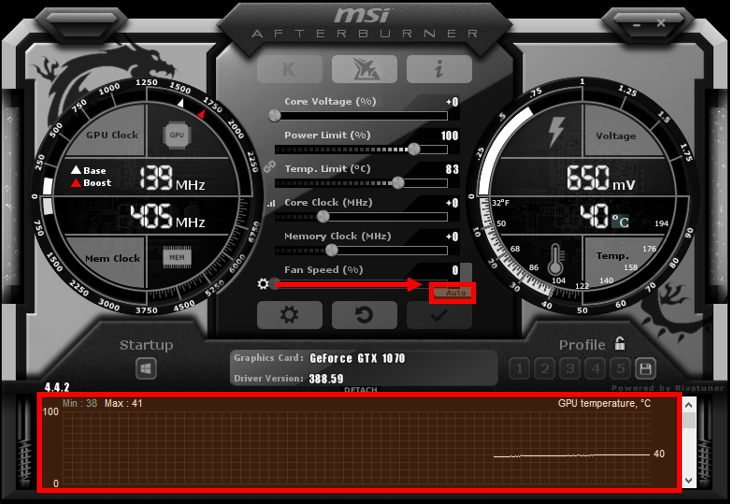
Temperature is critical during overclocking. Use MSI Afterburner to monitor your GPU’s heat levels. Keep the temperature below 85°C to avoid damage. Also, watch clock speeds and fan speeds. Stable performance means no sudden drops in clock speed or fan noise spikes. Adjust fan curves if temperatures rise too fast.
Identifying Artifacts And Crashes
Artifacts are visual glitches like strange colors or lines on the screen. They show your GPU is unstable. Crashes cause your system or game to freeze or close unexpectedly. Both mean your overclock is too aggressive. Lower your clock speeds or increase voltage slightly. Repeat stability tests until artifacts and crashes stop.

Credit: www.msi.com
Fine-tuning Settings
Fine-tuning your GPU settings with MSI Afterburner helps improve performance safely. Small changes can make a big difference. This step needs patience and care. It avoids damage and keeps your system stable. Understanding the key adjustments helps you get the best out of your GPU.
Gradual Clock Speed Increases
Start by raising the clock speed in small steps. Increase by about 10 to 15 MHz each time. Test your GPU after every change. Use stress tests or games to check stability. Stop if you see crashes or artifacts. This slow increase helps find the highest safe clock speed.
Balancing Performance And Temperature
Higher clock speeds create more heat. Watch your GPU temperature closely. Keep it below 85°C for safety. Adjust the fan speed in MSI Afterburner to cool better. A balance between speed and temperature prevents damage. Cooling well extends the life of your GPU.
Saving Custom Profiles
Save your best settings as custom profiles in MSI Afterburner. This allows easy switching between different setups. For example, use one profile for gaming and another for normal use. Profiles help save time and keep your GPU optimized. Back up profiles to avoid losing your work.
Advanced Features
MSI Afterburner offers advanced features that help you get more from your GPU. These tools let you fine-tune your graphics card beyond basic settings. Understanding and using these features can improve performance and keep your system stable.
Using Fan Curve Controls
Fan curve controls let you set how fast your GPU fans spin at different temperatures. You can create a custom curve to cool your GPU better under load. This helps reduce noise by running fans slower when the GPU is cool. Adjust the curve by dragging points to match your cooling needs. A good fan curve balances temperature and noise.
Enabling Voltage Control
Voltage control allows you to change the power supplied to your GPU. Increasing voltage can help achieve higher overclock speeds. Use small steps and test stability after each change. Too much voltage risks damaging your GPU or causing crashes. Always monitor temperatures carefully when adjusting voltage.
Exploring Custom Bios Options
Custom BIOS options offer deeper control over GPU settings. You can change power limits, clock speeds, and voltage limits. Flashing a custom BIOS requires caution and research. It can improve performance but may void your warranty. Always back up your current BIOS before making changes.
Credit: vixencomposites.com
Safety Tips
Overclocking your GPU with MSI Afterburner can boost performance. Safety is key to avoid damage and instability. Follow these tips to keep your system stable and cool. Understand the risks and handle changes carefully.
Avoiding Overheating
Heat damages your GPU and lowers its lifespan. Monitor temperatures using MSI Afterburner’s built-in tools. Keep GPU temperature below 85°C for safe operation. Increase fan speed to improve cooling. Clean your PC fans and vents regularly to prevent dust buildup. Good airflow inside your case helps keep temperatures down.
Recognizing Signs Of Instability
Your PC may crash or freeze if the GPU is unstable. Watch for screen glitches or artifacts during use. Sudden shutdowns or restarts also signal problems. Run stress tests to check stability after each change. Stop overclocking if you notice these issues. Stability ensures a smooth and safe experience.
Reverting To Default Settings
Sometimes, overclock settings cause problems. Use MSI Afterburner to reset your GPU to factory settings quickly. This step protects your hardware from damage. Always save your original settings before starting. Resetting helps fix crashes and overheating fast. Keep your GPU safe with easy reversions.
Frequently Asked Questions
What Is Msi Afterburner Used For In Gpu Overclocking?
MSI Afterburner is a popular tool that lets users safely overclock their GPU. It adjusts core clock, memory clock, and fan speeds. This improves gaming performance and overall graphics processing efficiency.
How Do I Safely Overclock My Gpu With Msi Afterburner?
Start by increasing the core clock in small steps, about 10-20 MHz. Test stability with benchmarking software after each change. Monitor temperatures closely and avoid exceeding safe limits to prevent hardware damage.
Can Msi Afterburner Improve Gaming Performance?
Yes, MSI Afterburner helps increase GPU clock speeds, boosting frame rates and reducing lag. Proper overclocking enhances graphics quality and smoothness during gameplay without expensive hardware upgrades.
What Are The Risks Of Overclocking A Gpu Using Msi Afterburner?
Overclocking can cause overheating, system instability, or hardware damage if done improperly. Always monitor temperatures and voltage. Avoid pushing settings beyond safe limits to protect your GPU’s lifespan.
Conclusion
Overclocking your GPU with MSI Afterburner can boost your PC’s performance. Start slow and test often to keep your system stable. Watch temperatures carefully to avoid damage. Small changes bring better results than big jumps. Remember, patience is key for safe overclocking.
Enjoy smoother games and faster graphics. Keep learning and adjusting for the best experience. This guide helps you take control of your GPU power.
