
Are you ready to get more power from your GPU 1050Ti without spending extra money? Overclocking your graphics card can boost your gaming and graphics performance, making your experience smoother and more enjoyable.
But it can also seem tricky if you’re new to it. Don’t worry – this guide will walk you through simple steps to safely overclock your 1050Ti. By the end, you’ll know how to unlock extra speed and get the most out of your hardware.
Keep reading, and let’s make your GPU work harder for you!
Why Overclock A 1050ti
Overclocking a 1050Ti is a way to make your graphics card run faster than its original speed. This can help you get better results from your computer without buying new parts. Many users want to squeeze extra power from their GPU to improve their experience.
By increasing the clock speed, the 1050Ti can handle more tasks per second. This means smoother graphics and faster processing in games and apps. Overclocking is a popular choice for those who want more from their hardware without spending more money.
Performance Gains
Overclocking the 1050Ti can boost its core and memory speeds. This leads to higher frame rates and quicker rendering times. Even small increases in speed can make a clear difference in performance. The card can run games and software more smoothly and respond faster.
Gaming Benefits
Games run better with an overclocked 1050Ti. You can enjoy higher graphics settings without lag or stuttering. Overclocking helps maintain stable frame rates during intense scenes. This creates a more enjoyable and immersive gaming experience.
Cost Efficiency
Overclocking saves money by improving your current GPU’s power. Buying a new graphics card is expensive. Overclocking lets you extend the life of your 1050Ti. It provides better performance without extra cost, making it a smart budget choice.
Preparing For Overclocking
Preparing your GPU 1050Ti for overclocking is important. It helps avoid problems and keeps your system safe. Before changing settings, you must get your system ready. This step improves your chances for a smooth and successful overclock.
Required Tools And Software
Start by gathering the right tools. Use overclocking software like MSI Afterburner or EVGA Precision X. These apps let you adjust clock speeds and fan settings easily. Also, get monitoring tools such as GPU-Z or HWMonitor. They track temperature, voltage, and performance during testing.
Checking System Stability
Check your system’s stability before overclocking. Run stress tests using FurMark or Unigine Heaven. Watch for crashes or artifacts on screen. If your system is unstable, fix it first. This step ensures your hardware runs well under pressure.
Updating Drivers
Keep your GPU drivers updated. New drivers improve performance and fix bugs. Visit NVIDIA’s official site to download the latest version. Updated drivers help your GPU work better with overclocking software. This reduces errors and increases stability.
Step-by-step Overclocking Guide
Overclocking the GPU 1050Ti can boost its performance. It requires careful steps to avoid damage. Follow this guide for a safe and effective process. Each step builds on the last for the best results.
Adjusting Core Clock
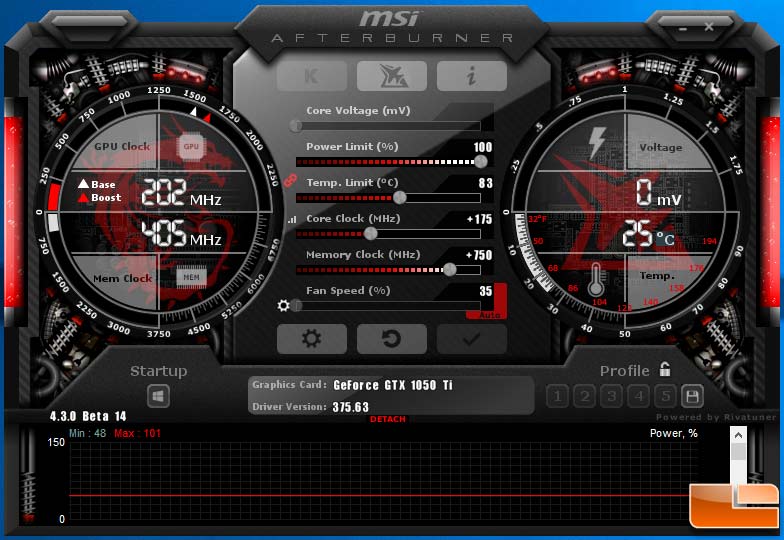
Start by opening your overclocking software. Increase the core clock speed slowly. Try adding 10 to 20 MHz at a time. After each increase, check the GPU temperature. Keep the temperature below 85°C to prevent damage. Stop increasing if the system crashes or shows errors.
Tweaking Memory Clock
Next, raise the memory clock speed. Increase it in small steps, about 20 to 30 MHz. Watch for any screen flickering or glitches. These signs mean the memory clock is too high. Reduce the speed slightly if problems appear. Keep changes gentle to maintain stability.
Testing Stability
After adjusting clocks, test the GPU stability. Use a stress test or benchmark tool. Run the test for 10 to 15 minutes. Look for crashes, freezes, or artifacts on screen. If the GPU passes, the overclock is stable. If not, lower the clock speeds and try again.
Fine-tuning Settings
Once stable, try fine-tuning the settings. Adjust fan speed to keep temperatures down. Increase voltage slightly if needed for stability. Avoid raising voltage too much to protect the GPU. Repeat testing after every change to ensure safety.
Credit: www.legitreviews.com
Monitoring Temperature And Performance
Monitoring temperature and performance is vital when overclocking your GTX 1050 Ti. It helps keep your GPU safe and ensures it runs smoothly. Watching these details can stop damage and improve your gaming experience. Stay alert to any changes in temperature or speed.
Safe Temperature Limits
The GTX 1050 Ti should stay below 85°C during use. Temperatures above this can cause instability or damage. Aim to keep your GPU under 80°C for long-term health. If your card hits 90°C or more, stop overclocking immediately. Cooler temperatures mean better performance and longer life.
Using Monitoring Tools
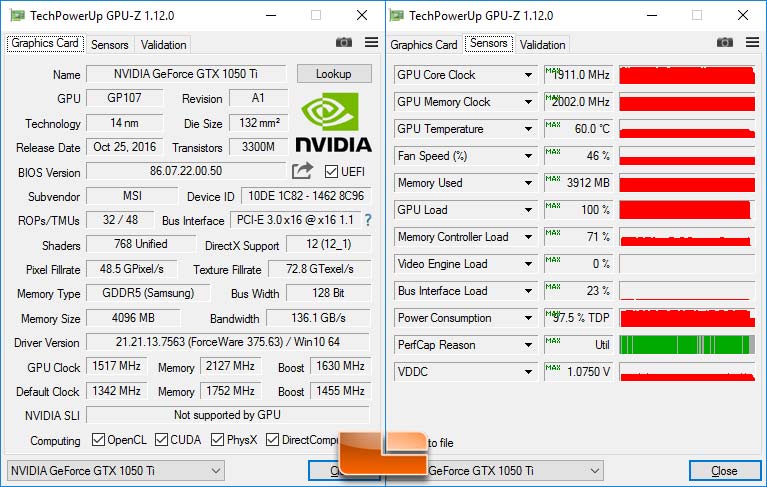
Use software like MSI Afterburner or HWMonitor to track your GPU. These tools show temperature, clock speed, and fan speed in real time. Check your stats often while testing overclock settings. Set alerts to warn you if temperatures rise too high. Monitoring tools help you adjust safely and avoid problems.
Recognizing Signs Of Overheating
Watch for sudden crashes or screen glitches. These are common signs of overheating. Your PC might freeze or restart without warning. Fans running very fast or loud also hint at high heat. If you notice these signs, reduce your overclock or improve cooling. Acting fast prevents permanent damage to your GPU.
Troubleshooting Common Issues
Troubleshooting common issues is a key part of overclocking your GPU 1050Ti. Overclocking can cause instability, crashes, or visual glitches. Knowing how to fix these problems helps keep your system running smoothly. This section covers three main solutions to common problems during overclocking.
Fixing Crashes And Artifacts
Crashes happen when the GPU runs beyond its stable limits. Artifacts are strange lines or shapes on your screen. Both are signs your overclock is too high. Lower the clock speed or memory speed slightly. Test again to find a stable setting. Update your graphics drivers to the latest version. This can improve compatibility and reduce crashes. Avoid pushing the GPU too far.
Resetting To Default Settings
Reset the GPU to default settings if problems persist. Most overclocking tools have a reset option. This clears all changes and restores factory settings. Restart your computer after resetting. This step removes unstable configurations and helps start fresh. Use this when crashes or artifacts cannot be fixed by small tweaks.
Improving Cooling Solutions
Overclocking raises GPU temperature. High heat causes instability and damage. Check your GPU temperature regularly with monitoring tools. Clean dust from fans and vents to improve airflow. Consider upgrading your GPU cooler or adding extra case fans. Better cooling keeps the GPU stable at higher speeds. Cooler hardware lasts longer and performs better.

Credit: www.airoxnigen.com
Maximizing Long-term Gpu Health
Maximizing long-term GPU health is vital when overclocking your 1050Ti. Overclocking pushes your GPU beyond its factory settings. This can increase performance but also stress the hardware. Taking care of your GPU ensures it stays reliable and lasts longer. Good habits and smart choices protect your investment.
Regular Maintenance Tips
Keep your GPU clean and dust-free. Dust blocks airflow and causes heat buildup. Use compressed air to blow out dust every few months. Check your PC case fans and clean them as well. Good airflow keeps your GPU cool and stable.
Monitor your GPU temperatures regularly. Use simple software tools to track heat levels. High temperatures shorten the lifespan of your GPU parts. Aim to keep temperatures below 80°C during heavy use.
Avoiding Excessive Overclocks
Overclock in small steps and test stability each time. Large jumps can cause crashes and damage. Avoid pushing voltage too high; it stresses the GPU. Excessive heat and power draw reduce component life. Find a balance between speed and safety.
Stop if your GPU shows signs of instability. Crashes, artifacts, or random reboots are warning signs. Lower your clock speeds until your system runs smoothly. Stability is more important than maximum speed.
Balancing Performance And Lifespan
Set realistic goals for your overclock. Aim for moderate gains without risking damage. A small boost often brings good performance without strain. Remember, a longer lifespan means more value from your GPU.
Use efficient cooling solutions like aftermarket fans or better thermal paste. Cooler temperatures improve both performance and hardware health. Invest time in proper setup to enjoy smooth gaming for years.
Credit: www.esseg.eu
Frequently Asked Questions
How Safe Is Overclocking A Gpu 1050ti?
Overclocking a 1050Ti is generally safe if done gradually. Monitor temperatures closely to avoid overheating. Use reliable software and never exceed recommended voltage limits.
What Software Is Best For Overclocking A 1050ti?
Popular tools include MSI Afterburner and EVGA Precision X1. These programs offer user-friendly interfaces and real-time monitoring features. They help adjust clock speeds and fan settings safely.
How Much Performance Boost Can I Expect?
You can typically gain 10-15% performance improvement. Results vary based on your specific card and cooling setup. Always test stability after each adjustment.
Does Overclocking Affect Gpu Lifespan?
Overclocking slightly increases wear, but proper cooling minimizes risks. Avoid pushing your GPU to extreme limits. Regular monitoring helps maintain longevity.
Conclusion
Overclocking your GTX 1050 Ti can boost its performance well. Start slow and test often to avoid damage. Keep an eye on temperature and power limits always. Small changes make a big difference in stability. Enjoy smoother gameplay and better graphics without buying new hardware.
Remember, patience and care lead to the best results. Try different settings to find what works for you. Overclocking is a useful skill for budget gamers and tech lovers alike.
