
Want to make your computer faster without buying new hardware? Overclocking your CPU in the BIOS can unlock extra power from your processor.
It might sound complicated, but with the right steps, you can safely boost your system’s performance. In this guide, you’ll learn exactly how to overclock your CPU in the BIOS, step by step. By the end, you’ll know how to squeeze more speed out of your machine and enjoy smoother gaming, faster programs, and better multitasking.
Ready to get started? Let’s dive in.

Credit: softwareg.com.au
Preparing For Overclocking
Preparing for overclocking is important to get the best results. It helps avoid problems and keeps your hardware safe. Taking a few steps before you start can save time and effort. This guide will walk you through key preparations.
Check Cpu And Motherboard Compatibility
Not all CPUs and motherboards support overclocking. Check your CPU model and motherboard specs first. Look for terms like “unlocked” CPU or “overclocking support” in the motherboard manual. This step ensures your hardware can handle higher speeds.
Update Bios To Latest Version
A BIOS update often improves system stability and adds new features. Visit your motherboard manufacturer’s website to find the latest BIOS version. Follow their instructions carefully to update. A current BIOS helps with smooth overclocking.
Backup Important Data
Overclocking can cause system crashes or data loss. Save your important files before you start. Use an external drive or cloud storage for backup. This protects your data if something goes wrong during overclocking.
Gather Overclocking Tools
Have the right tools ready for overclocking. Download software for monitoring CPU temperature and stability. A good cooling system is essential to prevent overheating. Prepare a notebook or app to track your settings and results.
Accessing The Bios
Accessing the BIOS is the first step to overclock your CPU. The BIOS is a special menu built into your computer. It controls hardware settings and lets you change CPU speed safely. You need to enter the BIOS before you can start overclocking.
This process is simple but requires careful attention. Each computer might have a different way to open the BIOS. Knowing how to restart and enter BIOS setup is essential. Also, you must learn to navigate the BIOS interface and find the CPU overclocking settings.
Restart And Enter Bios Setup
Turn off your computer completely. Then, press the power button to start it again. Quickly press the BIOS key repeatedly. Common keys include Delete, F2, F10, or Esc. Stop pressing when the BIOS screen appears. Timing is key for successful entry.
Navigate Bios Interface
Use arrow keys on your keyboard to move around. The mouse may not work in some BIOS versions. Menus are organized by categories like Main, Advanced, or Performance. Look for options related to your CPU or system performance.
Locate Cpu Overclocking Settings
Find the section labeled Overclocking, OC, or CPU Configuration. Inside this section, you will see options for CPU frequency and voltage. These settings control how fast your CPU runs. Adjust them carefully to improve performance without damage.
Adjusting Cpu Clock Settings
Adjusting CPU clock settings is the key step in overclocking your processor through the BIOS. This process changes how fast your CPU runs. It controls the speed by tweaking numbers inside the BIOS. Small changes here can boost performance or cause instability. Take time to learn each setting carefully. This helps avoid damage and keeps your system stable.
Modify Cpu Multiplier
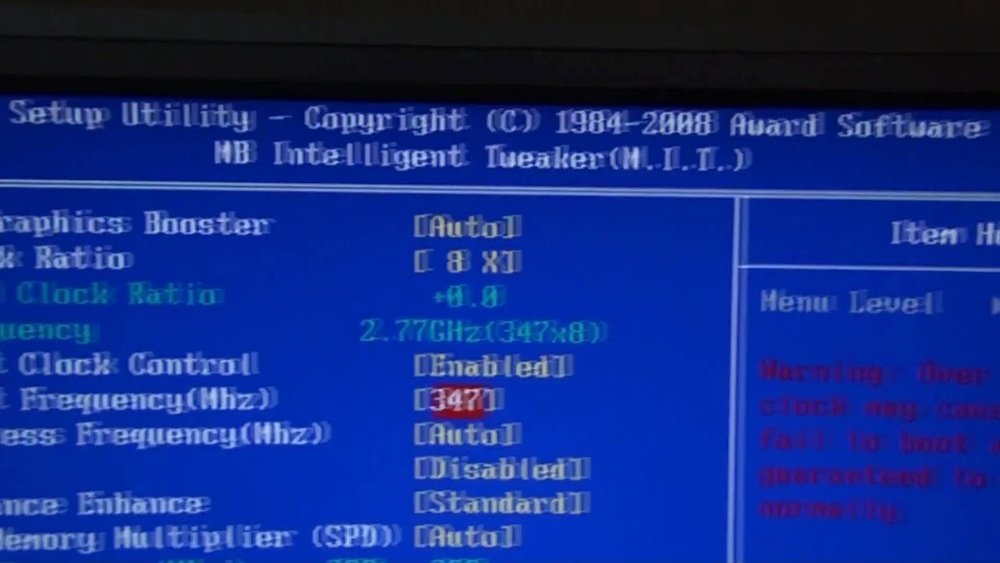
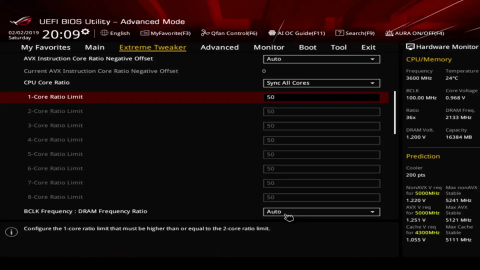
The CPU multiplier controls the speed of your processor cores. It multiplies the base clock to set the CPU speed. For example, a multiplier of 40 with a 100 MHz base clock equals 4 GHz. Increase the multiplier slowly to raise speed. Watch system stability after each change. If the system crashes, lower the multiplier. This method is safer than changing other settings.
Change Base Clock Frequency
The base clock frequency (BCLK) is the starting speed for your CPU and other parts. Raising the BCLK increases CPU speed and RAM speed. It can give more overall performance but is riskier. Small changes to BCLK are best to keep system stable. Test the system well after each increase. If unstable, reduce the base clock to the last working value.
Set Voltage Parameters
Voltage settings supply power to your CPU. Higher voltage helps CPU run at higher speeds. Too much voltage causes heat and can damage the processor. Increase voltage carefully and in small steps only. Check CPU temperature after each change. Use stress tests to confirm stability before continuing. Proper voltage balance improves speed and safety.

Credit: www.youtube.com
Optimizing Memory And Cooling
Optimizing memory and cooling is key for safe CPU overclocking. Proper settings boost performance and keep your system stable. Cooling prevents overheating, which can damage parts. Memory tuning improves speed and responsiveness.
Adjust Ram Timings And Frequency
Enter BIOS and find the memory settings. Increase RAM frequency gradually for better speed. Lower timings help RAM respond faster. Test changes with small steps to avoid errors. Save settings and restart to check stability.
Monitor Cpu Temperature
Temperature is vital during overclocking. Use BIOS or software tools to watch CPU heat. Keep temps below the maximum limit to protect hardware. High temps may cause crashes or shutdowns. Stop overclocking if temps rise too much.
Improve Cooling Solutions
Good cooling stops overheating. Use quality CPU coolers like air or liquid types. Clean dust from fans and heat sinks often. Ensure good airflow inside the computer case. Add extra fans if needed for better air movement.
Testing Stability And Performance
After overclocking your CPU in BIOS, testing stability and performance is essential. It ensures your system runs smoothly without crashes or errors. This process helps find the right balance between speed and reliability. Testing also confirms your CPU can handle the new settings under real workloads.
Use Stress Testing Software
Stress testing software pushes your CPU to its limits. It checks if the overclock is stable over time. Popular tools include Prime95, AIDA64, and IntelBurnTest. Run these programs for at least 30 minutes. Watch for errors or sudden shutdowns. If issues occur, reduce the overclock or increase voltage slightly.
Monitor System Stability
System stability means your PC works without crashes. Monitor temperatures and CPU usage during tests. Use software like HWMonitor or Core Temp. Keep CPU temperature below 85°C to avoid damage. If temperatures rise too high, improve cooling or lower the overclock. Stable performance means no freezes or blue screens.
Benchmark Overclocked Cpu
Benchmarking measures your CPU’s speed and power. Use tools like Cinebench, Geekbench, or 3DMark. Compare scores before and after overclocking. Higher scores show better performance. Benchmarking helps verify your CPU runs faster without issues. It also shows if the overclock is worth the effort.
Troubleshooting Common Issues
Troubleshooting is key when overclocking your CPU in BIOS. Problems can appear. Crashes, overheating, and errors may stop your system. Knowing how to fix these helps keep your PC stable. Below are common issues and clear steps to solve them.
Address System Crashes
System crashes often mean your CPU is unstable at the set speed. Lower the clock speed or increase the voltage slightly. Test your system after each change. Use stress test software to check stability. Update your BIOS to the latest version. Faulty RAM can also cause crashes. Run a memory test to rule out RAM issues.
Fix Thermal Throttling
Thermal throttling happens when the CPU gets too hot. Check your cooling system first. Clean dust from fans and heatsinks. Apply new thermal paste if needed. Ensure your case has good airflow. Lower the overclock to reduce heat. Monitor CPU temperature with software during stress tests.
Reset Bios Settings If Needed
Resetting BIOS can fix many overclocking problems. If your PC won’t boot, clear CMOS by removing the battery or using a jumper. This resets all BIOS settings to default. After reset, re-enter BIOS and set your preferred values slowly. Save changes and test stability again. Keep track of settings that caused issues.
Maintaining Overclocked System
Maintaining an overclocked CPU system requires care and attention. Overclocking pushes your hardware beyond standard limits. This can lead to higher heat and stress. Proper maintenance keeps your system stable and safe. It also helps extend the life of your components.
Regularly Monitor Temperatures
Heat is the biggest risk for overclocked CPUs. Check your CPU temperature often. Use software tools designed for temperature monitoring. Keep the temperature below the maximum safe limit. High temperatures can cause crashes or damage. Cooling solutions like fans or liquid cooling help control heat.
Update Drivers And Bios
New drivers improve hardware performance and stability. BIOS updates often fix bugs and add support for overclocking. Visit your motherboard manufacturer’s website regularly. Download and install the latest BIOS and drivers. This ensures your system runs smoothly with your overclock settings.
Fine-tune Settings For Longevity
Start with small overclock increments. Test your system for stability after each change. Adjust voltage carefully to avoid excess power and heat. Lower voltages reduce stress on your CPU. Balance performance and temperature for long-term use. Regular testing helps maintain a safe overclock.
Credit: www.schieffer.com.br
Frequently Asked Questions
What Is Cpu Overclocking In Bios?
CPU overclocking in BIOS means increasing your processor’s clock speed manually. This boosts performance but may raise heat and power use. BIOS settings allow precise control over frequency, voltage, and multipliers for safe overclocking.
How Do I Safely Overclock My Cpu In Bios?
To safely overclock, increase clock speed gradually in BIOS. Monitor temperatures closely and test stability with stress tools. Avoid excessive voltage to prevent damage. Always save original settings before changes for easy rollback.
Can Overclocking Damage My Cpu Or Motherboard?
Yes, improper overclocking can cause overheating or hardware failure. Using safe voltage and adequate cooling reduces risks. Always follow manufacturer guidelines and monitor system health during overclocking for protection.
How To Check If My Cpu Overclock Is Stable?
Use stress-testing software like Prime95 or AIDA64 after overclocking. Run tests for several hours to ensure system stability. Watch temperatures and system responses to avoid crashes or freezes.
Conclusion
Overclocking your CPU in BIOS can boost your computer’s speed. It needs patience and careful steps. Watch your temperatures to keep your system safe. Test your settings to avoid crashes or errors. Small changes work better than big jumps. Keep learning and adjusting to find the best balance.
This skill can improve your PC’s performance. Enjoy the process and the results.
