
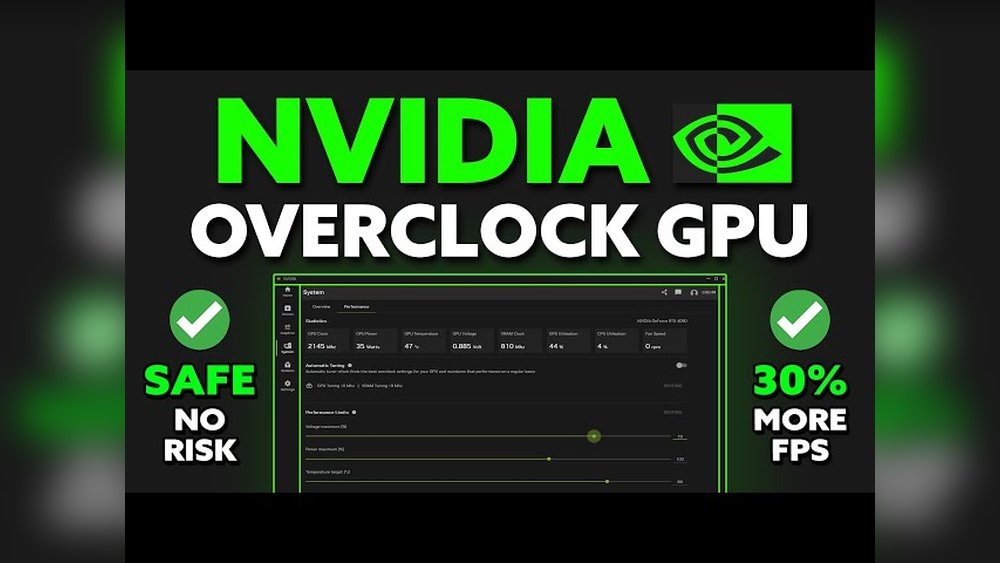
Are you ready to unlock the hidden power inside your Nvidia GPU? Overclocking your graphics card can boost performance, letting you enjoy smoother games and faster rendering without spending a dime on new hardware.
But it can also be tricky—push too hard, and your system might crash or overheat. This guide will walk you through simple, clear steps to safely overclock your Nvidia GPU. By the end, you’ll know exactly how to get more speed and power while keeping your PC stable.
Keep reading to transform your gaming or creative setup today!

Credit: vixencomposites.com
Basics Of Gpu Overclocking
Overclocking a GPU means making it run faster than the factory settings. It helps to get more power from the graphics card. This process needs care and the right tools. Understanding the basics is important before starting to overclock an Nvidia GPU.
Knowing what overclocking means, the benefits and risks, and the tools needed will prepare you better. This guide breaks down these key points simply and clearly.
What Overclocking Means
Overclocking is increasing the GPU’s clock speed beyond its default limit. The clock speed controls how fast the GPU processes data. Higher speeds mean better performance in games and applications. It is like making the GPU work harder. But this also produces more heat and uses more power.
Benefits And Risks
Overclocking can improve game frame rates and reduce lag. It may help run heavy software more smoothly. You can get extra value from your GPU without buying a new one. The risks include overheating and system crashes. Overclocking too much can damage the GPU. It can also shorten the card’s lifespan if not done correctly.
Required Tools And Software
To overclock an Nvidia GPU, you need special software. MSI Afterburner is popular and easy to use. It lets you adjust clock speeds and fan settings. Nvidia’s own software, Nvidia Inspector, is another option. You also need stress test tools like FurMark to check stability. Monitoring tools help track temperature and performance. A good cooling system is essential to avoid overheating.
Preparing Your System
Preparing your system is the first step before overclocking your Nvidia GPU. Proper preparation helps avoid damage and ensures stable performance. Take time to get your system ready for the changes ahead.
Focus on checking compatibility, updating drivers, and making sure your cooling setup is strong. These simple tasks set a solid foundation for safe overclocking.
Checking Gpu Compatibility
Not all Nvidia GPUs support overclocking. Check your specific model’s capabilities online. Some older or entry-level cards may have locked limits.
Use tools like GPU-Z or Nvidia’s official website to verify your GPU model. Knowing this saves time and prevents errors during overclocking.
Updating Drivers
Keep your Nvidia drivers up to date. New drivers improve performance and fix bugs. Visit Nvidia’s website or use GeForce Experience to download the latest version.
Updated drivers ensure your GPU communicates well with your system. This reduces crashes and makes overclocking smoother.
Ensuring Adequate Cooling
Overclocking raises your GPU’s heat output. Good cooling is essential to avoid overheating. Check your case fans and GPU cooler before starting.
Clean dust from fans and heatsinks. Consider adding more fans or upgrading your GPU cooler if temperatures run high. Cooler hardware lasts longer and performs better.
Step-by-step Overclocking Process
Overclocking an Nvidia GPU can boost its performance beyond factory settings. The process requires patience and careful changes. Follow each step to ensure safety and better results. Start slow and test often.
Setting Up Overclocking Software
Download reliable software like MSI Afterburner or EVGA Precision X1. Install the program and open it. Familiarize yourself with the interface. Look for sliders controlling core clock, memory clock, and voltage. Enable on-screen display to monitor changes while gaming or testing.
Adjusting Core Clock
Increase the core clock speed in small steps, about 10-15 MHz. Apply the change and test for stability using a benchmark or stress test. Watch for crashes or artifacts on the screen. If stable, raise the clock again. Stop when you see instability or overheating.
Modifying Memory Clock
Raise the memory clock in small increments, similar to the core clock. Apply and test stability after each increase. Memory clock affects texture loading and frame rates. Keep an eye on temperature and performance. Do not exceed the limits that cause errors or crashes.
Fine-tuning Voltage Settings
Increase voltage slightly to support higher clock speeds. Be very cautious with voltage changes to avoid damage. Use the software to adjust voltage in small steps. Monitor temperatures closely to prevent overheating. Stop increasing voltage if temperatures get too high or stability worsens.

Credit: garinfobahn.com
Testing Stability And Performance
Testing stability and performance after overclocking an Nvidia GPU is essential. It ensures your system runs smoothly without crashes or damage. This step helps confirm your settings are safe and effective.
Careful testing protects your hardware and improves your gaming or work experience. Follow these key steps to check your GPU’s new limits.
Running Benchmark Tools
Use benchmark tools to measure your GPU’s speed and power. These tools simulate heavy graphics loads and show how your card performs. Popular options include 3DMark, Unigine Heaven, and FurMark.
Run these tests for at least 15-30 minutes. Watch for any drops in performance or errors. Consistent scores indicate good stability.
Monitoring Temperatures
Keep an eye on your GPU temperature while testing. High temperatures can cause crashes and damage. Use software like MSI Afterburner or HWMonitor to track heat levels.
Try to keep the GPU below 85°C during heavy use. If it gets hotter, reduce your clock speeds or improve cooling.
Identifying Artifacts And Crashes
Artifacts are visual glitches like flickering, lines, or strange colors on the screen. These signs show your GPU is unstable. Crashes or sudden restarts also mean overclocking is too high.
Stop testing if you see artifacts or if your system crashes. Lower your clock speed or voltage and test again. This process helps find the safest settings for your card.
Optimizing Overclock Settings
Optimizing overclock settings is key to getting the best from your Nvidia GPU. It means finding the right balance between speed and stability. This process takes time and careful testing. Small changes can make a big difference in performance and heat output.
Incremental Adjustments
Start with small steps. Increase the core clock speed by 10 to 20 MHz at a time. After each step, run a stress test to check stability. Watch for crashes or artifacts on the screen. Stop raising the speed if problems appear. Next, adjust the memory clock in the same way. Incremental changes help avoid sudden issues and keep the GPU safe.
Balancing Performance And Heat
Higher clock speeds generate more heat. Monitor your GPU temperature closely. Keep it below 85°C to prevent damage. Adjust the fan speed to cool the GPU better. Sometimes, a slight drop in clock speed reduces heat a lot. This balance keeps your GPU running fast and safe without overheating.
Saving Profiles For Different Uses
Different tasks need different settings. Save profiles for gaming, video editing, or normal use. Use software like MSI Afterburner to create these profiles. Switch profiles easily depending on what you do. This saves time and ensures your GPU runs well under all conditions.
Troubleshooting Common Issues
Troubleshooting common issues during Nvidia GPU overclocking helps keep your system stable. Overclocking can cause crashes, overheating, or instability. Fixing these problems quickly improves your experience. Below are some simple steps to handle frequent issues.
Handling System Crashes
System crashes often happen if the GPU clock speed is too high. Lower the clock speed in small steps to find a stable setting. Check if your power supply delivers enough power. Update your graphics drivers to the latest version. Close unnecessary programs that use GPU resources during overclocking.
Dealing With Overheating
Overheating can damage your GPU and reduce performance. Improve airflow inside your computer case by adding extra fans. Clean dust from your GPU and case vents regularly. Use a good thermal paste for better heat transfer. Lower the GPU voltage or clock speed to reduce heat generation.
Reverting To Default Settings
If problems persist, reset your GPU to default settings. Use Nvidia’s official software or third-party tools to restore factory values. This step helps avoid hardware damage and keeps your system safe. After resetting, try overclocking again with smaller increments.
Advanced Tips For Enthusiasts
Advanced users who want more from their Nvidia GPUs explore beyond basic overclocking. These tips dive deeper into improving performance safely and efficiently. Understanding these methods helps push your GPU to its limits without damage.
Using Custom Bios
Custom BIOS lets you change GPU settings beyond standard limits. It can unlock higher power targets and voltage controls. This approach requires a backup of your original BIOS. Flashing the GPU with a custom BIOS can improve stability and performance. Use trusted sources for BIOS files to avoid risks. Always test your GPU thoroughly after flashing.
Exploring Liquid Cooling Solutions
Liquid cooling keeps your GPU cooler than air cooling. Lower temperatures allow higher overclock speeds and better stability. This cooling type reduces noise and improves lifespan. Closed-loop liquid coolers are easier to install. Custom loops offer better cooling but need more maintenance. Monitor temperatures closely to avoid overheating during overclocking.
Overclocking With Multiple Gpus
Multiple GPUs need careful tuning to work well together. Each card may require individual overclock settings. Balance power and heat output for all GPUs. Use software that supports multi-GPU overclocking. Watch system stability and game performance during testing. Adjust fan speeds and voltages for each card to ensure reliability.
Credit: www.kaz-metiz.com
Frequently Asked Questions
What Is Nvidia Gpu Overclocking?
Nvidia GPU overclocking means increasing your graphics card’s clock speeds. It boosts performance in games and applications. This process requires careful adjustments to avoid overheating or instability.
How Safe Is Overclocking An Nvidia Gpu?
Overclocking an Nvidia GPU is generally safe if done properly. Use reliable software and monitor temperatures closely. Avoid pushing the card beyond recommended limits to prevent damage.
Which Software Is Best For Nvidia Gpu Overclocking?
MSI Afterburner is the most popular tool for Nvidia GPU overclocking. It offers easy control over clock speeds, voltage, and fan settings. It’s user-friendly and widely trusted by gamers.
How To Monitor Nvidia Gpu Temperature During Overclocking?
Use MSI Afterburner or Nvidia’s own software to track GPU temperatures. Keep the temperature below 85°C to ensure safe operation. Monitoring prevents overheating and potential hardware damage.
Conclusion
Overclocking an Nvidia GPU can boost your computer’s speed. Start slow and test your settings carefully. Watch your temperatures to avoid damage. Use reliable software for safe adjustments. Remember, each GPU behaves differently. Small changes bring the best results. Keep your drivers updated for smooth performance.
Enjoy better graphics but stay cautious. Overclocking takes time and patience. Your system will thank you for careful tuning.
