
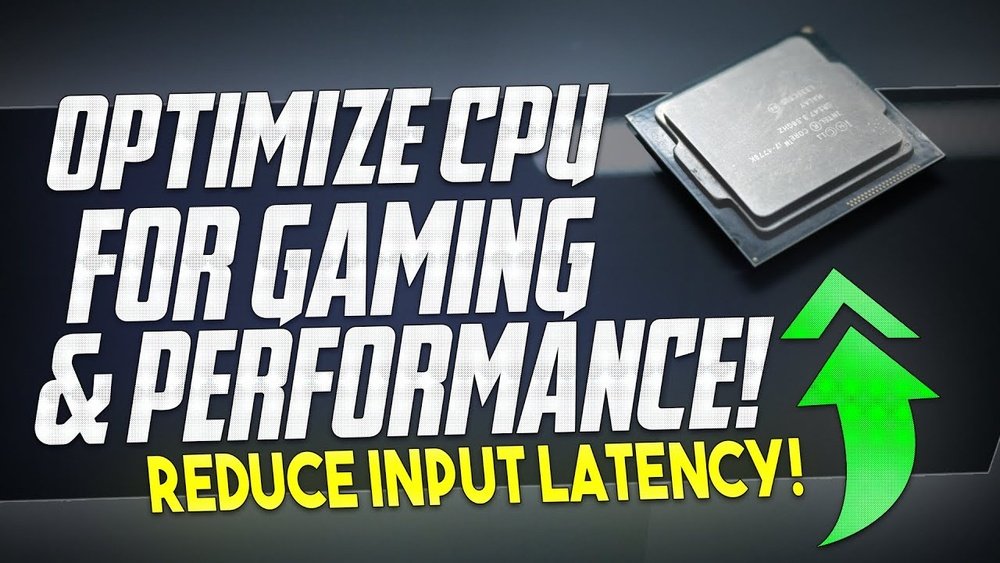
If you want your games to run smoother and faster, optimizing your CPU is key. Your processor handles most of the heavy lifting in gaming, so getting it to perform at its best can make a huge difference.
Imagine cutting down lag, boosting frame rates, and enjoying a more immersive gaming experience—all by tweaking a few simple settings. You’ll discover easy and effective ways to unlock your CPU’s full potential. Ready to take your gaming to the next level?
Keep reading, because what you learn here could change the way you play forever.

Credit: www.youtube.com
Assessing Your Current Cpu Performance
Assessing your current CPU performance is the first step in improving your gaming experience. Knowing how your processor handles games helps you find weak spots. This knowledge guides you on what changes can boost performance.
Checking your CPU’s power and limits lets you understand if it meets game needs. Testing it with tools shows real-world performance. Finding bottlenecks points out what slows down your system.
Checking Cpu Specifications
Start by finding your CPU model and speed. Use the system settings or task manager to see details. Note the number of cores and threads. These affect how well your CPU runs games. Also, check the base and boost clock speeds. Higher speeds mean faster processing. Look up your CPU’s generation and architecture for more insight.
Benchmarking Tools For Gamers
Use benchmarking tools to test CPU performance. Programs like Cinebench, 3DMark, and UserBenchmark are popular. They run tests and give scores based on speed and efficiency. Compare your scores to average results for your CPU model. This shows if your processor performs well or lags behind. Testing under gaming conditions provides the most useful data.
Identifying Bottlenecks
Bottlenecks happen when one part slows down the whole system. Monitor CPU usage while gaming. If it stays at 100%, your CPU may limit performance. Also, check GPU and RAM usage. A balanced system avoids bottlenecks. Focus on parts with high usage or delays. Fixing bottlenecks can improve frame rates and reduce lag.
Credit: www.hp.com
Updating System Software
Updating system software is a key step to improve your CPU’s gaming performance. It ensures your computer runs smoothly and supports the latest game features. Without updates, your system may lag or crash during gameplay. Keeping software current helps fix bugs and boosts stability.
Installing Latest Drivers
Drivers help your CPU communicate with hardware like the graphics card. Outdated drivers can slow down games or cause errors. Download the newest drivers from the hardware maker’s official website. Always choose the version designed for your system. Installing the latest drivers improves speed and fixes bugs.
Updating Bios And Firmware
The BIOS controls how your CPU and motherboard work together. Firmware updates can improve hardware compatibility and stability. Visit your motherboard’s manufacturer site to find the latest BIOS and firmware updates. Follow instructions carefully. A proper update can enhance CPU efficiency and reduce crashes.
Optimizing Operating System Settings
Adjusting operating system settings helps your CPU focus on gaming tasks. Disable unnecessary startup programs that slow down the system. Use the game mode option in Windows for better resource management. Keep your OS updated to patch security and performance issues. These tweaks make games run smoother.
Tweaking Bios Settings
Tweaking BIOS settings can improve your CPU performance for gaming. BIOS is the basic software that controls your computer’s hardware. Changing some settings here can make your CPU faster and more efficient. These tweaks help your system run games smoothly and reduce lag.
Accessing BIOS may seem hard, but it is simple. Restart your computer and press a key like F2, DEL, or ESC. This opens the BIOS menu where you can make changes. Always save your changes before exiting.
Enabling Xmp Profiles
XMP stands for Extreme Memory Profile. It helps your RAM run at higher speeds than default. Enabling XMP in BIOS lets your memory perform better. This can improve game loading times and frame rates. Find the XMP option and switch it from Disabled to Enabled. Choose the profile that matches your RAM’s speed.
Adjusting Power Management
Power management controls how your CPU uses energy. Setting it to high performance mode gives your CPU more power. This means better speed and less throttling during games. Look for options like “CPU Power Management” or “Power Saving Mode.” Set these to prioritize performance over energy saving.
Disabling Unnecessary Features
Some BIOS features are not needed for gaming. Turning them off can free CPU resources. Features like Intel Virtualization Technology or Legacy USB support may slow your system. Disable these options to reduce background tasks. This helps your CPU focus on running games smoothly.
Credit: www.lexar.com
Overclocking Your Cpu
Overclocking your CPU means running it faster than its normal speed. This can improve your gaming performance by making your computer respond quicker. It requires care and attention to avoid damage. Follow simple steps to overclock safely and keep your system stable.
Safe Overclocking Basics
Start by checking your CPU and motherboard support overclocking. Increase the clock speed slowly, in small steps. Test your system after each change. Avoid pushing the CPU to its limit right away. Keep your CPU voltage low to prevent overheating. Always have a backup of important data before starting.
Using Overclocking Software
Many CPUs come with official software to help overclock safely. These tools let you adjust speed and voltage easily. Use software from trusted sources only. Follow on-screen instructions carefully. Some popular options include Intel Extreme Tuning Utility and AMD Ryzen Master. These programs guide beginners through the process.
Monitoring Temperature And Stability
Check your CPU temperature regularly during overclocking. High heat can damage components quickly. Use apps like HWMonitor or Core Temp to watch temperatures. Run stress tests to ensure your system stays stable. If your PC crashes or freezes, reduce the clock speed. Keep your cooling system clean and effective for best results.
Enhancing Cooling Solutions
Keeping your CPU cool is key for smooth gaming performance. High temperatures can slow your processor and cause crashes. Enhancing cooling solutions helps maintain stable speeds and extends CPU life. Focus on three main areas to improve cooling effectively.
Choosing The Right Cooler
Select a cooler that fits your CPU and case size. Air coolers are easy to install and affordable. Liquid coolers provide better cooling but cost more. Check compatibility with your motherboard and CPU socket. A good cooler keeps temperatures low during long gaming sessions.
Improving Airflow In Your Case
Good airflow prevents heat buildup inside the case. Arrange fans for front-to-back airflow. Use intake fans at the front and exhaust fans at the back. Keep cables tidy to avoid blocking air paths. Clean dust filters and fans regularly for better air movement.
Applying Thermal Paste Correctly
Thermal paste helps transfer heat from CPU to cooler. Use a small pea-sized amount in the center of the CPU. Spread evenly by pressing down the cooler gently. Avoid using too much paste as it can reduce cooling efficiency. Replace thermal paste every few years for best results.
Optimizing In-game Settings
Optimizing in-game settings plays a key role in improving CPU performance for gaming. Adjusting these settings helps balance visual quality and smooth gameplay. It also reduces CPU load, making games run better on different systems. Small changes in settings can lead to noticeable improvements in frame rates and responsiveness. Focus on options that affect CPU usage the most. This way, you get a better gaming experience without upgrading hardware.
Balancing Graphics And Performance
Lowering some graphics settings can ease CPU strain. Turn down shadows, reflections, and view distance. These options usually require more CPU power. Keep textures and effects at medium or low for better performance. Avoid maxing out all settings. Find a good balance between quality and smooth gameplay. Testing different settings helps find the best setup for your CPU. Use in-game benchmarks if available. They show how changes affect performance.
Utilizing Cpu-friendly Game Options
Some games have options that use the CPU less. Disable V-Sync or limit frame rates to reduce CPU load. Turn off unnecessary animations or physics effects. Use lower NPC counts or simpler AI if possible. Look for settings like multithreading or CPU affinity. Enable these to allow better CPU task distribution. These tweaks help games use CPU power more efficiently.
Managing Background Processes
Close programs running in the background. They take CPU resources away from your game. Use Task Manager to find and stop heavy apps. Disable startup programs that are not needed during gaming. Avoid running browsers, chat apps, or file-sharing software while playing. Keeping background tasks low frees up CPU power. This leads to smoother gameplay and fewer lags.
Maintaining Your Cpu For Long-term Performance
Maintaining your CPU for long-term performance is essential to keep your gaming smooth and fast. A well-maintained CPU lasts longer and runs better. It avoids slowdowns and crashes during important gaming moments. Simple care steps can protect your investment and improve your overall gaming experience.
Regular Cleaning And Dust Removal
Dust builds up inside your computer case over time. It blocks air flow and causes your CPU to heat up. High temperatures reduce CPU speed and may cause damage. Clean your PC every few months using compressed air. Focus on fans, heat sinks, and vents. Keep your computer in a clean, dust-free area.
Monitoring System Health
Track your CPU’s temperature and usage regularly. Use easy software tools to check these numbers. High temperatures or heavy use for long times can hurt your CPU. Watch out for sudden slowdowns or freezes. These signs mean your CPU needs attention or rest. Monitoring helps you fix small problems early.
Upgrading Components When Needed
Sometimes, your CPU may need new parts for better performance. Upgrading your cooling system can lower CPU temperature. Faster RAM or a new motherboard can improve speed. Keep your drivers and BIOS updated for compatibility. Upgrades keep your gaming setup ready for new games.
Frequently Asked Questions
How Can I Improve Cpu Performance For Gaming?
To improve CPU performance, update drivers, close background apps, and adjust power settings to high performance. Overclocking can also boost speed but may increase heat.
Does Cpu Cooling Affect Gaming Performance?
Yes, effective CPU cooling prevents overheating, maintaining stable performance during gaming. Good cooling helps avoid throttling, which lowers FPS and causes lag.
What Cpu Settings Optimize Gaming On Windows?
Enable Game Mode, set power plan to High Performance, and disable unnecessary startup programs. Adjust processor scheduling for best performance on programs in System settings.
Is Overclocking Safe For Gaming Cpus?
Overclocking can improve gaming speed but increases heat and power use. Use proper cooling and gradual adjustments to avoid damaging hardware.
Conclusion
Optimizing your CPU can improve gaming performance a lot. Simple steps like updating drivers and adjusting settings help. Keep your system cool to avoid slowdowns. Close unused programs to free up resources. Regular maintenance keeps your CPU running smoothly. Small changes add up to better gameplay.
Try these tips to enjoy games without lag. Your CPU plays a big role in gaming fun. Stay patient and tweak settings for the best results.
