
Are you tired of your computer slowing down just when you need it most? Your RAM plays a huge role in how fast and smooth your device runs.
But if it’s not used efficiently, you could be wasting valuable power without even realizing it. Imagine boosting your system’s speed and performance by simply optimizing your RAM usage. You’ll discover easy and effective ways to take control of your memory, so your computer works better and faster.
Keep reading, and transform your tech experience starting now.

Credit: www.fortect.com
Signs Of Excessive Ram Usage
Excessive RAM usage can slow down your computer and cause many problems. It means your system uses more memory than it should. This affects how well your device runs. Recognizing the signs early helps fix the issue fast. Below are common signs that show your RAM is overloaded.
Slow System Performance
When RAM is full, your system moves slowly. Programs take longer to open. Switching between apps feels laggy. The computer may delay simple tasks. This slowdown happens because the system struggles to manage memory.
Frequent Freezing And Crashes
Too much RAM use can cause your computer to freeze. The screen may stop responding for seconds or minutes. Apps may crash without warning. This happens because the system runs out of space to store data temporarily.
High Memory Usage In Task Manager
Task Manager shows how much RAM each app uses. High memory usage means apps or processes use a lot of RAM. Look for programs that use more memory than usual. This helps identify what causes the problem.

Credit: www.youtube.com
Choosing The Right Ram
Choosing the right RAM is key to improving your computer’s performance. The correct RAM type and size help your system run faster and smoother. It also stops slowdowns and crashes. Understanding RAM basics helps you pick the best option for your needs.
Matching Ram Type And Speed
Different computers support different RAM types. DDR3, DDR4, and DDR5 are common types. Your motherboard decides which type fits. Speed matters too. Faster RAM speeds give better performance. Check your system specs before buying RAM. Using the wrong type or speed can cause issues.
Considering Ram Capacity Needs
RAM capacity affects how many tasks your computer can handle. More RAM means you can open more programs at once. For general use, 8GB is usually enough. For heavy tasks like video editing, 16GB or more is better. Balance your needs with your budget.
Dual Channel Vs Single Channel
RAM can run in single or dual channel mode. Dual channel uses two RAM sticks together. This doubles the data path and improves speed. Single channel uses just one stick. Dual channel gives better overall performance. Installing matched pairs is important for dual channel mode.
Managing Startup Programs
Managing startup programs is a key step to optimize RAM usage. Many programs start automatically with your computer. These programs consume memory even if you do not use them. Controlling these apps can free up RAM and speed up your device.
Not all startup programs are necessary. Some apps are useful, but others only slow your system down. Knowing which apps to disable helps keep your computer fast and responsive.
Disabling Unnecessary Apps
Disabling apps that do not need to run at startup saves RAM. Look for programs you rarely use. These could be chat apps, cloud services, or update tools. Turning off their auto-start can improve performance.
Be careful to keep important system apps enabled. Disabling essential services can cause problems. Focus on apps you recognize and do not need immediately.
Using Task Manager For Startup Control
Task Manager lets you easily manage startup programs. Open it by pressing Ctrl + Shift + Esc. Go to the “Startup” tab to see all apps set to launch at boot.
Select an app to check its impact on startup speed. Disable apps with high impact that you do not need. Right-click and choose “Disable” to stop them from running automatically.
Review this list regularly to keep your startup clean. It helps maintain low RAM usage and a faster computer.
Optimizing Running Applications
Optimizing running applications is key to better RAM usage. Each open app uses some memory. Too many apps slow down your computer. Managing these apps helps your system run smooth. Focus on which apps really need to run.
Closing Background Processes
Background processes drain memory without clear use. Close apps running in the background to free RAM. Use Task Manager or Activity Monitor to see these processes. Identify apps that use a lot of memory but are not needed. End these tasks to boost system speed. This simple step improves performance instantly.
Using Lightweight Alternatives
Heavy apps use more RAM and slow down your device. Choose lighter versions or alternative apps with fewer features. Lightweight apps keep your system responsive. For example, use a simple text editor instead of a full word processor. These small changes save memory and keep your computer fast. It helps especially on older or low-RAM devices.
Adjusting Virtual Memory Settings
Adjusting virtual memory settings helps improve your computer’s performance. Virtual memory acts as extra RAM by using space on your hard drive. It supports your system when physical RAM runs low. Correct settings prevent slowdowns and crashes. This section explains how to adjust virtual memory effectively.
Configuring Page File Size
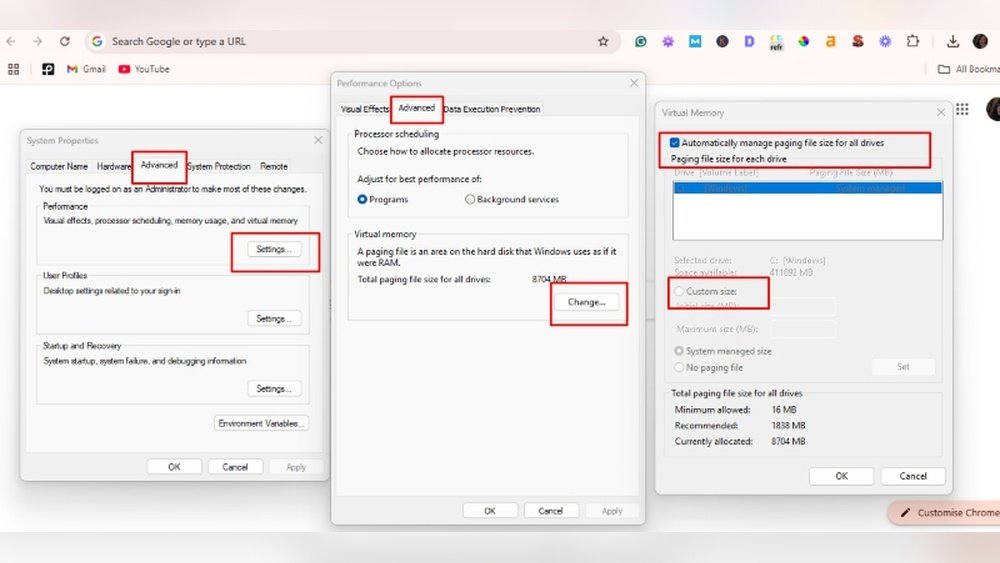
Page file size is the amount of disk space reserved for virtual memory. You can set it manually or let Windows manage it. To configure, open System Properties and find Performance Options. Select the Advanced tab and click Change under Virtual Memory. Uncheck “Automatically manage” to set size yourself.
Set the initial size equal to your RAM size. Set the maximum size to 1.5 or 2 times your RAM size. Too small page file causes errors. Too large wastes disk space. Restart your computer to apply changes.
When To Increase Virtual Memory
Increase virtual memory if your system shows low memory warnings. Programs may freeze or run slowly. Large files or many apps open at once need more memory. Check Task Manager for high memory use. If your RAM is below 4GB, consider raising virtual memory.
A larger page file helps prevent crashes during heavy tasks. Avoid making it too large, as it slows down your system. Adjust settings based on your usage and available disk space.

Credit: www.youtube.com
Cleaning And Maintaining Ram
Cleaning and maintaining your RAM helps your computer run smoothly. Over time, RAM can get cluttered with unused data. This slows down your system and reduces performance. Regular cleaning frees up memory and improves speed.
Using Ram Cleaning Software
RAM cleaning software clears unused memory automatically. It stops background apps from using RAM unnecessarily. These tools show how much memory is free and used. You can run them to boost your computer’s speed quickly. Many free and easy-to-use options are available online.
Restarting For Memory Refresh
Restarting your computer clears the RAM completely. This closes all running programs and removes temporary files. A fresh start helps your system run faster and smoother. Try to restart your device regularly to keep RAM clean.
Upgrading Hardware For Better Ram Performance
Upgrading hardware can improve your computer’s RAM performance significantly. It helps the system run faster and handle more tasks at once. Simple upgrades can extend your computer’s life and boost overall speed. Focus on two main ways: adding more RAM modules and replacing old ones with faster models.
Adding More Ram Modules
Adding extra RAM modules increases total memory available. This allows your computer to manage more programs simultaneously. Check your motherboard’s slots to see how many modules it supports. Match the new RAM type with your current setup to avoid compatibility issues. More RAM reduces slowdowns during heavy tasks and multitasking.
Replacing Old Ram With Faster Modules
Old RAM modules may run slower and limit performance. Replacing them with faster RAM improves data transfer speed. Faster RAM helps your system respond quicker and run smoother. Confirm your motherboard supports higher speed RAM before buying. This upgrade is useful for demanding applications and games.
Optimizing System Settings
Optimizing system settings is a key step to reduce RAM use and improve computer speed. Many default settings use extra memory without real benefit. Adjusting these can free up RAM for important tasks.
Small changes in your system’s visual and power settings can make a big difference. This helps your computer run smoother and faster.
Disabling Visual Effects
Visual effects like animations and shadows use extra RAM. These effects look nice but are not needed for basic tasks. Turning them off saves memory and boosts performance.
To disable visual effects, open your system settings. Find the section for performance or appearance. Choose options to reduce or turn off animations and shadows.
This simple step helps free RAM for more important programs. Your computer will feel quicker and more responsive.
Adjusting Power Settings
Power settings control how your computer uses energy and resources. Some settings use more RAM to keep performance high. Adjusting these can reduce memory use.
Choose a balanced or power-saving plan instead of high performance. This reduces background tasks and limits RAM use. It also helps your computer stay cooler and last longer.
Check power options in the control panel or system settings. Pick settings that limit unnecessary use of RAM without slowing you down.
Monitoring Ram Usage Regularly
Monitoring RAM usage regularly helps keep your computer running smoothly. It shows how much memory apps and processes use. This information helps find problems early. You can avoid slowdowns and crashes by watching RAM closely.
Using Built-in Tools
Most computers have built-in tools to check RAM use. On Windows, Task Manager shows memory details. Press Ctrl + Shift + Esc to open it. You see which apps use the most RAM. Mac users can open Activity Monitor from Utilities. It lists all processes and their memory use. These tools are free and easy to use. They help track RAM without extra software.
Third-party Monitoring Software
Third-party software offers more features for RAM monitoring. Tools like HWMonitor and RAMMap provide detailed stats. Some apps send alerts if RAM use is too high. They can log data over time for analysis. Many are free or low-cost. These programs help users who want deeper insights. Choose one that fits your needs and skill level.
Frequently Asked Questions
What Is Ram And Why Optimize Its Usage?
RAM is a computer’s short-term memory that stores active data. Optimizing RAM improves speed, multitasking, and overall system performance.
How Can I Check My Current Ram Usage?
Use Task Manager on Windows or Activity Monitor on Mac. These tools show real-time RAM usage and help identify memory-heavy applications.
What Are Simple Ways To Reduce Ram Usage?
Close unused programs, disable startup apps, clear browser cache, and restart your computer regularly to free up RAM.
Does Adding More Ram Improve Computer Speed?
Yes, adding RAM can boost speed if your system frequently runs out of memory during tasks or multitasking.
Conclusion
Optimizing RAM helps your computer run faster and smoother. Close unused apps to save memory. Clear temporary files often to free up space. Restart your device regularly to refresh RAM. Use lightweight programs when possible. Keep your system updated for better performance.
Small steps make a big difference in speed. Try these tips and feel the change. Your computer will thank you with better work and play.
