
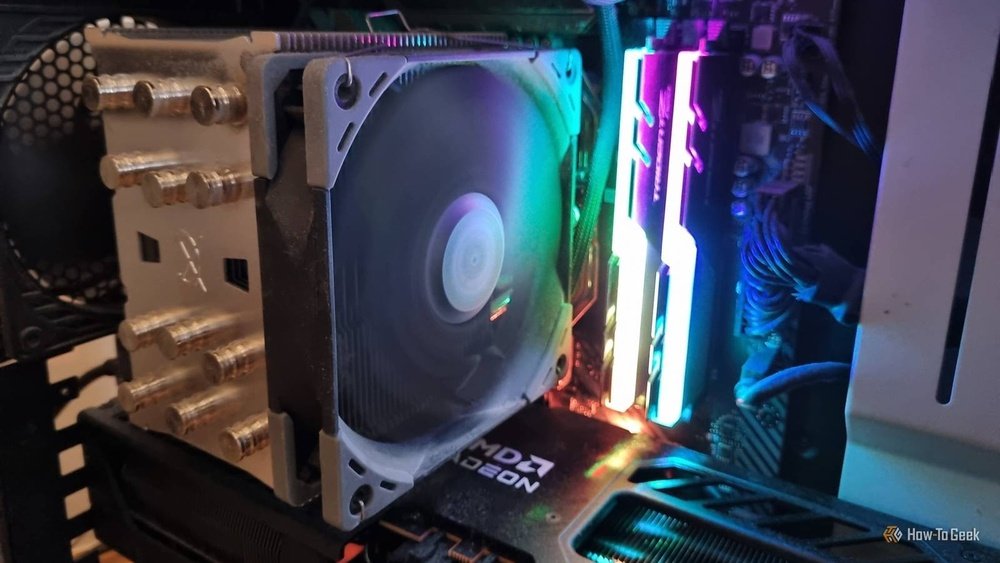
Are you tired of your computer running slow when you need it most? Your CPU is the heart of your system, and optimizing it can make a huge difference in speed and performance.
Imagine being able to breeze through tasks, play games smoothly, or work without frustrating delays. This guide will show you simple, effective ways to get the most out of your CPU—no complicated tech talk, just clear steps you can follow right now.
Ready to unlock your computer’s full potential? Let’s dive in and boost your CPU’s power together.
Assess Current Cpu Performance
Assessing your CPU’s current performance is a key step to improve its speed and efficiency. It helps you understand how well your processor handles tasks. This knowledge guides you to make smart changes that boost your PC’s overall power.
Checking your CPU’s status involves looking at usage levels and temperature. Also, find out if any parts of your system slow down the CPU. Knowing these details shows where to focus your efforts for better results.
Check Cpu Usage And Temperature
Start by monitoring CPU usage to see how busy it is. High usage for long times can cause slowdowns. Use built-in tools like Task Manager on Windows or Activity Monitor on Mac. These tools show real-time CPU activity.
Next, check the CPU temperature to avoid overheating. Overheating can reduce performance and damage your processor. Use software like HWMonitor or Core Temp to track temperature. Keep your CPU cool by cleaning fans and improving airflow.
Identify Bottlenecks And Limitations
Look for parts that limit your CPU’s performance. Bottlenecks occur when other components slow down data flow. Common bottlenecks include slow hard drives, insufficient RAM, or outdated drivers.
Test your system’s speed using benchmarking tools. These tests reveal weak points in your hardware. Fixing bottlenecks can free up your CPU to work faster and smoother. Upgrade or optimize hardware and software based on your findings.
Credit: www.intel.com
Update System Software
Updating your system software is a simple way to improve CPU performance. New updates often fix bugs and enhance efficiency. Keeping your system current helps your CPU run smoothly. It also protects your computer from security risks. Follow easy steps to update drivers and your operating system.
Install Latest Drivers
Drivers control how your CPU talks to hardware. Old drivers can slow down your system. Visit your device manufacturer’s website to find the latest drivers. Download and install them carefully. Updated drivers improve hardware performance and fix errors. This step helps your CPU process tasks faster and better.
Keep Operating System Updated
Operating system updates bring important fixes and new features. They improve how your CPU manages tasks and resources. Check for updates regularly in your system settings. Install updates as soon as they are available. This keeps your CPU optimized and your computer secure. A fresh OS update can boost speed and stability.
Adjust Power Settings
Adjusting your computer’s power settings can improve CPU performance. This step helps balance speed and energy use. Proper settings make your CPU work better during tasks. It also reduces unnecessary slowdowns. Follow these tips to change power settings easily.
Enable High-performance Mode
High-Performance Mode pushes your CPU to run faster. It stops the system from saving power at the cost of speed. This mode is useful for heavy tasks like video editing or gaming. To enable it, open the Control Panel. Go to “Power Options” and select “High Performance.” Your CPU will get more power to handle tasks quickly.
Modify Sleep And Cooling Options
Adjust sleep settings to keep your CPU active longer. Set the computer to sleep after more idle time or disable sleep during work. Cooling options also affect CPU speed. Choose active cooling to prevent overheating. Overheating can slow down your CPU or cause damage. Proper cooling keeps the CPU running smoothly and fast.
Manage Background Processes
Managing background processes is key to improving your CPU performance. Many programs run in the background without your knowledge. They use CPU power and slow down your computer. Controlling these processes helps your CPU run smoother and faster.
Stopping unnecessary programs from starting with your computer saves resources. Also, adjusting services that run continuously can free up CPU capacity. Both actions reduce the load on your system and improve speed.
Disable Unnecessary Startup Programs
Some programs start automatically when your computer boots. Not all of them are needed right away. Disabling unneeded startup programs cuts down the CPU load. Open Task Manager, go to the Startup tab, and review the list. Turn off programs that you rarely use or don’t need immediately. This simple step speeds up boot time and saves CPU power.
Optimize Running Services
Services run in the background and support system functions. Many services consume CPU even when idle. Use the Services app to check which services run automatically. Set non-essential services to manual or disabled mode. Be careful not to stop critical system services. Optimizing services reduces unnecessary CPU usage and keeps your system responsive.
Optimize Bios Settings
Optimizing BIOS settings can improve your CPU’s performance significantly. BIOS controls many hardware options. Adjusting these settings helps your CPU run smoother and faster. It gives you more control over how your computer uses its power. Here are two key ways to optimize BIOS for better CPU performance.
Enable Xmp Profiles
XMP profiles boost your RAM speed automatically. Most RAM sticks support XMP but it is off by default. Enabling XMP in BIOS lets your memory run at its rated speed. Faster RAM helps the CPU access data quicker. This results in better overall system performance. Find the XMP option in your BIOS memory settings and turn it on.
Adjust Cpu Clock Speeds
Adjusting CPU clock speeds means changing how fast your processor runs. BIOS lets you increase the CPU frequency safely. Raising clock speeds can improve performance in tasks that need more power. Be careful not to push speeds too high to avoid overheating. Start with small increases and test system stability after each change.

Credit: www.youtube.com
Overclock The Cpu
Overclocking the CPU means running it faster than its original speed. This can make your computer work quicker. Many users overclock to boost performance for tasks like gaming or video editing. Overclocking requires care and knowledge to avoid damage. It’s not just about speed; it affects heat and power use too.
Understand Overclocking Risks
Overclocking can cause the CPU to heat up more. High temperatures may damage parts inside your computer. Your system might become unstable and crash often. Overclocking can also shorten your CPU’s life. Some warranties do not cover damage from overclocking. Be sure to research and know these risks before starting.
Use Software And Bios Tools
You can overclock using special software or BIOS settings. Software tools often provide easy controls within your operating system. BIOS tools give deeper access to CPU settings before the system starts. Both methods let you change the CPU speed and voltage. Always increase speeds slowly and test stability. Use monitoring tools to check temperature and performance.
Improve Cooling Solutions
Improving your CPU cooling helps keep your computer fast and safe. Heat slows down the CPU and can cause damage. Cooling solutions reduce heat and keep your system stable.
Regular care and smart upgrades make a big difference. Clean fans and better hardware can lower temperatures effectively. These steps extend your CPU’s life and improve performance.
Clean And Maintain Fans
Dust and dirt build up on fans over time. This blocks airflow and raises CPU temperature. Turn off your PC and unplug it first.
Use a soft brush or compressed air to clean the fans. Remove dust from vents and blades carefully. Clean fans spin better and cool more efficiently.
Check fans regularly, at least every few months. Well-maintained fans prevent overheating and keep noise low.
Consider Upgrading Cooling Hardware
Stock coolers may not cool well under heavy use. A better cooling system can improve heat removal. Look for larger fans or liquid cooling options.
Air coolers with bigger heat sinks lower temperatures effectively. Liquid coolers offer quiet and efficient cooling for powerful CPUs.
Choose hardware that fits your case and matches CPU needs. Upgrading cooling can boost CPU speed and prevent slowdowns.
Upgrade Hardware Components
Upgrading hardware components can boost your CPU performance significantly. It helps your computer run faster and handle more tasks. Simple hardware changes can make a big difference in speed and efficiency.
Add More Ram
More RAM lets your CPU access data quickly. It reduces delays when running programs. Increasing RAM helps your system manage multiple apps smoothly. It also prevents slowdowns during heavy tasks. Adding RAM is a cost-effective way to improve speed.
Switch To Faster Storage Drives
Replacing old hard drives with faster storage boosts data access times. Solid State Drives (SSDs) load files much quicker than traditional drives. Faster storage reduces waiting time during startup and file transfers. This upgrade supports your CPU by feeding data faster. It makes your computer feel more responsive overall.
Use Performance-boosting Software
Using performance-boosting software helps your CPU run faster and smoother. These tools manage your computer’s resources better. They remove unnecessary files and stop programs that slow your system down. This makes your CPU work more efficiently and improves overall speed.
Cpu Optimization Tools
CPU optimization tools improve your processor’s performance by adjusting its settings. They monitor CPU usage and manage background tasks. Some software can increase CPU speed temporarily by tweaking power settings. Others balance the workload to avoid overheating and lag. These tools help your CPU focus on important tasks without wasting power.
System Cleanup Utilities
System cleanup utilities remove junk files and free up disk space. They delete temporary files, caches, and old logs that slow your computer. Cleaning your system reduces the load on your CPU. These utilities also fix broken registry entries and optimize startup programs. A cleaner system lets your CPU perform at its best every time.
Regular Maintenance Tips
Regular maintenance keeps your CPU running smoothly and fast. Small habits help avoid big problems. Consistent care improves overall system health. It also prevents slowdowns and crashes.
Keep System Free Of Malware
Malware uses CPU power and slows your system. Run antivirus scans often. Remove any detected threats quickly. Update antivirus software regularly. Avoid downloading files from unknown sources. Clean systems work faster and safer.
Perform Routine Hardware Checks
Hardware issues affect CPU performance. Check fans and cooling systems for dust. Clean them to stop overheating. Inspect cables and connections for damage. Replace faulty parts immediately. Proper hardware keeps your CPU cool and efficient.

Credit: www.wikihow.com
Frequently Asked Questions
How Can I Boost My Cpu Performance Easily?
To boost CPU performance, close unnecessary programs and update drivers. Clean dust inside your PC and improve cooling. Use performance mode in your operating system for better speed.
What Are The Best Settings To Optimize Cpu?
Adjust power settings to High Performance in your OS. Disable startup programs that slow your CPU. Update BIOS and system drivers regularly for smoother CPU function.
Does Overclocking Improve Cpu Speed Safely?
Overclocking can increase CPU speed but risks overheating. Use quality cooling solutions and monitor temperatures closely. It’s safe if done carefully with proper knowledge.
How Does Cpu Cooling Affect Optimization?
Better CPU cooling prevents overheating, which slows performance. Use clean fans, thermal paste, and consider liquid cooling. Effective cooling maintains consistent CPU speed and longevity.
Conclusion
Optimizing your CPU helps your computer run faster and smoother. Regular cleaning and updates keep it healthy. Adjusting settings can reduce overheating and lag. Simple steps make a big difference. Keep checking your system for any slowdowns. Small changes improve performance over time.
Stay patient and consistent with these tips. Your computer will thank you with better speed.
