
Are you tired of your computer slowing down just when you need it most? Your CPU is the heart of your system, and optimizing it can make a huge difference in speed and performance.
Imagine getting more done without buying new hardware or spending hours troubleshooting. You’ll discover simple, effective ways to boost your CPU’s power and keep your computer running smoothly. Ready to unlock your CPU’s full potential? Let’s dive in and make your machine work smarter for you.
Cpu Basics
The CPU, or Central Processing Unit, is the brain of your computer. It handles all the instructions it receives from software and hardware. Understanding how a CPU works can help you improve your computer’s speed and efficiency.
This section explains the basics of CPUs and the main factors that affect their performance.
How Cpus Work
The CPU processes data by following simple instructions. It fetches, decodes, and executes commands from programs. This happens very fast, millions of times per second. The CPU communicates with other parts of the computer, like memory and storage, to get the data it needs.
Inside the CPU, there are cores. Each core can work on tasks independently. More cores mean the CPU can handle more tasks at once. This is called parallel processing. It helps your computer run multiple programs smoothly.
Key Performance Factors
Several things affect CPU performance. Clock speed, measured in gigahertz (GHz), shows how many cycles the CPU completes each second. Higher clock speed means faster processing.
The number of cores also matters. More cores help with multitasking and running complex software. Cache size is another factor. It stores frequently used data close to the CPU for quick access.
Thermal management is important too. A hot CPU slows down to avoid damage. Good cooling keeps the CPU running at top speed longer.

Credit: www.reddit.com
System Monitoring
System monitoring is key to optimizing your CPU. It helps you see how your CPU performs in real time. You can spot issues before they slow down your computer. Monitoring keeps your system running smoothly and efficiently.
Tools To Track Cpu Usage
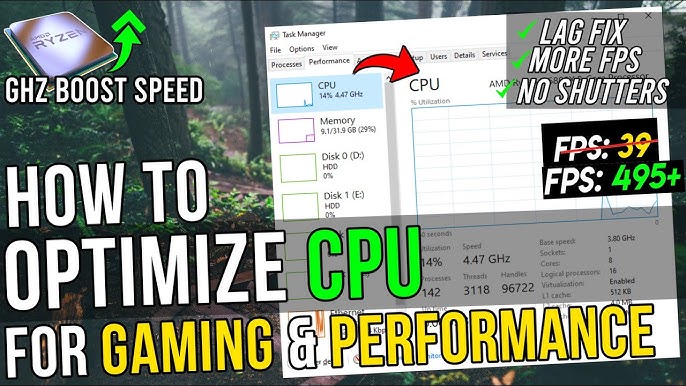
Several tools help track CPU usage easily. Task Manager is built into Windows. It shows real-time CPU load and app usage. For Mac users, Activity Monitor offers similar features. Third-party tools like HWMonitor and CPU-Z provide detailed information. These tools show CPU temperature, speed, and usage. Use them to watch your CPU’s health and performance.
Identifying Bottlenecks
Bottlenecks slow down your CPU and system. Monitoring tools help identify these weak points. High CPU usage with slow response signals a bottleneck. It can be caused by heavy apps or background processes. Overheating also reduces CPU speed and efficiency. Detecting bottlenecks allows you to take action. You can close apps or upgrade hardware to fix issues.
Software Optimization
Software optimization helps your CPU run tasks smoothly. It reduces delays and stops your system from slowing down. By managing software well, you can keep your computer fast and responsive. Focus on simple steps that make a big difference.
Managing Startup Programs
Many programs start automatically when you turn on your computer. These programs use CPU power even if you don’t need them. Disable unnecessary startup programs to free up CPU resources. Use the task manager or system settings to control startup apps. This keeps your CPU free for important tasks.
Updating Drivers And Firmware
Drivers connect your CPU with hardware devices. Outdated drivers can cause slowdowns and errors. Check for updates regularly to improve CPU performance. Firmware updates fix bugs and add features to your hardware. Keep both drivers and firmware up-to-date for smoother operation.
Optimizing Background Processes
Background processes run without your direct input. Some consume a lot of CPU power without clear benefits. Identify and stop unneeded background tasks to save CPU resources. Use system tools to monitor which processes use the most CPU. This helps your computer run faster and cooler.
Hardware Upgrades
Hardware upgrades can boost your CPU’s performance significantly. Improving your computer’s physical parts helps the CPU run faster and smoother. Small changes to hardware can make a big difference in speed and efficiency.
Choosing A Faster Cpu
Pick a CPU with more cores and higher clock speeds. Newer models offer better power and use less energy. Check your motherboard compatibility before buying a new CPU. A faster processor handles tasks quicker and improves multitasking.
Improving Cooling Systems
Good cooling prevents the CPU from overheating and slowing down. Use quality fans or liquid cooling for better heat management. Clean dust from vents and fans regularly. Cooler CPUs maintain top speed and last longer.
Upgrading Ram And Storage
More RAM lets the CPU access data faster and run more programs. Switch to solid-state drives (SSD) for quicker file loading. Upgrade RAM and storage to reduce lag and speed up tasks. Faster memory supports better CPU performance.
Overclocking Techniques
Overclocking techniques can boost your CPU’s speed beyond its default settings. This process helps improve performance for tasks like gaming or video editing. It requires careful steps to avoid damage and keep your system stable.
Safe Overclocking Practices
Start with small increases in CPU clock speed. Change settings gradually to test the effects. Use the BIOS or software tools designed for overclocking. Avoid pushing the CPU too hard right away. Always check your motherboard and CPU support before overclocking. Keep voltage increases minimal to reduce heat and risk. Save your settings and keep a backup plan ready.
Monitoring Temperature And Stability
Overclocking raises CPU temperature. Use software like HWMonitor or Core Temp to track heat levels. Keep the CPU temperature under safe limits, usually below 85°C. Run stress tests with tools such as Prime95 or AIDA64. Watch for crashes or errors during tests. If the system is unstable, reduce clock speed or increase cooling. Good airflow and quality cooling systems help maintain stability and safety.
Power Management
Power management plays a key role in optimizing your CPU. It controls how your processor uses energy. Good power management helps your computer run smoothly and saves electricity. It also prevents overheating and extends your device’s life.
Adjusting Power Settings
Start by opening your computer’s power options. Choose a plan that fits your needs. For better speed, select a high-performance plan. For saving energy, pick a balanced or power saver plan. You can also customize settings like screen brightness and sleep time. These tweaks reduce CPU load and save power.
Balancing Performance And Energy Use
Balancing speed and energy keeps your CPU efficient. High performance means faster tasks but more power use. Saving energy lowers speed but extends battery life. Adjust settings based on your work. For heavy tasks, allow more power. For light use, limit power to save energy. This balance keeps your system stable and cool.
Regular Maintenance
Regular maintenance keeps your CPU running smoothly and fast. It prevents overheating and slows down. Small efforts bring big results. Take time to care for your computer parts and software. This helps avoid problems and extends your CPU’s life.
Cleaning Dust And Debris
Dust blocks airflow and causes your CPU to get hot. Hot CPUs slow down and can break. Use a soft brush or compressed air to clean inside your computer. Focus on fans, vents, and heatsinks. Clean your PC every few months. A clean CPU stays cool and works better.
Updating Software Regularly
Software updates fix bugs and improve performance. Your operating system and drivers affect CPU speed. Check for updates at least once a month. Updates protect your CPU from security risks. Updated software helps your CPU work faster and safer.
Credit: www.youtube.com

Credit: www.reddit.com
Frequently Asked Questions
How Can I Improve Cpu Performance Easily?
Improving CPU performance involves closing unused apps, updating drivers, and cleaning temporary files. Regularly defragment your disk and ensure proper cooling to prevent overheating. These simple steps help your CPU run efficiently without needing advanced technical skills.
What Software Helps Optimize Cpu Usage?
CPU optimization tools like CCleaner, Advanced SystemCare, and MSI Afterburner monitor and manage CPU usage. They clean junk files, control startup programs, and adjust CPU settings for better performance. Using trusted software ensures your CPU runs smoothly and avoids unnecessary slowdowns.
Does Overclocking Boost Cpu Speed Safely?
Overclocking increases CPU speed by running it beyond factory settings. It can boost performance but may cause overheating or hardware damage if done improperly. Always use reliable cooling systems and monitor temperatures to maintain safe overclocking conditions.
How Does Cpu Cooling Affect Optimization?
Efficient CPU cooling prevents overheating, which causes throttling and slows performance. Using quality fans, thermal paste, and proper airflow helps maintain optimal temperatures. Keeping your CPU cool ensures it operates at peak efficiency for longer periods.
Conclusion
Optimizing your CPU helps your computer run faster and smoother. Small steps like cleaning dust and updating software make a big difference. Managing background apps saves power and boosts speed. Regular checks keep your system healthy and responsive. These tips are simple and easy to follow daily.
Try them out to enjoy better performance without extra cost. Keep your CPU working well for a long time. Easy actions lead to steady improvements. Start now and feel the change in your device.
