
Have you ever needed to open your CPU case but felt unsure where to start? Whether you want to upgrade your hardware, clean out dust, or fix a problem, knowing how to open your CPU case is the first step.
It might seem tricky or even intimidating, but with the right guidance, you can do it quickly and safely. You’ll learn simple steps that anyone can follow, even if you’re not a tech expert. Ready to take control of your computer?
Let’s dive in and make opening your CPU case easy and stress-free.
Prepare Your Workspace
Preparing your workspace is the first step to open a CPU case safely and easily. A clean and organized area helps avoid mistakes. It also protects your computer parts from damage. Take time to set up your space before you start working.
Gather Necessary Tools
Collect all tools needed to open the CPU case. A screwdriver, usually a Phillips-head, is essential. Have a small container ready to hold screws. Avoid using sharp or large tools that can damage parts. Keep everything within reach to save time.
Ensure Safety Precautions
Safety protects you and your computer. Turn off the computer and unplug all cables. Work on a flat, stable surface to prevent slips. Ground yourself to stop static electricity. Touch a metal object or use an anti-static wristband before touching components.
Credit: www.youtube.com
Power Down And Unplug
Before opening a CPU case, it is important to power down and unplug the computer. This step keeps you safe and protects your computer parts from damage. Always handle electronic devices with care. Disconnecting power stops any electric current that might cause harm.
Shut Down The Computer
Turn off the computer using the normal shutdown process. Avoid just pressing the power button. Closing all programs and saving your work is necessary. Wait until the screen goes completely black. This shows the computer is fully off.
Disconnect All Cables
Remove the power cable from the back of the computer. Unplug other cables like monitor, keyboard, and mouse. Take out any USB or external device connections. Clearing cables prevents accidental pulls or short circuits. Keep the cables organized to avoid confusion later.
Locate The Case Screws
Locating the case screws is the first step to open a CPU case safely. These screws hold the side panels in place. Removing them allows access to the internal components. Different cases may have different screws. Identifying them helps avoid damage and saves time.
Identify Different Screw Types
Most CPU cases use two main screw types: Phillips and thumb screws. Phillips screws need a screwdriver to remove. They have a cross shape on the head. Thumb screws have large heads for easy hand turning. Some cases use both types together.
Check For Thumb Screws
Look for screws with a large, ridged head near the back of the case. These are thumb screws. They do not require tools and can be turned by hand. Thumb screws are common on modern cases for quick access. Removing them often releases the side panel easily.
Remove The Side Panel
Removing the side panel is the first step to open a CPU case. This panel protects the internal parts of your computer. Taking it off gives you access to the hardware inside. The process is simple and requires only a few tools.
Unscrew The Case Panel
Locate the screws on the back of the case panel. Usually, two or three screws hold the panel in place. Use a screwdriver to turn the screws counterclockwise. Keep the screws in a safe place to avoid losing them. Some cases have thumbscrews that you can turn by hand. Remove all the screws before trying to take off the panel.
Slide Or Lift The Panel Off
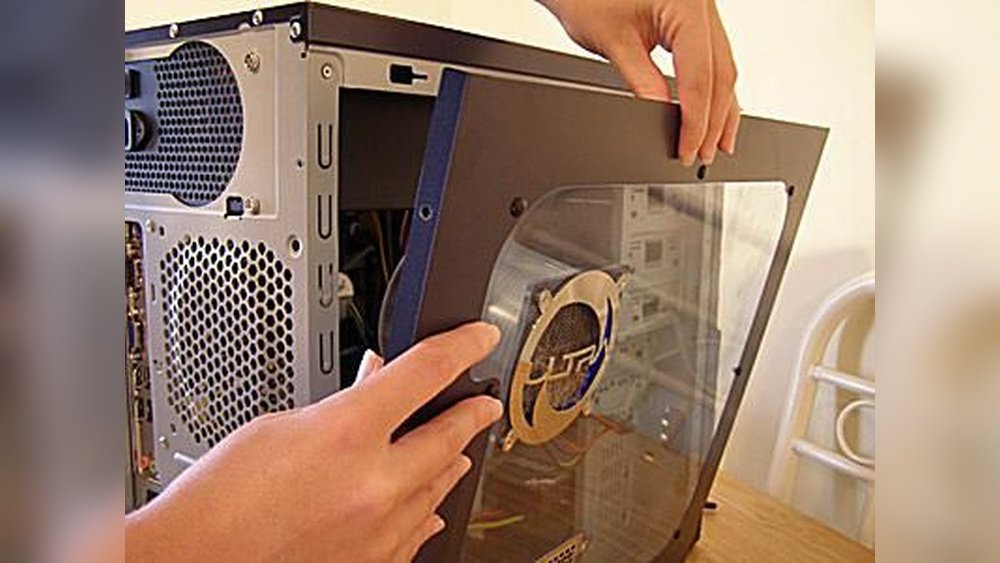
After unscrewing, gently push the panel backward. Some cases need you to slide the panel towards the back. Others require lifting it straight up or away from the case. Use light force to avoid bending or damaging the panel. Once loose, carefully remove the panel and set it aside. Now, you can see the inside of your CPU case clearly.
Handle Internal Components Safely
Handling the internal parts of your CPU case with care is very important. These parts are delicate and can break easily. Taking simple steps can protect your computer and keep it working well.
Small mistakes can cause damage. So, treat every component gently. Protect them from power and dust. Keep your workspace clean and steady.
Avoid Static Electricity
Static electricity can harm computer parts quickly. Touch a metal object before touching inside the case. This action removes static from your body. Use an anti-static wristband if you have one. Avoid working on carpet or soft surfaces that create static. Keep parts in anti-static bags until you install them.
Organize Internal Cables
Messy cables block airflow and cause heat. Neat cables help cool your computer better. Use cable ties or clips to group wires together. Keep cables away from fans and moving parts. Plan cable routes before connecting parts. This keeps the inside clean and easy to work with later.
:max_bytes(150000):strip_icc()/screw-case-58070be53df78cbc28bd647d.jpg)
Credit: www.lifewire.com
Troubleshoot Common Issues
Opening a CPU case can sometimes be tricky. Some common problems can stop you from accessing the inside. Knowing how to solve these problems saves time and avoids damage. This section covers easy fixes for common issues.
Panel Stuck Or Hard To Remove
Sometimes the side panel does not move easily. Dust or tight screws may cause this. First, check if screws are loose or removed. Try gently pushing or pulling the panel. Use a flat tool carefully to help if stuck. Avoid using too much force to prevent damage.
If the panel still won’t move, check if clips or latches hold it. Press or slide these to release the panel. Clean any dust or dirt blocking the edges. A little oil on hinges may help loosen stuck parts. Take your time and be gentle.
Missing Or Stripped Screws
Screws hold the CPU case tightly. Missing screws can make the panel loose. Stripped screws are hard to remove or tighten. Use a screwdriver that fits well to avoid stripping screws.
If a screw is missing, replace it with one of the same size. Stripped screws need special tools like screw extractors. You can also try using rubber bands for better grip on stripped screws. Avoid forcing screws to prevent damage to the case.

Credit: www.youtube.com
Frequently Asked Questions
How Do I Safely Open A Cpu Case?
First, power off and unplug your PC. Ground yourself to avoid static damage. Remove screws or latches on the side panel. Slide or lift the panel off gently. Keep screws safe for reassembly.
What Tools Are Needed To Open A Cpu Case?
A Phillips-head screwdriver is usually sufficient. Some cases may need a flat-head screwdriver or a hex key. Avoid using excessive force. Using the right tools prevents damage to the case or components.
Can I Open A Cpu Case Without Technical Skills?
Yes, opening a CPU case is simple. Follow safety steps and handle parts carefully. Avoid touching internal components directly. Watching tutorial videos can help build confidence before opening.
How To Identify The Cpu Case Type?
Look for screws, thumbscrews, or latches on the case edges. Some cases have removable panels or sliding doors. Check the manual or manufacturer’s website for specific instructions related to your case model.
Conclusion
Opening a CPU case is simple with the right steps. Always turn off your computer first. Use a screwdriver to remove screws carefully. Keep screws safe to avoid losing them. Gently slide the side panel off. Avoid touching internal parts to stay safe.
Take your time and work slowly. Now, you can clean or upgrade your PC easily. This basic skill helps keep your computer running well. Try it yourself and feel more confident with your PC.
