
Are you looking to get more power out of your CPU without spending extra money? Overclocking your CPU can unlock hidden performance, making your games smoother and your programs faster.
But it can feel tricky and risky if you don’t know where to start. Don’t worry—this guide will walk you through simple steps to safely boost your CPU’s speed. By the end, you’ll have the confidence to push your hardware further and enjoy a noticeable speed boost.
Ready to see what your CPU can really do? Let’s dive in!
Basics Of Cpu Overclocking
Overclocking a CPU means running it faster than the factory settings. It can improve your computer’s speed and performance. Understanding the basics helps you do it safely and effectively.
Knowing how overclocking works and what parts are involved will guide your steps. This section explains the key points to start overclocking with confidence.
What Is Cpu Overclocking
CPU overclocking raises the processor’s clock speed above the default rate. This makes the CPU perform tasks quicker. It is done by changing settings in the BIOS or using software tools. Overclocking pushes the hardware to work beyond its normal limits.
Benefits And Risks
The main benefit is faster computing and better performance in games and apps. Overclocking can extend the life of older CPUs by making them faster. Risks include higher heat output and increased power use. Overclocking may cause system instability or crashes if not done carefully. It can also shorten the CPU’s lifespan if temperatures get too high.
Cpu Components Involved
The key parts involved in overclocking are the CPU core, voltage regulator, and cooling system. The CPU core speed is what you increase to make it faster. The voltage regulator supplies power and may need adjustment to support higher speeds. Cooling systems like fans or liquid coolers prevent overheating during overclocking. Good cooling is essential for stable and safe overclocking.
Preparing For Overclocking
Preparing for overclocking a CPU is a key step to ensure success and safety. Taking time to get ready helps avoid hardware damage and system crashes. This stage builds a strong foundation for stable overclocking.
Start by selecting the right hardware. Update your system software. Set up tools to watch your CPU’s behavior closely. These steps improve your chances of a smooth overclocking process.
Choosing The Right Hardware
Select a CPU known for good overclocking potential. Not all processors handle extra speed well. Pick a motherboard that supports overclocking features. It should have robust power delivery and cooling options.
Invest in a quality cooling system. Overclocking increases heat, which harms the CPU. Air coolers or liquid cooling systems work best. Ensure your power supply delivers steady and sufficient power.
Updating Bios And Drivers
Update your BIOS to the latest version. New BIOS updates often improve overclocking support and stability. Check your motherboard manufacturer’s website for updates.
Update chipset drivers and CPU drivers too. Latest drivers help your system run smoothly. They can fix bugs and improve performance during overclocking.
Monitoring Tools Setup
Install software tools to monitor CPU temperature, voltage, and clock speed. These tools help track changes and prevent damage. Popular options include HWMonitor, CPU-Z, and Core Temp.
Set alerts for temperature and voltage limits. Watching these values closely keeps your CPU safe. Monitoring tools provide real-time data during testing and use.
Step-by-step Overclocking Process
Overclocking a CPU means running it faster than its factory settings. This process can boost your computer’s speed and performance. Follow these clear steps to safely overclock your CPU. Take your time and check each setting carefully.
Adjusting Cpu Multiplier
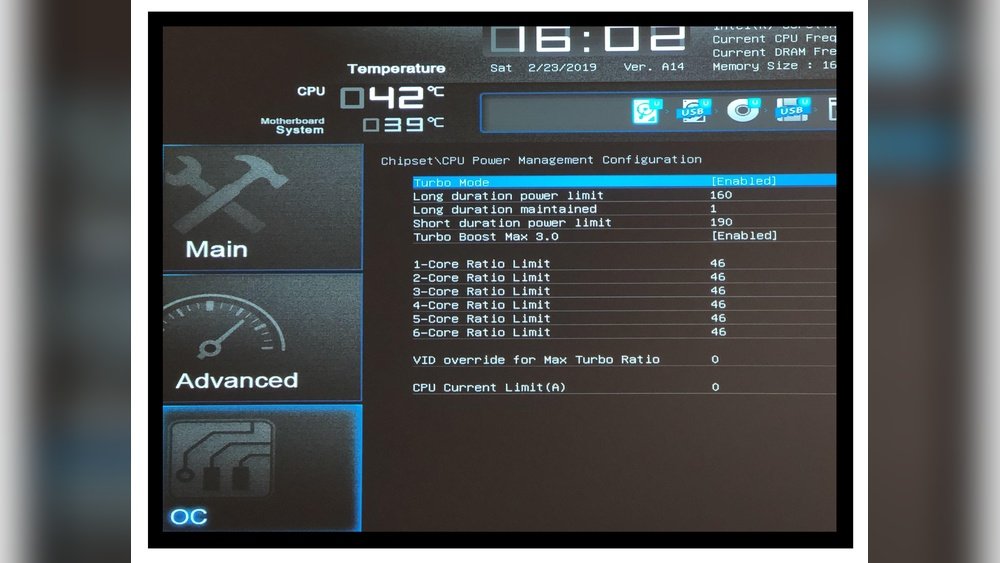
The CPU multiplier controls the processor’s speed. Start by entering your BIOS or UEFI settings. Find the CPU multiplier or ratio option. Increase it slowly, one step at a time. Save the changes and reboot your system. Watch how your computer behaves after each change.
Tweaking Voltage Settings
Higher speeds need more power. Adjust the CPU core voltage carefully. Raise it in small amounts only. Too much voltage can cause damage or overheating. Monitor your CPU temperature closely during this step. Keep voltage as low as possible for stability.
Testing Stability And Performance
Test your system to make sure it is stable. Use stress-test programs or benchmarking tools. Run these tests for several minutes or longer. Look for crashes, freezes, or errors. If problems appear, reduce the multiplier or voltage. Repeat tests until the system runs smoothly.

Credit: www.wikihow.com
Cooling Solutions For Overclocked Cpus
Overclocking a CPU increases its speed beyond factory settings. This extra power generates more heat. Managing this heat is key to keeping the CPU safe and stable. Cooling solutions help control the temperature and improve performance. Choosing the right cooling method depends on your budget and needs.
Air Cooling Options
Air coolers use fans and heatsinks to move heat away from the CPU. They are easy to install and cost less than liquid coolers. Many models fit inside standard PC cases. Larger air coolers offer better cooling but need more space. Quality fans reduce noise while keeping temperatures low.
Liquid Cooling Benefits
Liquid cooling uses water or coolant to carry heat from the CPU. It cools more efficiently than air, especially under heavy loads. Many liquid coolers are quiet and look sleek inside a case. They come in two types: closed-loop and custom loops. Closed-loop systems are easier to set up and require less maintenance.
Thermal Paste Application Tips
Thermal paste helps transfer heat between the CPU and cooler. Apply a small, pea-sized amount in the center of the CPU. Spread it evenly or let the pressure from the cooler spread it. Too much paste can cause poor heat transfer. Clean old paste off before applying new paste for best results.
Troubleshooting Common Issues
Troubleshooting common issues is vital when overclocking a CPU. Problems can occur despite careful settings. Knowing how to fix these helps keep your system stable and safe. This section covers simple steps to solve typical issues.
Handling System Crashes
System crashes often happen after pushing the CPU too hard. Lower the clock speed or increase the voltage slightly. Test the system stability with stress tools. If crashes continue, try smaller overclock steps. Keep changes slow and steady.
Fixing Overheating Problems
Overheating can damage your CPU and reduce performance. Check your cooling system first. Clean dust from fans and heatsinks. Use better thermal paste between the CPU and cooler. Add extra fans or improve airflow inside the case. Monitor temperatures regularly during overclocking.
Resetting To Default Settings
If issues persist, reset the CPU to default settings. Enter BIOS or UEFI and load default profiles. This stops overclocking and returns the CPU to safe values. Save changes and reboot. This step is important before trying new overclock settings again.

Credit: www.wikihow.com
Maximizing Performance Safely
Maximizing your CPU’s performance through overclocking requires care and attention. Increasing speed can boost tasks and make your system faster. But pushing your CPU too hard may cause crashes or damage. Finding a safe balance keeps your computer running well and lasting longer.
Follow good habits and watch your system closely. This helps you enjoy better speed without losing stability or harming parts.
Balancing Speed And Stability
Start by increasing your CPU speed in small steps. Test your system after each change. Use stress tests to check stability. If your PC crashes or freezes, reduce the speed. Keep an eye on temperatures. High heat can hurt the CPU. Aim for a speed that runs smoothly without overheating.
Regular Maintenance Practices
Clean dust from fans and vents often. Dust blocks airflow and raises temperatures. Replace thermal paste every year to improve heat transfer. Update your BIOS and drivers to get better support. Run system checks to find errors early. Regular care helps your CPU stay cool and stable.
When To Upgrade Hardware
Overclocking has limits based on your CPU and motherboard. If speeds stop improving or your PC crashes often, consider new parts. Upgrade your cooling system for better heat control. A stronger power supply can support higher speeds. New hardware lets you reach better performance safely.

Credit: www.hp.com
Frequently Asked Questions
What Does It Mean To Overclock A Cpu?
Overclocking a CPU means increasing its clock speed beyond factory settings. This boosts performance but may raise heat and power use. Proper cooling and stable voltage are essential to avoid hardware damage and ensure system stability.
How Do I Safely Overclock My Cpu?
Start by increasing clock speed gradually in BIOS settings. Monitor temperatures closely and test stability with stress tools. Adjust voltage carefully to maintain stability without overheating. Always use quality cooling systems to prevent damage during overclocking.
What Tools Are Needed To Overclock A Cpu?
You need BIOS access, CPU temperature monitors, and stress-testing software like Prime95. Voltage control tools and reliable cooling systems are also crucial. These tools help adjust settings and ensure your CPU runs safely at higher speeds.
Can Overclocking Damage My Cpu Permanently?
Yes, overclocking can cause permanent damage if done improperly. Excessive voltage or heat may shorten CPU lifespan or cause immediate failure. Always overclock cautiously with good cooling and monitor system stability to minimize risks.
Conclusion
Overclocking a CPU can boost your computer’s speed. It requires care and patience to avoid damage. Always check your system’s temperature and stability. Start with small increases and test often. Know your hardware limits to keep it safe. With practice, you can get better performance.
Remember, safety comes first to protect your PC. Enjoy the improved speed, but stay cautious.
