
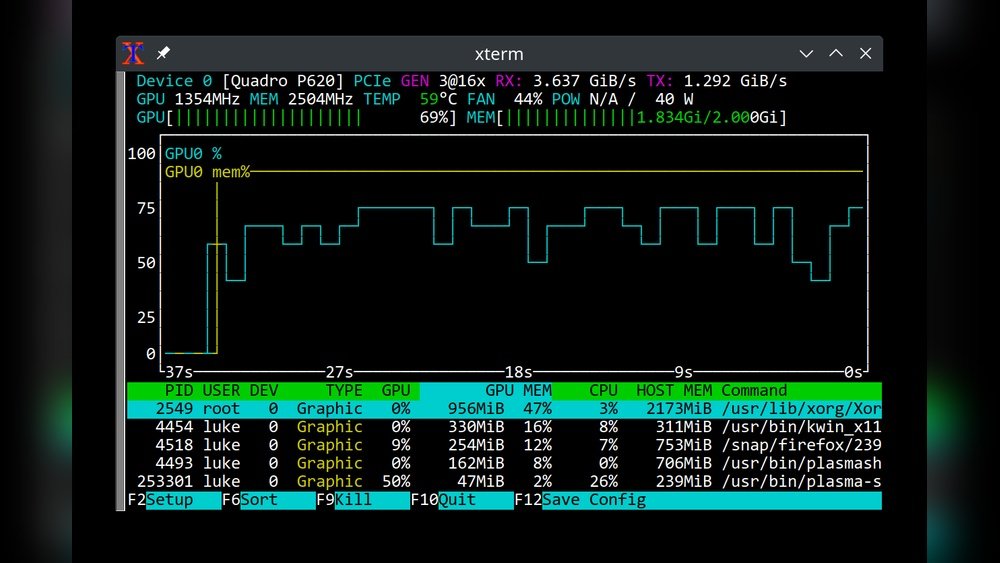
Are you wondering how to keep an eye on your GPU’s performance? Knowing how to monitor GPU usage can help you avoid slowdowns, prevent overheating, and get the most out of your computer.
Whether you’re a gamer, a designer, or just curious about your system, understanding your GPU’s activity is key. You’ll discover simple and effective ways to track your GPU usage step-by-step. Stick with me, and you’ll soon have the tools to boost your computer’s performance and keep it running smoothly.
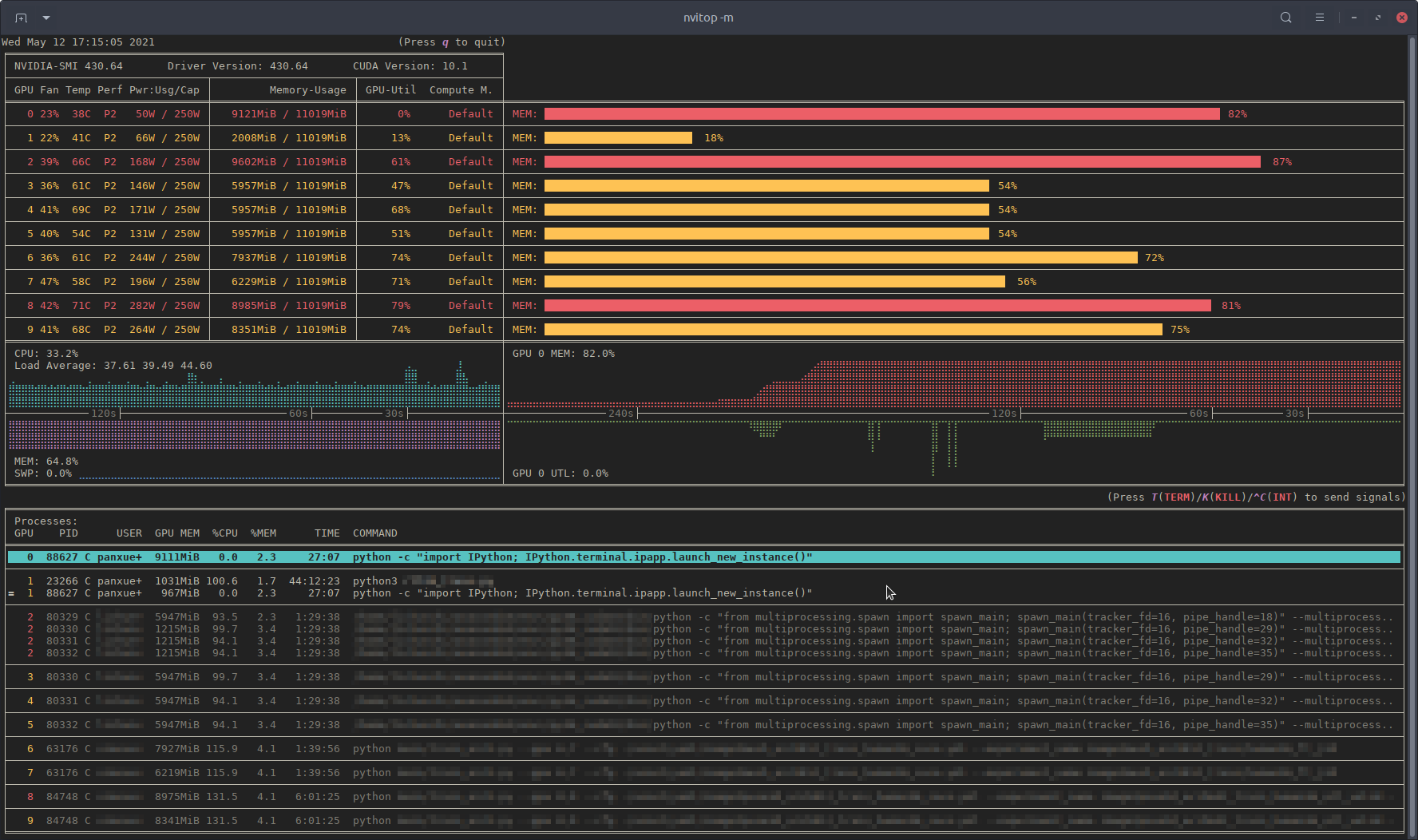
Credit: unix.stackexchange.com
Why Monitor Gpu Usage
Monitoring GPU usage helps you understand how your graphics card works during tasks. It shows how much of the GPU’s power your computer uses. This knowledge helps keep your system fast and safe. It also helps you use your computer resources better.
Impact On Performance
Checking GPU usage shows if your computer runs smoothly. High usage means your GPU works hard. This can slow down your system. Low usage means your GPU is not fully used. Monitoring helps balance the load for better speed.
Preventing Overheating
GPU works hard and can get hot. Too much heat can damage the GPU. Watching GPU usage helps spot heavy work early. This lets you cool down your system before problems start. It keeps your GPU safe and lasts longer.
Optimizing Resource Allocation
Knowing GPU usage helps manage your computer’s resources. You can close programs that use too much GPU power. This frees up resources for important tasks. It makes your computer work more efficiently. You avoid wasting power and reduce lag.
Tools For Monitoring Gpu
Monitoring GPU usage helps keep your computer running smoothly. It shows how much work your graphics card is doing. This can prevent overheating and slowdowns. Different tools exist to check GPU performance. Some are built into your system. Others require extra software or commands. Here is a look at the main options.
Built-in System Utilities
Most operating systems include basic GPU monitors. Windows has Task Manager, showing GPU usage in real time. Mac users can check the Activity Monitor for GPU info. These tools are easy to access and use. They offer quick views without installing extra apps. However, they show limited details compared to other options.
Third-party Software Options
Many apps provide detailed GPU stats and graphs. Programs like GPU-Z and MSI Afterburner display temperature, clock speed, and memory use. These tools help users monitor and tweak GPU settings. They often include alerts for high temperatures. Third-party software suits gamers and heavy computer users. They offer clear, easy-to-read data for better control.
Command Line Tools
Command line tools provide advanced GPU information. Nvidia users can try “nvidia-smi” on Windows or Linux. It shows usage, temperature, and processes using the GPU. AMD has similar tools for their cards. These commands require some technical knowledge. They work well for scripting or remote monitoring. Command line tools give precise and detailed GPU data.
Key Metrics To Track
Monitoring your GPU means watching a few important numbers. These numbers help you see how well your GPU works and if it is safe. Knowing these key metrics helps you avoid problems and keep your system fast. Here are the main things to check when you track GPU usage.
Gpu Temperature
GPU temperature shows how hot your graphics card is. High temperature can cause damage and slow down your computer. Aim to keep the GPU cool to avoid crashes or short life. Use tools to see the current temperature in real-time.
Utilization Percentage
This number tells how much your GPU is working. A low percentage means your GPU is not busy. A high percentage means it is working hard. Watching utilization helps you understand if your GPU is used enough or too much.
Memory Usage
Memory usage shows how much GPU memory is in use. GPU memory stores data needed for graphics and games. High memory use can slow down your system or cause errors. Keep an eye on this to ensure smooth performance.
Power Consumption
Power consumption measures how much electricity your GPU uses. High power use can mean heavy GPU load. It also affects your computer’s energy bills and heat output. Tracking power helps balance performance and energy use.
Setting Up Real-time Monitoring
Setting up real-time monitoring of your GPU helps track its performance closely. It shows how much power your GPU uses at any time. This can prevent overheating and slowdowns. Real-time data helps you fix issues fast. You can also see trends over time to improve your system’s health.
Customizing Alerts
Alerts notify you when your GPU hits certain limits. You can set alerts for temperature, usage, or memory. Choose numbers that make sense for your hardware. Alerts can pop up on your screen or send emails. This way, you act quickly before problems grow.
Dashboard Configuration
Dashboards show GPU data clearly and simply. Arrange graphs and numbers to fit your needs. Include temperature, clock speed, and fan speed. Pick colors and layouts that are easy to read. A good dashboard saves time and avoids confusion.
Integration With Other System Monitors
Combine GPU monitoring with CPU, RAM, and disk checks. This gives a full view of your computer’s health. Use software that supports multiple sensors together. It helps spot system-wide issues early. Integration keeps your whole system running smoothly.
Troubleshooting Common Issues
Monitoring GPU usage helps keep your system running smoothly. Troubleshooting common issues stops problems early. It saves time and avoids damage. This section covers key problems and fixes.
Identifying Bottlenecks
Bottlenecks slow your GPU performance. Check if your CPU or RAM limits the GPU. Use tools like Task Manager or MSI Afterburner. Watch for high usage on other parts. Fix by balancing workload or upgrading hardware.
Resolving Overheating
Overheating harms your GPU and reduces speed. Check GPU temperature with software like HWMonitor. Clean dust from fans and vents. Improve airflow in your PC case. Lower fan speed or replace thermal paste if needed.
Managing Driver Updates
Outdated drivers cause crashes and poor GPU use. Regularly check for updates on the GPU maker’s website. Use official software like NVIDIA GeForce Experience or AMD Radeon Software. Install updates carefully and restart your system.

Credit: fundacioninbursa.org
Tips For Maximizing Gpu Performance
Maximizing GPU performance is key for smooth gaming and fast computing. Simple steps can help your graphics card run better and last longer.
Focus on settings, maintenance, and safe overclocking. These tips keep your GPU efficient and stable.
Adjusting Graphics Settings
Lowering resolution and turning off extra effects improve speed. Use medium or low settings in demanding games.
Turn off shadows or reduce texture quality. This lowers GPU load and raises frame rates.
Regular Maintenance
Keep your GPU clean from dust. Dust blocks airflow and causes overheating.
Check fan operation and replace thermal paste if needed. Good cooling prevents slowdowns and damage.
Overclocking Basics
Overclocking means running your GPU faster than default. It can boost performance but increase heat.
Increase clock speeds in small steps. Test for stability and watch temperatures closely.
Use reliable software and never exceed safe temperature limits. Stability matters more than speed gains.

Credit: vixencomposites.com
Frequently Asked Questions
How Can I Check Gpu Usage On Windows?
You can check GPU usage on Windows using Task Manager. Open it, go to the Performance tab, and select GPU. It shows real-time usage, memory, and other details clearly and quickly.
What Tools Help Monitor Gpu Usage Effectively?
Popular tools include MSI Afterburner, GPU-Z, and NVIDIA’s GeForce Experience. They provide detailed stats, real-time monitoring, and customizable alerts for optimal GPU performance.
Why Monitor Gpu Usage During Gaming?
Monitoring GPU usage helps ensure your system runs smoothly. It prevents overheating, bottlenecks, and performance drops, allowing you to optimize settings for the best gaming experience.
Can I Monitor Gpu Usage On Macos?
Yes, macOS users can check GPU usage using Activity Monitor or third-party apps like iStat Menus. These tools show GPU load and help manage system resources efficiently.
Conclusion
Monitoring GPU usage helps keep your computer running smoothly. It shows how hard your graphics card works. You can find slowdowns or overheating early. Simple tools make tracking easy and quick. Regular checks prevent problems and improve performance. Keep an eye on usage during gaming or heavy tasks.
This way, you protect your device and get the best results. Start watching your GPU today for a better experience.
