
Are you worried your computer might be running too hot? Knowing how to monitor your GPU and CPU temperature is key to keeping your system safe and performing at its best.
When these parts get too warm, your computer can slow down, crash, or even get damaged. But don’t worry—you don’t need to be a tech expert to keep an eye on these vital components. You’ll discover simple, effective ways to check your GPU and CPU temps.
By the end, you’ll have the tools to protect your hardware and boost your computer’s lifespan. Ready to take control of your system’s health? Let’s dive in.
Why Monitor Cpu And Gpu Temps
Monitoring CPU and GPU temperatures is important for every computer user. These two parts work hard and get hot. Keeping an eye on their temps helps you avoid many problems. It also keeps your device running smoothly for a long time.
Impact On Performance
High temperatures can slow down your CPU and GPU. When they get too hot, they reduce speed to cool down. This makes your computer run slower. Watching the temps helps keep your device fast and steady.
Preventing Hardware Damage
Too much heat can break your CPU and GPU. Overheating causes parts to wear out or fail. Checking the temperature helps stop damage before it starts. This protects your computer from costly repairs.
Extending Device Lifespan
Lower temperatures mean longer life for your CPU and GPU. Heat wears out computer parts over time. Staying cool keeps your device healthy and working longer. Monitoring temps is a simple way to care for your computer.
Credit: rog.asus.com
Common Temperature Ranges
Knowing the common temperature ranges for your CPU and GPU helps keep your computer safe. Monitoring these temps can prevent damage and keep your system running well. Each component has its own ideal range and safe limits. Understanding these values helps you spot issues early.
Ideal Cpu Temperatures
Most CPUs work best between 30°C and 50°C when idle. Under heavy use, temperatures up to 70°C are normal. Staying below 75°C helps maintain performance and lifespan. Good cooling and airflow keep your CPU in this safe zone.
Safe Gpu Temperature Limits
GPUs often run hotter than CPUs. Idle temps usually range from 30°C to 40°C. When gaming or rendering, temperatures can reach 70°C to 85°C safely. Some models allow up to 90°C, but it is best to stay cooler. Proper cooling prevents overheating and throttling.
Temperature Thresholds To Avoid
CPU temps above 85°C risk damage and slowdowns. Consistent readings over 90°C are dangerous. For GPUs, temps over 90°C can cause crashes or permanent damage. Avoid running components near these limits for long periods. Cooling issues or dust buildup often cause high temps.
Tools For Temperature Monitoring
Monitoring your GPU and CPU temperatures helps keep your computer safe. High temperatures can cause damage or slow down your system. Various tools help you check these temperatures. They range from software already on your computer to special devices you can buy. Choose the best tool based on your needs and skill level.
Built-in Software Options
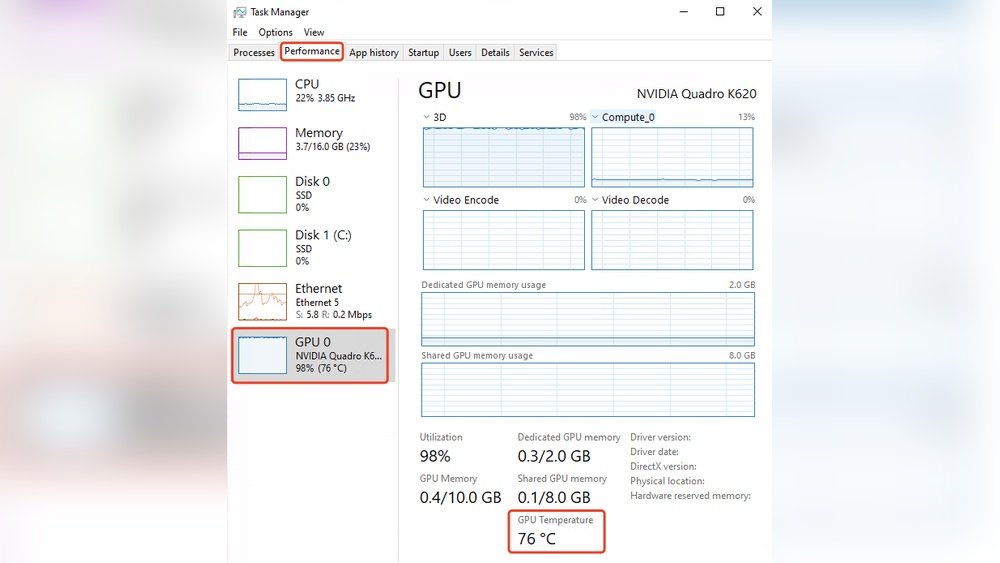
Many computers have built-in tools to check temperatures. Windows users can use Task Manager or BIOS settings. Some laptops show temperature info in system utilities. These tools are simple and require no extra downloads. They give basic temperature readings that help spot big problems.
Third-party Monitoring Apps
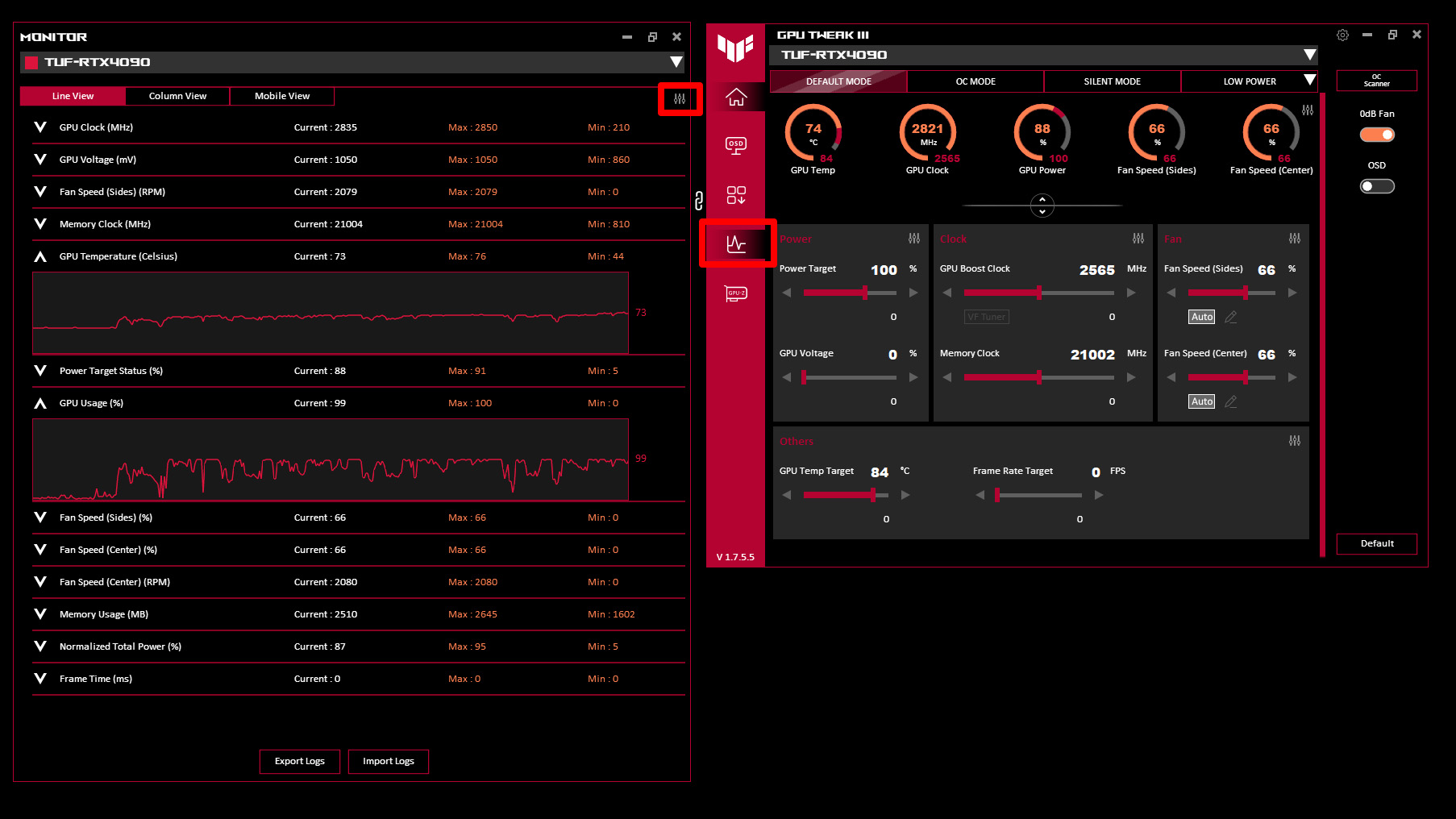
Third-party apps offer more detailed temperature data. Programs like HWMonitor, Core Temp, and MSI Afterburner are popular. They show real-time temps for CPU and GPU. Many apps also track fan speed and voltage. These tools help you spot trends and prevent overheating early.
Hardware Monitoring Devices
Hardware devices connect directly to your PC to measure temperatures. These include external sensors and LCD displays. They provide accurate, live temperature readings outside the software. Good for users who want constant monitoring without opening programs. Some devices also alert you if temps get too high.
How To Check Temperatures
Checking your GPU and CPU temperatures is important for your computer’s health. High temperatures can cause slowdowns or damage. You can check temperatures easily with built-in tools or software. Here are simple ways to see these vital stats.
Using Task Manager And Bios
Task Manager shows CPU usage but not temperature directly. Some Windows versions show CPU temperature under the Performance tab. For more details, restart your PC and enter BIOS by pressing a key like F2 or Del during boot.
BIOS displays CPU temperature in hardware monitoring sections. It shows real-time temps before the operating system loads. This method is safe and requires no extra software.
Running Monitoring Software
Many free programs show GPU and CPU temperatures in real time. Apps like HWMonitor, Core Temp, or MSI Afterburner are popular choices. Download and install one, then open it to see live temperature readings.
These tools often display other useful info like fan speed and voltage. They help track your hardware health during gaming or heavy work.
Interpreting Temperature Readings
Normal CPU temps range from 30°C to 50°C when idle. Under load, temperatures can reach 70°C to 85°C safely. GPU temps vary but usually stay under 85°C during use.
Consistently high temps above 90°C signal overheating. This can cause crashes or hardware damage. Use cooling solutions or reduce workload if temps stay high.
Tips To Maintain Optimal Temps
Keeping your CPU and GPU at the right temperature helps your computer work better. High heat can slow down your system or cause damage. Simple steps can keep your device cool and safe. These tips help maintain good airflow, clean parts, and update software. Follow them to keep your computer running smoothly and avoid overheating.
Improving Airflow And Cooling
Good airflow moves hot air out and brings cool air in. Use extra fans to push air through your case. Keep cables tidy to avoid blocking airflow. Place your computer in a cool, open space. Avoid putting it inside closed cabinets or near heat sources.
Regular Cleaning And Dust Removal
Dust blocks air vents and makes fans work harder. Clean your computer every few months. Use a soft brush or compressed air to remove dust. Pay attention to fans, vents, and heat sinks. Clean parts help your computer cool down faster.
Updating Drivers And Firmware
Outdated software can cause your hardware to heat up. Check for updates for your CPU and GPU drivers regularly. Update your motherboard firmware if available. New updates often improve temperature control and performance. Keeping software current helps your system stay cool.

Credit: www.shoshitamam.com
Advanced Cooling Solutions
Advanced cooling solutions help keep your CPU and GPU temperatures low. This prevents damage and improves performance. These methods go beyond standard fans. They provide better heat control for intense tasks.
Here are some popular advanced cooling options to consider.
Liquid Cooling Systems
Liquid cooling uses water or coolant to cool components. It moves heat away faster than air. This system includes a pump, radiator, and tubes. It keeps your CPU and GPU much cooler. Liquid cooling is quieter than traditional fans. It works well for overclocked or high-performance setups.
Aftermarket Cpu And Gpu Coolers
Aftermarket coolers replace the stock cooling parts. They often have bigger fans or better heat sinks. These coolers improve airflow and heat dissipation. They are simple to install and affordable. Aftermarket options can lower temperature by several degrees. This helps your system run more stable.
Thermal Paste Replacement
Thermal paste sits between your CPU/GPU and its cooler. It helps transfer heat efficiently. Over time, thermal paste dries out and becomes less effective. Replacing old paste can reduce temperatures significantly. Use high-quality thermal paste for best results. This small step improves cooling without big costs.
Signs Of Overheating
Overheating in your GPU or CPU can cause serious problems. Knowing the signs helps protect your computer. It keeps your system running smoothly and avoids damage.
Watch for unusual behavior. These are clear signs your hardware might be too hot.
System Crashes And Freezes
Your computer may suddenly crash or freeze without warning. Overheating can cause these interruptions. The hardware struggles to work properly and stops responding.
This happens often during heavy tasks. Games or video editing can push your system too hard.
Unexpected Shutdowns
Your PC may turn off on its own. This is a safety feature to prevent damage. The system shuts down to cool down the parts.
Frequent shutdowns mean the temperature is too high. It needs immediate attention to avoid permanent harm.
Performance Drops
Speed slows down noticeably during use. Overheating forces your CPU or GPU to reduce power. This process is called throttling.
Throttling protects the hardware but lowers performance. Tasks take longer and apps may lag.

Credit: openhardwaremonitor.org
Frequently Asked Questions
How Can I Check My Cpu Temperature Easily?
You can check CPU temperature using software like HWMonitor or Core Temp. These tools display real-time temperature data clearly and accurately.
What Is A Safe Gpu Temperature Range?
A safe GPU temperature generally ranges between 30°C and 85°C. Temperatures above 90°C can cause overheating issues and reduce hardware lifespan.
Why Should I Monitor Cpu And Gpu Temperatures?
Monitoring helps prevent overheating, ensuring system stability and prolonging hardware life. It also helps optimize performance during heavy tasks.
Which Software Is Best For Gpu Temperature Monitoring?
MSI Afterburner and GPU-Z are popular tools for monitoring GPU temperature. They offer detailed stats and customizable alerts.
Conclusion
Monitoring your GPU and CPU temperature keeps your computer safe and fast. Check temps often to avoid overheating and damage. Use simple tools to track your system’s heat levels. Staying aware helps your device last longer. Keep your computer cool for better performance and stability.
Regular checks mean fewer problems and smoother use. Don’t wait for issues; watch your temps today. A little attention goes a long way.
