
Your computer’s CPU works hard every day, and keeping an eye on its temperature is key to making sure it runs smoothly. If your CPU gets too hot, it can slow down, crash, or even get damaged.
But don’t worry—monitoring your CPU temps is easier than you think. You’ll learn simple ways to check your CPU temperature, why it matters, and how to keep your system cool. Stick with me, and you’ll never have to guess if your computer is overheating again.

Credit: www.alcpu.com
Why Cpu Temps Matter
CPU temperature is a key factor in keeping your computer healthy. High temperatures can cause problems that slow down your system. Watching your CPU temps helps avoid damage and keeps your computer running smoothly.
Impact On Performance
When CPU temperature rises, the processor may slow down. This is called thermal throttling. It protects the CPU but reduces speed and power. A cooler CPU runs faster and handles tasks better. Keeping temps low means better performance for work and play.
Risks Of Overheating
Too much heat can harm your CPU permanently. It can cause crashes, freezes, and data loss. Overheating may shorten your computer’s lifespan. Cooling issues can also affect other parts inside your PC. Monitoring temperatures helps spot problems early and prevent damage.
Credit: www.avast.com
Tools For Cpu Temp Monitoring
Monitoring CPU temperature helps keep your computer safe and running well. Several tools are available to check this important data. These tools range from built-in software to third-party applications. Each has unique features and benefits.
Built-in Software Options
Many computers come with built-in software to monitor CPU temperature. BIOS or UEFI firmware often shows temperature during startup. Some operating systems have basic tools for temperature checks. For example, Windows users can use Task Manager for simple monitoring. These options are easy to access and require no extra installation. They provide quick temperature readings to help spot problems early.
Third-party Applications
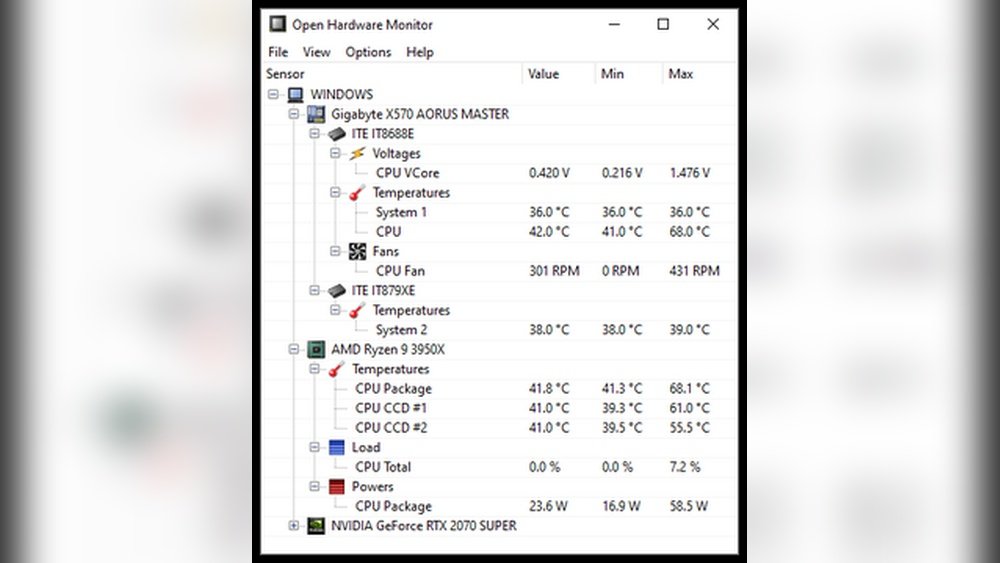
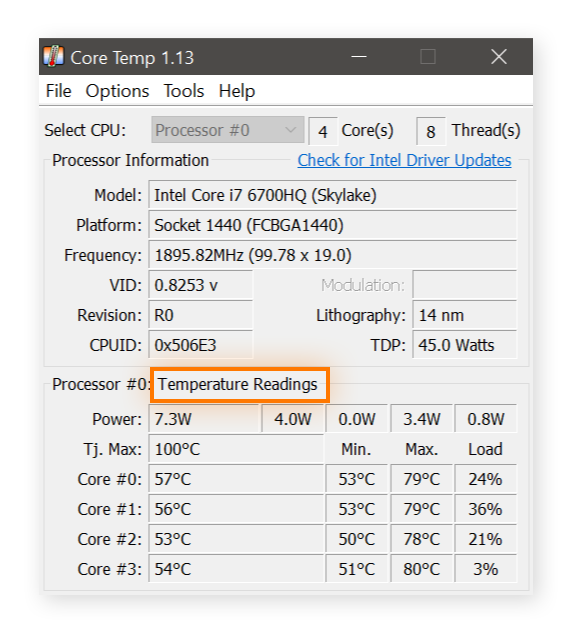
Third-party apps offer more detailed and advanced temperature monitoring. Popular tools include HWMonitor, Core Temp, and SpeedFan. These apps show real-time temperature updates and logging options. They also alert users if the CPU gets too hot. Many third-party applications are free and user-friendly. They work well for both casual users and tech enthusiasts.
Setting Up Accurate Monitoring
Setting up accurate CPU temperature monitoring is key to protecting your computer. It helps avoid overheating, which can cause crashes or damage. Proper monitoring keeps your system stable and extends its life.
Accurate readings depend on the right tools and settings. You need software that matches your CPU type and gives clear information. Alerts and logs help track temperature changes over time and warn you of problems early.
Choosing The Right Tool
Select software that supports your CPU model and operating system. Look for tools with simple interfaces and reliable data. Popular options include HWMonitor, Core Temp, and SpeedFan.
Check if the tool updates temperature readings in real-time. Some programs also show other hardware info, like fan speed and voltage. This extra data can help diagnose issues faster.
Configuring Alerts And Logs
Set alerts to notify you when the CPU temperature crosses safe limits. This helps you act quickly to cool down the system. Choose alert types like sounds, pop-ups, or emails.
Enable logging to keep a record of temperature changes. Logs let you spot patterns and prevent future problems. Save logs regularly and review them to understand your CPU’s behavior.
Interpreting Cpu Temp Readings
Understanding CPU temperature readings helps keep your computer safe. These numbers show how hot your processor runs. Too high a temperature can cause damage or slow your system. Knowing what the temperatures mean helps you decide if action is needed. Let’s break down the normal ranges and signs to watch for.
Normal Temperature Ranges
Most CPUs run between 30°C and 50°C when idle. During heavy use, temperatures can rise to 60°C or 70°C. Some high-performance CPUs may safely reach 80°C. Staying within these ranges means your CPU works well. Temperatures above 80°C often signal trouble. Each processor has a safe max temperature, often called “Tjunction” or “Tj Max.”
When To Take Action
Take action if your CPU stays over 80°C for long. Sudden spikes above 90°C need quick attention. Watch for signs like slow performance or unexpected shutdowns. Clean dust from fans and vents regularly. Check if the cooling system works properly. Replace thermal paste if the CPU overheats often. Keeping your CPU cool protects your computer’s lifespan.
Tips To Keep Cpu Temps Low
Keeping your CPU temperature low is key for a smooth and safe computer experience. High temperatures can slow down your system and damage parts. Follow these simple tips to keep your CPU cool and running well.
Improving Airflow
Good airflow inside your computer case helps lower CPU temperature. Make sure cables are neat and not blocking fans. Use fans to push hot air out and bring cool air in. Position your PC in an open space, not inside a closed cabinet.
Regular Cleaning And Maintenance
Dust buildup can trap heat and raise CPU temperature. Clean your computer case and fans every few months. Use a soft brush or compressed air to remove dust. Check fan speeds regularly to ensure they work properly.
Upgrading Cooling Solutions
Stock coolers may not always keep your CPU cool enough. Consider upgrading to a better air cooler with bigger fans or heat pipes. Liquid cooling systems offer excellent heat removal for powerful CPUs. Choose a cooling solution that fits your budget and needs.
Troubleshooting Common Issues
Monitoring CPU temperatures is important for keeping your computer safe. Sometimes, the readings you get are not correct or sudden changes happen. These issues can confuse you about your CPU’s health. Troubleshooting common problems helps you trust the temperature data and keep your system cool.
Inaccurate Readings
Inaccurate CPU temperature readings can come from software errors. Some monitoring tools may not work well with your hardware. Update your temperature monitoring software to the latest version. Check if your computer’s BIOS is up to date. Old BIOS versions can cause wrong temperature reports. Also, try using different programs to compare results. This helps find if one app is giving false data.
Sudden Temperature Spikes
Sudden temperature spikes can happen without heavy use. Dust buildup inside your computer blocks airflow. Clean your fans and vents regularly to avoid this. Poor contact between the CPU and its cooler also causes spikes. Make sure the thermal paste is applied correctly. Faulty or broken fans fail to cool the CPU properly. Replace any malfunctioning cooling parts right away.

Credit: www.youtube.com
Frequently Asked Questions
What Is The Best Software To Monitor Cpu Temps?
Popular software like HWMonitor, Core Temp, and SpeedFan effectively track CPU temperatures. These tools offer real-time readings and alerts to prevent overheating. Choose one based on your system compatibility and user interface preference for accurate monitoring.
How Often Should I Check My Cpu Temperature?
Check your CPU temperature regularly, especially during heavy use or gaming sessions. Frequent monitoring helps detect overheating early. Set alerts in monitoring software for automatic updates and ensure your CPU runs within safe temperature limits.
What Is A Safe Cpu Temperature Range?
A safe CPU temperature typically ranges between 30°C to 70°C under normal use. Temperatures above 80°C may indicate overheating, risking hardware damage. Keep your CPU cool with proper ventilation and timely maintenance to maintain performance.
Can High Cpu Temps Damage My Computer?
Yes, high CPU temperatures can cause hardware damage and system instability. Prolonged overheating may reduce CPU lifespan and cause crashes. Monitoring and managing temperatures prevent damage and ensure optimal computer performance.
Conclusion
Monitoring CPU temps keeps your computer safe and fast. Use simple tools to check temperatures often. Cool your CPU if it gets too hot. Stay alert to unusual heat spikes. Healthy CPU temps help your system last longer. Keep an eye on temps to avoid damage.
Regular checks prevent slowdowns and crashes. Easy steps make monitoring stress-free and smart.
