
Is your computer running hotter than it should? Ignoring high CPU temperatures can lead to slow performance, unexpected shutdowns, or even permanent damage.
But don’t worry—you don’t need to be a tech expert to keep an eye on your CPU’s heat. You’ll learn simple and effective ways to monitor your CPU temperatures, helping you protect your device and boost its lifespan. Keep reading, and discover how easy it is to stay in control of your computer’s health.
Why Cpu Temperature Matters
CPU temperature is an important factor for your computer’s health. It affects how well your system works and how long it lasts. Monitoring the temperature helps avoid problems before they start. Knowing why CPU temperature matters can protect your device and improve its performance.
Impact On Performance
High CPU temperatures can slow down your computer. The CPU reduces its speed to cool down. This process is called throttling. Throttling helps prevent damage but lowers performance. Your programs might run slower or freeze. Keeping the CPU cool keeps your system fast and smooth.
Risks Of Overheating
Overheating can cause serious damage to your CPU. It can shorten the CPU’s lifespan or cause permanent failure. Extreme heat may crash your system or cause data loss. Overheating can also harm other computer parts. Monitoring temperature helps stop these risks early.

Credit: www.amazon.com
Common Cpu Temperature Ranges
Knowing common CPU temperature ranges helps you keep your computer safe. It shows if your CPU runs too hot or stays cool. Temperatures change based on what the CPU is doing. Understanding these ranges lets you spot issues early. It also helps in choosing the right cooling system for your PC.
Idle Temperatures
Idle temperatures are the CPU’s heat levels when it is not busy. This means the computer is on but not running demanding tasks. Most CPUs should stay between 30°C and 45°C at idle. Temperatures in this range show your cooling works well. If temperatures are higher, dust or bad airflow might be the cause.
Under Load Temperatures
Under load temperatures occur when the CPU works hard. Tasks like gaming or video editing raise CPU heat. Safe load temperatures usually range from 60°C to 85°C. Going above 85°C can cause damage or slow down the CPU. Good cooling and regular cleaning help keep temperatures low during heavy use.
Tools To Check Cpu Temperature
Monitoring CPU temperature is important to keep your computer safe and running smoothly. You need tools that show your CPU’s heat in real time. These tools help prevent overheating and potential damage. Some tools come built into your system. Others you can download for free or buy. Both types have their own benefits.
Built-in Software Options
Many computers have built-in tools to check CPU temperature. BIOS or UEFI firmware often shows this info. You can access it by restarting your PC and pressing a key like F2 or Delete. Some operating systems also have built-in monitors. Windows, for example, uses Task Manager for basic system info, though not always temperature.
These built-in options are simple and do not need extra installation. They work well for quick checks. But they may lack detailed features or alerts.
Third-party Applications
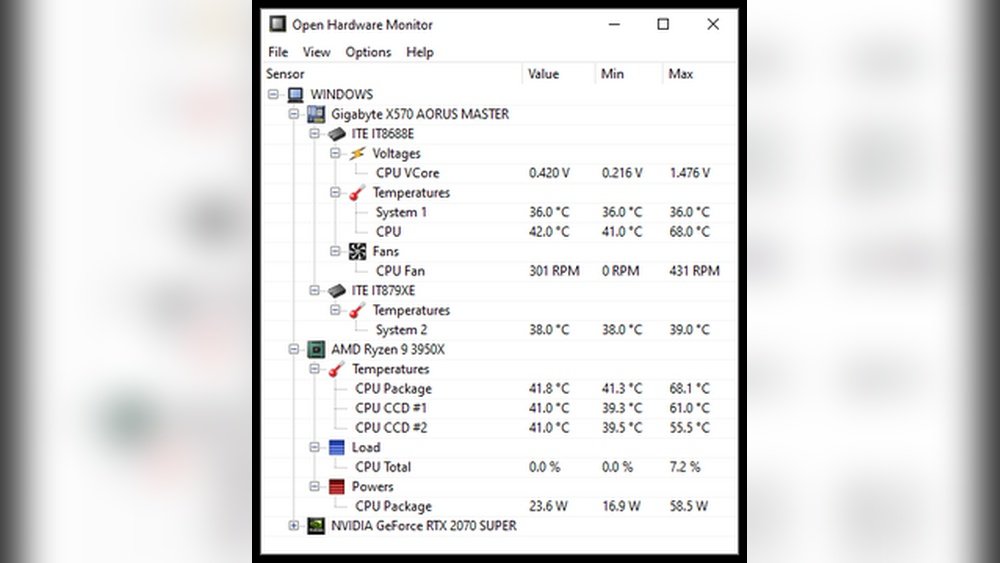
Third-party apps offer more detailed CPU temperature monitoring. Programs like HWMonitor, Core Temp, and SpeedFan show real-time data. They provide graphs, max temperature alerts, and logging features. These apps support many CPU brands and models.
Downloading these tools is easy and most are free. They run in the background and alert you if temperatures rise too high. This helps protect your CPU from overheating.

Credit: www.youtube.com
Setting Up Cpu Temperature Monitoring
Monitoring CPU temperature helps protect your computer from overheating. Setting up a reliable monitoring system is easy. It ensures your CPU stays cool and works well. This section guides you through the setup process.
Installing Monitoring Software
Choose a trusted software for CPU temperature monitoring. Popular options include HWMonitor, Core Temp, and SpeedFan. Download the software from the official website only. Run the installer and follow simple steps to complete setup. Open the program to check real-time temperature readings.
Configuring Alerts
Set alerts to warn about high CPU temperatures. Most software allows you to set a temperature limit. When the CPU goes above this limit, the program sends a notification. Alerts help you act fast and avoid damage. Adjust alert settings based on your CPU’s safe temperature range.
Tips To Keep Cpu Cool
Keeping your CPU cool is key to good computer health. High temperatures can slow down your system. They may also cause crashes or damage parts. Simple steps help keep the CPU temperature low. These tips make your computer run smoothly and last longer.
Let’s explore easy ways to keep your CPU cool.
Improving Airflow
Good airflow moves hot air out of the case. Make sure your computer case has enough fans. Position fans to push air in and pull air out. Avoid blocking vents or fan areas. Keep cables tidy to help air flow freely. This reduces heat build-up inside the case.
Using Quality Thermal Paste
Thermal paste helps transfer heat from the CPU to the cooler. Using good quality thermal paste improves cooling. Apply a thin, even layer on the CPU surface. Old or dried paste loses effectiveness. Replace it every few years or when removing the cooler.
Regular Cleaning
Dust blocks airflow and covers cooling parts. Clean your computer regularly to remove dust. Use compressed air to blow dust from fans and vents. Turn off the computer before cleaning. Keeping parts clean lowers CPU temperature and improves performance.
When To Take Action On High Temperatures
Knowing when to take action on high CPU temperatures is key to protecting your computer. High heat can slow down your device or cause permanent damage. Acting early helps keep your CPU running smoothly and avoids costly repairs.
Identifying Warning Signs
Watch for sudden slowdowns or random shutdowns. Your computer may freeze or restart often. Fans running loudly for a long time also signal heat issues. Some CPUs show warning messages or beep sounds. Check temperature readings above 80°C as a red flag.
Steps To Prevent Damage
Turn off your device and let it cool down. Clean dust from vents and fans to improve airflow. Use a cooling pad or external fan for extra cooling. Replace old thermal paste between the CPU and heatsink. Limit heavy tasks to reduce heat buildup during use.

Credit: www.alcpu.com
Frequently Asked Questions
How Can I Check Cpu Temperature On Windows?
You can check CPU temperature on Windows using software like HWMonitor or Core Temp. These tools display real-time temperature readings accurately. Monitoring helps prevent overheating and ensures optimal performance. Always download such apps from trusted sources for safety.
What Is A Safe Cpu Temperature Range?
A safe CPU temperature range is typically between 30°C and 70°C during normal use. Temperatures above 80°C may cause thermal throttling or damage. Keeping your CPU cool improves longevity and system stability. Use cooling solutions if temperatures frequently exceed safe limits.
Why Does My Cpu Temperature Suddenly Rise?
Sudden CPU temperature rises are often due to high workload or poor ventilation. Running demanding applications or games increases heat output. Dust buildup and malfunctioning fans can also cause overheating. Regular cleaning and proper airflow help maintain stable temperatures.
Can Bios Show Cpu Temperature Directly?
Yes, most modern BIOS setups show CPU temperature directly. Access BIOS during startup to view hardware monitoring sections. This provides basic temperature data without needing third-party software. However, BIOS readings update slower than dedicated monitoring tools.
Conclusion
Monitoring CPU temperatures helps keep your computer safe and fast. Simple tools show real-time heat levels clearly. Regular checks prevent damage and improve performance. Cooling systems work better when you track heat. Stay alert to unusual temperature spikes or drops.
This small effort saves time and money later. Keep your device running smoothly every day. Easy steps lead to a longer computer life. Start watching your CPU temperatures today.
