
Are you worried that your Windows 11 PC might be running too hot? Keeping an eye on your CPU temperature is one of the easiest ways to protect your computer from damage and slowdowns.
But how do you check it without complicated tools or tech jargon? In this guide, you’ll discover simple, clear steps to monitor your CPU temp on Windows 11. By the end, you’ll know exactly how to keep your system running cool and smooth—no stress, no guesswork.
Ready to take control of your PC’s health? Let’s dive in!
Why Monitor Cpu Temperature
Monitoring your CPU temperature is important for keeping your computer safe and fast. The CPU works hard and can get very hot. Watching the temperature helps avoid problems and keeps your system running well.
Risks Of Overheating
High CPU temperatures can cause serious damage. Overheating may lead to sudden shutdowns to protect the hardware. It can shorten the CPU’s life by causing permanent damage. Heat also affects other parts inside your computer. Dust and poor airflow make overheating worse. Checking the temperature helps you act before damage happens.
Impact On Performance And Hardware
A hot CPU slows down your computer. To cool itself, the CPU lowers its speed. This causes lag and poor performance. Over time, frequent overheating can break your hardware. Fans and cooling systems work better if you track temperatures. Proper cooling keeps your CPU fast and healthy.

Credit: www.wikihow.com
Built-in Tools For Temperature Check
Windows 11 offers some built-in tools to check your CPU temperature. These tools help you keep an eye on your system’s health without extra software. They provide basic information about your CPU and overall system status. Understanding these tools can help you avoid overheating issues and keep your PC running smoothly.
Using Task Manager And Settings
Task Manager shows real-time CPU usage, but it does not display temperature directly. You can open Task Manager by pressing Ctrl + Shift + Esc. The Performance tab gives details about CPU speed and load. This helps you spot when your CPU is working hard.
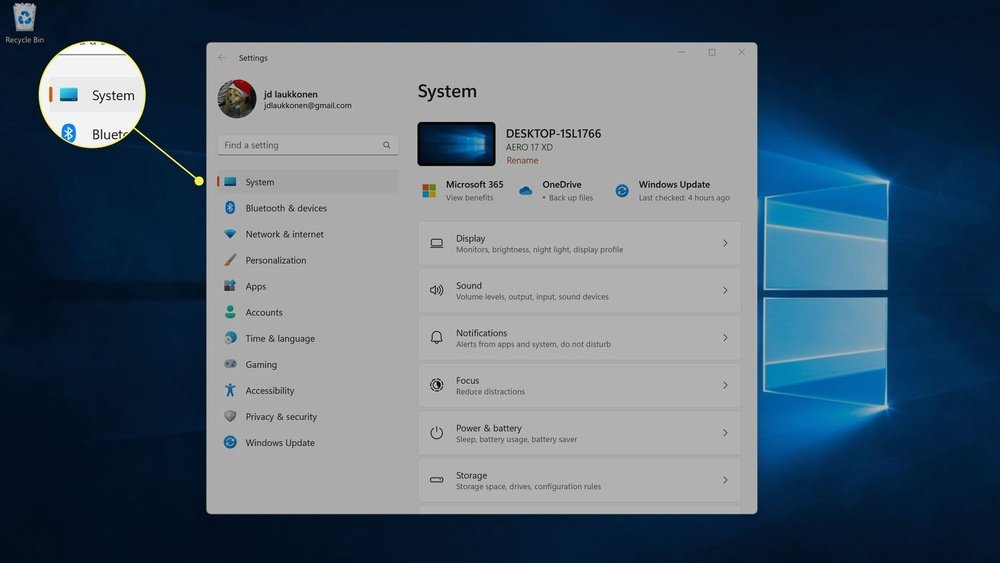
Settings in Windows 11 show device health and performance. Go to Settings > System > About for basic device info. These options do not show temperature but help monitor system status. For detailed temperature data, third-party apps are needed.
Windows Security App Insights
The Windows Security app focuses on protection and system health. It shows your device’s overall health report. This report includes storage, battery, and performance details. Unfortunately, CPU temperature is not part of this report. It helps maintain safe and stable system conditions.
Use the Security app regularly to check for security updates and system issues. It keeps your PC safe, indirectly helping prevent overheating problems. For exact CPU temperature readings, external tools remain necessary.
Third-party Software Options
Third-party software offers detailed and easy ways to monitor CPU temperature on Windows 11. These tools provide real-time data and alerts. They help protect your PC from overheating and potential damage.
Popular Monitoring Apps
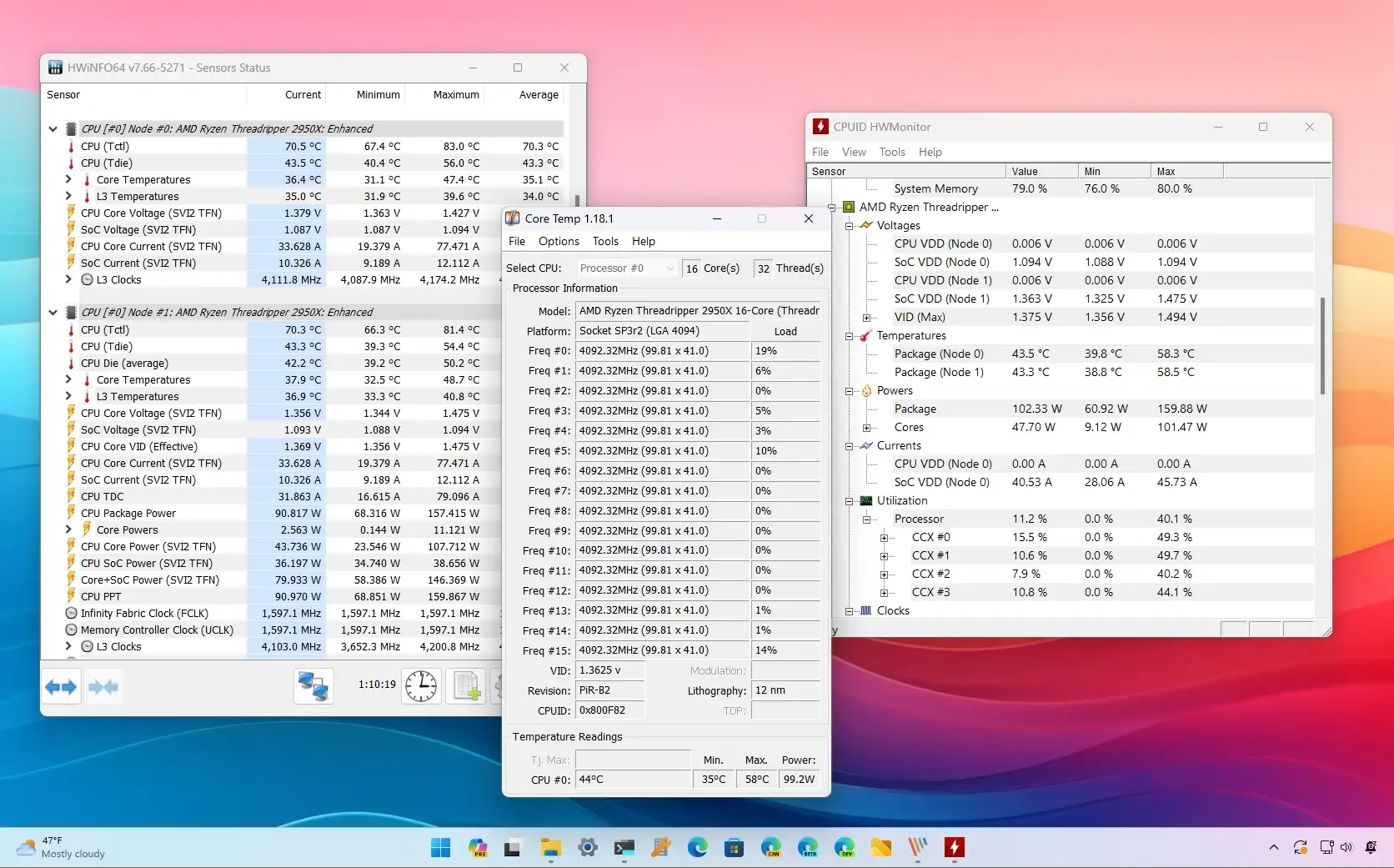
Several apps stand out for CPU temperature tracking. HWMonitor is well-known for showing detailed temperature and voltage data. Core Temp focuses on CPU temperature with simple and clear visuals. SpeedFan not only monitors temperatures but also controls fan speeds. Open Hardware Monitor is free and open-source, offering a wide range of hardware info. These apps support most CPUs and provide user-friendly interfaces.
Features To Look For
Choose software that updates temperature readings often. Alerts for high temperatures keep your PC safe. A clean and simple display helps you understand data quickly. Compatibility with Windows 11 is essential for smooth operation. Some apps include fan control to reduce heat effectively. Look for tools that use low system resources to avoid slowing your PC.
Bios And Uefi Temperature Checks
BIOS and UEFI are low-level software that control your computer’s hardware. They also show the CPU temperature. Checking the CPU temperature here is useful because it shows real-time data before Windows loads. This helps spot heating problems early.
Accessing the BIOS or UEFI can feel tricky at first. But it only takes a few steps. Inside, temperature readings appear clearly, helping you keep your CPU safe from overheating.
Accessing Bios/uefi
Restart your PC to enter BIOS or UEFI. Press the setup key during the boot process. The key is often F2, Delete, or Esc. Watch the screen for a message like “Press F2 to enter setup.”
Use the keyboard to navigate the BIOS menu. Mouse support is common in UEFI, making navigation easier. Look for sections named “Hardware Monitor,” “PC Health,” or “System Information.”
Interpreting Temperature Readings
CPU temperature shows in degrees Celsius. Normal idle temperature ranges from 30°C to 50°C. Under heavy load, temperatures can rise to 70°C or 80°C.
Temperatures above 90°C mean your CPU is too hot. High temps can cause slowdowns or damage. Check your cooling system if temps are too high. Good airflow and clean fans help reduce heat.
Setting Alerts For High Temperature
Setting alerts for high CPU temperature helps protect your Windows 11 PC. It warns you before your processor gets too hot. This way, you avoid damage and keep your system running smoothly. Alerts can notify you through software or hardware tools. Both methods are easy to set up and reliable.
Configuring Software Notifications
Many software programs monitor CPU temperature. Some popular ones include HWMonitor and Core Temp. You can set these tools to send alerts when temperature rises above a limit. Open the software settings and find the alert or notification section. Enter the temperature threshold that feels safe for your CPU. Enable notifications to pop up on your screen or send emails.
These alerts help you act quickly. You can close heavy programs or turn off your PC. This prevents overheating and possible hardware failure. Software notifications are helpful for users who want simple monitoring.
Using Hardware Monitoring Tools
Hardware tools also monitor CPU temperature. Some motherboards have built-in temperature sensors. These connect to your PC’s BIOS or a dedicated app. You can set alerts inside the BIOS or through the app interface. The device will beep or display warnings when temperature rises too high.
External hardware monitors offer real-time temperature readings. They often come with alert features as well. These tools are useful for users who want constant hardware checks. They work even if your PC’s software crashes or freezes. Hardware alerts provide an extra layer of safety.

Credit: www.youtube.com
Tips To Maintain Safe Cpu Temperature
Keeping your CPU temperature safe is important for your computer’s health. High temperatures can slow down your PC and cause damage. Simple steps can help keep your CPU cool and working well. These tips help improve cooling and avoid overheating problems.
Improving Airflow And Cooling
Good airflow inside your PC case helps lower the CPU temperature. Make sure fans blow air in and out properly. Use extra case fans if needed for better air movement. Avoid blocking vents with cables or dust. Consider using a quality CPU cooler for better heat control. Liquid coolers can be effective for strong cooling needs. Keep your PC in a cool, open space for better air circulation.
Regular Maintenance And Cleaning
Dust buildup can block airflow and trap heat inside your PC. Clean your computer regularly using compressed air or a soft brush. Remove dust from fans, vents, and heat sinks carefully. Check thermal paste between the CPU and cooler every year. Replace old thermal paste to improve heat transfer. Regular maintenance keeps cooling parts working efficiently and prevents overheating.
Credit: pureinfotech.com
Frequently Asked Questions
How Can I Check Cpu Temperature On Windows 11?
You can check CPU temperature using third-party apps like HWMonitor or Core Temp. Windows 11 lacks built-in CPU temp monitoring tools. These apps display real-time temperature and help prevent overheating issues.
Is It Safe To Monitor Cpu Temperature Regularly?
Yes, regularly monitoring CPU temperature ensures your system runs efficiently. It helps detect overheating early, preventing hardware damage and system crashes. Keeping an eye on temps prolongs your CPU’s lifespan.
What Is The Ideal Cpu Temperature For Windows 11?
The ideal CPU temperature ranges between 30°C to 50°C during normal use. Under heavy load, temperatures up to 80°C are acceptable. Consistently higher temps may indicate cooling issues.
Can Windows 11 Monitor Cpu Temperature Without Software?
No, Windows 11 does not provide built-in tools for CPU temperature monitoring. You need third-party software to view accurate temperature readings and system health stats.
Conclusion
Monitoring your CPU temperature helps keep your Windows 11 PC safe. It stops your computer from getting too hot and breaking down. Using simple tools makes checking easy and quick. Keep an eye on your CPU often to avoid problems.
Healthy temperature means your PC runs better and lasts longer. Small steps like this protect your important data and work. Stay aware, stay safe, and enjoy smooth computer use every day.
