
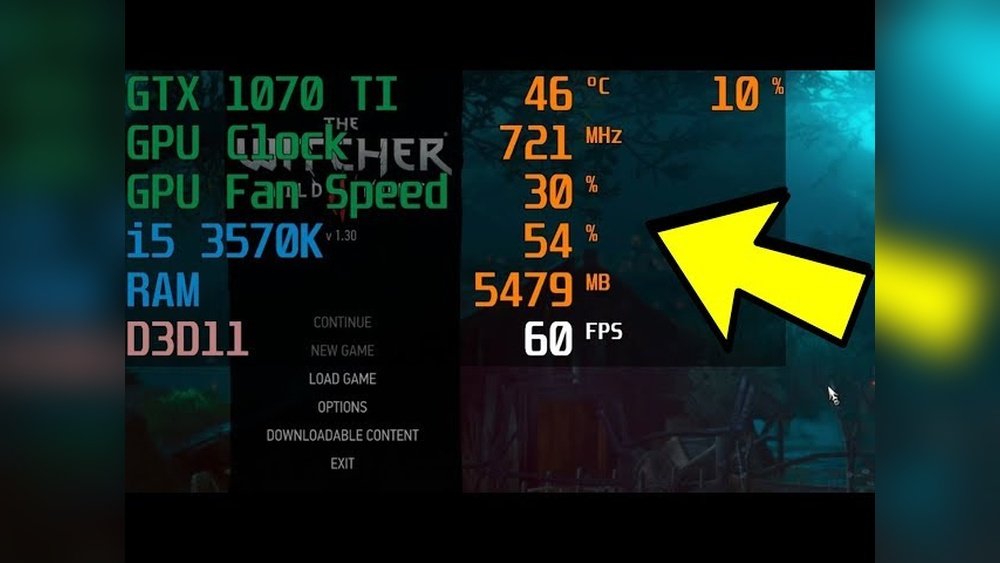
Are you worried your computer might be running too hot? Keeping an eye on your CPU and GPU temperatures is easier than you think—and it can save your device from serious damage.
If your system feels sluggish or your fans are louder than usual, your components might be overheating. You’ll learn simple ways to monitor these temperatures quickly and effectively. By the end, you’ll have the tools to protect your computer and keep it running smoothly.
Ready to take control of your device’s health? Let’s dive in.
Credit: www.gpu-mart.com
Importance Of Monitoring Temps
Monitoring CPU and GPU temperatures is essential for any computer user. These components generate heat during operation. Too much heat can cause problems. Keeping an eye on temperatures helps maintain a smooth and safe computer experience.
Temperature monitoring gives early warnings about overheating. It helps users act before serious issues occur. Knowing the temps helps extend the life of your hardware. It also ensures your system runs at its best.
Impact On Performance
High temperatures can slow down your CPU and GPU. This happens because of thermal throttling. The system reduces speed to cool down parts. This leads to lag and poor performance. Monitoring temps helps avoid these slowdowns. It keeps your computer running fast and smooth.
Preventing Hardware Damage
Excess heat can damage sensitive hardware parts. It can shorten the lifespan of your CPU and GPU. Overheating may cause permanent failure or crashes. Watching temperatures helps you prevent these risks. It allows you to cool your system before damage happens.
Credit: www.gpu-mart.com
Tools For Tracking Cpu Temperature
Monitoring your CPU temperature helps keep your computer safe from overheating. It can prevent damage and improve performance. Several tools let you check CPU temperature easily. Some are built into your system. Others are third-party programs you can download. Choose the tool that fits your needs and skill level.
Built-in System Utilities
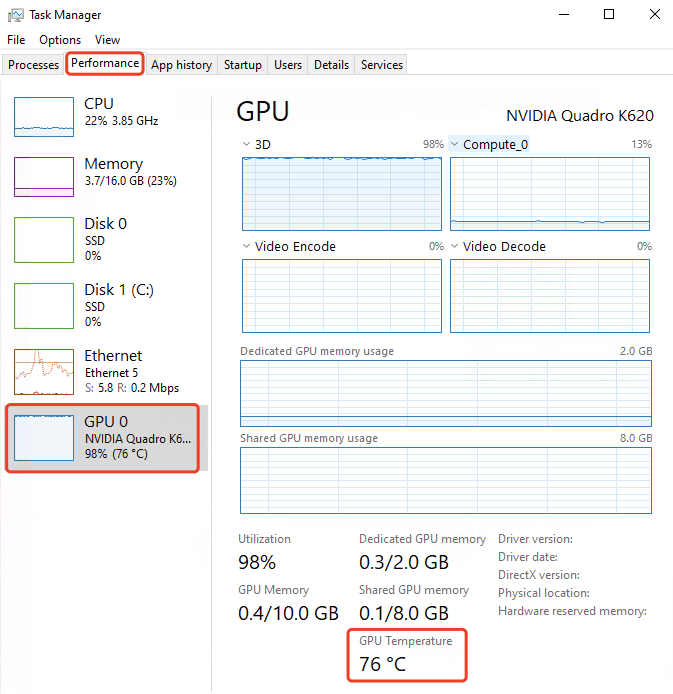
Most computers have built-in tools to track CPU temperature. Windows users can check the BIOS or UEFI settings during startup. These settings show real-time CPU temperature. Mac users can use the Activity Monitor app for basic system info. Some Linux distributions include sensors or system monitors. These utilities require no extra downloads and are easy to access.
Third-party Software Options
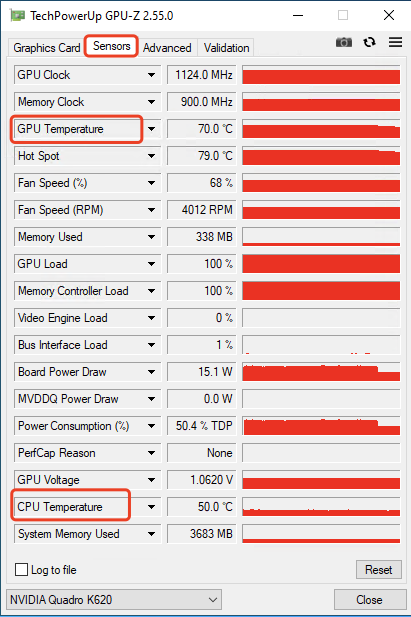
Third-party software offers more detailed CPU temperature data. Programs like HWMonitor and Core Temp provide real-time stats. They show temperature for each CPU core separately. Many tools also offer alerts for high temperatures. These apps often include graphs to track temperature over time. Most are free or have free versions. Installing one can give better control over your CPU health.
Tools For Tracking Gpu Temperature
Monitoring your GPU temperature helps keep your computer safe and fast. Overheating can cause slowdowns or damage. Many tools make it easy to track these temperatures. Some come from the graphics card makers themselves. Others work on many devices and operating systems. Here are common options to watch your GPU’s heat levels.
Graphics Card Software
Most graphics cards include software to check GPU temperature. These tools often show real-time data and offer alerts. Examples are NVIDIA’s GeForce Experience and AMD’s Radeon Software. They provide details on fan speed and clock rates too. These apps are simple to install and free to use. They fit well with their specific hardware for accurate readings.
Cross-platform Monitoring Apps
Some apps work on Windows, macOS, and Linux. They let users monitor CPU and GPU temps in one place. Popular choices are HWMonitor, MSI Afterburner, and Open Hardware Monitor. These apps show temperature trends over time. They also display voltage and usage stats. They are good for users with different hardware brands. Most are free or have free versions.
Interpreting Temperature Readings
Interpreting temperature readings of your CPU and GPU helps keep your computer safe and fast. Monitoring these numbers lets you spot problems early. It also helps to maintain good performance during heavy tasks like gaming or video editing.
Reading temperature data is simple once you know what to expect. Each computer part has limits. Staying within these limits avoids damage and slowdowns. Understanding what is normal makes it easier to react if temperatures rise.
Safe Temperature Ranges
Most CPUs run safely between 30°C and 70°C under normal use. During heavy use, temperatures up to 85°C can be okay. GPUs usually work well between 30°C and 75°C. Some GPUs can handle up to 90°C but it is not ideal.
Temperatures above these ranges increase risk. Keep an eye on your readings during gaming or video editing. Cooling systems like fans or liquid coolers help keep temperatures low.
Signs Of Overheating
Overheating can cause your computer to slow down suddenly. You might notice the fan running loudly all the time. Crashes, freezes, or unexpected shutdowns are warning signs. High temperatures can also shorten the life of your CPU and GPU.
Check temperatures if your system behaves oddly. Use software tools to get real-time temperature data. Act fast to improve cooling or reduce workload if temperatures stay high.
Optimizing Cooling Solutions
Optimizing cooling solutions is key to keeping your CPU and GPU temperatures low. Effective cooling helps your computer run smoothly and prevents damage from overheating. Simple steps can make a big difference in maintaining the right temperature for your components.
Improving Airflow
Good airflow moves hot air out and brings cool air in. Keep cables organized to avoid blocking air paths. Place fans in the right spots: front and bottom for intake, top and back for exhaust. Clean dust from vents and fans regularly. This helps air flow freely and cool your hardware better.
Upgrading Cooling Hardware
Stock coolers may not be enough for heavy use. Consider better air coolers with larger heatsinks and more powerful fans. Liquid cooling systems offer more efficient heat removal. Choose cooling hardware that fits your case and matches your CPU or GPU size. Proper cooling hardware lowers temperatures and improves performance.
Regular Maintenance Tips
Regular maintenance helps keep your CPU and GPU running cool. It prevents overheating and extends the life of your computer parts. Simple steps like cleaning and reapplying thermal paste make a big difference. These tasks ensure your system stays efficient and stable.
Cleaning Dust And Debris
Dust blocks airflow and traps heat inside your computer. Use a soft brush or compressed air to remove dust from fans and vents. Clean every few months to avoid buildup. This lets cool air flow freely and keeps temperatures low.
Applying Thermal Paste
Thermal paste helps transfer heat from CPU or GPU to the cooler. Over time, it dries out and loses effectiveness. Remove old paste carefully with alcohol and apply a new thin layer. This improves heat transfer and lowers the temperature significantly.
Automated Alerts And Controls
Keeping an eye on CPU and GPU temperatures helps avoid damage and slowdowns. Automated alerts and controls make monitoring easier and safer. They notify you of rising temperatures and adjust cooling automatically. This section explains how to set up alerts and use fan controls for better temperature management.
Setting Up Temperature Alerts
Temperature alerts notify you when your CPU or GPU gets too hot. Many monitoring tools let you set a safe limit. When the temperature passes this limit, you get a warning. Alerts can appear as pop-ups, emails, or sounds. This helps you act quickly to protect your device.
To set alerts, open your temperature monitoring software. Find the alert or notification settings. Enter the temperature threshold you want. Save your settings and test the alert. This way, you stay informed without checking the temperature all the time.
Using Fan Speed Controls
Fan speed controls adjust the cooling fans based on temperature changes. Faster fans cool your CPU and GPU better when they heat up. Many computers and software allow you to customize fan speeds. This keeps your device cool and quiet at the same time.
To use fan controls, open your system’s BIOS or fan control software. Set fan speed curves that increase speed with temperature. You can make fans run slower when cool and faster when hot. This balance helps keep temperatures safe and noise low.

Credit: www.shoshitamam.com
Frequently Asked Questions
How Do I Check My Cpu Temperature?
You can check CPU temperature using software like HWMonitor, Core Temp, or SpeedFan. These tools display real-time temperature data easily. Monitoring helps prevent overheating and ensures optimal performance.
What Is A Safe Gpu Temperature Range?
A safe GPU temperature usually ranges from 30°C to 85°C under load. Temperatures above 90°C can cause thermal throttling or damage. Always monitor and cool your GPU to maintain performance and longevity.
Can High Cpu And Gpu Temps Cause Damage?
Yes, consistently high CPU and GPU temperatures can damage hardware. Overheating may reduce lifespan and cause system crashes. Proper cooling and monitoring prevent damage and maintain stable operation.
Which Software Is Best For Monitoring Cpu And Gpu Temps?
Popular software includes HWMonitor, MSI Afterburner, and GPU-Z. These tools offer accurate, real-time temperature tracking. They also provide useful info like fan speed and usage stats for better system management.
Conclusion
Monitoring your CPU and GPU temperature keeps your computer safe and fast. Regular checks help prevent overheating and damage. Use simple tools to track temperatures easily. Watching the temps lets you know when to clean or cool your system. Stay aware, and your device will run smoothly longer.
Small steps make a big difference in computer health. Keep an eye on the temps for better performance every day.
