
Is your computer running slow or overheating? High CPU usage could be the reason, draining your system’s power and making everything lag.
But what if you could fix this quickly and easily? You’ll discover simple, effective ways to minimize your CPU usage. By following these steps, you’ll make your computer faster, cooler, and more responsive—giving you back the smooth experience you deserve.
Keep reading, and let’s get your CPU under control!

Credit: superuser.com
Common Causes Of High Cpu Usage
High CPU usage can slow down your computer and affect its performance. Many issues cause the CPU to work harder than necessary. Understanding these causes helps you fix the problem faster.
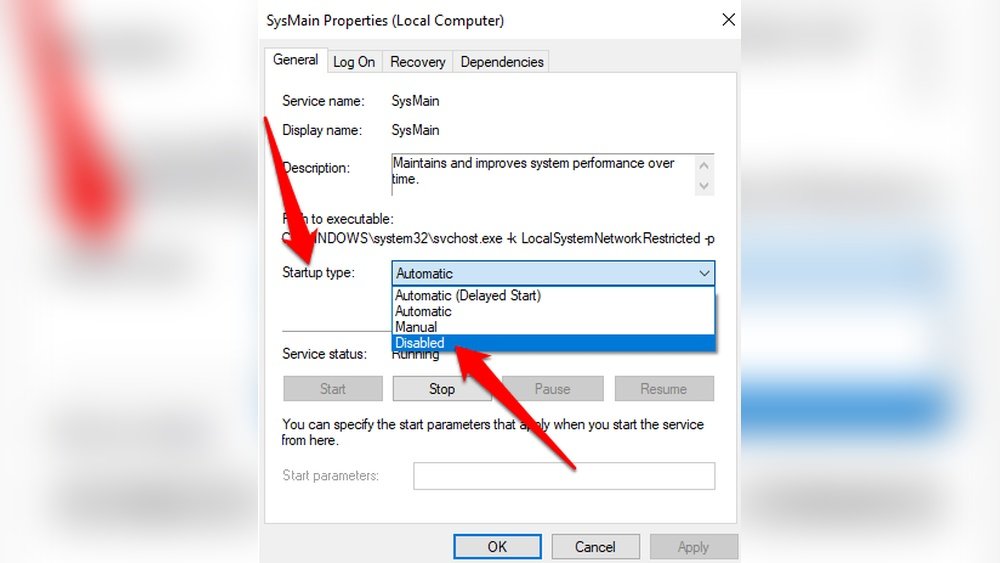
Background Processes And Services
Background processes run without your knowledge. These small programs use CPU power constantly. Sometimes, too many processes run at once. This overloads the CPU and slows the system.
Some services may not stop properly. They keep running in the background. This adds to the CPU load and reduces speed.
Malware And Virus Impact
Malware and viruses often cause high CPU usage. They run hidden tasks that use CPU resources. These harmful programs slow your computer down.
Malicious software may also send data online. This increases CPU work and affects performance.
Software Bugs And Inefficiencies
Some software has bugs that waste CPU power. Poorly coded programs use more CPU than needed. This causes your system to overheat and lag.
Old or outdated software may also run inefficiently. Updating programs can reduce CPU load.
Resource-heavy Applications
Applications like video editors or games use a lot of CPU. They need more power to run smoothly. Running many heavy apps at once overloads the CPU.
Closing unused resource-heavy programs frees up CPU space. This improves overall system speed and stability.
Monitoring Cpu Usage Effectively
Monitoring CPU usage is key to keeping your computer fast and responsive. It helps you find programs that use too much power. Watching CPU use often stops slowdowns and crashes. You learn which tasks need attention or fixing.
Many tools show CPU activity in real time. These tools tell you how busy your processor is. Seeing this information helps you decide what to close or adjust. You can act before problems get worse.
Using Task Manager And Activity Monitor
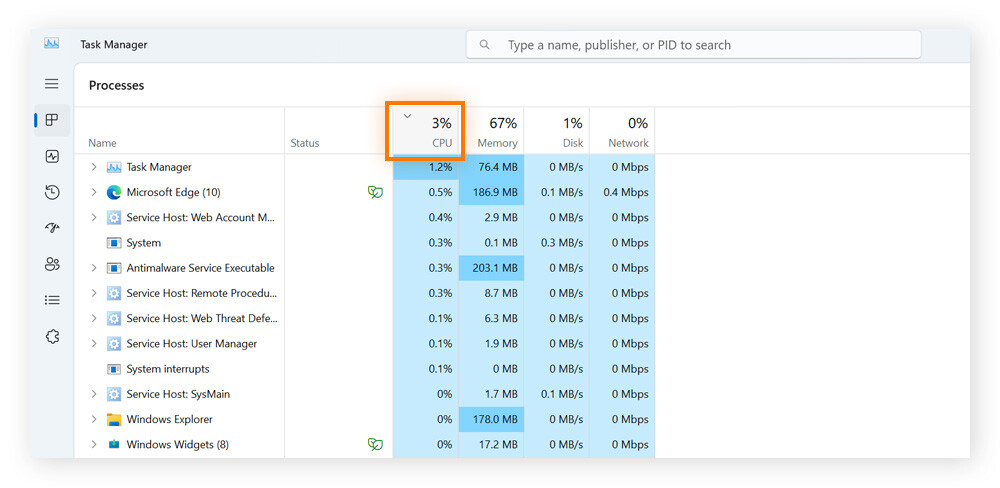
Task Manager is built into Windows. Press Ctrl + Shift + Esc to open it quickly. You see a list of running apps and their CPU use. It shows which program takes the most CPU power.
Activity Monitor works like Task Manager on Mac. Find it in the Utilities folder inside Applications. It lists processes and their CPU percentage. You can quit high-usage tasks to free up resources.
Third-party Monitoring Tools
Some apps offer more detailed CPU info than built-in tools. Programs like HWMonitor or Process Explorer provide extra data. They track CPU temperature and core usage too.
These tools help spot hidden issues. They show background processes that use CPU secretly. Many let you set alerts for high usage.
Interpreting Cpu Usage Metrics
CPU usage shows how much work your processor does. A high percentage means heavy load. Low values show light activity.
Consistent 90% or more usage can cause slowdowns. Short spikes are normal during big tasks. Look at total CPU and individual cores.
Check which apps use the most CPU. Some need more power to run. Others may be using too much without reason.
Optimizing Software Settings
Optimizing software settings can help reduce CPU usage effectively. Small changes in your system and apps can make a big difference. This section shows simple steps to tweak software for better performance.
Adjusting Startup Programs
Many programs start automatically with your computer. These apps use CPU power even if you do not need them. Disable unnecessary startup programs to save CPU resources. Open your task manager or system settings. Find the startup tab and turn off apps that you rarely use.
Configuring Application Priorities
Windows lets you set priority for running programs. Giving priority to important apps helps them run faster. Lower priority for less important apps reduces their CPU usage. Open task manager, right-click the app, and choose priority. Set it to normal or below normal for less urgent apps.
Limiting Background Syncs
Background syncs keep apps updated but use CPU power. Turn off auto-sync in apps that do not need it constantly. Check your email, cloud storage, and messaging apps for sync options. Set sync to manual or increase sync intervals to save CPU.
Credit: www.avast.com
System Maintenance For Cpu Health
Keeping your CPU healthy means taking care of your whole system. Good system maintenance helps your CPU run smoothly. It lowers the chances of slowdowns and overheating. Regular upkeep can extend your computer’s life and improve performance.
Regular Software Updates
Software updates fix bugs and improve system efficiency. They often include patches that reduce CPU load. Updating your operating system and apps helps keep your CPU from working too hard. Set your system to update automatically for the best results.
Cleaning Temporary Files
Temporary files take up space and can slow down your CPU. These files build up from browsing and app use. Deleting them frees up storage and eases CPU stress. Use built-in tools or trusted apps to clear these files regularly.
Defragmenting Hard Drives
Fragmented files make your CPU work harder to access data. Defragmenting arranges files for faster retrieval. This reduces CPU effort and speeds up your system. Run defragmentation tools monthly on traditional hard drives, not on SSDs.
Hardware Upgrades And Cooling
Hardware upgrades and cooling play a big role in lowering CPU usage. Better hardware can handle tasks faster. Good cooling keeps the CPU from overheating. Overheating can slow down your system and raise CPU use. Small changes here can make a big difference in performance.
Upgrading Cpu And Ram
Upgrading your CPU can speed up processing. A faster CPU handles more tasks smoothly. Adding more RAM helps the system run many programs at once. Low RAM forces the CPU to work harder. More RAM means less stress on the CPU and less usage.
Improving System Cooling Solutions
Good cooling keeps your CPU at safe temperatures. Cooler CPUs work better and use less power. Use quality fans or liquid coolers to improve airflow. Clean dust from vents and fans regularly. Proper cooling reduces thermal throttling and CPU load.
Checking For Hardware Failures
Faulty hardware can increase CPU usage unexpectedly. Check your hard drive, RAM, and CPU for issues. Use tools to test hardware health and find errors. Replace any failing parts quickly. Healthy hardware means less CPU strain and smoother operation.
Advanced Techniques To Lower Cpu Load
Advanced techniques help reduce CPU load more effectively than basic methods. These methods focus on smart resource use and better system design. Applying them can improve your device’s speed and lower power use. Let’s explore some key strategies that go beyond simple fixes.
Using Lightweight Alternatives
Heavy software uses more CPU power. Choosing lightweight alternatives saves resources. These programs do the same tasks but use less processing power. For example, use a simple text editor instead of a full-featured word processor for quick notes. Lightweight apps reduce background tasks and keep your CPU free for other needs.
Managing Virtual Machines Efficiently
Virtual machines (VMs) consume significant CPU resources. Running many VMs at once can slow your system. Limit the number of active VMs based on your CPU capacity. Allocate only necessary CPU cores and memory to each VM. Turn off VMs when not needed to free up resources. Proper VM management reduces CPU strain and boosts overall performance.
Optimizing Multithreading And Parallelism
Multithreading splits tasks into smaller parts that run at the same time. This method uses CPU cores efficiently. Well-designed software balances threads to avoid overloading the CPU. Developers should avoid creating too many threads that cause delays. Proper parallelism speeds up processes without increasing CPU load too much.
Preventing Future Cpu Overuse
Preventing future CPU overuse helps keep your computer running smoothly. It lowers heat and saves energy. It also extends your device’s life. Taking steps now stops problems later.
Scheduling Resource-intensive Tasks
Run heavy programs during off-hours. Night or early morning works best. This reduces CPU load during busy times. Use built-in task schedulers to set times. This keeps your system responsive when you need it.
Setting Power Management Profiles
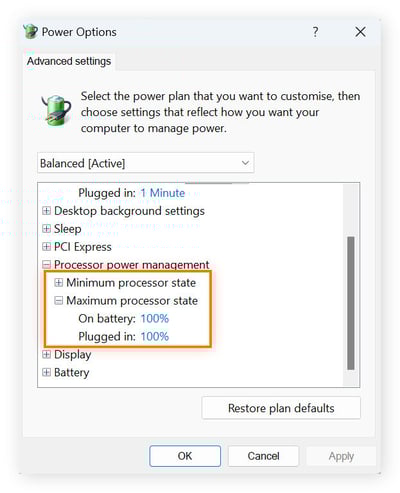
Choose power settings that limit CPU use. Balanced or power saver modes work well. These profiles reduce processor speed when full power isn’t needed. Lower speeds mean less heat and energy use. Adjust settings in your system’s control panel.
Regular System Performance Audits
Check your CPU use regularly. Look for apps that use too much power. Update or remove unnecessary software. Use system tools to monitor performance. Regular audits catch issues before they grow. This keeps your CPU healthy and efficient.
Credit: www.avast.com
Frequently Asked Questions
How Can I Reduce High Cpu Usage Quickly?
Close unnecessary programs and browser tabs to free CPU resources. Update software to fix bugs causing high usage. Scan for malware that may be using CPU power. Restart your computer to clear temporary processes.
What Tools Help Monitor Cpu Usage Effectively?
Use built-in tools like Task Manager on Windows or Activity Monitor on Mac. Third-party apps like HWMonitor and Process Explorer offer detailed CPU insights. These tools help identify which processes consume the most CPU.
Does Updating Software Minimize Cpu Usage?
Yes, updating software often includes performance improvements and bug fixes. These updates can optimize resource use and reduce CPU load. Always keep your operating system and applications up to date.
Can Disabling Startup Programs Lower Cpu Usage?
Disabling unnecessary startup programs prevents them from running in the background. This reduces CPU load when your computer boots. Use Task Manager or System Configuration to manage startup items easily.
Conclusion
Reducing CPU usage keeps your computer fast and smooth. Close apps you don’t need. Check for programs using too much power. Update software regularly to avoid bugs. Clean your system from junk files often. Simple steps can make a big difference.
Save energy and improve your device’s life. Keep an eye on CPU levels daily. Small actions add up to better performance. Stay patient and consistent for best results.
