
Are you worried that your GPU might be running too hot? Knowing how to measure your GPU temperature is key to keeping your computer safe and running smoothly.
If your graphics card gets too hot, it can slow down your games, cause crashes, or even damage your hardware over time. But don’t worry—checking your GPU temp is easier than you think. In this guide, you’ll learn simple and effective ways to monitor your GPU temperature, so you can protect your system and boost performance.
Keep reading to find out how!
Credit: www.ameelectrical.co.uk
Why Monitor Gpu Temperature
Monitoring your GPU temperature is important for any computer user. It helps keep your system running smoothly and prevents damage. Knowing why to watch the GPU temperature can save you from many problems.
Impact On Performance
High GPU temperatures can slow down your computer. The GPU reduces speed to cool itself. This lowers your graphics quality and frame rates. Keeping the GPU cool helps maintain strong performance during tasks.
Preventing Overheating
Overheating can cause your computer to shut down suddenly. It may also damage important parts inside. Watching the GPU temperature helps you stop overheating early. This keeps your computer safe and stable.
Extending Hardware Lifespan
Heat wears down your GPU over time. Running too hot shortens its life and causes failures. Regular temperature checks help keep the GPU cooler. This means your hardware lasts longer and works better.
Credit: hognerdobrasil.com.br
Tools For Measuring Gpu Temperature
Measuring your GPU temperature is important to keep your computer safe and working well. Many tools help check the heat level of your GPU. These tools range from software built into your system to special hardware devices. Each tool offers unique features and ease of use. Choose the one that fits your needs best.
Built-in Software Options
Most modern GPUs come with software that shows temperature readings. Nvidia users can use GeForce Experience. AMD users can rely on Radeon Software. These programs display real-time GPU temperature easily. They also provide other useful data like clock speed and fan speed. No extra downloads are needed, making them simple to use.
Third-party Applications
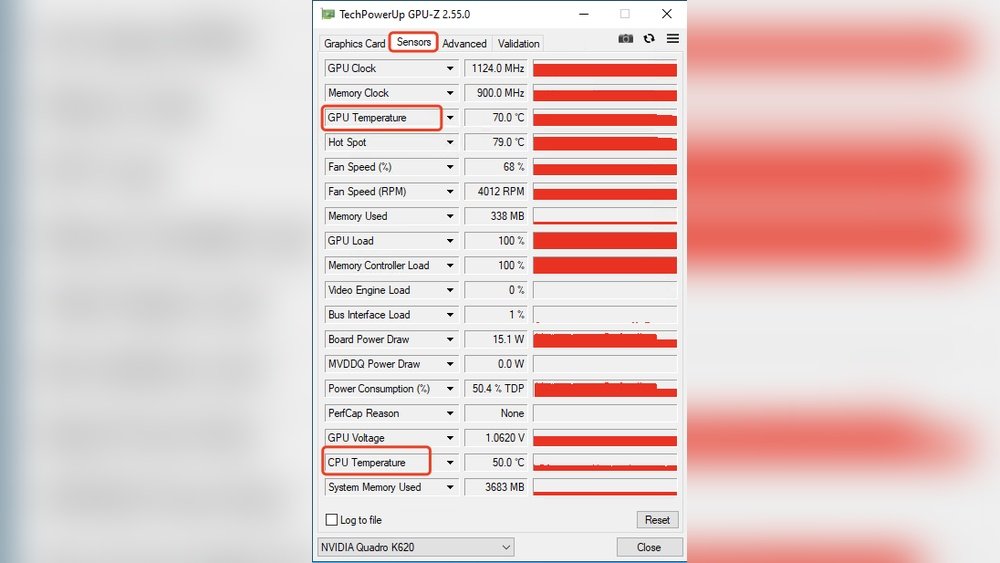
Many free and paid apps can measure GPU temperature. Popular ones include MSI Afterburner, HWMonitor, and GPU-Z. These apps offer detailed information about your GPU’s health. They often support multiple brands and models. Users can set alerts for high temperatures. These apps work well for gamers and PC builders.
Hardware Monitoring Devices
Hardware devices monitor GPU temperature externally. These gadgets connect to your PC and show temperature on a screen. They are useful for advanced users who want precise control. Some devices also track other parts like CPU and motherboard. They help prevent overheating by giving real-time alerts.
Step-by-step Guide To Check Gpu Temp
Checking your GPU temperature is simple with the right steps. Keeping an eye on GPU temps helps avoid overheating and performance drops. This guide shows easy ways to check your GPU temperature using built-in tools and software.
Using Task Manager
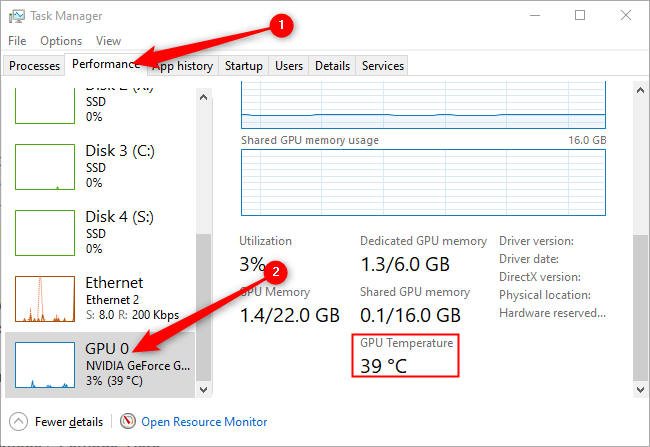
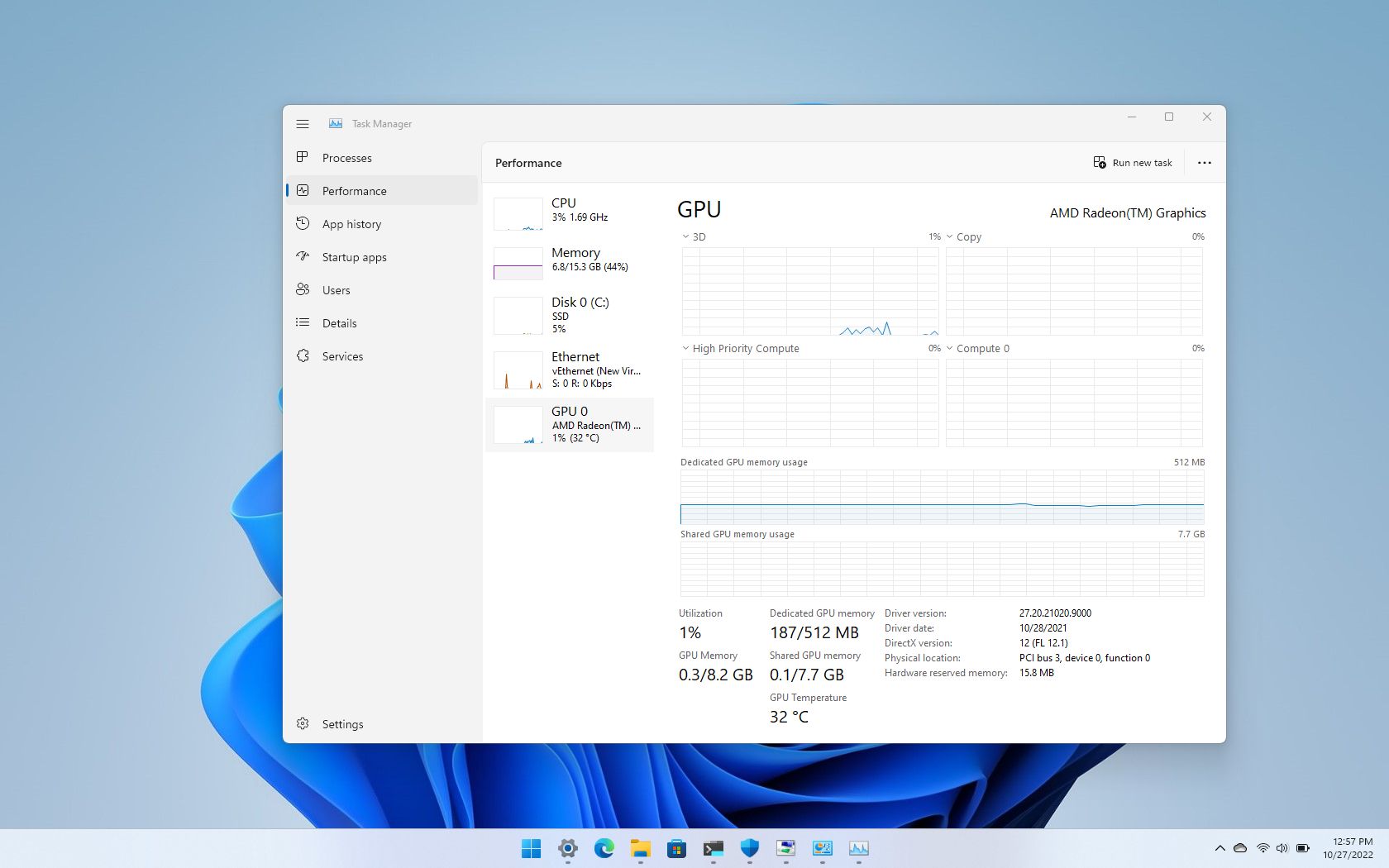
Task Manager in Windows shows GPU temperature for most graphics cards. Press Ctrl + Shift + Esc to open Task Manager. Click the Performance tab. Select GPU from the list on the left. You will see the current GPU temperature near the bottom or right side. This method requires no extra software and works on Windows 10 and 11.
Using Gpu Manufacturer Software
GPU makers often provide software for monitoring temperature. Examples include NVIDIA GeForce Experience and AMD Radeon Software. Download and install the software from the official website. Open the app and navigate to the performance or monitoring section. The GPU temperature will be displayed in real time. These tools also help update drivers and optimize settings.
Using Third-party Tools
Third-party apps offer detailed GPU temperature info and extra features. Popular options are MSI Afterburner, HWMonitor, and GPU-Z. Download and install your chosen tool. Launch the program and look for temperature readings in the dashboard. These tools often display other useful data like fan speed and clock rates. They work with most GPU brands and models.

Credit: www.shoshitamam.com
Interpreting Temperature Readings
Understanding GPU temperature readings helps protect your graphics card. It shows how hard the GPU works and if it stays safe. You can avoid damage by watching these numbers closely. This guide explains what the numbers mean and when to worry.
Normal Temperature Ranges
Most GPUs run well between 30°C and 60°C when idle. During gaming or heavy work, temperatures up to 85°C are common. Some high-end GPUs can handle up to 90°C safely. Staying within these ranges means your GPU works fine. Temperatures above these levels may need attention.
Signs Of Overheating
Sudden crashes or screen freezes can mean your GPU is too hot. Fans running loudly or at full speed show high temperature. You may notice reduced performance or slower frame rates. Visual glitches or artifacts on screen also point to overheating. These signs mean your GPU needs cooling help.
When To Take Action
Take action if GPU temperature stays above 90°C for long. Lower temperatures quickly by cleaning dust from fans and vents. Improve airflow inside your PC case to help cool the GPU. Replace thermal paste if the card is old or very hot. Consider adding extra cooling if problems continue.
Tips To Keep Gpu Temperature Low
Keeping your GPU temperature low helps your computer run smoothly. High temperatures can cause slowdowns and damage parts. Follow these simple tips to reduce GPU heat and keep your system healthy.
Improving Airflow
Good airflow moves hot air out and brings cool air in. Place your computer in a spot with space around it. Avoid putting it inside closed cabinets. Use case fans to push air through the system. Organize cables to prevent blocking airflow paths.
Cleaning Dust And Debris
Dust blocks air vents and fans. It traps heat inside your GPU. Turn off your PC and unplug it. Use a soft brush or compressed air to clean fans and vents. Clean regularly to keep dust from building up.
Adjusting Fan Speeds
Faster fans cool your GPU better but make more noise. Use software tools to set fan speeds. Increase fan speed when the GPU gets hot. Find a balance between cooling and noise that works for you.
Using Thermal Paste
Thermal paste helps transfer heat from the GPU chip to its cooler. Old or dried paste loses effectiveness. Replace thermal paste every year or two. Use a small amount and spread it evenly for best results.
Frequently Asked Questions
How Do I Check My Gpu Temperature?
You can check GPU temperature using software like MSI Afterburner or GPU-Z. These tools display real-time temperatures and help monitor your GPU’s health easily.
What Is A Safe Gpu Temperature Range?
A safe GPU temperature usually ranges between 30°C to 70°C under normal use. Temperatures above 85°C may cause overheating and damage.
Can High Gpu Temperature Affect Performance?
Yes, high GPU temperatures can cause thermal throttling, reducing performance. Keeping your GPU cool ensures optimal speed and longevity.
Which Software Is Best For Measuring Gpu Temperature?
MSI Afterburner and HWMonitor are popular for accurate GPU temperature readings. They offer real-time monitoring and customizable alerts.
Conclusion
Measuring your GPU temperature helps keep your computer safe and fast. Use simple tools to check the heat while gaming or working. Watch the numbers often to avoid overheating and damage. Cooling your GPU can improve its life and performance.
Stay aware of temperature changes during heavy use. This small habit protects your hardware and saves money. Keep your system cool, and it will run smoothly. Easy steps, big benefits.
