
If your computer is overheating or making strange noises, the problem might be your CPU fan. Knowing how to measure your CPU fan correctly can help you find the right replacement or improve your system’s cooling.
In this guide, you’ll learn simple steps to measure your CPU fan without any confusion. By the end, you’ll feel confident in choosing the perfect fan to keep your computer running smoothly and quietly. Keep reading to discover the easy way to measure your CPU fan and protect your valuable hardware.

Credit: www.ubuy.mq
Tools Needed
Measuring a CPU fan requires specific tools to get accurate results. These tools help you find the size and fit of the fan. Using the right equipment makes the process easy and precise.
Measuring Tape
A measuring tape is a simple tool to check the fan’s length and width. It is flexible and easy to use for larger fans. Measure from one edge to the opposite edge. Note the size in millimeters for accuracy.
Calipers
Calipers give precise measurements of smaller parts. They are useful for checking thickness and blade length. Use digital or manual calipers for best results. This tool helps avoid errors in measurement.
Documentation And Manuals
Check the CPU fan’s manual or datasheet for exact specs. Manufacturers often list size and dimensions there. This saves time and ensures you get the correct fan. Keep these documents for future reference.

Credit: voltcave.com
Identify Fan Type
Knowing your CPU fan type helps you measure it correctly. Fans vary in size, shape, and purpose. Identifying the fan type first makes the rest easier. It avoids confusion and saves time. You can find the right fit for your CPU by knowing the fan type.
Standard Cpu Fans
Standard CPU fans come with most computers. They cool the CPU by pushing air over the heatsink. These fans usually have four pins for power and speed control. Most measure 80mm, 92mm, or 120mm across. They are simple and designed for basic cooling needs.
Aftermarket Cooling Fans
Aftermarket fans replace standard fans for better cooling. These fans may be bigger or smaller than standard ones. They often have better blades and motors for quiet operation. Aftermarket fans may have different connectors or extra features like RGB lights. Measuring these fans needs careful attention to their unique specs.
Fan Dimensions To Note
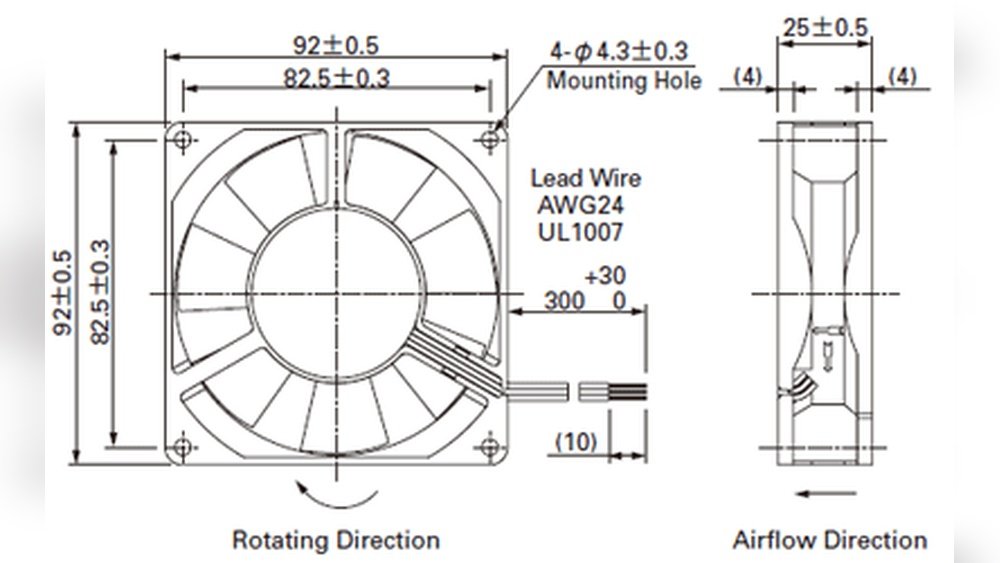
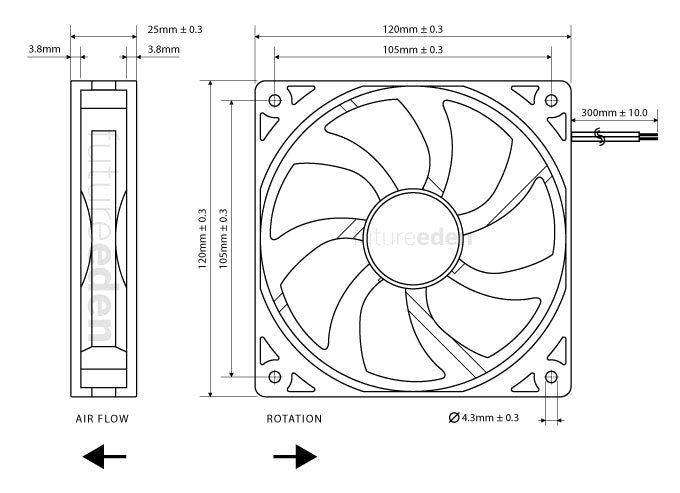
Measure the fan’s width and height across the frame. Thickness or depth is important for fitting in tight spaces. Count the number of blades to understand airflow capacity. Check the connector type; common ones include 3-pin or 4-pin. Note screw hole positions for mounting accuracy.
Measure Fan Dimensions
Measuring the dimensions of your CPU fan helps find the right replacement or upgrade. Fans come in various sizes, and knowing exact measurements ensures compatibility with your system. Focus on three main parts: diameter, thickness, and frame size.
Measuring Fan Diameter
Fan diameter is the distance across the fan blades from edge to edge. Use a ruler or tape measure to get this number in millimeters. Measure straight across the center of the fan, not around the edges. Common sizes include 80mm, 120mm, and 140mm.
Checking Fan Thickness
Thickness is the depth of the fan from front to back. Place the fan on a flat surface and measure how thick it is. Most CPU fans range from 25mm to 38mm thick. Knowing thickness helps ensure the fan fits inside the case without blocking other parts.
Assessing Frame Size
Frame size refers to the square or rectangular shape that holds the fan blades. Measure the length and width of the frame, usually the same as the fan diameter. The frame has mounting holes for screws. Measure the distance between these holes for precise fitting.
Measure Fan Speed
Measuring your CPU fan speed helps keep your computer cool and safe. It shows how fast the fan is spinning. A good fan speed means better cooling and less heat damage. You can check fan speed in many ways. Some methods use software, while others use hardware or built-in settings.
Using Bios Settings
BIOS is a built-in system on your computer. You can enter BIOS when you start your PC. Look for the “Hardware Monitor” or “Fan Speed” section. Here, you see the current speed of your CPU fan. BIOS shows fan speed in RPM (rotations per minute). This method is simple and does not need extra tools.
Third-party Software
Third-party apps help check fan speed easily. Programs like HWMonitor or SpeedFan show fan speed and temperatures. These apps run inside Windows or other operating systems. They give real-time data and let you track fan speed over time. Many apps are free and user-friendly.
Hardware Monitoring Tools
Hardware tools connect directly to your PC’s fan. Some use sensors to measure speed. Others have small displays showing RPM. These tools give accurate and live fan speed readings. They are useful for PC builders and tech enthusiasts. Hardware tools work outside of software and BIOS.
Record And Compare
Recording and comparing your CPU fan measurements is important for checking its performance. This step helps you understand if the fan is working well or needs replacement. You will gather data, compare it with official numbers, and ensure the fan fits your system.
Documenting Measurements
Write down all the fan measurements carefully. Note the fan size, speed (RPM), and noise level. Use a notebook or a digital file for easy tracking. Record the date and the tool you used for measuring. Clear notes help avoid confusion later.
Comparing With Manufacturer Specs
Look for the fan’s official specs on the box or website. Check the size, speed, and noise against your records. See if your fan matches or falls short. This helps spot any problems or confirm good performance.
Ensuring Compatibility
Compare the fan size and connector type with your CPU cooler. Check if the speed matches your cooling needs. Make sure the fan fits the mounting points. Correct compatibility avoids damage and ensures efficient cooling.
Common Mistakes To Avoid
Measuring your CPU fan correctly is important to keep your computer cool and running well. Many people make simple mistakes that lead to wrong readings or poor performance. Avoid these common errors to get the best results.
Incorrect Measurement Points
Check the fan size at the outer edges, not the center. Measuring from the middle gives wrong results. The correct way is to measure from one tip of the fan blade to the opposite tip. This shows the true fan diameter.
Ignoring Fan Mounting Style
Fans come in different mounting styles. Some are clip-on, others screw into place. Not knowing your fan’s mounting style can cause fitting problems. Make sure to note the mounting type before measuring or buying a new fan.
Overlooking Cable Lengths
CPU fans need power cables that reach the motherboard. Ignoring cable length can cause installation issues. Measure the cable length to ensure it fits inside your case comfortably without stretching or bending.
Credit: www.reddit.com
Frequently Asked Questions
How Do I Measure Cpu Fan Size Accurately?
Use a ruler or caliper to measure the fan’s diameter. Measure from one blade tip to the opposite tip. This size helps in selecting compatible replacement fans.
What Tools Are Needed To Measure A Cpu Fan?
A simple ruler or digital caliper works best. Ensure you measure the fan blades and the mounting holes for accuracy.
Why Is Measuring Cpu Fan Speed Important?
Fan speed affects cooling efficiency and noise levels. Measuring helps maintain optimal performance and prevent overheating in your system.
How To Check Cpu Fan Speed Without Software?
You can use BIOS settings to view fan speed. Restart your PC and enter BIOS to find fan RPM details.
Conclusion
Measuring your CPU fan helps keep your computer cool and safe. Use simple tools like a ruler or a fan speed meter. Check the fan size and speed carefully for best results. Regular checks stop overheating and extend your PC’s life.
Stay patient and follow clear steps for accurate measurements. This small task improves your computer’s performance and prevents damage. Keep your system running smoothly by measuring the CPU fan often.
