
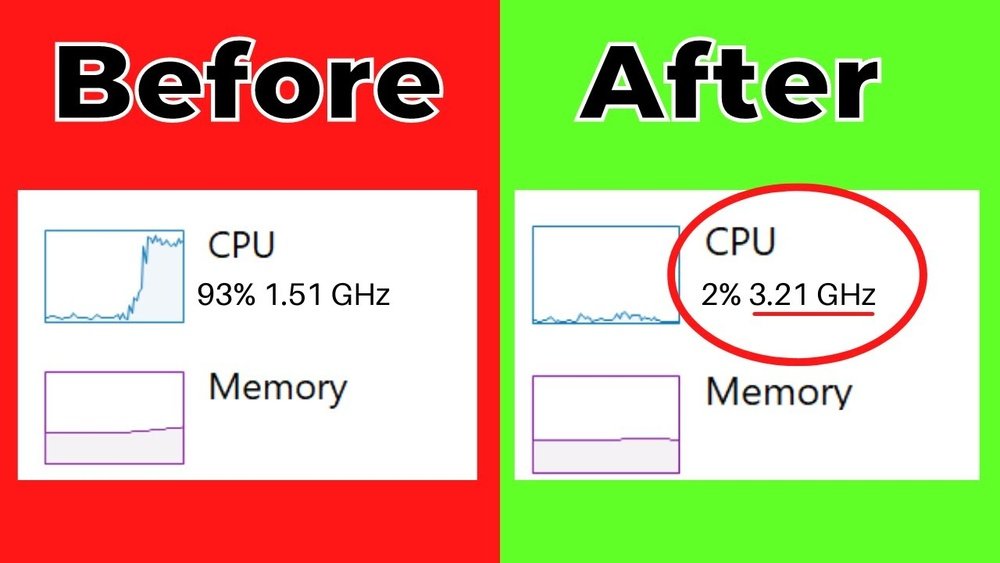
Your computer’s CPU is the heart of your device, driving everything you do. But if it’s not running at its best, you’ll notice slowdowns, lag, and frustration.
What if you could unlock your CPU’s full potential and enjoy faster, smoother performance every time you use your computer? You’ll discover simple, effective ways to maximize your CPU performance. These tips are easy to follow and can make a real difference—so keep reading and take control of your computer’s speed today.
Credit: www.cocosenor.com
Identify Performance Bottlenecks
Identifying performance bottlenecks is key to improving your CPU’s speed. These bottlenecks slow down your computer and cause delays. Finding them helps you focus on the real issues. Fixing these problems can make your CPU run smoother and faster.
Monitor Cpu Usage
Start by checking how much your CPU is working. Use tools like Task Manager or Activity Monitor. Look for times when usage is very high. Constant high use means your CPU is overloaded. Spotting this helps you know when your CPU is the problem.
Check Background Processes
Many programs run quietly in the background. These can use CPU power without you knowing. Open your system’s process list to see what is running. End any unnecessary programs to free CPU resources. This simple step often improves performance a lot.
Analyze Thermal Throttling
Heat can slow down your CPU. When it gets too hot, it reduces speed to cool down. This is called thermal throttling. Use software to check your CPU temperature. Clean your computer’s fans and vents to help cooling. Keeping your CPU cool avoids slowdowns caused by heat.

Credit: softwareg.com.au
Optimize System Settings
Optimizing system settings helps your CPU run smoother and faster. Small changes in settings can improve performance without extra cost. Adjusting power plans, updating drivers, and setting virtual memory right can reduce delays and freezes.
Adjust Power Plans
Choose the high-performance power plan in your system settings. This setting lets your CPU use full power when needed. It stops the computer from saving energy at the cost of speed. Keep your device plugged in for best results.
Update Drivers And Bios
Check for the latest driver updates for your CPU and motherboard. New drivers fix bugs and improve hardware communication. Update your BIOS carefully; it controls your CPU’s basic functions. Always backup data before updating BIOS to avoid issues.
Configure Virtual Memory
Virtual memory acts as extra RAM using hard drive space. Set it to a size 1.5 times your installed RAM for better performance. Too little virtual memory slows down your CPU during heavy tasks. Adjust settings in system properties under performance options.
Clean And Maintain Hardware
Keeping your computer clean is key to better CPU performance. Dust and dirt block airflow and cause overheating. Overheating slows down the CPU and can damage it over time. Regular maintenance helps your system run smoothly and last longer.
Remove Dust And Debris
Dust builds up inside your computer case and on components. Use a soft brush or canned air to clean vents, fans, and circuit boards. Turn off and unplug your computer before cleaning. Avoid touching sensitive parts directly. Clean at least every few months for best results.
Improve Cooling Solutions
Good cooling keeps the CPU temperature low. Check your fans and heatsinks to ensure they work well. Replace old or noisy fans with better ones. Consider adding extra case fans for more airflow. Keep cables organized to avoid blocking air paths. Cooler parts perform faster and last longer.
Reapply Thermal Paste
Thermal paste helps transfer heat from the CPU to the cooler. Over time, it dries out and loses effectiveness. Remove the old paste carefully using isopropyl alcohol. Apply a small amount of new thermal paste on the CPU surface. Reattach the cooler firmly but gently. This step improves heat transfer and keeps the CPU cool.

Credit: www.youtube.com
Manage Software Efficiently
Managing software well helps your CPU run faster and smoother. Software can use a lot of CPU power, especially if too many programs run at once. Keeping software under control frees up your CPU to focus on important tasks. This section explains simple ways to manage software efficiently.
Limit Startup Programs
Many programs start automatically when your computer turns on. These programs use CPU power and slow down your system. Turn off unnecessary startup programs to save CPU resources. Use the task manager or system settings to control which programs start automatically. This makes your computer boot faster and keeps CPU free.
Uninstall Unnecessary Applications
Old or unused applications take up space and use CPU in the background. Removing these apps reduces CPU load and frees up memory. Check your installed programs regularly and uninstall those you do not need. This keeps your system clean and improves CPU performance.
Use Lightweight Alternatives
Some software uses more CPU power than others. Choose lightweight versions or simpler alternatives of heavy programs. For example, use basic text editors instead of full-featured ones for simple tasks. Lightweight software uses fewer resources and helps your CPU run efficiently.
Overclocking Techniques
Overclocking is a popular way to increase CPU speed beyond its base settings. It improves performance by making the processor run faster. This technique can help with gaming, video editing, and other heavy tasks. Overclocking needs care and knowledge to avoid damage and instability.
Understand Risks And Benefits
Overclocking can boost your CPU power. It makes your computer faster for many tasks. But it also brings risks. The CPU can get very hot. This may cause crashes or shorten its life. It can also void your warranty. Know these risks before you start. Make sure you want the extra speed enough to take the chance.
Use Reliable Software Tools
Good software is key for safe overclocking. Use trusted tools designed for your CPU brand. These tools let you change clock speeds and voltages easily. They often include presets for beginners. Avoid random software from unknown sources. Reliable programs help keep your system stable and safe.
Test Stability And Temperatures
After overclocking, check if the system is stable. Run stress tests to see if the CPU can handle the new speed. Watch the temperatures carefully. High heat can damage parts. Use temperature monitoring software to track the CPU heat. Stop overclocking if temperatures are too high or if crashes happen. Stability is more important than speed.
Leverage Advanced Cpu Features
Modern CPUs include special features to boost their speed and efficiency. Using these features can improve your computer’s performance without extra hardware. Understanding and applying these options helps run programs faster and smoother.
Advanced CPU features manage how the processor handles tasks and power. They allow the CPU to adjust speed and use multiple cores effectively. This section explains how to enable and use these features well.
Enable Turbo Boost
Turbo Boost lets the CPU run faster than its base speed. It activates when the system needs extra power for heavy tasks. This feature increases the clock speed temporarily to improve performance.
Check your BIOS or system settings to turn on Turbo Boost. Most modern processors have it enabled by default. Using Turbo Boost helps with gaming, video editing, and other demanding activities.
Utilize Multi-threading
Multi-threading allows a CPU core to work on multiple tasks at once. It splits a program into smaller threads that run simultaneously. This improves the overall speed and responsiveness of software.
Many applications support multi-threading, especially for video and 3D rendering. Enable multi-threading in your software settings or use programs designed for it. This feature helps your CPU handle more work without slowing down.
Optimize Task Scheduling
Task scheduling decides how the CPU assigns work to its cores. Optimizing it ensures tasks use the best available resources. This reduces delays and keeps the processor busy efficiently.
Operating systems like Windows and Linux include task schedulers. Keep your system updated to get the latest improvements. Use tools to monitor CPU usage and adjust settings for better task distribution.
Frequently Asked Questions
How Can I Improve Cpu Performance Easily?
To improve CPU performance, close unused programs and update software regularly. Clean dust from your PC and optimize startup apps to boost speed.
What Settings Optimize Cpu For Gaming?
Set your CPU to high-performance mode in power settings. Update drivers and disable background apps to maximize gaming performance.
Does Cooling Affect Cpu Performance?
Yes, proper cooling prevents overheating, which slows CPU speed. Use quality fans or liquid cooling for better heat management.
How Often Should I Update Cpu Drivers?
Update CPU drivers every few months or when performance issues arise. Keeping drivers current ensures compatibility and smoother operation.
Conclusion
Maximizing CPU performance helps your computer run faster and smoother. Clean your system regularly and close unused programs to save resources. Keep your software updated for better efficiency and security. Adjust power settings to balance speed and energy use. Small changes can make a big difference in daily tasks.
Practice these tips to keep your CPU working well. Enjoy a more responsive and reliable computer experience.
