
Is your computer running hotter than it should? A hot CPU can slow down your entire system and even damage important parts.
But don’t worry—you don’t need to be a tech expert to fix this. You’ll discover simple and effective ways to make your CPU cooler. By the end, you’ll know how to keep your computer running smoothly and avoid costly repairs.
Ready to protect your device and boost its performance? Let’s dive in.
Causes Of Cpu Overheating
CPU overheating happens when the processor gets hotter than it should. This can cause your computer to slow down or shut off. Knowing what causes overheating helps keep your CPU cool and your computer running well.
Common Heat Sources
The CPU generates heat as it works. High workload tasks like gaming or video editing increase heat. Poor airflow inside the computer case traps this heat. Dust buildup on fans and vents blocks cooling. Using the wrong or old thermal paste also raises temperatures. Overclocking the CPU pushes it beyond normal limits, creating extra heat.
Signs Of Overheating
Your computer may show warning signs when the CPU is too hot. Sudden shutdowns or restarts can happen without warning. The system might run very slowly or freeze often. You may notice the fan running loudly and constantly. Some computers display temperature warnings on screen. Checking these signs early prevents damage and keeps your CPU safe.
Credit: www.noctua.at
Choosing The Right Cooling Solution
Choosing the right cooling solution is key to keeping your CPU temperature low. A cool CPU runs faster and lasts longer. Different solutions fit different needs and budgets. Understanding your options helps you pick the best fit for your setup.
Air Cooling Options
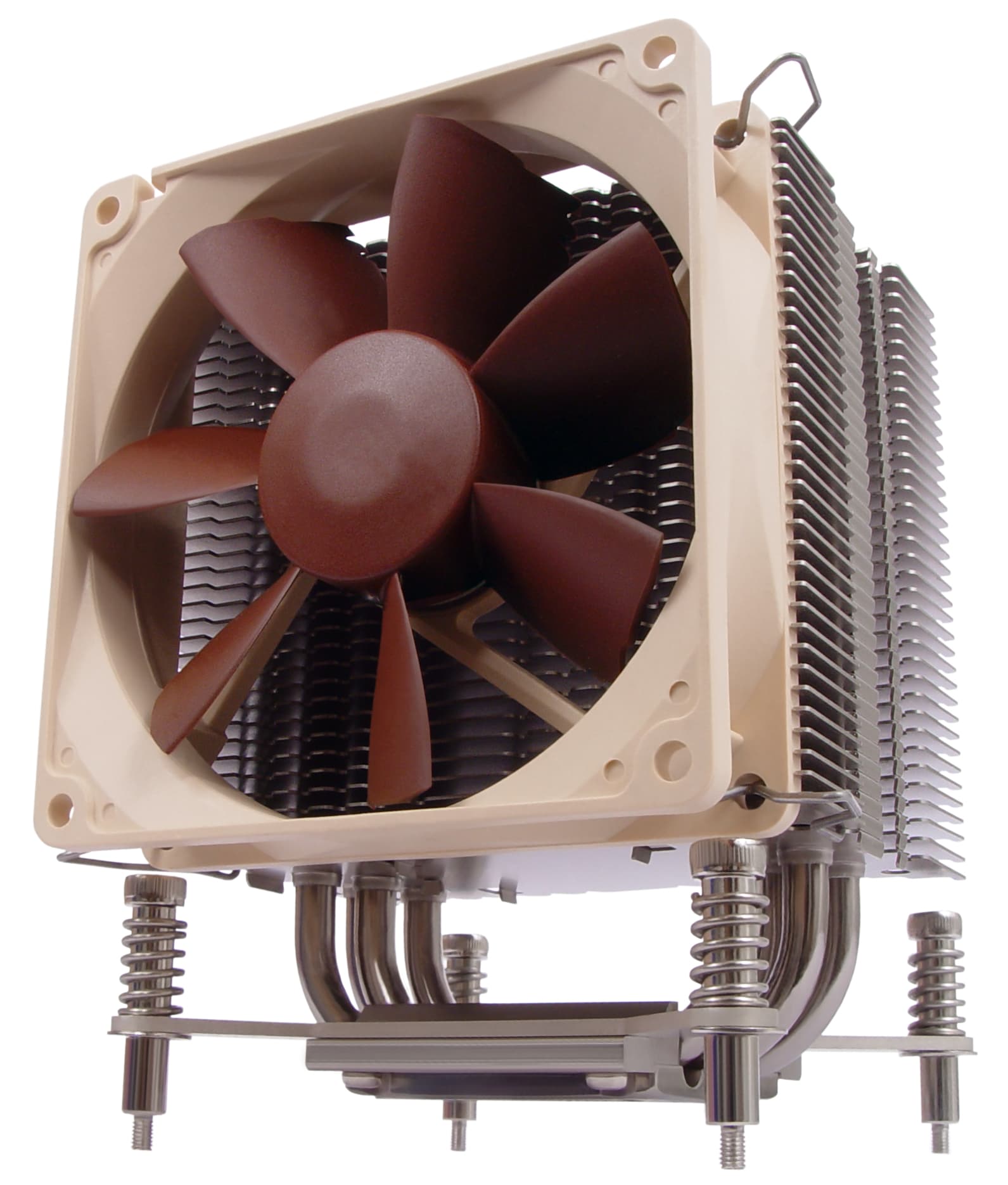
Air coolers are the most common choice. They use fans and heatsinks to move heat away from the CPU. These coolers are easy to install and cost-effective. Many models fit in small spaces and work well for daily use. Larger air coolers provide better cooling but need more room inside the case.
Liquid Cooling Systems
Liquid cooling uses water or coolant to carry heat away. These systems are quieter and often cooler than air options. They include a pump, radiator, and tubes. Liquid cooling suits high-performance PCs or overclocked CPUs. It requires more care and setup but offers excellent cooling power.
Passive Cooling Techniques
Passive cooling means no fans or pumps. It relies on big heatsinks and good airflow in the case. This method is silent and uses no power. Passive cooling works best for low-power CPUs or silent PC builds. It needs careful design to avoid overheating in busy systems.
Improving Airflow In Your Case
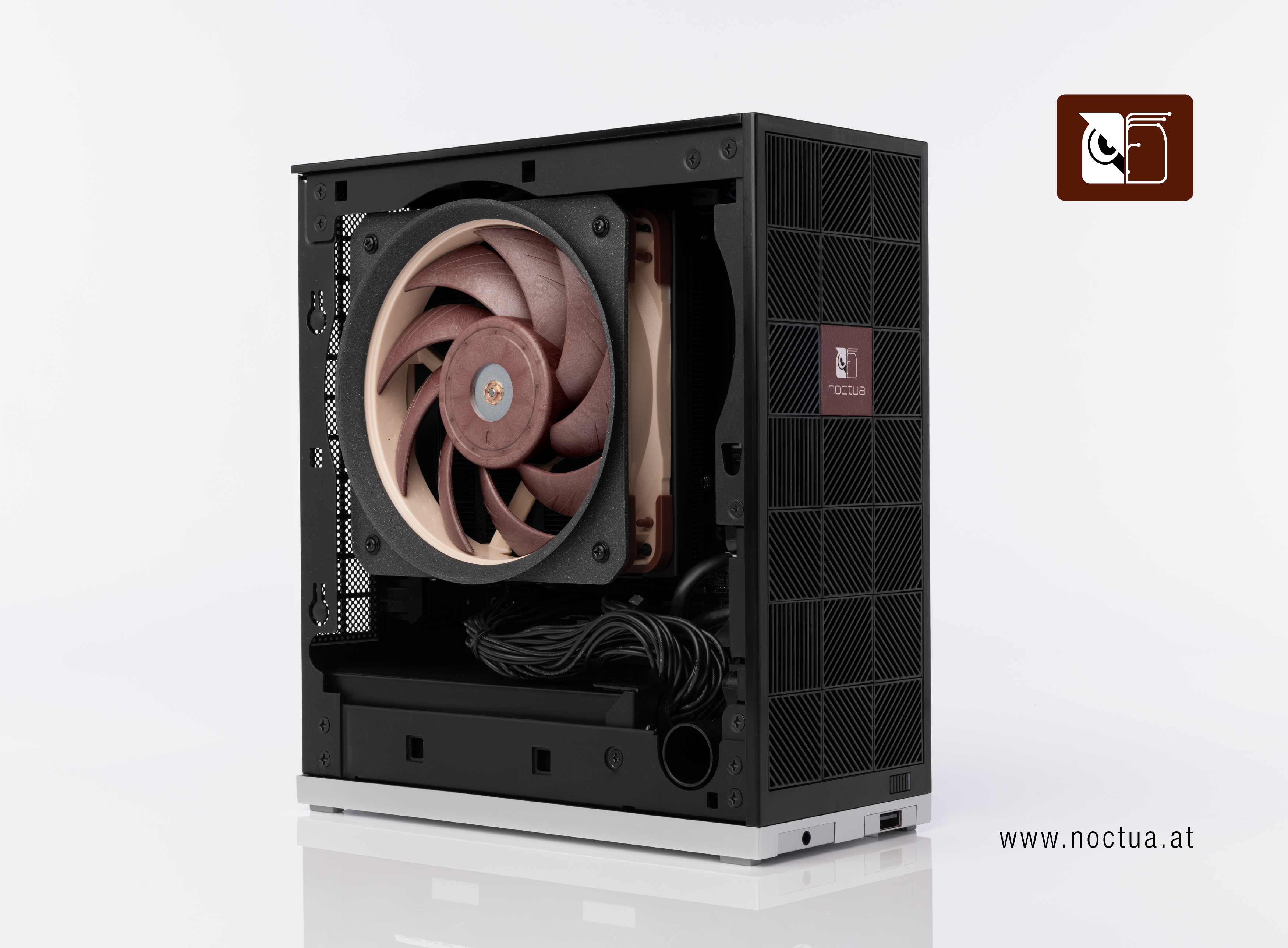
Improving airflow inside your computer case helps keep your CPU cool. Airflow moves hot air out and brings fresh air in. Good airflow reduces heat buildup and stops your CPU from overheating.
Proper airflow depends on fan placement, neat cables, and the right case choice. Each part plays a role in moving air smoothly through your system.
Optimal Fan Placement
Place intake fans at the front or bottom of the case. They bring cool air inside. Exhaust fans should go at the top or rear. They push hot air out. Balance intake and exhaust fans for steady airflow. Avoid blocking fan paths with hardware.
Cable Management Tips
Tidy cables improve airflow by reducing blockages. Use zip ties or Velcro to bundle cables. Route cables behind the motherboard tray if possible. Keep cables away from fans and air paths. This allows air to flow freely across your CPU cooler.
Case Selection For Cooling
Choose a case with good ventilation and fan mounts. Mesh front panels offer better airflow than solid ones. Larger cases provide more space for air to move. Look for cases with multiple fan slots. This helps create strong airflow through your system.
Applying Thermal Paste Correctly
Applying thermal paste correctly helps your CPU stay cool. It improves the heat transfer between the CPU and the cooler. Without proper application, your CPU can overheat and slow down. Follow these simple tips to apply thermal paste the right way.
Types Of Thermal Paste
Thermal paste comes in different types. The most common are silicone-based, metal-based, and ceramic-based. Silicone paste is easy to use and good for everyday computers. Metal-based paste has better heat transfer but can conduct electricity. Ceramic paste is safe and works well but is less effective than metal types.
Application Methods
Start by cleaning the CPU surface. Use isopropyl alcohol and a lint-free cloth. Apply a small pea-sized amount of paste in the center of the CPU. When you attach the cooler, it will spread the paste evenly. Avoid using too much paste. Too much can cause poor heat transfer and mess inside the computer.
When To Reapply
Reapply thermal paste every 1 to 2 years. Also, do it if you remove the CPU cooler for any reason. Signs your paste needs replacing include higher CPU temperatures or loud fan noise. Fresh paste keeps your CPU running cooler and longer.
Upgrading Hardware For Better Cooling
Upgrading your computer’s hardware can greatly improve its cooling performance. Better cooling helps your CPU run faster and last longer. It also prevents your system from overheating during heavy use. Small changes in hardware can make a big difference in temperature control.
High-performance Cpu Coolers
Replacing the stock CPU cooler with a high-performance model can lower temperatures. These coolers use bigger fans or advanced heat pipes. Some use liquid cooling to remove heat more efficiently. They keep the CPU cooler under heavy loads. This upgrade reduces noise and improves stability.
Enhanced Case Fans
Adding or upgrading case fans improves airflow inside the computer. Better airflow pushes hot air out and pulls cool air in. Choose fans with higher airflow ratings for effective cooling. Position fans to create a smooth air path. This helps the CPU and other parts stay cool.
Aftermarket Cooling Accessories
Aftermarket accessories include fan controllers and thermal pads. Fan controllers allow you to adjust fan speeds manually. Thermal pads improve heat transfer between parts and heatsinks. Both options help reduce CPU temperatures. These accessories are easy to install and cost-effective.
Software Tools To Monitor Cpu Temperature
Keeping your CPU cool is important for your computer’s health. Software tools help track the CPU temperature easily. They show real-time data and help you avoid overheating issues. These tools can alert you when the CPU gets too hot. They also guide you to adjust settings for better cooling and performance.
Popular Monitoring Programs
Many programs show CPU temperature clearly. Some popular ones are HWMonitor, Core Temp, and SpeedFan. These tools display temperature in Celsius or Fahrenheit. They also show other data like fan speed and voltage. Most are free and easy to install. These programs run in the background without slowing your PC.
Setting Temperature Alerts
Alerts notify you when the CPU temperature is high. You can set a safe limit to avoid damage. Programs like Core Temp allow custom alert settings. Alerts can be sounds or pop-up messages. This helps you act fast to cool down the CPU. Early warnings prevent crashes and hardware failure.
Optimizing Performance Settings
Some tools let you change CPU performance to reduce heat. Lowering clock speed or voltage can cool the CPU. Programs like SpeedFan help control fan speeds manually. Adjusting these settings balances speed and temperature. It can extend your CPU’s life and keep it stable. Always test changes to avoid system problems.
Cleaning And Maintenance Tips
Keeping your CPU cool is important for your computer’s health and speed. Dust and dirt can block airflow and cause overheating. Regular cleaning and maintenance help your CPU run smoothly and last longer. Simple steps can make a big difference.
Removing Dust Build-up
Dust collects inside your computer over time. It covers fans, vents, and heatsinks. This stops air from moving properly. Use a soft brush or compressed air to clean dust. Turn off and unplug your PC first. Blow air gently to avoid damage. Clean all vents and fan blades well.
Checking Fan Functionality
Fans keep your CPU cool by moving air. Fans can slow down or stop working. Listen for strange noises or if the fan is very quiet. Open the case and watch the fan spin. Replace fans that do not spin smoothly. Check fan cables for loose connections too.
Replacing Worn Components
Some parts wear out after years of use. Thermal paste between the CPU and cooler dries out. Replace old thermal paste to improve heat transfer. Fans and heatsinks can also wear down. Swap worn fans or heatsinks for new ones. Use parts that fit your computer model.

Credit: www.bhphotovideo.com
Advanced Cooling Techniques
Advanced cooling techniques help keep your CPU running cool under heavy use. These methods go beyond basic fans and heatsinks. They offer better performance and longer CPU life. Understanding these options can help you pick the right cooling for your setup.
Overclocking With Cooling In Mind
Overclocking pushes your CPU to work faster. This creates more heat than usual. Proper cooling is crucial to avoid damage. Use high-quality air coolers or liquid coolers to handle extra heat. Monitor temperatures closely to keep your CPU safe. Adjust fan speeds and settings for better airflow.
Custom Water Cooling Loops
Custom water cooling loops use liquid to cool the CPU. This method is very effective at removing heat. It involves tubes, a pump, a radiator, and a water block. Water cools the CPU faster than air. You can customize the loop to fit your computer case. It is quieter and often more efficient than air cooling.
Using Cooling Pads And External Devices
Cooling pads are useful for laptops and small PCs. They provide extra airflow from outside the case. Some pads come with built-in fans to blow air on the CPU area. External cooling devices can help when internal cooling is not enough. They are easy to use and portable. Cooling pads reduce heat and improve performance during heavy tasks.
Credit: www.noctua.at
Frequently Asked Questions
How Can I Improve My Cpu Cooling System?
To improve CPU cooling, clean dust from fans and heatsinks regularly. Apply high-quality thermal paste. Use additional case fans or upgrade to a better CPU cooler for efficient heat dissipation.
What Is The Best Thermal Paste For Cpu Cooling?
High-quality thermal pastes like Arctic MX-4 or Noctua NT-H1 offer excellent heat transfer. They improve CPU cooling by filling microscopic gaps between the CPU and cooler, ensuring efficient heat conduction.
Can Liquid Cooling Make My Cpu Cooler?
Yes, liquid cooling systems provide superior heat dissipation compared to air coolers. They use a pump, radiator, and coolant to efficiently remove heat from the CPU, keeping temperatures lower during heavy usage.
How Often Should I Clean My Cpu Cooler?
Clean your CPU cooler every 3 to 6 months. Dust buildup reduces airflow and cooling efficiency, causing higher CPU temperatures and potential performance issues.
Conclusion
Keeping your CPU cool helps your computer run better and last longer. Clean the fans and vents often to stop dust buildup. Use good thermal paste to improve heat transfer. Make sure your case has enough airflow with extra fans if needed.
Check your CPU temperature regularly to catch problems early. Small steps can make a big difference in cooling. Stay patient and keep your system tidy for the best results. A cool CPU means a happy computer.
