

Are you tired of Roblox running slow or looking choppy on your device? If you want smoother gameplay and better graphics, making Roblox use your GPU is the key.
Your GPU can handle the heavy lifting, so your games run faster and look sharper. You’ll learn simple steps to make Roblox tap into your GPU’s power. Keep reading, and you’ll unlock a whole new level of gaming performance.
Why Roblox Needs Gpu
Roblox is a popular online platform where users create and play games. For smooth gameplay and better graphics, Roblox needs to use the GPU (Graphics Processing Unit). The GPU handles visual tasks faster than the CPU (Central Processing Unit). Using the GPU helps Roblox run games more smoothly and look better.
Gpu Vs Cpu In Gaming
The CPU is the computer’s main processor. It handles many tasks, like running programs and managing data. The GPU is designed specifically for graphics and images. It processes many tasks in parallel, making it faster for visuals. In gaming, the GPU renders images and animations quickly. The CPU supports the game logic and controls. A strong GPU improves game visuals and frame rates. A weak GPU can cause lag and poor graphics.
Benefits Of Gpu Acceleration
GPU acceleration means using the GPU to speed up game performance. It reduces the load on the CPU. This leads to smoother gameplay and less lag. Games look more detailed with better lighting and effects. GPU acceleration helps Roblox load scenes faster. It also allows more complex games to run well. Players enjoy a better gaming experience with GPU support.
Checking Your Current Gpu Usage
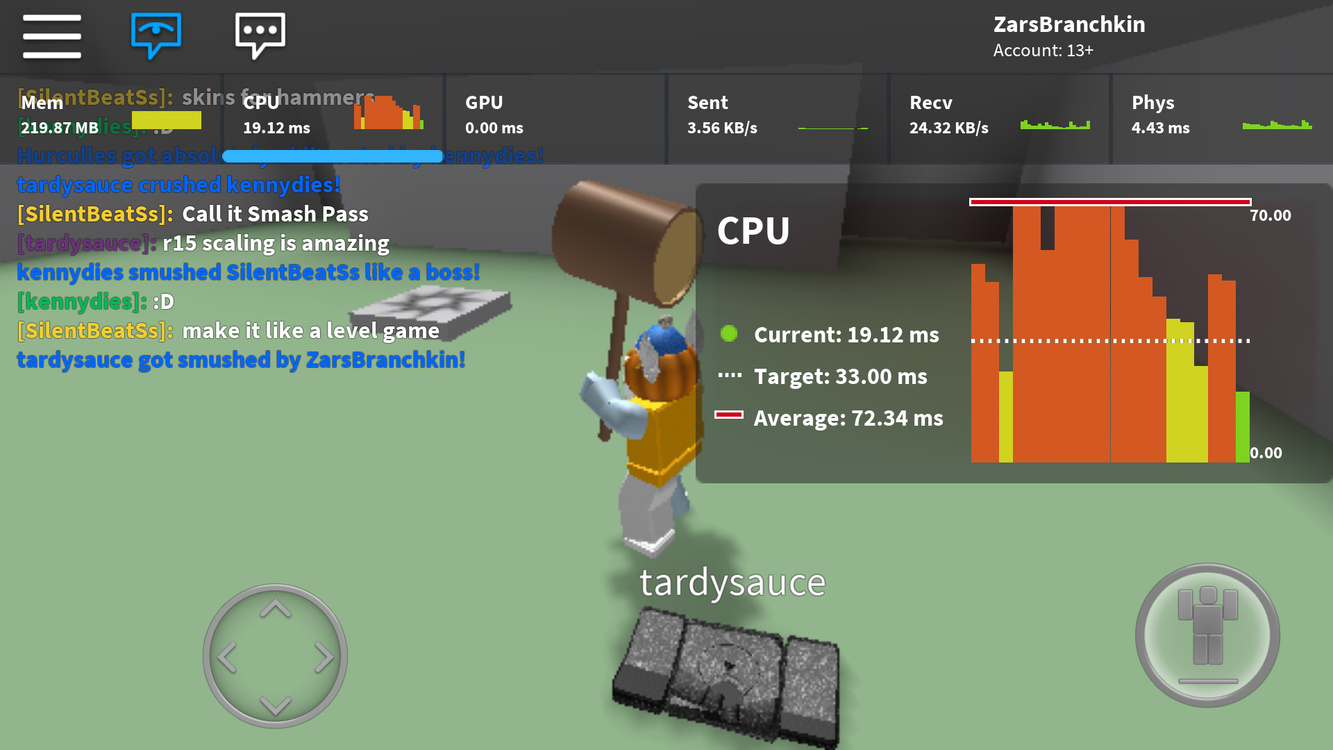
Checking your current GPU usage helps you understand how Roblox uses your computer’s graphics power. It shows if your GPU works hard or stays idle while playing. Monitoring GPU usage can guide you to improve game performance and fix lag issues.
You can check GPU usage with built-in tools or third-party apps. Both methods give useful information about how much your graphics card is active during gameplay.
Using Task Manager
Task Manager on Windows shows your GPU usage easily. Press Ctrl + Shift + Esc to open it. Click the “Performance” tab. Here, find the GPU section. It shows real-time GPU use in percentage.
Run Roblox while watching Task Manager. Notice how GPU usage changes. High GPU use means Roblox uses your graphics card well. Low use suggests Roblox might not be using the GPU fully.
Third-party Monitoring Tools
Third-party tools provide detailed GPU data. Programs like MSI Afterburner or GPU-Z show temperature, memory use, and GPU load. These tools offer more info than Task Manager.
Install one of these apps and start Roblox. Watch GPU stats to see how the game affects your graphics card. These insights help you decide if changes are needed for better performance.
Setting Roblox To Use Dedicated Gpu
Roblox can run better by using a dedicated GPU. This means your game will use the more powerful graphics card in your computer. Setting Roblox to use the dedicated GPU helps reduce lag and improves game quality. Follow these steps to make sure Roblox uses the right graphics card.
Windows Graphics Settings
Open the Windows Settings app. Click on “System” and then select “Display.”
Scroll down and click “Graphics settings.” Choose “Desktop app” from the drop-down menu. Click “Browse” and find the Roblox executable file. It is usually in the Roblox folder inside “Program Files.”
Add Roblox to the list. Click on it, then select “Options.” Choose “High performance” to force Roblox to use the dedicated GPU. Save the changes and close the settings.
Nvidia Control Panel Setup
Right-click on the desktop and open the NVIDIA Control Panel. Click “Manage 3D settings” in the left menu.
Go to the “Program Settings” tab. Find Roblox from the drop-down list or add it manually. Set the preferred graphics processor to “High-performance NVIDIA processor.”
Click “Apply” to save the settings. This directs Roblox to use the NVIDIA GPU for better performance.
Amd Radeon Settings
Right-click on the desktop and open AMD Radeon Settings. Select the “System” tab, then click “Switchable Graphics.”
Locate Roblox in the list or add it by browsing to the game file. Set the graphics mode to “High performance.”
Close the settings. AMD will now run Roblox using the dedicated GPU, improving graphics and speed.
Credit: www.youtube.com
Optimizing Roblox Graphics Settings
Optimizing Roblox graphics settings helps the game use your GPU better. This can improve how smooth and clear the game looks. You can change settings inside the game to get the best balance between graphics and speed.
Adjusting these settings is simple. It allows Roblox to run faster and look nicer without overloading your computer.
Adjusting In-game Settings
Open Roblox and go to the settings menu. Find the graphics section to see different options. Lowering the graphics quality can make the game run smoother. Try changing the texture quality and turn off shadows if your game lags. Set the graphics mode to “DirectX” or “Vulkan” to help use your GPU better. These settings help the game use the video card for better visuals.
Balancing Quality And Performance
High graphics look good but may slow the game down. Low graphics run faster but may not look as nice. Find a middle ground that works for your computer. Test different settings and see how the game feels. Keep the frame rate stable to avoid lag. This balance helps keep the game enjoyable and smooth.
Updating Drivers For Better Performance
Updating your GPU drivers can improve Roblox’s performance significantly. Drivers help your graphics card work better with your computer. New driver versions fix bugs and add support for new games and features. Keeping drivers current ensures Roblox uses your GPU efficiently.
Regular updates help avoid lag and crashes. They also improve graphics quality. This section shows how to find, install, and check GPU driver updates.
Finding Latest Gpu Drivers
First, identify your GPU model. You can find it in Device Manager under Display Adapters. Note the name of your graphics card.
Visit the official website of your GPU maker. Common brands include NVIDIA, AMD, and Intel. Search for the latest drivers by entering your model number. Download the most recent version available.
Installing And Verifying Updates
Run the downloaded file to start the installation. Follow the on-screen instructions carefully. Restart your computer after installation finishes.
To confirm the update, open the driver software or Device Manager again. Check the driver version number to ensure it matches the latest one you downloaded. This confirms your GPU uses the newest drivers for Roblox.
Credit: www.youtube.com
Additional Tips For Boosting Roblox Performance
Improving Roblox performance goes beyond just using the GPU. Small changes on your computer can make a big difference. These extra steps help Roblox run smoother and reduce lag. Follow these simple tips to get better gameplay.
Closing Background Applications
Many apps run in the background and use your computer’s power. Closing these apps frees up CPU and memory for Roblox. Check your task manager to see what is running. End tasks that you do not need. This makes more resources available for the game.
Enhancing System Cooling
When your computer gets hot, it slows down to cool off. Good cooling helps keep your system fast. Clean dust from fans and vents regularly. Use a cooling pad for laptops. Proper airflow inside your PC case also helps. Cooler hardware runs better and lasts longer.
Using Game Mode And Power Plans
Windows has a Game Mode that prioritizes gaming performance. Turn it on to reduce background activity during play. Also, select a high-performance power plan in your settings. This stops your computer from saving energy at the cost of speed. Both settings help Roblox use more power for better play.
Credit: devforum.roblox.com
Frequently Asked Questions
How Do I Force Roblox To Use My Gpu?
You can force Roblox to use your GPU by updating your graphics drivers. Also, set Roblox’s executable to run with the high-performance GPU in your system’s graphics settings. This improves game performance and reduces lag.
Why Is Roblox Not Using My Dedicated Gpu?
Roblox may default to the integrated GPU for power saving. Check your graphics settings and assign Roblox to the dedicated GPU. Updating your drivers and disabling battery saver modes helps fix this issue.
Can I Improve Roblox Graphics Using Gpu Settings?
Yes, adjusting your GPU’s control panel settings can enhance Roblox graphics. Increase texture quality, enable vertical sync, and optimize power management for smoother gameplay. Proper GPU settings boost visual performance effectively.
Does Updating Gpu Drivers Affect Roblox Performance?
Updating GPU drivers often improves Roblox performance. Drivers optimize compatibility and fix bugs, ensuring smooth gameplay. Regular updates also enhance graphics quality and stability while reducing crashes and lags.
Conclusion
Making Roblox use your GPU helps the game run smoother. It reduces lag and improves graphics quality. Adjust your settings carefully to get the best results. Keep your graphics drivers updated for better performance. Playing Roblox with GPU support gives a more enjoyable experience.
Try these steps to enhance your gameplay today. Simple changes can make a big difference. Enjoy Roblox without slowdowns or crashes. Your computer will handle the game more efficiently.
