
Want to speed up your Ollama experience and get the most out of your hardware? Using your GPU can make a huge difference in how fast and smoothly Ollama runs.
If you’ve ever felt frustrated by slow processing or long wait times, this guide is for you. Keep reading, and you’ll learn simple steps to unlock your GPU’s power with Ollama. By the end, you’ll wonder how you managed without it.
Let’s dive in and boost your performance right now!
Credit: collabnix.com
Why Use Gpu With Ollama
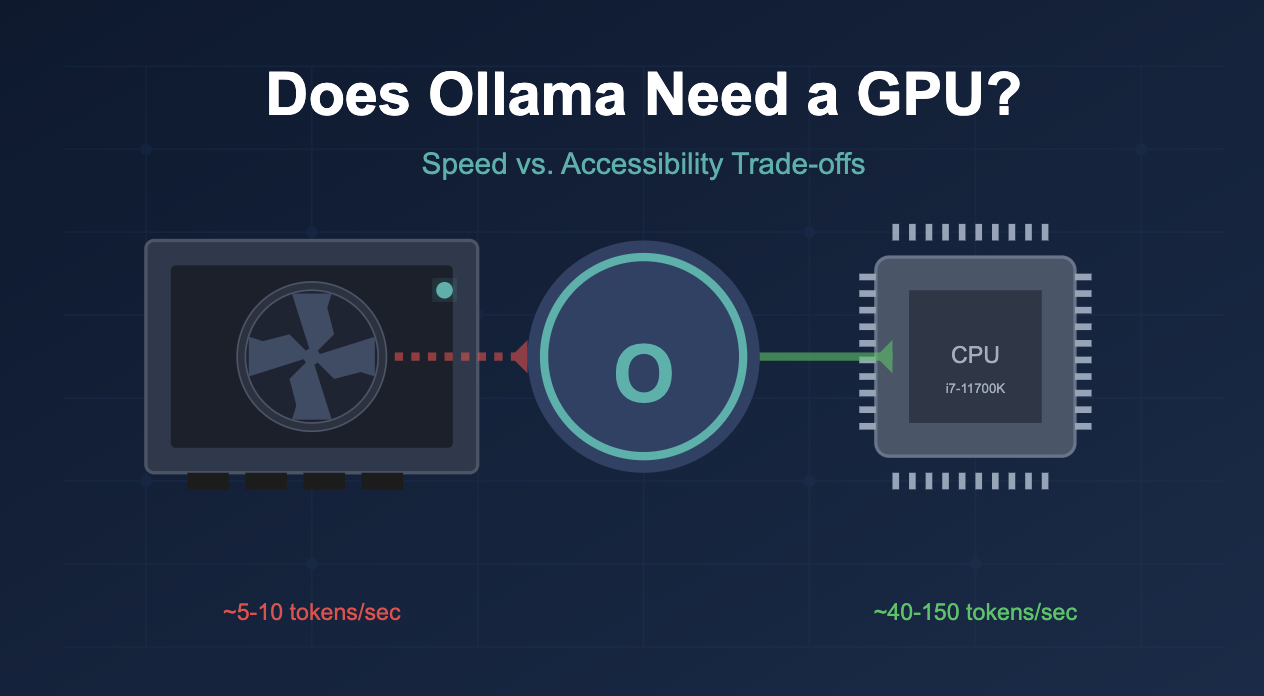
Using a GPU with Ollama can improve how the software runs. A GPU handles many tasks at once, which helps Ollama process data faster. This speed makes a big difference, especially with complex AI tasks. Many users want to know why they should use a GPU with Ollama. The answer lies in better performance and faster results.
Benefits Of Gpu Acceleration
GPUs can work on many things at the same time. This helps Ollama handle large amounts of data quickly. The software becomes more efficient and can do tasks without delays. GPU acceleration also lowers the load on the main computer processor. This means the system stays smooth and responsive during heavy tasks.
Performance Gains In Ai Tasks
AI tasks require lots of calculations and data processing. GPUs speed up these tasks by running many calculations in parallel. Ollama benefits from this by delivering faster outputs. Tasks like image recognition, language processing, and model training finish much quicker. This saves time and allows for more experiments or projects.
Check Gpu Compatibility
Before making Ollama use your GPU, check if your hardware and software match the requirements. Compatibility matters a lot. It ensures smooth performance and avoids errors. This section guides you through the essential checks for GPU compatibility.
Supported Hardware
Ollama supports specific GPUs only. Most Nvidia GPUs work well. Look for models with CUDA cores. AMD GPUs may have limited support. Ensure your GPU has enough memory. At least 4GB VRAM is recommended. Older or integrated GPUs might not work. Check your GPU model carefully before proceeding.
Driver And Software Requirements
Keep GPU drivers updated. Use the latest version from the official site. Nvidia users should install the latest CUDA toolkit. Ollama needs compatible drivers to access the GPU. The operating system must also support the GPU drivers. Use Windows 10 or newer, or recent Linux versions. Outdated drivers cause errors and slow processing.
Setting Up Your System
Setting up your system is the first step to use Ollama with a GPU. It helps Ollama run faster and handle bigger tasks. This setup involves installing the right drivers, configuring software tools, and updating Ollama to the latest version. Follow these simple steps to prepare your system.
Installing Gpu Drivers
Drivers connect your GPU to your computer’s system. Without the correct drivers, the GPU won’t work properly. Visit the official website of your GPU maker, like NVIDIA or AMD. Download the latest driver that matches your GPU model and operating system. Run the installer and follow the instructions. Restart your computer after installation to apply changes.
Configuring Cuda Or Rocm
CUDA and ROCm are software platforms that help your system use the GPU for computing. CUDA works with NVIDIA GPUs, while ROCm supports AMD GPUs. Download CUDA or ROCm from their official sites. Follow the setup guides carefully. Set environment variables as instructed. This step ensures Ollama can use the GPU’s power efficiently.
Updating Ollama To Latest Version
Keeping Ollama updated is important for GPU support. New versions often include performance improvements and bug fixes. Open Ollama’s settings or check the official site for updates. Download and install the latest version. Restart Ollama after the update. Now, your system is ready for GPU acceleration.

Credit: www.reddit.com
Configuring Ollama For Gpu
Configuring Ollama to use your GPU can greatly improve its performance. The GPU handles many tasks faster than the CPU. This makes Ollama run smoother and respond quicker. Adjusting settings is simple and does not need technical skills.
This guide shows how to set up Ollama for GPU use. Follow the steps to enable GPU support and adjust memory and compute options. These changes help you get the best from your hardware.
Enabling Gpu Support In Settings
First, open Ollama’s settings menu. Look for the section labeled “Hardware Acceleration.” Toggle the option to enable GPU support. This tells Ollama to use your graphics card for processing tasks.
Make sure your GPU drivers are up to date before enabling this. Outdated drivers can cause errors or slow performance. After enabling, restart Ollama to apply the changes. Your system should now use the GPU for better speed.
Adjusting Memory And Compute Options
Next, adjust memory and compute settings for optimal use. Ollama allows you to set how much GPU memory it can use. Increasing this limit lets Ollama handle larger models more efficiently.
You can also select the number of GPU cores Ollama uses. More cores mean faster computations but higher power use. Start with moderate settings. Test performance and adjust if needed for your setup.
These tweaks balance performance and system stability. Proper memory and compute settings help avoid crashes or slowdowns. Take time to find the best configuration for your device.
Optimizing Gpu Usage
Optimizing GPU usage is key to getting the best performance from Ollama. The GPU handles heavy tasks faster than a CPU. Proper use of the GPU saves time and improves results.
Understanding how to manage workloads, monitor performance, and fix issues can boost your experience. This section covers practical steps to help Ollama use the GPU efficiently.
Managing Workloads
Split tasks evenly to avoid overloading the GPU. Run smaller jobs separately for better speed. Prioritize important tasks to use GPU power wisely. Avoid running too many programs at once. This keeps the GPU free for Ollama’s work.
Monitoring Gpu Performance
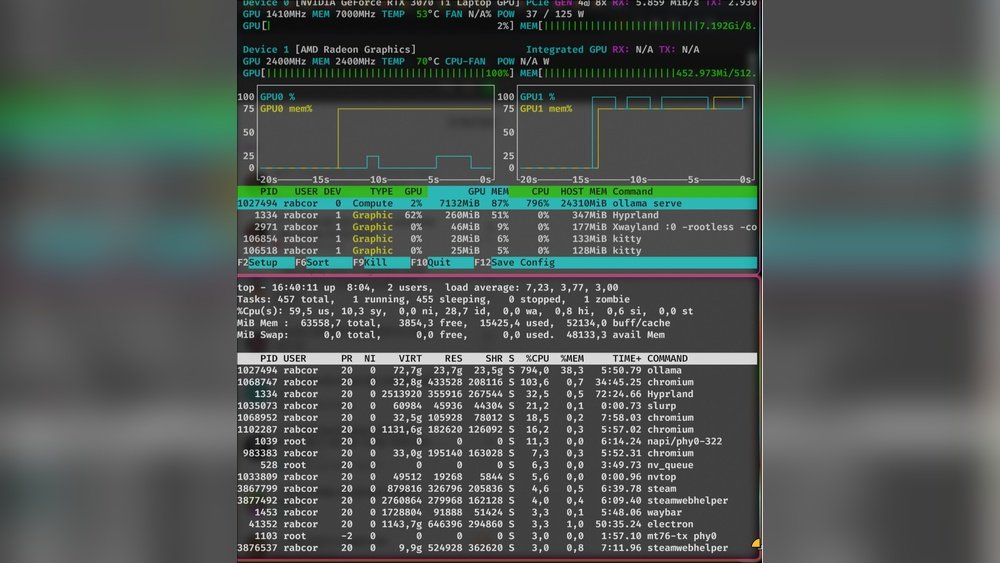
Use tools like NVIDIA’s System Monitor or Task Manager. Check GPU usage and temperature regularly. High temperatures can slow down performance. Watch for memory use to avoid crashes. Tracking these details helps keep Ollama running smoothly.
Troubleshooting Common Issues
Restart your computer if the GPU stops responding. Update GPU drivers to fix bugs and improve speed. Lower the workload if the GPU overheats. Check cables and connections for hardware problems. These steps solve most GPU-related issues quickly.

Credit: www.reddit.com
Advanced Tips For Faster Performance
Improving Ollama’s speed using GPU requires some advanced steps. These tips help you get better results faster. Each method focuses on using the GPU more efficiently. This way, you can handle bigger tasks with less wait time.
Multi-gpu Setup
Using more than one GPU can boost Ollama’s power. Spread the work across multiple GPUs to speed up processing. Ensure your system supports multi-GPU setups. Configure Ollama to recognize and use all available GPUs. This setup reduces load on a single GPU and speeds up tasks.
Batch Processing Techniques
Batch processing means handling many tasks at once. Group similar tasks and send them to Ollama in batches. This method reduces the time spent on each task. It also improves GPU usage by keeping it busy. Use batch sizes that fit your GPU memory for best results.
Utilizing Gpu-accelerated Libraries
GPU-accelerated libraries make Ollama work faster. These libraries use GPU features to speed up calculations. Examples include CUDA and cuDNN for Nvidia GPUs. Integrate these libraries with Ollama for better performance. They help reduce processing time for complex operations.
Frequently Asked Questions
How Do I Enable Gpu Support In Ollama?
To enable GPU support in Ollama, ensure your system has a compatible GPU. Update Ollama to the latest version, then configure the settings to activate GPU usage for faster processing.
Which Gpus Are Compatible With Ollama?
Ollama supports most modern NVIDIA GPUs with CUDA capability. Check Ollama’s documentation for specific models and driver requirements to ensure compatibility and optimal performance.
Does Using Gpu Improve Ollama’s Performance?
Yes, using a GPU significantly speeds up Ollama’s computations. It enhances model training and inference times, providing smoother and faster results compared to CPU-only processing.
How To Check If Ollama Is Using The Gpu?
You can verify GPU usage by monitoring system resources during Ollama’s operation. Tools like NVIDIA’s nvidia-smi command show active GPU processes in real-time.
Conclusion
Using your GPU with Ollama can boost its speed and performance. Setting it up is simple and saves time on heavy tasks. Just follow the steps carefully to avoid errors. Your computer will handle tasks better with GPU support. This change helps Ollama run smoother and faster every time.
Give your projects a helpful push by using the GPU option. Keep your software updated for the best results. Enjoy faster work and smoother experiences with Ollama using your GPU.
