
Is your computer running slower than you’d like? Your CPU might be struggling to keep up, but don’t worry—there are simple steps you can take right now to make it run better.
Imagine your computer responding faster, programs opening instantly, and your work or gaming experience becoming smoother. You’ll discover easy and effective ways to boost your CPU’s performance without spending a fortune. Keep reading, and you’ll unlock the secrets to a faster, more efficient computer.

Credit: www.youtube.com
Optimize Startup Programs
Optimizing startup programs can greatly improve your CPU’s performance. Many programs start automatically when your computer boots. These programs use CPU power even when you don’t need them. Reducing these startup items helps your CPU focus on important tasks. This makes your computer faster and more responsive.
Identify Resource-hogging Apps
Check which apps use the most CPU during startup. Use Task Manager on Windows or Activity Monitor on Mac. Look for programs with high CPU or memory use. These apps slow down your computer at startup. Make a list of them to manage later. Knowing which apps consume resources is the first step.
Disable Unnecessary Startup Items
Turn off programs that are not needed right away. Open the startup settings in your system. On Windows, go to Task Manager > Startup tab. On Mac, go to System Preferences > Users & Groups > Login Items. Disable apps that you rarely use or don’t need at startup. This frees up CPU power and speeds up boot time.
Keep Software Updated
Keeping your software updated is one of the easiest ways to help your CPU run better. Updates fix bugs and improve performance. They also help protect your computer from security threats. Regular updates ensure your system works smoothly and efficiently. This section explains how to keep your software up to date.
Update Operating System
Operating system updates bring important fixes and improvements. These updates can reduce CPU errors and crashes. They often include patches that help your CPU manage tasks faster. Check for updates regularly on your PC or laptop. Install updates as soon as they become available. This simple step keeps your system stable and fast.
Upgrade Drivers Regularly
Device drivers control hardware like your CPU and graphics card. Old drivers may slow down your CPU or cause problems. New driver versions improve compatibility and speed. Visit your computer or hardware maker’s website for driver updates. Use automatic tools to find and install the latest drivers. Keeping drivers fresh helps your CPU perform at its best.
Manage Background Processes
Managing background processes is key to making your CPU run better. Many apps and programs run quietly in the background. They use CPU power without you knowing. Stopping unnecessary processes frees up resources. This helps your computer perform faster and smoother.
Knowing which processes to manage is important. Some are needed for your system to work. Others waste CPU power and slow down your PC. Checking and controlling these background tasks can improve speed and reduce lags.
Monitor Task Manager
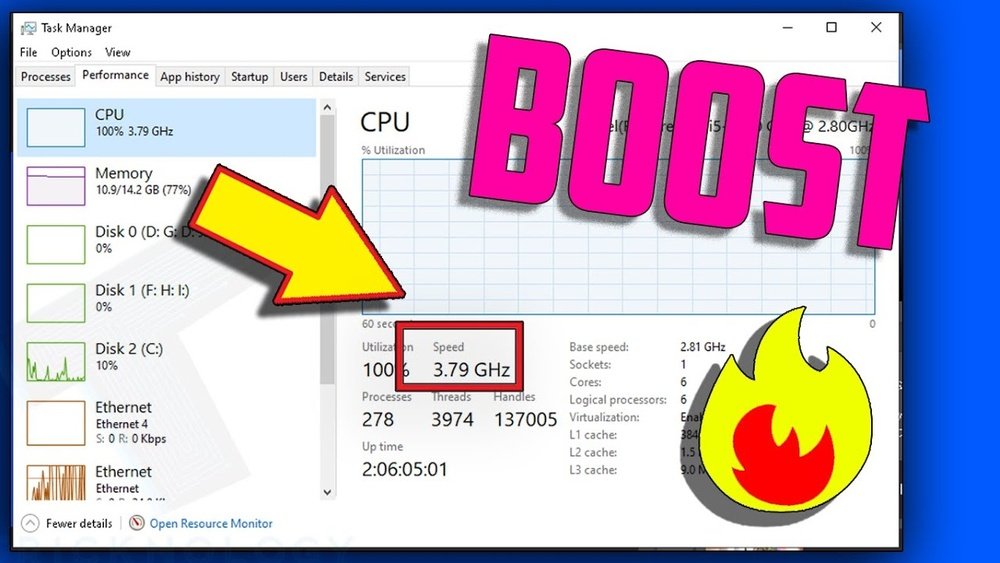
Task Manager shows all running programs and processes. Open it by pressing Ctrl + Shift + Esc. Look under the “Processes” tab to see CPU usage. Sort the list by CPU to find heavy users. Watch for apps that use too much CPU over time. This tool helps you spot which processes slow your system.
End Unneeded Processes
Ending unneeded processes stops them from using CPU power. Select the process in Task Manager. Click “End Task” to close it safely. Avoid stopping system or important programs. Focus on apps you do not use or recognize. This frees CPU resources and speeds up your computer. Repeat checking often to keep your PC running well.

Credit: www.reddit.com
Adjust Power Settings
Adjusting your computer’s power settings can help the CPU run better. Power settings control how your computer uses energy. Changing these settings can improve speed and performance. You can make your CPU work faster without extra hardware.
Switch To High-performance Mode
High-Performance Mode allows your CPU to use more power. This mode stops the computer from saving energy by slowing down the processor. Your CPU runs at higher speeds, which helps programs run smoother. To switch, open the Control Panel and find Power Options. Select the High-Performance plan to improve CPU speed instantly.
Customize Power Plan Options
Customizing your power plan lets you control CPU behavior more precisely. You can set how fast the CPU runs when plugged in or on battery. Adjust the minimum and maximum processor state to keep the CPU active. Lower the sleep time and turn off hard disk quickly. These changes keep your CPU ready and responsive for any task.
Clean And Cool The Cpu
Keeping your CPU clean and cool is key to better performance. Dirt and heat can slow it down. Proper care helps your computer run faster and last longer.
Remove Dust And Debris
Dust builds up inside your computer over time. It blocks air and traps heat. Turn off your PC and unplug it first. Use a soft brush or compressed air to clear dust from fans, vents, and the CPU heat sink. Do this gently to avoid damage. Regular cleaning keeps parts working well.
Improve Airflow And Cooling
Good airflow moves heat away from the CPU. Keep cables tidy to avoid blocking air paths. Add extra case fans if needed. Use cooling pads for laptops to lower temperature. Check that all fans spin properly. Cooler CPUs run faster and last longer.
Use Performance-boosting Tools
Improving your CPU’s performance can be easier than you think. Performance-boosting tools help your computer run smoother. They remove unnecessary files and manage resources well. Using these tools regularly keeps your system healthy and fast.
Cpu Optimization Software
CPU optimization software improves how your processor works. It adjusts settings to use CPU power efficiently. These tools stop apps from using too much CPU. They also balance the load during heavy tasks. This helps prevent slowdowns and overheating. Some programs offer real-time monitoring for your CPU.
System Cleaning Utilities
System cleaning utilities remove junk files and temporary data. These files take up space and slow down your CPU. Cleaning tools clear cache, old logs, and unused programs. They also fix broken registry entries. A clean system means your CPU can focus on important tasks. Running these utilities regularly keeps your PC fast and stable.
Optimize Virtual Memory
Virtual memory helps your CPU manage tasks smoothly. It acts as extra space when your RAM is full. Optimizing this memory can improve your computer’s speed and stability. Adjusting the virtual memory settings ensures your system uses space wisely. This process can reduce slowdowns and prevent crashes during heavy use.
Adjust Paging File Size
The paging file is a section on your hard drive used as virtual memory. Setting the right size improves performance. Start by opening your system settings. Find the virtual memory or paging file option. Choose a custom size instead of letting the system manage it automatically.
Set the initial size to the amount of your RAM. Double the RAM size for the maximum size. This balance prevents the file from being too small or too large. Save the changes and restart your computer. This simple step can help your CPU handle more tasks smoothly.
Set Optimal Virtual Memory
Optimal virtual memory depends on your RAM and usage needs. More RAM may require less virtual memory. Less RAM means you need more virtual memory space. Avoid setting very high values, as this can slow your system.
Check your computer’s usage in the task manager. Adjust the virtual memory based on how much RAM you use daily. Keep the paging file on the fastest drive, preferably an SSD. This setup helps the CPU access virtual memory quickly. Regularly monitor and tweak settings for the best results.

Credit: www.youtube.com
Overclocking Basics
Overclocking is a popular way to make a CPU run faster than its default speed. It pushes the processor beyond its factory settings. This can improve performance for tasks like gaming and video editing. Overclocking is not difficult but requires careful steps. Understanding the basics helps avoid damage and keeps your system stable.
Understand Overclocking Risks
Overclocking increases the CPU’s heat output. Too much heat can cause permanent damage. It may also reduce the lifespan of your processor. Some CPUs may become unstable and crash often. Your computer’s warranty might not cover damage from overclocking. Power consumption also rises, which can affect your electricity bill. Knowing these risks helps you decide if overclocking is worth it.
Steps To Safely Overclock
Start by checking your CPU temperature and baseline speed. Use reliable software to monitor these values. Increase the CPU clock speed in small steps. After each increase, test for stability using stress tests. Watch the temperature closely during tests. If temperatures rise too high, stop increasing. Adjust the CPU voltage carefully if needed, but keep it low. Save your settings once stable. Keep your system cool with good fans or liquid cooling.
Upgrade Hardware Components
Upgrading hardware components can improve your CPU’s performance significantly. It helps your computer handle tasks faster and run smoothly. Simple hardware changes can reduce lag and speed up response times.
Some upgrades focus on memory and storage. These parts work closely with the CPU to process data quickly. Improving them supports your CPU and enhances overall system speed.
Add More Ram
RAM, or random access memory, stores data your CPU uses right now. More RAM means your computer can handle more tasks at once. It reduces slowdowns caused by limited memory. Upgrading RAM is often simple and cost-effective. It gives your CPU room to work without delay.
Consider Ssd For Faster Performance
Switching to an SSD, or solid-state drive, speeds up data access. SSDs read and write files faster than traditional hard drives. This results in quicker boot times and faster program launches. An SSD helps your CPU get data quickly, reducing wait times. Installing an SSD is a smart way to boost performance.
Frequently Asked Questions
How Can I Improve My Cpu Performance Quickly?
To improve CPU performance quickly, close unnecessary apps, update drivers, and clean temporary files. Restart your PC to free up resources and optimize speed.
What Software Helps Optimize Cpu Speed Effectively?
CPU optimization tools like CCleaner and Advanced SystemCare clean junk files and manage startup programs. These tools enhance system efficiency and improve CPU speed easily.
Does Upgrading Cpu Cooling Boost Performance?
Yes, upgrading your CPU cooling system lowers temperatures, preventing thermal throttling. Cooler CPUs maintain higher speeds consistently, improving overall performance and longevity.
How Does Disabling Startup Programs Affect Cpu Speed?
Disabling startup programs reduces CPU load during boot, speeding up startup time. It frees resources for active tasks, enhancing CPU responsiveness and system efficiency.
Conclusion
Improving your CPU’s performance is easier than it seems. Regular cleaning and updates keep it running smooth. Close unused programs to free up power. Check for viruses and remove them fast. Simple changes can make a big difference. Your computer will work faster and last longer.
Keep these tips in mind for better speed. Small steps lead to better results every day. Stay patient and watch your CPU improve.
