
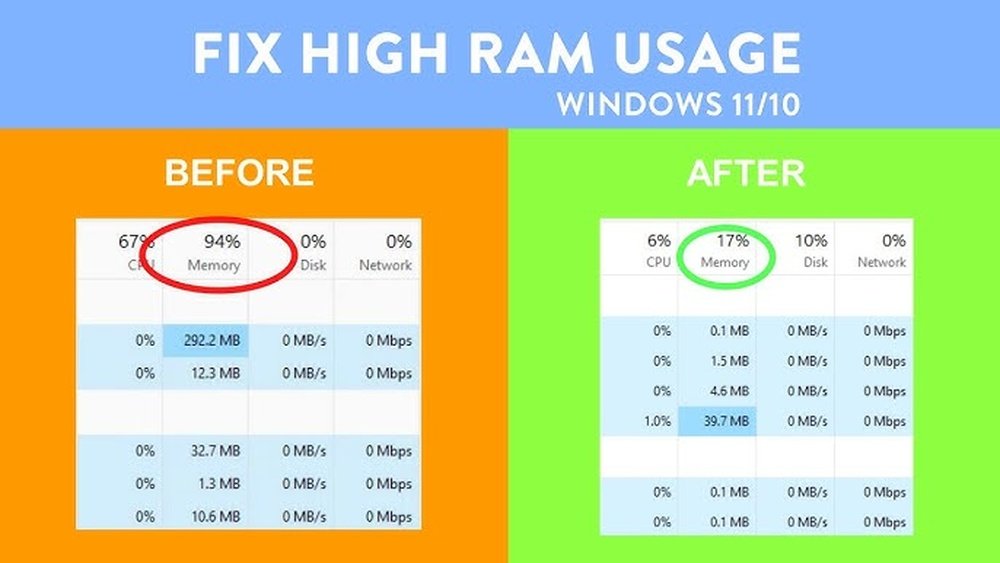
Is your computer slowing down just when you need it most? High RAM usage can make your device lag, freeze, or even crash, leaving you frustrated and unproductive.
But what if you could take control and make your computer run smoother, faster, and more efficiently? You’ll discover simple and effective ways to lower your RAM use, so you can get more done without upgrading your hardware. Keep reading, and unlock the secrets to a faster, hassle-free computing experience.

Credit: www.youtube.com
Identify High Ram Usage
Identifying high RAM usage is the first step to reduce memory problems. It helps find which programs use too much memory. You can then decide what to close or change. This saves your computer from slowing down or freezing.
Checking RAM use often can keep your system fast. It also helps avoid crashes caused by memory overload. Two simple ways to spot heavy RAM users are through Task Manager and app inspection.
Check Task Manager
Task Manager shows all running programs and their memory use. Press Ctrl + Shift + Esc to open it quickly. Go to the “Processes” tab. Here, you see how much RAM each app uses in real-time.
Look for apps with high memory numbers. These are the ones using the most RAM. You can sort the list by clicking the “Memory” column. This puts the biggest users at the top. It makes spotting heavy apps easier.
Spot Memory-hungry Apps
Some apps need more RAM than others by design. Browsers with many tabs or video editors often use a lot. Games and virtual machines also eat up memory fast. Watch out for apps that use more RAM than usual.
Close or restart apps that use too much memory. Sometimes, apps have memory leaks that grow over time. Restarting frees up RAM and improves speed. Keep track of apps that often cause high RAM use.
Optimize Startup Programs
Optimizing startup programs can help lower RAM use and make your computer faster. Many apps start automatically when your PC boots up. These apps use RAM even if you do not need them right away. Stopping unnecessary programs from running at startup frees up memory and improves performance.
Disable Unnecessary Apps
Open the task manager or system settings to see startup apps. Find programs that you rarely use or do not need immediately. Disable these apps from starting automatically. This stops them from using RAM in the background. Only keep essential programs enabled for startup.
Manage Background Processes
Some apps run in the background even if not open. These processes consume RAM and slow down your PC. Use the task manager to check background processes regularly. End tasks that are not important or that you do not recognize. This will reduce RAM use and keep your system running smoothly.
Clean Up System Memory
Cleaning up system memory is a key step to lower RAM use on your computer. Over time, memory gets filled with unused data and running programs. This slows down your PC and can cause crashes. Clearing this clutter frees up space and helps your system run smoother.
Some simple actions clear system memory effectively. They stop unnecessary processes and remove temporary files. You don’t need to be a tech expert to do this. Basic tools and habits make a big difference in RAM use.
Use Ram Cleaning Tools
RAM cleaning tools help clear memory fast. They find and close apps using too much RAM. These tools also remove temporary files and cache data. Many free programs work well and are easy to use. Run these tools regularly to keep memory clean. This reduces lag and improves performance.
Restart Your Pc Regularly
Restarting your PC clears the memory automatically. It shuts down all running programs and services. This resets the RAM and frees up space. Restart at least once a day or every few days. This simple step prevents memory overload. Your computer will respond faster and work better.
Adjust Virtual Memory Settings
Adjusting virtual memory settings can help lower RAM use and improve computer speed. Virtual memory acts like extra RAM by using part of your hard drive. Proper settings make your system run smoother and avoid crashes.
Increase Paging File Size
The paging file is the space on your hard drive used as virtual memory. Increasing its size gives your system more room to work. Open system settings and find virtual memory options.
Set a custom size by increasing both the initial and maximum values. Use a size at least 1.5 times your RAM for good performance. This helps reduce RAM load during heavy tasks.
Let Windows Manage Virtual Memory
Windows can automatically manage virtual memory for you. This option adjusts the paging file size based on your needs. It is simple and works well for most users.
To enable this, go to virtual memory settings and select the automatic management option. Windows will handle changes without any extra effort from you. This keeps your system balanced and stable.
Update Software And Drivers
Updating software and drivers is a simple way to reduce RAM use. Outdated software can cause programs to use more memory than needed. Updates fix bugs and improve efficiency. This helps your computer run smoother and faster.
Keeping your system and drivers current also prevents crashes and freezes. It ensures your hardware works well with software. Regular updates keep your PC healthy and responsive.
Install Latest Windows Updates
Windows updates include important fixes and improvements. They optimize memory management and system performance. Open Settings and go to Update & Security. Click on Check for updates and install any available updates. Restart your computer to apply changes. This keeps your system stable and efficient.
Update Device Drivers
Drivers control how hardware communicates with Windows. Old drivers can cause high RAM use and slowdowns. Open Device Manager to see your devices. Right-click each device and select Update driver. Choose Search automatically for updated driver software. Updated drivers improve performance and reduce memory usage. Repeat this regularly for best results.

Credit: superuser.com
Limit Browser Ram Usage
Browsers often use a lot of RAM, especially with many tabs and extensions open. Limiting browser RAM usage helps your computer run faster and smoother. Simple steps can reduce memory load and improve performance.
Close Unused Tabs
Each browser tab uses RAM, even if you are not using it. Closing tabs you do not need frees up memory quickly. Keep only important tabs open to reduce RAM usage.
Use bookmarks to save pages for later instead of keeping tabs open. This keeps your browser light and responsive.
Use Lightweight Extensions
Extensions add features but also increase RAM use. Choose simple, lightweight extensions that do not use much memory. Avoid installing too many extensions at once.
Remove extensions you rarely use. This helps keep browser memory use low and speeds up browsing.
Manage Visual Effects
Visual effects on your computer make it look nice. But they use a lot of RAM. Managing these effects helps free up memory. This speeds up your computer and improves performance.
Reduce Animations
Animations use RAM to show smooth movements. Turning off or reducing animations saves memory. You can find animation settings in your system preferences. Choose to disable fade effects, slide menus, and other motion features. This simple step makes your computer run faster.
Switch To Basic Themes
Fancy themes use more RAM with extra colors and effects. Switching to a basic or classic theme reduces memory use. Basic themes have fewer colors and no special effects. This helps your system use less RAM and work more efficiently.

Credit: www.reddit.com
Upgrade Hardware Options
Upgrading your hardware can significantly reduce RAM usage and improve overall system speed. Simple changes to your computer’s components help manage memory better. These upgrades make your system run smoother, especially during heavy tasks.
Add More Ram
Adding more RAM is a direct way to lower memory pressure. More RAM means your computer can hold more data at once. This reduces the need to swap data with slow storage. It helps programs run without slowing down. Check your system’s maximum RAM capacity before buying new modules. Choose RAM that matches your motherboard’s speed and type. Installing extra RAM is often easy and affordable.
Consider Ssd For Faster Performance
Switching to a Solid State Drive (SSD) speeds up data access dramatically. SSDs load files faster than traditional hard drives. This reduces the load on RAM by making virtual memory more efficient. When RAM is full, your system uses disk space as extra memory. With an SSD, this process is much quicker. It helps your computer handle more applications smoothly. Upgrading to an SSD is a smart step for better performance.
Frequently Asked Questions
How Can I Reduce Ram Usage On My Computer?
Close unused programs and browser tabs to free RAM. Disable startup apps and background processes. Use lightweight software alternatives. Regularly restart your device to clear memory.
What Tools Help Monitor And Manage Ram Usage?
Task Manager on Windows and Activity Monitor on Mac show RAM use. Third-party apps like RAMMap or CleanMem help optimize memory. These tools identify memory-heavy programs for better management.
Does Adding More Ram Improve Computer Speed?
Yes, adding RAM boosts multitasking and overall speed. It prevents slowdowns when running multiple apps simultaneously. However, upgrading RAM only helps if your current RAM is insufficient.
How Does Disabling Startup Programs Lower Ram Use?
Startup programs consume RAM immediately after booting. Disabling unnecessary startup apps frees memory for active tasks. This results in faster boot times and better system performance.
Conclusion
Lowering RAM use helps your computer run faster and smoother. Close apps you don’t need to save memory. Regularly restart your device to clear temporary files. Check for software updates to improve performance. Avoid running many programs at once. Use lightweight versions of apps when possible.
These simple steps reduce RAM use and improve speed. Try them today for better computer performance. Small changes make a big difference.
