
Is your computer running slow or overheating? High CPU usage might be the culprit.
When your CPU works too hard, everything feels sluggish, and your tasks take longer. But don’t worry—you can fix this. You’ll discover simple and effective ways to lower your CPU usage right now. Imagine your computer running smoothly again, letting you get things done faster and without frustration.
Keep reading, and you’ll learn exactly how to make that happen.

Credit: us.norton.com
Identify High Cpu Usage
High CPU usage can slow down your computer. It can cause programs to freeze or respond slowly. Finding the cause is the first step to fixing it.
You need to see which programs use the most CPU power. This helps you understand what is making your computer slow. Use tools built into your computer for this task.
Check Task Manager
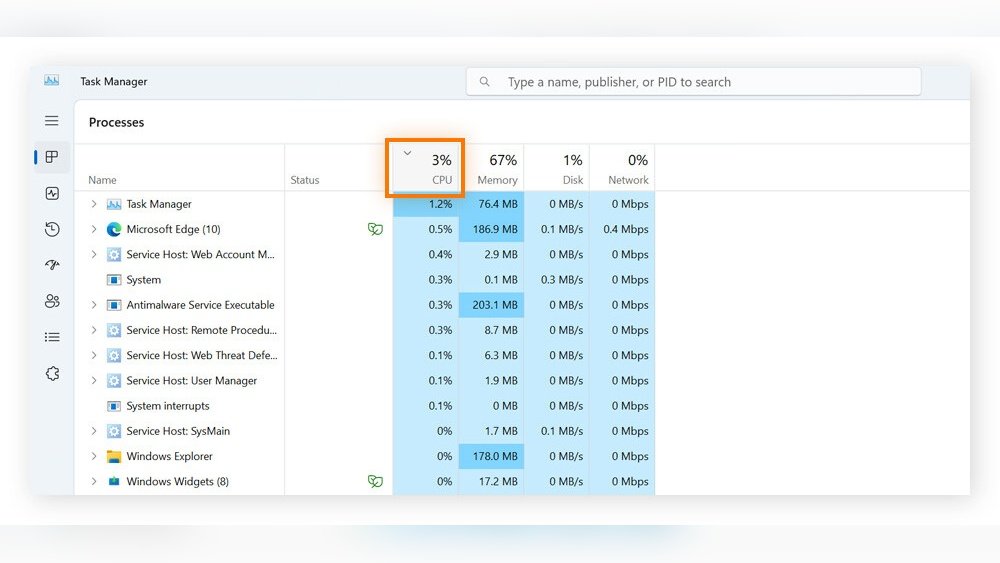
Task Manager shows what is running on your computer. Open it by pressing Ctrl + Shift + Esc. You will see a list of apps and processes.
Look at the CPU column. It tells you how much CPU each task uses. Sort by CPU to see the highest users first. This helps find what uses the most CPU.
Spot Resource-hungry Apps
Some apps use more CPU than others. Games, video editors, and browsers with many tabs often use more power. Watch for apps using over 50% CPU.
If an app uses too much CPU, it may need an update or restart. Sometimes, closing that app can lower CPU usage quickly. Keep an eye on apps that always use a lot.
Close Unnecessary Programs
High CPU usage can slow down your computer. Closing unnecessary programs helps free up CPU power. This step improves speed and responsiveness. Focus on stopping programs that run without your need. Less running software means your CPU works better.
End Background Processes
Background processes use CPU without showing on your screen. Open the Task Manager by pressing Ctrl + Shift + Esc. Look for apps using high CPU in the Processes tab. Select the unwanted process and click End Task. Do not stop system processes or programs you need. This frees CPU for important tasks.
Disable Startup Apps
Many programs start automatically when your PC boots. These apps slow down your CPU from the start. Open Task Manager and go to the Startup tab. Identify apps that you do not need at startup. Right-click and choose Disable for those apps. This speeds up boot time and lowers CPU load.
Update Software And Drivers
Keeping your software and drivers updated helps lower CPU usage effectively. Updates fix bugs and improve performance. Updated programs run smoother and use less CPU power.
Old software can slow your system. It may cause high CPU usage. Updating makes your computer faster and more stable. It also protects against security risks.
Install System Updates
Check for system updates regularly. These updates improve your operating system. They fix errors that cause CPU spikes. Windows, macOS, and Linux offer automatic updates. Turn on this feature to stay current.
System updates include security patches. They help your computer run safely. Updates also improve system compatibility. This reduces background CPU load and errors.
Update Device Drivers
Device drivers control hardware like your graphics card and sound device. Outdated drivers can cause high CPU use. New driver versions fix bugs and improve efficiency.
Visit your device manufacturer’s website for driver updates. Use tools like Device Manager on Windows to check driver status. Updating drivers ensures hardware works well with your system.
Scan For Malware
High CPU usage can slow down your computer a lot. Malware often causes this problem. Malicious software runs in the background and uses CPU power. Scanning for malware helps find and remove these harmful programs. This step is important to keep your PC fast and safe.
Run Antivirus Scan
Start with a full antivirus scan. Most antivirus programs check all files and processes. They detect viruses, spyware, and other threats. Run the scan during a time you do not use the computer. This helps the scan finish without interruptions. After the scan, follow the antivirus instructions to remove threats.
Use Malware Removal Tools
Sometimes, antivirus software misses some malware. Use special malware removal tools for a deeper check. These tools target specific threats like adware or rootkits. Download trusted tools from official websites only. Run the tool and let it clean your system. This step helps reduce hidden CPU usage caused by malware.
Adjust Power Settings
Adjusting your computer’s power settings can help reduce high CPU usage. Power settings control how your CPU works. Changing these settings can make your CPU run more efficiently. This can lower the CPU load and improve your system’s performance.
Switch To Balanced Or High Performance
Switching your power plan to Balanced or High Performance helps your CPU run better. The Balanced plan saves energy but gives your CPU enough power when needed. High Performance keeps your CPU running at full speed all the time. Both plans can reduce CPU strain compared to power-saving modes.
Disable Power Saving Modes
Power saving modes limit your CPU to save energy. This can cause high CPU usage spikes. Disabling these modes lets your CPU work smoothly. This reduces sudden CPU load and keeps your system stable. Check your power settings and turn off any power-saving options.
Manage System Cooling
Managing system cooling helps reduce CPU usage by keeping your computer cool. A hot CPU works harder and slows down. Cooling your system improves performance and extends hardware life.
Simple steps can lower temperatures and ease CPU stress. Focus on cleaning and airflow for better cooling.
Clean Dust From Hardware
Dust blocks air vents and fans. It traps heat inside your computer. Regularly clean dust from fans, vents, and heatsinks. Use compressed air or a soft brush. Turn off and unplug your PC before cleaning. Clean hardware helps air flow freely, cooling the CPU better.
Improve Airflow
Good airflow moves hot air out and brings cool air in. Keep cables tidy to avoid blocking vents. Place your computer in an open area, not inside a closed desk. Add extra fans if needed. Proper airflow keeps the CPU cooler and lowers usage.
Optimize System Settings
Optimizing system settings can help lower your CPU usage significantly. Many default settings on your computer use more power than needed. Tweaking these can free up resources and make your PC run smoother. Simple changes can reduce background processes and improve performance.
Adjust Visual Effects
Visual effects like animations and shadows make your screen look nice. But they also use extra CPU power. Turning off or reducing these effects can lower CPU use. To do this, open your system settings and find the performance options. Choose “Adjust for best performance” or manually turn off effects like animations, shadows, and transparency. This helps your CPU focus on important tasks.
Limit Background Services
Many services run in the background without your knowledge. They use CPU resources even if you do not need them. Open the Task Manager or System Configuration to see these services. Disable or set to manual any that are not essential. This stops unnecessary programs from using CPU power. Keep only the services needed for your daily work or system functions.

Credit: www.avast.com
Upgrade Hardware
Upgrading your hardware can help lower CPU usage significantly. It gives your computer more power to handle tasks. This reduces the load on the CPU and improves performance. Small upgrades can make a big difference in how smoothly your system runs.
Add More Ram
Adding more RAM helps your computer work faster. RAM stores data your CPU uses often. When RAM is low, the CPU works harder to get data from slower storage. More RAM means less work for your CPU. It reduces CPU spikes and keeps your system stable. This upgrade is simple and often affordable.
Consider A Better Cpu
A stronger CPU can process tasks quickly and efficiently. Older or low-end CPUs may struggle with modern software. Upgrading to a better CPU reduces high usage issues. It handles more tasks at once without slowing down. Check your motherboard compatibility before choosing a new CPU. This upgrade improves overall system speed and responsiveness.

Credit: www.avg.com
Frequently Asked Questions
How Can I Reduce High Cpu Usage On Windows?
Close unnecessary programs running in the background. Use Task Manager to identify resource-heavy processes. Disable startup programs that slow your PC. Keep your system updated to fix bugs affecting CPU use.
What Causes Cpu Usage To Spike Suddenly?
CPU spikes often result from software updates, malware, or background tasks. Heavy applications and browser tabs can also cause sudden usage increases. Regularly scanning for viruses and closing unused apps helps maintain stable CPU levels.
Does Updating Drivers Lower Cpu Usage?
Yes, updating drivers can optimize hardware performance and reduce CPU load. Outdated drivers may cause inefficiencies that increase CPU usage. Regular updates ensure better compatibility and smoother operation.
Can Malware Increase My Cpu Usage?
Malware often runs hidden processes that consume CPU resources. This leads to slow system performance and overheating. Running a full antivirus scan and removing threats helps lower CPU usage effectively.
Conclusion
Lowering your CPU usage helps your computer run smoother and faster. Close programs you don’t need and check for viruses often. Keep your system updated and clean from dust inside. Simple steps like these reduce strain on your CPU. You can enjoy better performance and less frustration.
Try these tips regularly to keep your computer healthy. Small changes make a big difference in speed and stability. Stay patient and watch your CPU usage drop over time.
