
Is your GPU running hotter than it should? High temperatures can slow down your computer, cause crashes, and even shorten your GPU’s lifespan.
But don’t worry—you don’t have to be a tech expert to fix this. You’ll discover simple and effective ways to lower your GPU temps. By the time you finish reading, you’ll know exactly how to keep your graphics card cool, boost its performance, and protect your investment.
Ready to stop overheating and start optimizing? Let’s dive in!

Credit: www.youtube.com
Causes Of High Gpu Temperatures
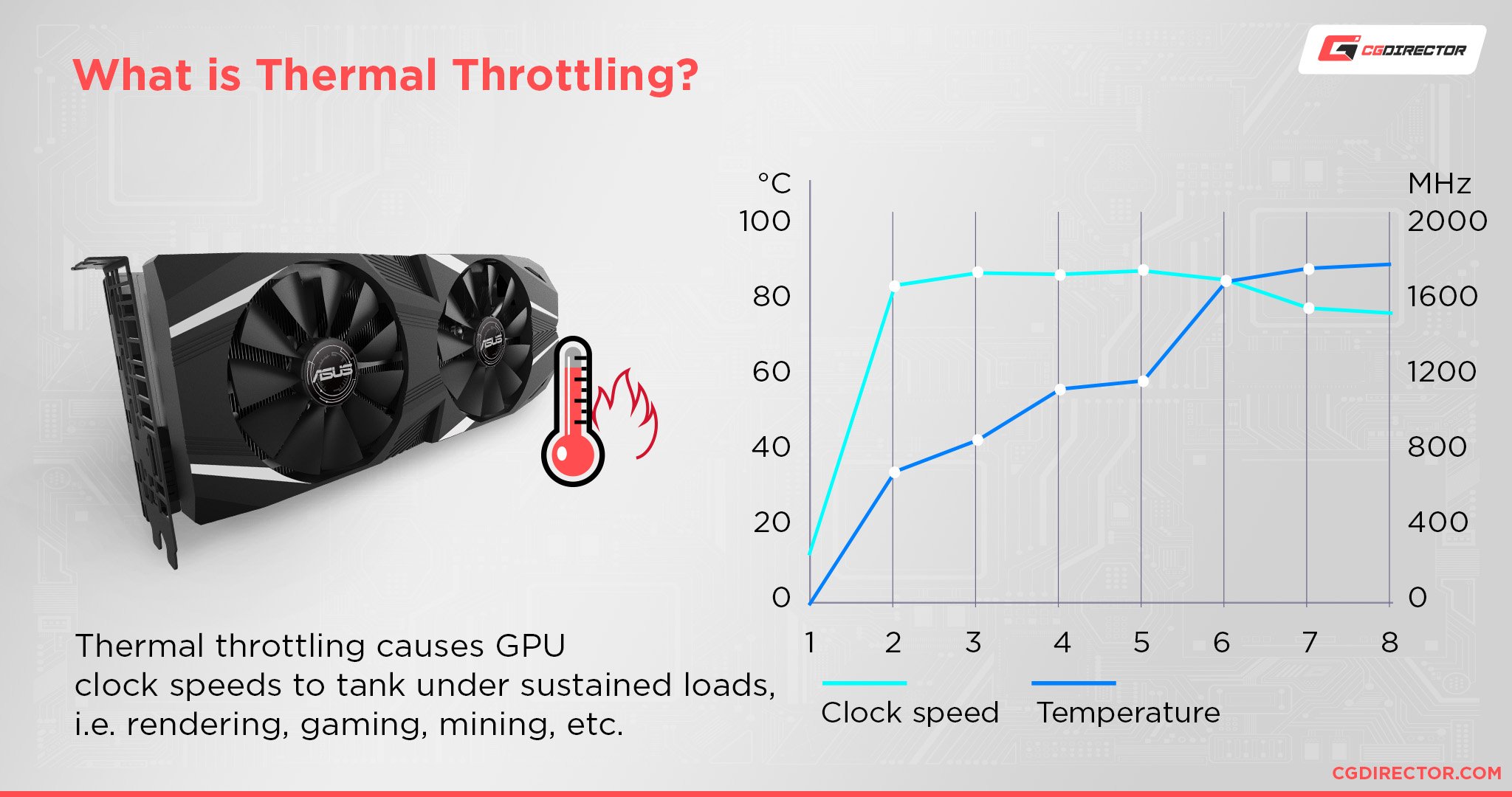
High GPU temperatures can cause your computer to slow down or even shut off. Knowing what causes these high temperatures helps keep your system safe and fast. Many factors can lead to overheating, and some are easy to fix.
Overclocking Effects
Overclocking makes the GPU run faster than its normal speed. This extra speed creates more heat. Without better cooling, the GPU temperature rises quickly. Overclocking pushes your hardware beyond its limits. It needs stronger cooling to stay safe.
Poor Airflow
Good airflow inside your computer case moves hot air away. Poor airflow traps heat around the GPU. Blocked vents and crowded cables stop air from flowing. This causes the GPU to get hotter. Keeping vents clear helps maintain lower temperatures.
Dust And Dirt Build-up
Dust sticks to fans and cooling parts. It blocks air from moving freely. Dust makes fans spin slower or stop working. Heat stays trapped near the GPU. Cleaning dust regularly keeps your GPU cooler and working well.
Thermal Paste Degradation
Thermal paste helps transfer heat from the GPU to its cooler. Over time, this paste dries out or cracks. Poor heat transfer causes the GPU temperature to rise. Reapplying thermal paste improves cooling and lowers heat. It is a simple fix for high temperatures.
Credit: www.servermania.com
Optimizing Airflow In Your Pc
Optimizing airflow inside your PC helps lower GPU temperatures efficiently. Good airflow moves hot air out and brings cool air in. This keeps your GPU and other parts from overheating. Simple changes inside your PC case can improve airflow a lot. Focus on how you place fans, manage cables, and choose the right case for better cooling.
Case Fan Placement
Place fans to create a steady airflow path. Front and bottom fans should pull cool air inside. Rear and top fans should push hot air outside. This setup moves heat away from your GPU quickly. Avoid blocking fans with other parts or cables. Balanced intake and exhaust fans keep air moving well.
Cable Management
Organize cables to prevent airflow blockage. Use ties or Velcro to bundle cables neatly. Keep cables away from fans and air paths. Clear paths help air flow freely across your GPU. Good cable management also makes your PC look tidy.
Choosing The Right Case
Pick a case with good ventilation and fan support. Cases with mesh panels allow more air inside. Check for enough space around the GPU for airflow. Bigger cases often have better cooling options. A well-ventilated case helps keep GPU temperatures low.
Improving Gpu Cooling Solutions
Improving GPU cooling solutions helps keep your graphics card running cool. Lower temperatures increase performance and extend the GPU’s life. There are several ways to improve cooling beyond stock options. These methods can fit different budgets and skill levels.
Aftermarket Gpu Coolers
Aftermarket GPU coolers replace the original cooling system. They often have bigger heatsinks and better fans. These coolers provide more airflow and improved heat dissipation. Installing one can lower your GPU temperature by several degrees. Make sure the cooler fits your GPU model before buying. This upgrade is a great option for serious gamers or creators.
Liquid Cooling Options
Liquid cooling uses water or coolant to remove heat. It moves heat away from the GPU faster than air coolers. This method keeps temperatures very low, even under heavy use. You can choose between all-in-one (AIO) kits or custom loops. Liquid cooling needs more maintenance but offers excellent results. It suits users who want quiet and efficient cooling.
Fan Speed Adjustments
Adjusting fan speed helps control GPU temperatures. Increasing fan speed boosts airflow and cools the GPU faster. Use software tools like MSI Afterburner to change fan curves. Set fans to spin faster at lower temperatures for better cooling. Keep in mind, higher speeds create more noise. This method is easy and free for most users.
Maintaining Your Gpu
Maintaining your GPU is key to keeping it cool and running well. Regular care helps avoid overheating and keeps your system stable. Simple steps can extend your GPU’s life and improve performance.
Cleaning Dust Regularly
Dust buildup blocks airflow and traps heat. Clean your GPU and case every few months. Use a soft brush or compressed air to remove dust. Keep vents and fans clear for better cooling.
Replacing Thermal Paste
Thermal paste helps transfer heat from the GPU chip to the cooler. Over time, it dries out and loses effectiveness. Replace it every 1-2 years for better heat transfer. Apply a thin, even layer for best results.
Monitoring Temperature Software
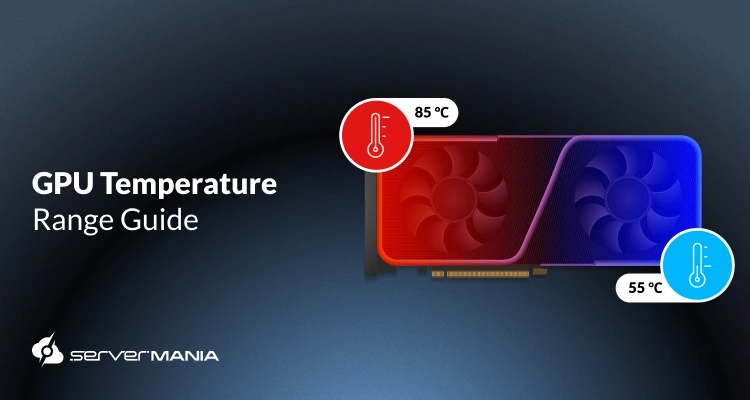
Use software tools to check your GPU temperature often. Programs like MSI Afterburner or HWMonitor show real-time data. Watch for temperatures above 80°C during use. Early alerts help prevent damage and keep your GPU safe.
Software Tweaks For Lower Temps
Software tweaks can help lower your GPU temperatures effectively. These changes optimize how your GPU runs without needing extra hardware. They can reduce heat and improve performance.
Many tools allow easy adjustments to power and fan settings. Small changes often lead to big improvements in temperature control. These tweaks are safe when done carefully and can extend your GPU’s life.
Undervolting Your Gpu
Undervolting lowers the voltage your GPU uses. This reduces heat output while keeping the same speed. Use software like MSI Afterburner to adjust voltage settings. Test stability by running games or stress tests after changes. Lower voltage means less power consumed and cooler GPU.
Adjusting Power Limits
Power limits control how much energy your GPU can use. Reducing the power limit lowers temperature and power draw. This can stop your GPU from running too hot. Use tools like EVGA Precision X1 or AMD Radeon Software. Keep performance balance by testing after each change.
Using Custom Fan Curves
Custom fan curves change fan speed based on temperature. Fans spin faster at higher temps, cooling the GPU better. This keeps temperatures low without constant loud noise. Create curves using MSI Afterburner or other GPU software. Adjust curve points to fit your needs and noise comfort.
Credit: www.cgdirector.com
Environmental Factors
Environmental factors play a key role in lowering GPU temperatures. The space around your PC affects how well it stays cool. Small changes in the environment can reduce heat buildup. Understanding these factors helps keep your GPU safe and fast.
Room Temperature Effects
Room temperature directly affects GPU heat. Cooler rooms help keep your GPU temperature low. Warm rooms make your GPU work harder to cool down. Aim for a room temperature below 75°F (24°C) for better cooling. Use air conditioning or fans if the room is hot.
Proper Pc Placement
Place your PC in a spot with good airflow. Avoid tight spaces like closed cabinets. Open areas allow heat to escape quickly. Keep your PC away from walls and corners. Elevate the PC to reduce dust and improve ventilation.
Avoiding Heat Sources
Keep your PC away from heat sources like heaters and direct sunlight. Heat sources raise the temperature around your PC. This makes your GPU hotter and less efficient. Move your PC to a cooler place to avoid extra heat. Heat-free zones help maintain stable GPU temps.
Frequently Asked Questions
How Can I Reduce Gpu Temperature Quickly?
To reduce GPU temperature quickly, clean dust from fans and vents. Improve airflow in your PC case. Lower in-game graphics settings. Use a cooling pad or external fan for laptops.
What Causes High Gpu Temperatures During Gaming?
High GPU temperatures during gaming are caused by intense graphics processing. Poor airflow, dust buildup, and overclocking also increase heat. Inadequate cooling solutions can worsen the problem.
Does Undervolting Help Lower Gpu Temps?
Yes, undervolting reduces GPU voltage, lowering power consumption and heat. It maintains performance while decreasing temperature. Proper undervolting requires careful testing to avoid instability.
Should I Replace Thermal Paste To Lower Gpu Temps?
Replacing thermal paste improves heat transfer from GPU to heatsink. Old or dried thermal paste can cause high temperatures. Use high-quality thermal paste and apply it correctly for best results.
Conclusion
Keeping your GPU cool helps it run better and last longer. Regular cleaning and good airflow reduce heat effectively. Adjusting fan speeds can lower temperatures fast. Using quality thermal paste also improves heat transfer. Watch your GPU temps during heavy use to avoid damage.
Small changes make a big difference in performance. Stay patient and consistent with these tips. Your GPU will thank you with smoother operation and less risk of overheating.
