
Is your GPU running hotter than it should? High temperatures can slow down your computer, cause crashes, and even damage your hardware over time.
But don’t worry—you don’t have to be a tech expert to fix this. You’ll discover simple, effective ways to lower your GPU temperature and keep your system running smoothly. Ready to protect your investment and boost your performance? Let’s dive in and find out how you can cool down your GPU today.
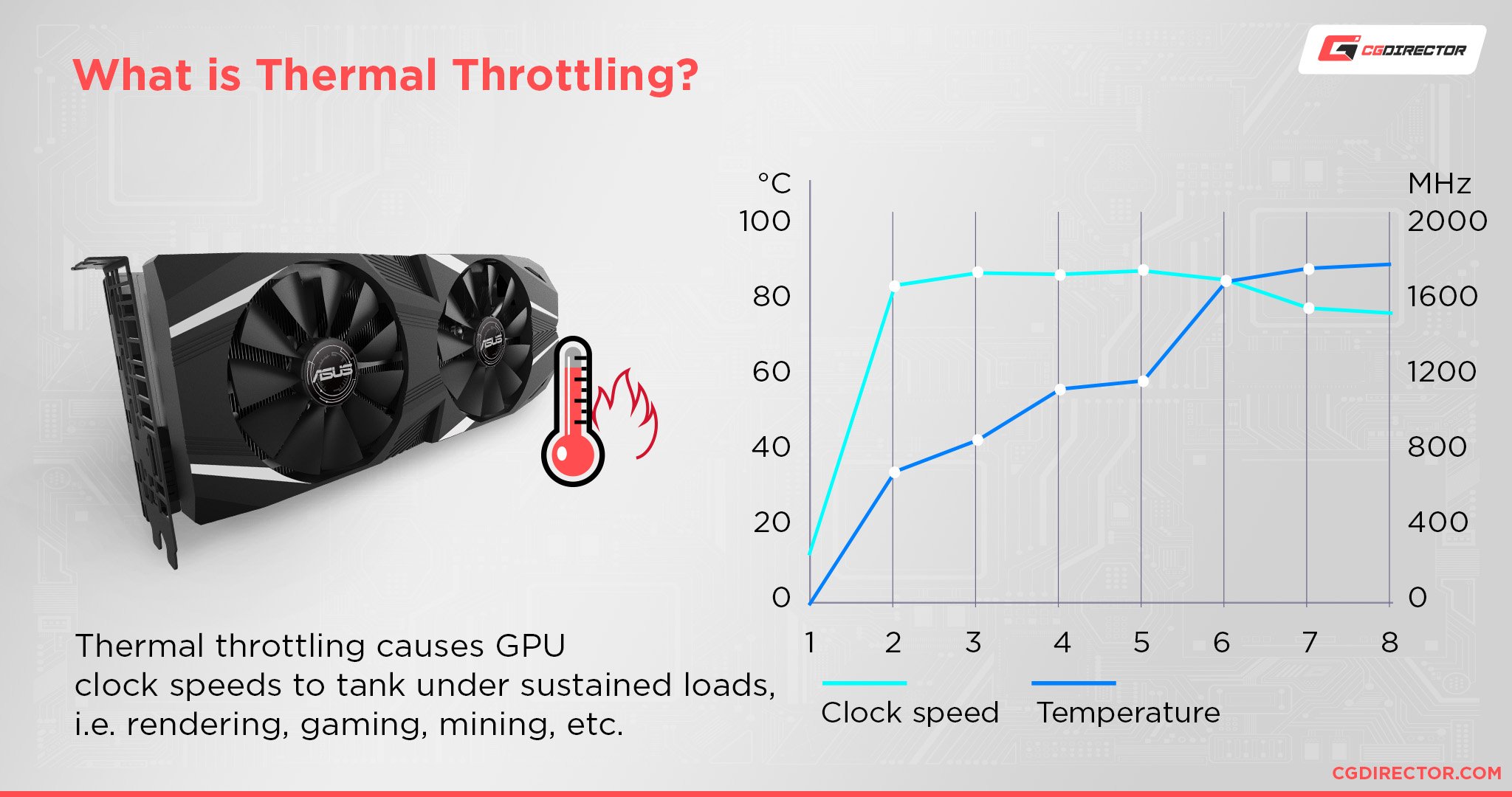
Credit: www.cgdirector.com
Causes Of High Gpu Temperature
High GPU temperature can harm your computer’s performance and lifespan. Knowing why your GPU gets too hot helps you fix the problem quickly. Several common causes raise GPU temperature beyond safe levels.
Overclocking Effects
Overclocking pushes your GPU to work faster than its standard speed. This extra power creates more heat inside the card. Without proper cooling, the GPU temperature rises quickly. Overclocking needs careful monitoring to avoid overheating.
Poor Airflow
Good airflow inside your PC case is essential for cooling. If air cannot move freely, heat builds up around the GPU. Cables and other parts can block airflow paths. A cramped or closed case often causes poor air circulation.
Dust Accumulation
Dust gathers on fans and heatsinks over time. This layer stops heat from escaping efficiently. Dust can slow down fan blades and reduce airflow. Regular cleaning helps keep your GPU cool and running well.
Thermal Paste Degradation
Thermal paste sits between your GPU and its cooler. It helps transfer heat away from the chip. Over time, thermal paste dries out and loses effectiveness. Old or poor-quality paste raises GPU temperatures by blocking heat flow.
Monitoring Gpu Temperature
Monitoring GPU temperature is key to keeping your computer safe and fast. High temperatures can cause crashes and damage parts. Checking the temperature helps you take action early. It also shows if your cooling system works well.
Best Software Tools
Many tools show GPU temperature clearly. MSI Afterburner is popular and easy to use. It shows real-time temperature and fan speed. HWMonitor gives detailed info about all hardware parts. GPU-Z focuses on graphics card details, including temperature. These tools run in the background without slowing your PC.
Safe Temperature Ranges
Most GPUs run well under 85°C during heavy use. Temperatures below 70°C are ideal for normal tasks. Keeping your GPU under 90°C prevents damage. Over 95°C is risky and may reduce GPU life. Check your GPU’s manual for exact safe limits.
Improving Airflow Inside The Case
Improving airflow inside your computer case helps lower GPU temperature. Good airflow moves hot air out and brings cool air in. It keeps your graphics card and other parts cooler. This stops overheating and helps your PC run better.
Optimizing Fan Placement
Place fans to create a clear air path inside the case. Use intake fans at the front to pull cool air in. Use exhaust fans at the back or top to push hot air out. Make sure fans do not block each other. Balanced airflow helps cool your GPU faster.
Cable Management Tips
Organize cables to avoid blocking airflow. Use zip ties or Velcro straps to bundle cables neatly. Keep cables away from fans and vents. Clear paths allow air to flow smoothly. Good cable management lowers the chance of heat buildup inside the case.
Cleaning And Maintenance
Cleaning and maintenance are key to keeping your GPU cool. Dust and old thermal paste can cause your GPU to run hot. Regular care helps improve airflow and heat transfer. This section covers safe dust removal and thermal paste replacement.
Removing Dust Safely
Dust blocks air vents and fans. It makes your GPU hotter. Use a can of compressed air to blow dust away. Hold the can upright to avoid moisture. Blow air gently on fans and heat sinks. Do not spin fans fast with air. Use a soft brush for stubborn dust. Clean your computer case too. Dust build-up inside the case reduces airflow.
Replacing Thermal Paste
Thermal paste helps transfer heat from GPU chip to cooler. Old paste dries out and loses effect. Remove your GPU carefully from the PC. Clean the old paste with isopropyl alcohol and a soft cloth. Apply a small pea-sized amount of new thermal paste on the chip. Spread it evenly if needed. Reattach the cooler firmly. This improves heat transfer and lowers temperature.
Adjusting Gpu Fan Settings
Adjusting your GPU fan settings is a practical way to lower its temperature. This helps keep your graphics card cool and prevents overheating. By controlling the fan speed, you can improve your PC’s performance and extend your GPU’s lifespan.
Using Custom Fan Curves
Custom fan curves let you set fan speeds based on GPU temperature. Fans can spin faster when the GPU gets hot. They slow down when the temperature drops. This balance reduces noise and keeps the GPU cool.
Most modern GPUs support custom fan curves through their control panels. You can create a curve by setting temperature points and fan speeds. This allows your GPU to react quickly to heat changes. It keeps your system quiet during light use and cool during heavy tasks.
Third-party Fan Control Software
Third-party software offers more options to control GPU fans. Programs like MSI Afterburner or SpeedFan help customize fan speeds easily. These tools work with many different GPU brands.
They provide detailed fan speed control and temperature monitoring. You can set rules for fan behavior based on temperature. Some software also allows manual fan speed control. This helps you keep the GPU cooler during intense use.

Credit: www.youtube.com
Upgrading Cooling Solutions
Upgrading cooling solutions is a smart step to lower your GPU temperature. Better cooling keeps your graphics card safe and improves its performance. It also helps your PC run quieter and last longer. Choosing the right cooling upgrade depends on your budget and how much heat your GPU produces.
Aftermarket Air Coolers
Aftermarket air coolers replace your GPU’s original fan and heatsink. They often have larger fans and better heat pipes. These coolers push heat away faster and keep your GPU cooler. Installation is simple for most models and fits many graphics cards. Air coolers are usually affordable and effective for moderate heat levels.
Liquid Cooling Options
Liquid cooling uses water or coolant to remove heat from the GPU. It moves heat away faster than air coolers. These systems often include a pump, radiator, and tubes. Liquid cooling can lower temperatures significantly under heavy loads. It is quieter but may cost more and require more care to install.
Optimizing Gpu Performance Settings
Optimizing GPU performance settings is key to lowering its temperature. Adjusting these settings can reduce heat without much loss of speed. This helps keep your GPU cool and stable during heavy use.
Simple tweaks inside GPU software can make a big difference. These changes control how hard your GPU works and how much power it uses. Let’s explore two effective methods that help manage temperature by changing performance settings.
Undervolting Techniques
Undervolting means lowering the voltage supplied to your GPU. This reduces power consumption and heat output. The GPU runs cooler but stays stable at lower voltages.
Most GPUs allow undervolting through their control software. Start with small voltage drops and test stability. Keep adjusting until you find the lowest stable voltage. This method saves energy and cuts down fan noise.
Reducing Clock Speeds
Clock speed is how fast your GPU works. Lowering it reduces heat generation. It also decreases power use, which helps keep the GPU cooler.
Use GPU tuning tools to reduce core and memory clock speeds. Find a balance where the GPU runs cooler but still performs well. Lower clock speeds improve temperature without big performance drops.
Credit: hone.gg
Environmental Factors To Consider
Environmental factors play a big role in controlling your GPU temperature. Small changes in your surroundings can help keep your GPU cooler. Understanding these factors helps you protect your graphics card from overheating.
Room Temperature Impact
Room temperature directly affects your GPU’s heat levels. A hot room makes your GPU work harder to stay cool. Cooler air helps your GPU release heat faster. Try to keep the room temperature low, especially during long gaming or work sessions.
A temperature around 20-22°C (68-72°F) is ideal. Avoid placing your PC near heaters or direct sunlight. Cooler room air means better airflow and less heat buildup inside your case.
Case Placement
Where you put your PC case changes how air moves around it. Place your case on a hard, flat surface to allow proper airflow. Avoid putting it inside closed cabinets or tight spaces. These spots trap hot air and raise GPU temperature.
Give your case space on all sides, especially near air vents. This space lets cool air enter and hot air exit easily. A well-placed case helps your GPU stay cool and perform better.
Frequently Asked Questions
How Can I Check My Gpu Temperature Safely?
Use software like MSI Afterburner or HWMonitor to track GPU temperature. Monitor while gaming or under load to get accurate readings. Avoid opening the case unnecessarily to prevent dust and static issues.
What Is The Ideal Gpu Temperature Range?
Optimal GPU temperatures usually range between 65°C and 85°C under load. Temperatures above 90°C may cause overheating and reduce performance. Keeping it below 85°C ensures better lifespan and stability.
Does Cleaning My Pc Lower Gpu Temperature?
Yes, dust buildup blocks airflow and raises GPU temperature. Clean fans, vents, and heat sinks regularly using compressed air. Proper cleaning improves cooling efficiency and prevents overheating issues.
Will Updating Gpu Drivers Affect Temperature?
Updating GPU drivers can optimize performance and power management. This may reduce temperature by improving efficiency during gaming or heavy tasks. Always install the latest official drivers for best results.
Conclusion
Keeping your GPU cool helps it run better and last longer. Clean fans and good airflow make a big difference. Use quality thermal paste and check your settings often. Small changes can stop your GPU from overheating. Stay aware of your computer’s temperature to avoid damage.
Cooling your GPU is simple with regular care. This keeps your system stable and games smooth. Remember, a cool GPU means better performance every time.
