
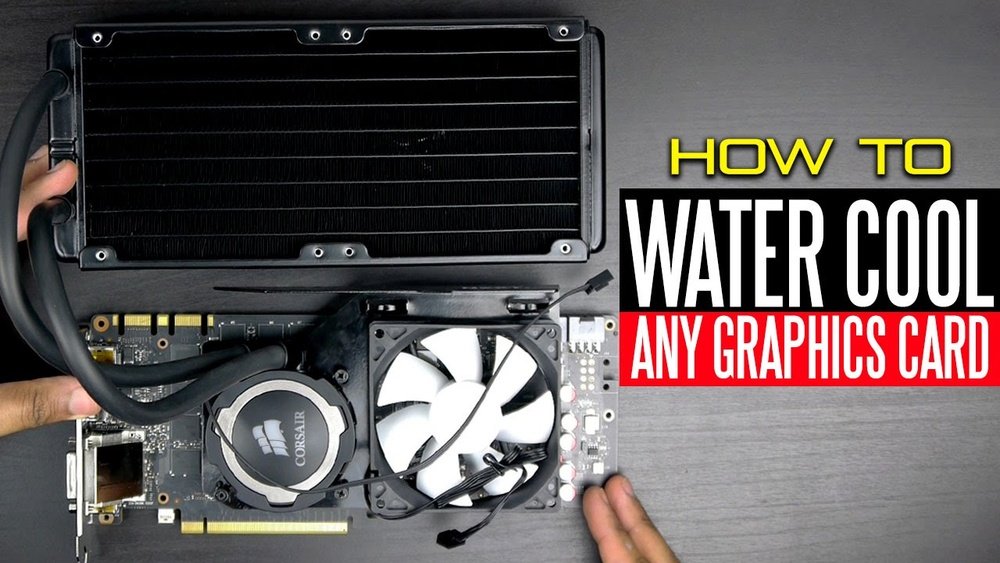
If you want your GPU to run cooler, quieter, and perform better, liquid cooling might be the solution you need. But how exactly do you liquid cool a GPU?
You might think it’s complicated or expensive, but with the right steps, you can do it yourself and enjoy the benefits right away. In this guide, you’ll learn everything you need to know—from choosing the right parts to installing your liquid cooling system safely.
Ready to take your GPU’s cooling to the next level? Keep reading, and you’ll see how simple and rewarding this upgrade can be.

Credit: www.reddit.com
Why Liquid Cool Your Gpu
Liquid cooling your GPU can be a smart choice for many users. It helps keep your graphics card cool during heavy use. Cooler temperatures mean the GPU runs better and lasts longer. Many people prefer liquid cooling over air cooling for its efficiency and quiet operation.
Benefits Over Air Cooling
Liquid cooling moves heat away from the GPU faster than air. It uses a liquid that absorbs heat and carries it to a radiator. Fans then blow the heat out of your computer case. This method cools the GPU better than just air fans alone.
Liquid cooling also makes less noise. Air coolers need big fans that can be loud. Liquid coolers use smaller, quieter fans on the radiator. This creates a quieter gaming or working environment.
Impact On Performance And Longevity
Keeping the GPU cool helps it run at higher speeds. When the GPU gets too hot, it slows down to protect itself. Liquid cooling stops this slowdown, so you get better performance.
Lower temperatures reduce wear on the GPU parts. This means your graphics card can last longer. Over time, this can save money by delaying the need for a replacement.
Types Of Liquid Cooling Systems
Liquid cooling systems help keep your GPU cool and quiet. They use liquid to move heat away from the graphics card faster than air coolers. Different types of liquid cooling systems offer various benefits and setups. Choose the right type based on your skill level, budget, and performance needs.
All-in-one (aio) Coolers
AIO coolers come pre-assembled and ready to install. They include a pump, radiator, and fans in one unit. These coolers are easy to use and need little maintenance. Most AIOs fit standard PC cases without extra work. They cool efficiently and are quieter than many air coolers.
Custom Loop Systems
Custom loops let you build a liquid cooling system from separate parts. You pick the pump, reservoir, radiator, and water blocks. This system offers the best cooling and quiet operation. Custom loops need more time and skill to install. They can cool multiple components, like CPU and GPU, in one loop.
Hybrid Cooling Solutions
Hybrid coolers combine liquid and air cooling. They use a small liquid cooler on the GPU and fans on the card itself. This setup improves cooling beyond air alone. Hybrid systems are easier to install than full custom loops. They offer a good balance of performance and simplicity.
Choosing The Right Components
Choosing the right components is key to building an effective GPU liquid cooling system. Each part must work well with others to keep your graphics card cool and safe. Picking the best parts helps avoid leaks, noise, and poor performance. This guide breaks down the main components you need for a smooth setup.
Selecting A Compatible Water Block
The water block sits directly on your GPU chip. It pulls heat away fast. Always pick a water block that matches your GPU model. Check the block’s design and size carefully. Some blocks cover only the GPU chip, while others cool memory and VRMs too. Full coverage blocks offer better cooling but cost more. Make sure the block fits your card’s layout and mounting holes.
Radiators And Fans
Radiators cool the hot liquid from the water block. Bigger radiators remove heat better. They come in different sizes like 120mm, 240mm, or 360mm. Choose radiator size based on your case space and cooling needs. Fans attach to the radiator and push air through it. Pick quiet fans with good airflow. Using more or larger fans improves cooling but can increase noise.
Pumps And Reservoirs
The pump moves coolant through the loop. A strong pump keeps the liquid flowing steadily. Weak pumps may cause overheating. Reservoirs hold extra coolant and help remove air bubbles. Some pumps come combined with reservoirs for easier installation. Make sure your pump and reservoir fit your case and have enough flow rate for your setup.
Coolant Options
Coolant carries heat away from the GPU. You can use distilled water or special liquid coolants. Distilled water is cheap and works well but needs additives to prevent corrosion. Pre-mixed coolants come with anti-corrosion and anti-algae chemicals. Colored coolants add style but may need more maintenance. Always choose coolant safe for your system materials to avoid damage.

Credit: www.worldtruck.be
Preparing Your Gpu For Liquid Cooling
Preparing your GPU for liquid cooling is a key step for better heat management. Proper preparation ensures the cooling system works well and lasts longer. It involves removing the old cooler, cleaning the GPU, and applying new thermal paste. Taking time on these tasks improves cooling performance and protects the GPU.
Removing Stock Cooling Solutions
Start by unplugging your PC and removing the GPU from the case. Unscrew and carefully lift off the stock cooler. Keep screws safe for later use. Avoid pulling hard on cables connected to the fan or heat sink. Removing the cooler exposes the GPU chip and memory modules for liquid cooling installation.
Cleaning And Inspecting The Gpu
Use a soft brush or compressed air to remove dust and debris. Clean the GPU chip and nearby parts with isopropyl alcohol and a lint-free cloth. Check for any damage or corrosion on the board and connectors. A clean and intact surface ensures better contact with the liquid cooling block.
Thermal Paste Application Tips
Apply a small pea-sized dot of thermal paste in the center of the GPU chip. Spread it evenly with a plastic card or let the cooler spread it when mounted. Avoid using too much paste; excess can reduce heat transfer. Proper paste application improves heat flow from the GPU to the liquid cooler.
Step-by-step Liquid Cooling Installation
Installing liquid cooling on your GPU can improve its performance and reduce heat. The process might seem hard, but following clear steps helps. This guide breaks down the installation into simple tasks. You will learn how to mount the water block, assemble the loop, fill and bleed the system, and test for leaks.
Mounting The Water Block
Start by removing the GPU’s original cooler. Clean the GPU chip with isopropyl alcohol. Place thermal paste on the GPU chip for better heat transfer. Align the water block carefully over the chip. Secure the block using screws provided with the block. Tighten screws evenly to avoid damage.
Assembling The Loop
Gather all parts: pump, radiator, reservoir, and tubing. Connect tubing from the water block to the pump outlet. Attach tubing from pump to radiator inlet. Connect radiator outlet to the reservoir. Ensure all fittings are tight but not over-tightened. Cut tubes to proper length to avoid kinks.
Filling And Bleeding The System
Fill the reservoir with coolant slowly. Use a funnel to avoid spills. Turn on the pump without powering the GPU. Let the coolant circulate in the loop. Watch for air bubbles and tap the tubes to release them. Keep filling until the loop is full and air-free.
Testing For Leaks
Inspect all fittings and connections closely. Use paper towels around fittings to spot leaks. Run the pump for several hours before powering the GPU. Check again for any signs of liquid outside the tubes. Fix leaks immediately by tightening or resealing fittings. Only use the GPU after confirming no leaks.
Optimizing Liquid Cooling Performance
Optimizing liquid cooling performance is key to keeping your GPU cool and stable. Proper settings help the system run quietly and efficiently. Small changes can make a big difference in temperature control.
Balancing fan speeds and pump settings prevents overheating. Monitoring temperatures ensures everything stays within safe limits. This approach extends your GPU’s life and improves overall performance.
Fan Curve Adjustments
Adjust fan curves to match GPU temperature changes. Set fans to spin slower at low temperatures for quiet operation. Increase fan speed as the GPU gets hotter. This prevents noise and keeps cooling effective. Use software tools to customize fan behavior easily.
Pump Speed Settings
Control the pump speed to optimize coolant flow. A higher pump speed moves liquid faster, improving heat transfer. Lower speeds reduce noise but may cause higher temperatures. Find a balance that suits your cooling needs. Most liquid cooling software offers pump speed controls.
Monitoring Temperatures
Regularly check GPU and coolant temperatures during use. Use monitoring tools to track real-time data. Watch for sudden spikes or unusual readings. Early detection of temperature issues prevents damage. Keep an eye on both idle and load temperatures for accuracy.
Maintenance And Troubleshooting
Maintaining your liquid-cooled GPU is key to keeping it running smooth. Regular checks and fixes help avoid big problems. This section guides you through simple steps for cleaning, checking coolant, and solving common issues. These tips help your system last longer and work better.
Routine Cleaning And Coolant Replacement
Clean the radiator and fans often to stop dust buildup. Dust blocks airflow and raises temperature. Drain and replace coolant every six months. Old coolant can cause corrosion and reduce cooling power. Use proper coolant made for PC water cooling systems. Check tubes for leaks and cracks regularly.
Common Issues And Fixes
Watch for leaks or drops in coolant levels. Leaks cause overheating and damage parts. Tighten fittings if you find small leaks. Listen for strange noises from the pump. Noises can mean pump failure or air bubbles. Bleed air from the system to restore proper flow. Monitor temperatures to catch overheating early.
Extending System Lifespan
Keep your cooling system clean and coolant fresh. Avoid running your PC under heavy load for long times without breaks. Check all connections and parts every few months. Replace worn-out parts quickly to prevent damage. Proper maintenance lowers repair costs and improves performance over time.

Credit: www.youtube.com
Overclocking With Liquid Cooling
Overclocking a GPU with liquid cooling allows higher speeds without overheating. Liquid cooling keeps temperatures low, letting the GPU run faster and longer. This method improves gaming and creative work performance. It also lowers noise compared to air cooling.
Safe Overclocking Practices
Start by increasing clock speeds slowly. Change settings in small steps to avoid damage. Test stability after each change using stress tests. Keep voltage increases minimal to reduce risk. Always monitor GPU behavior for any crashes or errors. Use reliable overclocking software for control and safety.
Temperature Management
Liquid cooling helps maintain steady and low temperatures. Check coolant levels and flow regularly for best results. Use temperature monitoring tools to track GPU heat. Avoid letting temperatures rise above safe limits. Cooler GPUs allow higher overclocking without failures. Maintain your liquid cooling system to prevent overheating.
Performance Gains
Overclocked GPUs deliver better frame rates and faster rendering. Liquid cooling supports longer overclocking sessions without throttling. Users can expect smoother gameplay and quicker task completion. Performance gains depend on the GPU model and cooling quality. Proper cooling ensures stable and consistent speed boosts.
Frequently Asked Questions
What Is Gpu Liquid Cooling?
GPU liquid cooling uses a water-based system to transfer heat away from the graphics card. It offers better cooling performance than air cooling. This helps maintain lower temperatures and improves GPU efficiency and lifespan.
How Do I Install A Liquid Cooling System On A Gpu?
To install, first remove the GPU’s stock cooler. Attach the water block to the GPU chip. Connect tubes to the radiator and pump. Ensure all connections are secure and leak-free before powering on.
Is Liquid Cooling Better Than Air Cooling For Gpus?
Yes, liquid cooling is more efficient at dissipating heat than air cooling. It keeps GPU temperatures lower, especially during high workloads. This enhances performance and reduces noise from fans.
Can I Liquid Cool Any Gpu Model?
Most modern GPUs can be liquid cooled with compatible water blocks. However, check compatibility with your specific GPU model before purchasing. Some older or budget GPUs might lack suitable cooling options.
Conclusion
Liquid cooling a GPU can keep it running cool and quiet. It helps your computer work better and last longer. The process needs some care and patience, but it is worth it. Remember to choose the right parts and follow safety steps.
Watch your temperatures and check for leaks often. With proper care, your GPU will stay cool even under heavy use. Enjoy smoother performance and less noise. Liquid cooling is a smart choice for many PC builders. Give it a try and see the difference yourself.
