
Are you noticing your computer slowing down or overheating during heavy tasks? Your GPU might be working harder than it needs to.
Knowing how to limit GPU usage can save your device from damage, reduce power consumption, and improve overall performance. You’ll discover simple and effective ways to control your GPU’s workload. Stick around, and by the end, you’ll have practical tips to keep your system running smooth and cool.
Let’s dive in!
Reasons To Limit Gpu Usage
Limiting GPU usage has many benefits. It helps keep your computer safe and working well. Using less GPU power can stop problems before they start. It also saves energy and makes your hardware last longer. Understanding these reasons helps you manage your GPU better.
Preventing Overheating
GPUs generate heat when they work hard. Too much heat can damage parts inside your computer. Limiting GPU use keeps temperatures low. This stops your system from shutting down unexpectedly. It also avoids the need for costly repairs.
Reducing Power Consumption
GPUs use a lot of electricity during heavy tasks. Cutting down GPU usage lowers power bills. It also helps the environment by saving energy. Less power use means your computer runs cooler and quieter.
Extending Hardware Lifespan
Using your GPU less reduces wear and tear. Parts last longer and perform better over time. This means fewer hardware failures and replacements. Taking care of your GPU saves money in the long run.
Credit: saturncloud.io
Monitoring Gpu Performance
Monitoring GPU performance helps control how much power your graphics card uses. This prevents overheating and slows down your computer less. By watching the GPU closely, you can find out if it runs too hard or too long. This knowledge helps you decide when to limit its usage. Tools are available to track GPU activity easily.
Using Built-in Tools
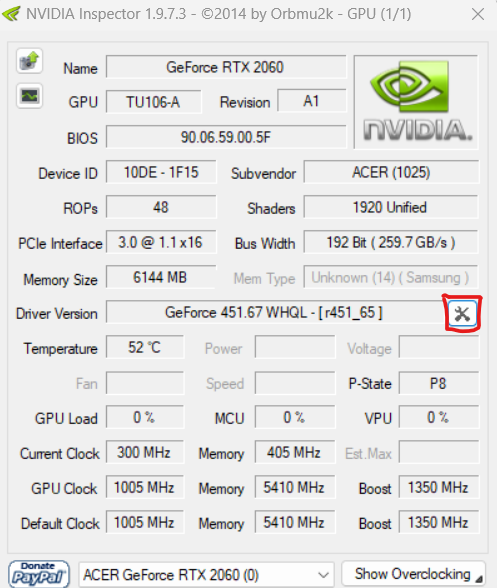
Most computers have built-in tools to check GPU performance. Windows users can open Task Manager by pressing Ctrl + Shift + Esc. Then, click the Performance tab and select GPU. This view shows real-time usage, memory, and temperature.
Mac users can use Activity Monitor. It displays GPU usage under the Window menu with GPU History. These tools give basic but useful information without extra software.
Third-party Software Options
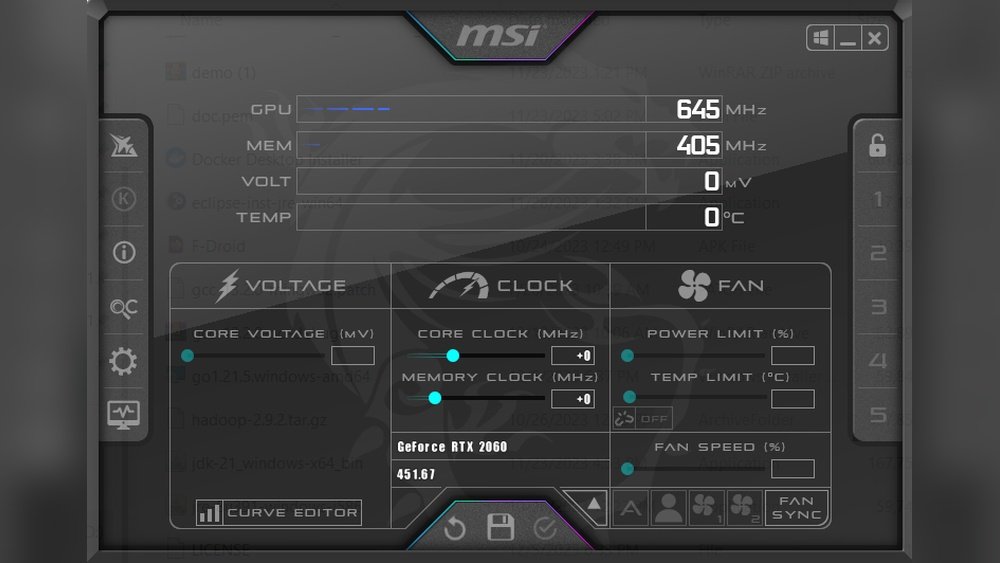
Third-party software offers more detailed GPU data. Programs like MSI Afterburner or GPU-Z show clock speeds, temperatures, and load percentages. These tools help spot GPU stress during gaming or heavy tasks.
Some software also allows setting limits or alerts to protect the GPU. They provide graphs and logs for better tracking over time. Using these apps is simple and helps maintain healthy GPU performance.
Adjusting Gpu Settings
Adjusting GPU settings helps control how much work your graphics card does. This can reduce heat, save power, and make your computer quieter. You can change several key settings to limit GPU usage effectively.
Modifying Power Limits
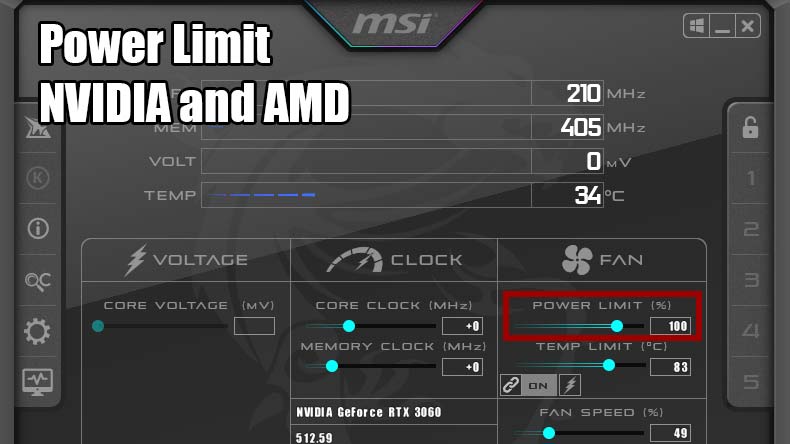
Power limits set the maximum energy your GPU can use. Lowering this limit reduces power consumption and heat. It also slows down the GPU slightly, which helps keep usage in check. Use software from your GPU maker to adjust power limits safely.
Controlling Clock Speeds
Clock speeds determine how fast the GPU runs. Reducing the clock speeds limits the work your GPU can do. This lowers performance but decreases power use and heat. You can use tools like MSI Afterburner to set lower clock speeds easily.
Managing Fan Speeds
Fan speeds affect how well your GPU cools down. Increasing fan speeds helps keep temperatures low during heavy use. Slower fans reduce noise but may allow the GPU to get hotter. Adjust fan speeds manually or use automatic controls in your GPU software.
Credit: www.vicentetorns.com
Optimizing Software For Lower Gpu Load
Optimizing software helps reduce the load on your GPU. This means your graphics card works less hard. It can prevent overheating and save power. Also, your system runs smoother and lasts longer. Small software changes make a big difference in GPU use.
Adjusting Game Graphics Settings
Lowering game graphics settings cuts GPU strain. Reduce resolution, shadows, and texture quality. Turn off extra effects like motion blur or reflections. Use presets like “medium” or “low” instead of “high.” These steps keep games playable and reduce GPU work.
Limiting Background Processes
Close unnecessary programs running in the background. These apps can use GPU power without you knowing. Use Task Manager to check and stop heavy processes. Keep only essential apps open during gaming or heavy tasks. This frees GPU resources for main tasks.
Using Gpu-specific Profiles
Many GPUs have control panels with profile settings. Create or use existing profiles to limit GPU use. Set power management to “optimal” or “adaptive” mode. Profiles can prioritize efficiency over performance. This reduces GPU load without hurting user experience.
Utilizing Operating System Features
Operating systems have built-in tools to control GPU usage effectively. These features help manage power and performance easily. You can adjust settings to limit GPU use on your computer. This reduces overheating and saves battery life on laptops. Let’s explore how to use these options.
Setting Power Plans
Power plans affect how your system uses hardware, including the GPU. Choose a balanced or power saver plan to reduce GPU load. These plans lower the GPU clock speed and limit background tasks. You can find power plans in the Control Panel or Settings app. Adjusting these can improve efficiency and lower energy use.
Configuring Gpu Preferences Per Application
Windows allows setting GPU preferences for each app. Assign apps to use integrated or dedicated GPU based on needs. Integrated GPUs use less power but are slower. Dedicated GPUs deliver more power but consume more energy. This setting helps control GPU use for games, browsers, and software. Access this option through Graphics Settings in Windows.
Implementing Hardware Solutions
Implementing hardware solutions helps control GPU usage effectively. Hardware changes can reduce overheating and power strain. These solutions improve your computer’s stability and performance. Let’s explore two key hardware upgrades that limit GPU usage.
Improving Cooling Systems
Better cooling lowers GPU temperature and prevents overheating. Install extra fans or replace old ones with quiet, efficient models. Use high-quality thermal paste between the GPU and its cooler. Consider liquid cooling for intense workloads. Cooler GPUs run smoother and use less power. This reduces the need for the GPU to throttle itself.
Upgrading Power Supply
A strong power supply delivers steady energy to the GPU. Old or weak power units cause voltage drops and instability. Choose a power supply with enough wattage for your GPU’s needs. Look for models with good efficiency ratings, like 80 Plus Bronze or higher. Stable power helps the GPU perform consistently and limits excessive usage. It also protects your hardware from damage caused by power issues.

Credit: github.com
Frequently Asked Questions
How Can I Limit Gpu Usage On Windows?
You can limit GPU usage on Windows by adjusting power settings and using third-party software. Tools like MSI Afterburner help control GPU load. Setting specific application preferences in the graphics control panel also reduces GPU usage effectively.
Why Should I Limit Gpu Usage?
Limiting GPU usage prevents overheating, reduces power consumption, and extends hardware lifespan. It also improves system stability during intensive tasks and minimizes fan noise, enhancing overall user experience.
What Software Helps Control Gpu Usage?
MSI Afterburner, NVIDIA Control Panel, and AMD Radeon Software are popular tools. They allow you to adjust GPU clock speeds, power limits, and fan speeds, giving you better control over GPU performance and usage.
Does Limiting Gpu Usage Affect Gaming Performance?
Yes, limiting GPU usage may lower gaming performance and frame rates. However, it helps maintain stable temperatures and prevents thermal throttling, resulting in smoother long-term gameplay and reduced hardware stress.
Conclusion
Controlling GPU usage helps keep your computer cool and fast. Simple steps can reduce power use and avoid overheating. Adjust settings often to find the best balance for your needs. Watch your system’s performance to see what works well. Small changes make a big difference in GPU health.
Stay patient and try different methods to limit GPU load. Keep your device running smoothly and last longer this way.
